How to Change Windows Machine's SID on Windows 7 & Server 2008 (How To)
Daily I use Virtual Machines to test software or to write tutorials for several cases. To do this quickly and safely I clone a clear VM image so I perform my tests in a clear and stable Windows environment. In other cases when a domain computer needs to be reinstalled, I use a preconfigured disk image to clone that machine quickly. In both cases, in order to ensure that the cloned machine (VM or physical) will work perfectly, I have to change the Machine's Security Identifier (SID) and the computer's name after the cloning process. In my opinion, this must be done to avoid problems due to duplicated names or SIDs on the same network.
In this article you can find detailed instructions on how to change Windows Machine's SID.
How to change the Computer's SID in Windows 7 & Server 2008.
According to my opinion, the safest and easiest way to change Windows Machine's SID is to use System Preparation Tool (sysprep). So let's start:
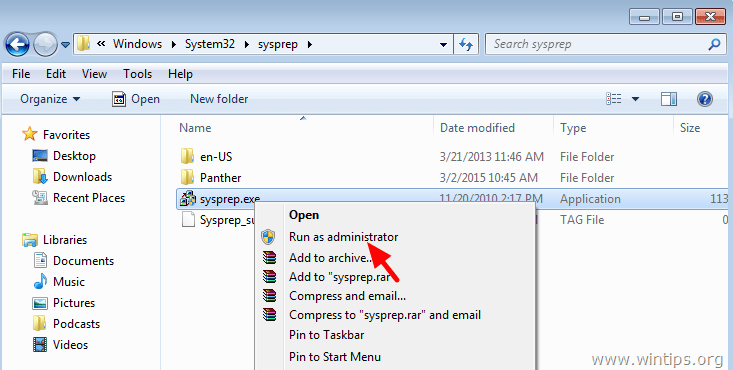
1. Open Windows Explorer and navigate to C:\Windows\System32\sysprep\ folder.
2. Right-click at sysprep.exe file and choose Run as administrator.
3. At System Preparation Tool, click to select the Generalize checkbox, leave the other settings* untouched and press OK.
* System Cleanup Action = Enter System Out-of-Box Experience (OOBE), Shutdown Options = Reboot

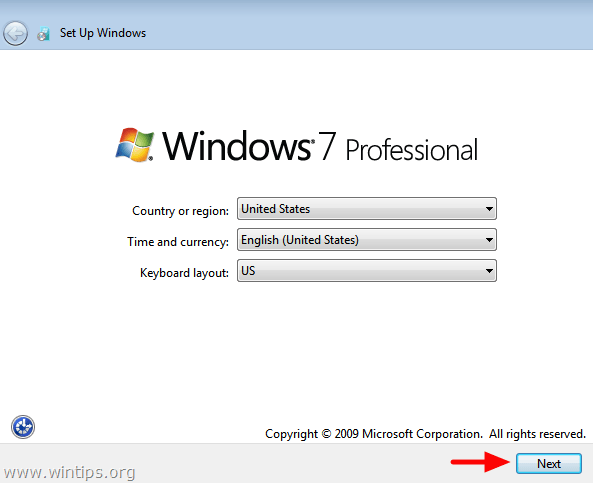
4. When your system restarts, choose your Country/ Region, Time and currency & Keyboard layout settings & press Next.
5. Type a Username and a Computer Name & press Next.

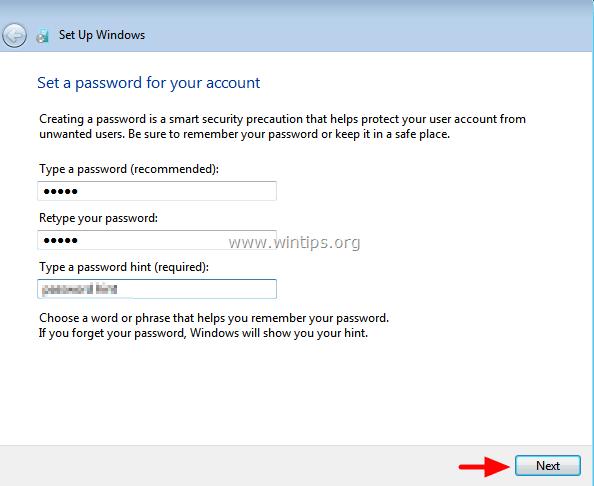
6. Type a password (if you want) and press Next.
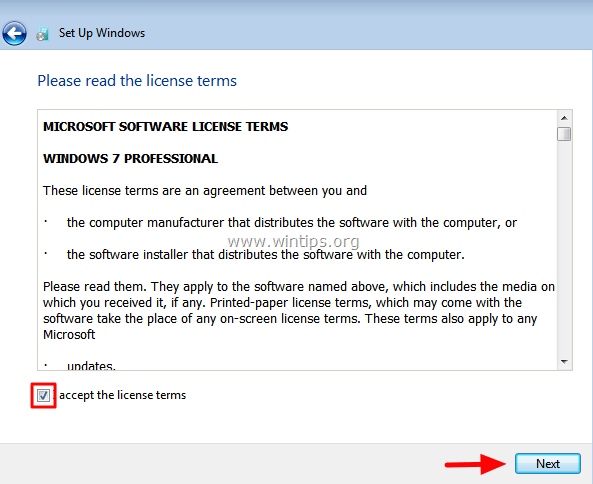
7. Accept the License Terms & Press Next.
8. Select how you want Windows to protect your computer. (e.g. Select Use recommended settings)

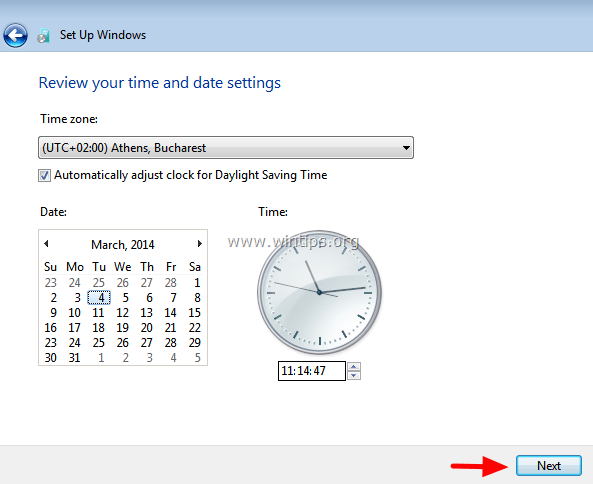
9. Set the Time and Date settings & press Next.
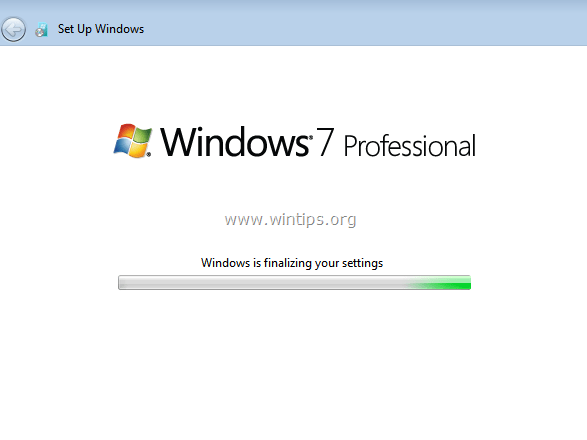
10. Now wait until Windows finalizes your settings.
That's it!


- Always On VPN Stuck on Connecting After KB5124008 Update: How to Fix - September 24, 2026
- How to Disable Passkey Prompts and Delay Enforcement in Microsoft 365 - September 24, 2026
- Remote Desktop (RDP/RDS) Stops Working After September 2026 Windows Update: How to Fix - September 15, 2026