
How to Fix Windows 11 Upgrade Problems (Full Guide).
Many Windows 11 users encounter errors while downloading, installing, or upgrading to the latest Windows 11 version. This comprehensive guide provides several solutions with step-by-step instructions to resolve Windows 11 upgrade/update issues.
Keeping your Windows 11 PC up to date is crucial for security, performance, and new features. However, sometimes the update process is unsuccessful with error messages like "There were some problems installing updates" or "Feature update to Windows 11 failed to install" or other errors that don't explain the root cause of the problem.

If you are experiencing such errors or other problems while trying to install updates on Windows 11 or while trying to upgrade Windows 11 to its latest version, then follow the instructions below to resolve them.
How to solve Windows 11 Upgrade or Update problems.*
* Important: This guide contains almost all methods for troubleshooting Windows 11 upgrades or updates, starting from the simplest to the most advanced. Therefore, it is recommended that you follow the methods, steps and instructions exactly in the order listed and do not skip any of them.
- General steps for a successful upgrade of/to Windows 11.
- Force Windows to re-download & install update(s).
- Update Windows 11 with 'Windows Installation Assistant'.
- Install Windows 11 Update(s) in Clean Boot Mode.
- Fix Windows Update errors by using the DISM & SFC tools.
- Repair & Upgrade Windows from ISO file.
- Remove unknown User Profiles.
- Remove incompatible device drivers.
- Free up space on the System reserved partition.
- Find the cause of problem from the error logs.
- Reinstall the current version of Windows 11.
- Update BIOS/FIRMARE.
- Reset Windows 11.
- Clean Install Windows 11.
Method 1. General steps for a successful upgrade of/to Windows 11.
Before proceeding to the more complicated methods below to fix Windows 11 upgrade problems, do the following:*
* Note: The instructions in this method should be followed every time you want to upgrade your Windows 11 system to a newer version. (e.g. from Windows 11 v23H2 to Windows 11 v24H2)
Step 1. Check System Requirements for Windows 11.
Make sure your PC meets the Windows 11 minimum system requirements for the update:
- Processor: 1 GHz or faster, 2+ cores, 64-bit
- RAM: 4GB minimum
- Storage: At least 64GB free space
- System firmware: UEFI, Secure Boot capable.
- TPM: TPM 2.0
Additionally, if you want to upgrade your system to Windows 11 v24H2, make sure that your CPU supports SSE4.2 (Intel) or SSE4A (AMD) instructions.
* Important info: Windows 11 24H2 has one more hardware requirement to install: The Processor must support the SSE4.2 instructions set, otherwise the system may not be able to boot or show the update error "0XC1900101 – 0x20017".
Therefore, before you try to install Windows 11 v24H2 on your computer, run the CPU-z utility to find out if your CPU supports SSE4.2 (Intel) or SSE4A (AMD) instructions.

Step 2. Check compatibility with the PC Health Check tool:
Download and run the PC Health Check tool from Microsoft's official site and ensure that your system is eligible to run Windows 11.

Step 3. Important actions to take before updating Windows 11.
- If you have BitLocker encryption enabled on your system, go ahead and suspend or turn off BitLocker before installing the update (very important) and re-enable BitLocker after the update is successfully installed.
-
Make sure you have more than 64 GB of free space on your C: drive before you install the update.
-
Delete the useless files with Disk Cleanup. by using the instructions in this tutorial: How to Free Up Disk Space with Disk Cleanup.
-
Disconnect all external devices that are not needed for the update. (e.g. USB Drives, USB Flash Disks, USB Printer etc.)
-
Disable -or better- temporarily uninstall all non-Microsoft security software (antivirus, antimalware, firewall, etc.), to avoid installation problems during the upgrade.
Step 4. Install Optional updates & latest device drivers.
1. Navigate to Start -> Settings -> Windows Update > Advanced options and under Additional Options click Optional Updates.
2. In Optional updates, check all the checkboxes to install all the available Windows and the Driver updates and click Download & install.

3. After installing the optional updates (if any), navigate to your device manufacturer's support site and check if any new drivers are available for your device's hardware. If so, download and install them.
4. After following the instructions above, try installing the failed update again and if it fails to install again, proceed to the methods below.
Method 2. Force Windows to re-download and install updates from scratch.
The first method to fix Windows 11 update problems is to force Windows 11 to re-download and install the update(s) from scratch. To do this, go ahead and delete the "SoftwareDistribution" folder, which is the location where Windows stores updates:
1a. Press the Windows  + R keys to open the Run command box.
1b. In run command box, type "services.msc" and press Enter to open the Windows Services control panel.

2. Right-click on Windows Update service and select Stop.

3. Then, open Windows Explorer, navigate to C:\Windows folder and open it to explore its contents.
4. Select and Delete the “SoftwareDistribution” folder. (Click Continue at "Folder Access Denied" window).
* Notes:
1. After deleting this folder, the next time the Windows Update will run, a new empty "SoftwareDistribution" folder will be automatically created by Windows to store updates.
2. If you cannot delete the folder because of error "Folder in use – try again", then delete it after starting Windows in "Safe Mode".

5. Restart your computer and then try to install updates.
Method 3. Upgrade Windows 11 with Installation Assistant.
The easiest method to fix Windows 11 update problems, is to upgrade your system using the "Windows 11 installation assistant". To do this:
1. Navigate to Windows 11 download site to download the Windows 11 Installation Assistant.

2. Then run the "Windows11InstallationAssistant.exe" and choose YES at the UAC warning
3. Accept the License Terms and then wait the Installation Assistant to download the required files and install the update.

4. When the process is complete, click Restart Now to complete the installation

5. After restart, the installation will continue and after a few minutes will end.
6. Finally, navigate to Windows Update and check if there are any other updates available to install. If so, let Windows to install them and you're done!
Method 4. Install Windows 11 Update(s) in Clean Boot Mode.
Because a third-party program or driver may be preventing the installation of updates, start Windows in Clean Boot state and then try again to install the failed update(s). To do that:
1. Simultaneously press the Windows + R keys to open the 'Run' command box.
2. In run command box, type "msconfig" press Enter to open the System Configuration utility.

3. Select the Services tab, select the Hide all Microsoft services check box, and then click Disable all to turn off all non-Microsoft services. When done, click Apply.

4. Now select the Startup tab and click Open Task Manager.

5. In Task Manager, select each Enabled startup program and click Disable (or right-click on it and click Disable).

6. When done, close Task Manager and click OK on System Configuration utility.

7. Finally, click Restart to reboot your PC in Clean Boot state.

8. Now, try installing the updates again and if the update is successful, run the "msconfig" tool again, go to the General tab, and select Normal Startup & OK to exit from the clean boot mode and continue your work.

Method 5. Fix Windows 11 Update Problems with DISM & SFC tools.
The next method to fix problems in Windows 11 update, is to repair the Windows installation and System Files using the DISM and SFC tools.
1. In Search type "cmd" and then open Command Prompt as Administrator.

2. At the command prompt window, type the following command & press Enter:
- dism.exe /Online /Cleanup-Image /Restorehealth
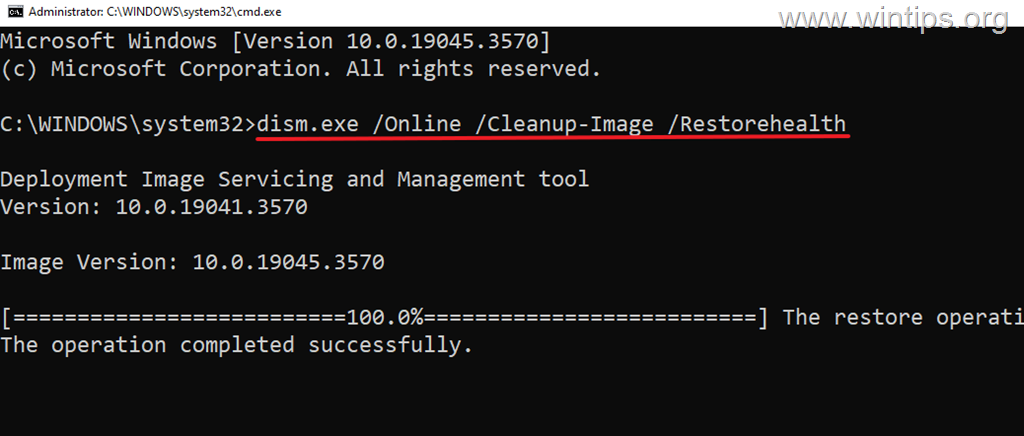
3. Be patient until 'Deployment Image Servicing and Management' (DISM) tool repairs the component store.
4. When the operation is completed, give the command below to repair the system files and press Enter:
- sfc /scannow
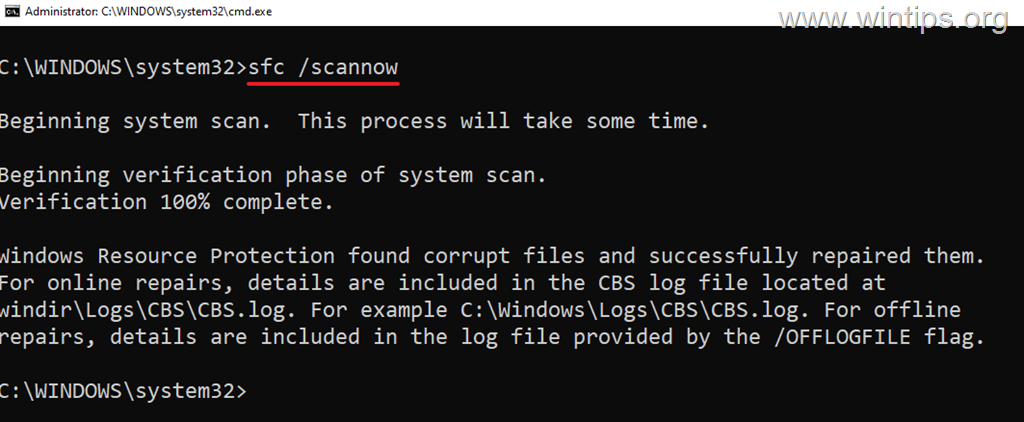
5. When SFC scan is completed, restart your computer.
6. After restarting try to install the update again.
Method 6. Repair Windows 11 with an In-Place Upgrade.
Another reliable method to solve update problems is to repair & upgrade Windows 11 from a Windows ISO file. For this task, read the instructions in the following article:
Method 7. Delete Unknown Profile(s) in System Settings.
Windows 11 update(s) may fail to install if an unknown user profile* present on the computer. So do the following:
* Related article: FIX: 0x8007001f on Windows 11 v24H2 Installation.
1. Open File Explorer, right-click on This PC shortcut on the left pane and select Properties.
* Alternately, go to Start > Settings > System > About.

2. Click Advanced system settings.

3. Then click Settings in Users Profiles section.

4. Check if there are any "Unknown Account" profiles here and if so, select them and then delete them.

5. After profile deletion, restart the computer and then retry to install the update(s) again.
Method 8. Find and Remove incompatible device drivers.
The Memory Integrity System Readiness Scan Tool is a diagnostic utility from Microsoft designed to help users identify and resolve compatibility issues that may prevent the Memory Integrity feature from being enabled in Windows 10, Windows 11, and Windows Server 2016 and later.
Since the latest versions of Windows 11 require drivers compatible with Memory Integrity, go ahead and check if your installed device drivers are compatible.
1. Download the Memory integrity system readiness scan tool according your CPU architecture.*
* Note: Microsoft has released two versions of the Memory Integrity Scan tool for Windows devices with ARM or Intel/AMD processors. So if you have an Intel or AMD processor, download "hvciscan_amd64.exe", otherwise, if you have an ARM processor, download "hvciscan_arm64.exe".

2. When the download is complete, press the Windows + R keys, type "cmd" and click OK to open command prompt.

3. Now type "cd" press Space and then type the name of the folder containing the downloaded file (e.g. the "Downloads" folder in this example), When done, press Enter.

4. Finally give the following command and press Enter:
- hvciscan_[architecture].exe

5. Now look at the hvciscan results to find if any incompatible drivers are installed and if so, remove them.*
* For example: As you can see in the screenshot below, the driver "E1G6032E.sys" (which belongs to "Intel Pro/1000 Adapter") is incompatible and must be remove in order to install the update.

Method 9. Free up space on the reserved system partition.
One reason why a major update might not install in Windows 11 is a full System Reserve Partition (SRP).* So go ahead and free up space on the System Reserve partition and then try to install the failed update again.
* Info: The System Reserve Partition (SRP) is a small partition on your hard drive that stores boot information for Windows.
1. In Search type "cmd" and then open Command Prompt as Administrator.

2. In command prompt, give the following commands in order (press Enter after typing each command):
- mountvol y: /s
- Y:
- cd EFI\Microsoft\Boot\Fonts
- del *.*
After typing the last command press Y and then Enter to continue.

3. Restart your PC and try to install the update(s) again.
Method 10. Identify the Cause of the Problem from the error logs.
The next method to fix problems when upgrading Windows 11, is to diagnose the cause of the problem by reading the upgrade log files* found in these locations:
-
C:\$Windows.~BT\Sources\Panther\setupact.log
-
C:\$Windows.~BT\Sources\Rollback\setupact.log
-
C:\Windows\Panther\setupact.log
* Note: Open the "setupact.log" in notepad and then read this Microsoft's guide on how to analyze it.
Method 11. Fix Windows 11 Update issues by reinstalling current version of Windows 11.
Another method to fix problems in Windows 11 Update, is to reinstall the current version of Windows.*
*Important: Before you reinstall your current version of Windows, back up your files to an external USB storage device, so you don't lose your files if something goes wrong.
1. Navigate to Start -> Settings -> System -> Recovery
2. Under Fix problems using Windows Update, click Reinstall now.

3. At the next screen click OK.

4. After clicking OK, you will be taken to the Windows Update page where a repair version of Windows 11 will be downloaded and installed. When the installation is complete, restart your PC.

5. Finally, go again to Windows Update center, check and install all available updates and you're done!
Method 12. Update BIOS/FIRMARE.
An outdated BIOS can also cause problems in Windows 11 update. So, try to update the BIOS and see if that fixes the problem. To update the BIOS without problems, follow the instructions in this guide: How to Update BIOS Safely with Windows 11/10.
Method 13. Reset Windows 11.
Resetting Windows to their default state, is another method to fix update problems in Windows 11. For this task, read the instructions in this article: How to Reset Windows 11.
Method 14. Clean Install Windows 11.
The final method to fix problems in Windows 11 update, is to backup your files and to perform a fresh installation of Windows. For this task, read the instructions in the following article:
That's it! Which method worked for you?
Let me know if this guide has helped you by leaving your comment about your experience. Please like and share this guide to help others.
Frequently Asked Questions
What should I verify before upgrading to Windows 11?
Before upgrading to Windows 11, ensure your PC meets the minimum system requirements, such as a 1 GHz processor, 4GB RAM, 64GB storage, UEFI firmware, and TPM 2.0. Additionally, for Windows 11 v24H2, verify your CPU supports SSE4.2 (Intel) or SSE4A (AMD) instructions.
What is a common error message when Windows 11 updates fail?
Common error messages include "There were some problems installing updates" or "Feature update to Windows 11 failed to install." These messages often don't reveal the underlying problem but indicate that update troubleshooting is required.
How can I prepare my system before attempting a Windows 11 update?
Before updating, ensure to turn off BitLocker if it's enabled, free up more than 64GB on your C: drive, use Disk Cleanup to delete unnecessary files, and disconnect all non-essential external devices. Temporarily disabling or uninstalling non-Microsoft security software can also help.
What tool can I use to check my system’s eligibility for Windows 11?
You can use the PC Health Check tool available from Microsoft’s official site to ensure your system is eligible to run Windows 11.


- Remote Desktop (RDP/RDS) Stops Working After September 2026 Windows Update: How to Fix - September 15, 2026
- Windows 11 KB5124008 Causes No Sound or USB Audio Code 10: How to Fix - September 14, 2026
- Copilot Missing or Grayed Out in Outlook: How to Fix - September 10, 2026



