How to Restrict Non-Admin Access to Azure Portal, CLI, and Entra admin center
In this guide, you’ll learn how to restrict access to common pages in the Microsoft Entra admin center using a built-in setting, and how to block Azure management access through the Azure portal, the Entra admin center, and Azure CLI using Conditional Access.
By default, regular users in Microsoft Entra ID can access the Azure portal and Microsoft Entra admin center, even if they don't have administrative privileges. Although these users cannot perform administrative tasks without the appropriate permissions, you may want to prevent them from accessing these management portals altogether.
Why Restrict Azure Management Access?
By default, users in a Microsoft Entra tenant may be able to open the Azure portal or the Microsoft Entra admin center, or sign in through Azure CLI, even if they don’t manage Azure resources.
Azure Role-Based Access Control (Azure RBAC) determines what users can do with Azure resources after they sign in. If certain users don’t need Azure management access, you can use Conditional Access to block their requests to the management resources used by these tools.
Restricting Azure management access helps:
- Limit access through the Azure portal, the Microsoft Entra admin center, and Azure CLI to users who need it.
- Reduce the risk of a compromised standard user account being used to access Azure management resources.
- Support least-privilege and compliance requirements.
Prerequisites:
- Microsoft Entra ID Premium P1 or P2
- Microsoft Entra ID admin permissions.
How to Restrict Access to the Microsoft Entra admin center for Standard users.
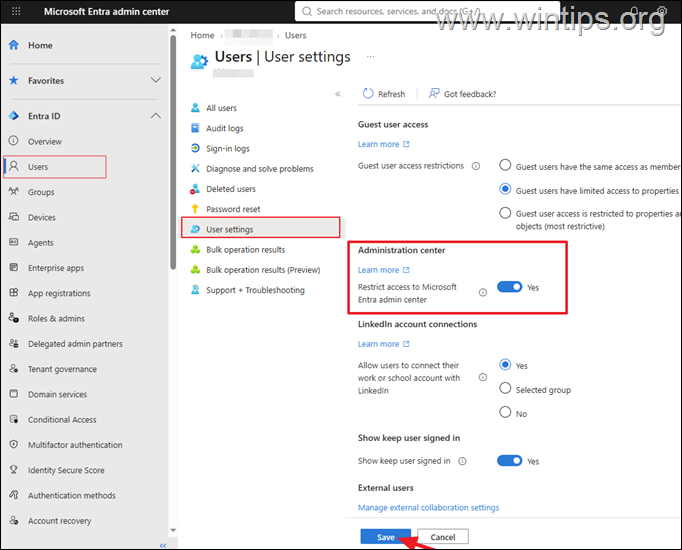
Microsoft Entra ID also includes a built-in setting that restricts non-administrative users from accessing common pages in the Microsoft Entra admin center.
To restrict access to common pages in the Microsoft Entra admin center:
1. Sign in to the Microsoft Entra admin center.
2. Navigate to Entra ID > Users > User settings.
3. Find Restrict access to Microsoft Entra admin center and set it to Yes.
4. Click Save.
Important: This setting restricts access to certain administrative pages for non-admin users, but according to Microsoft this setting doesn't prevent access through Microsoft Graph or other APIs, and it may affect non-admin group owners who manage their groups through the portal. For enforced access restrictions, use the Conditional Access method described below.
How to Block Non-Admin Users from Azure Portal, Azure CLI & Microsoft Entra Admin Center Using Conditional Access
The recommended way to block users from accessing the Azure portal and Microsoft Entra admin center is to create a Conditional Access policy that blocks access to Azure Management.
After you enable the policy, users it applies to are blocked from obtaining an access token for the targeted Azure management resource through Azure CLI, the Azure portal, or the Microsoft Entra admin center. Administrators and other authorized users who are excluded from the policy can continue using these tools, subject to their existing permissions and any other applicable policies.
1. Navigate to Microsoft Entra admin center, select Conditional Access on the left side, and then click Create new policy.
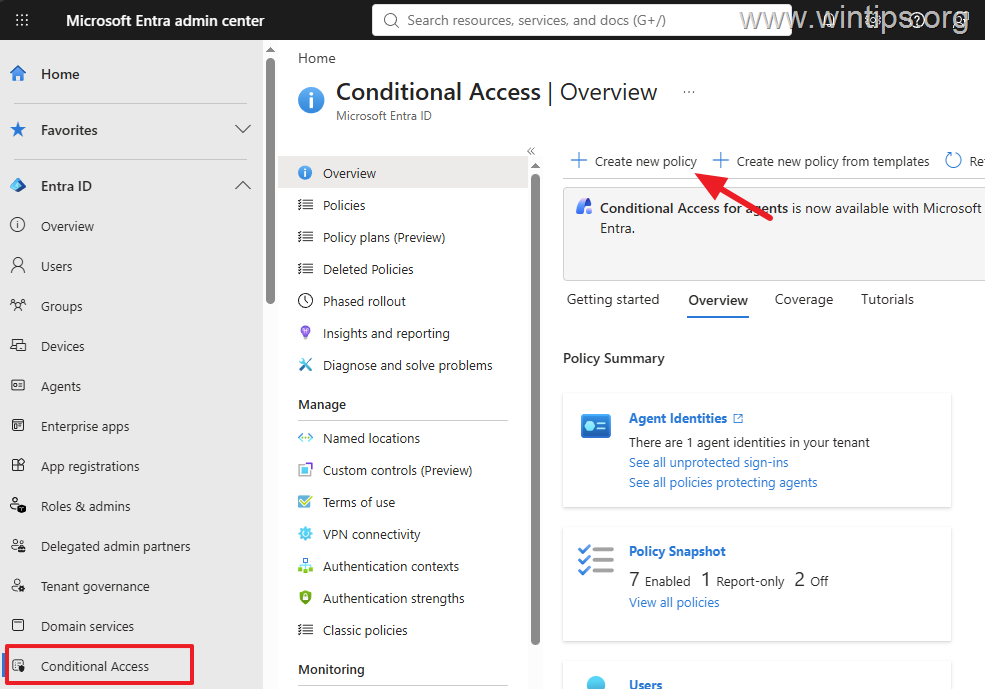
2. Type a name for the new policy (e.g., "Restrict Azure Portal Access to Non-Admin Users" or "Block Azure Management Access for Standard Users").
3. Click at Users or agents and do the following:
3a. On the Include tab, select All users.
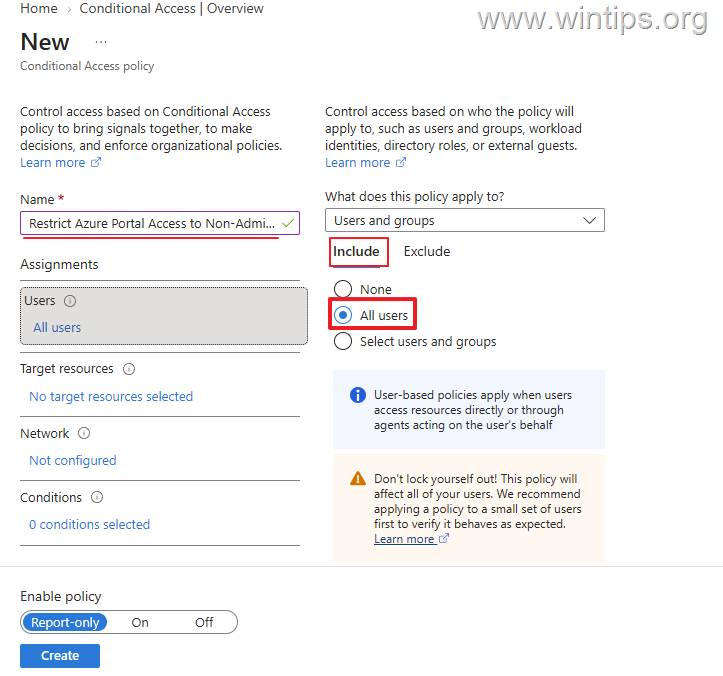
3b. Then, select the Exclude tab, select Users and groups, and exclude:
- Your Microsoft 365 administrator account to avoid locking yourself out.
- The Break Glass Administrator account.
- Any other Microsoft 365 Global Administrator account in your tenant.
- Any users who need Azure management access, including users with Azure RBAC roles who don’t have an Entra admin role.
Important: This policy can also affect Azure PowerShell, Azure CLI, Azure Resource Manager, and other services that depend on Azure management resources. Don't include users who need these services for their work.
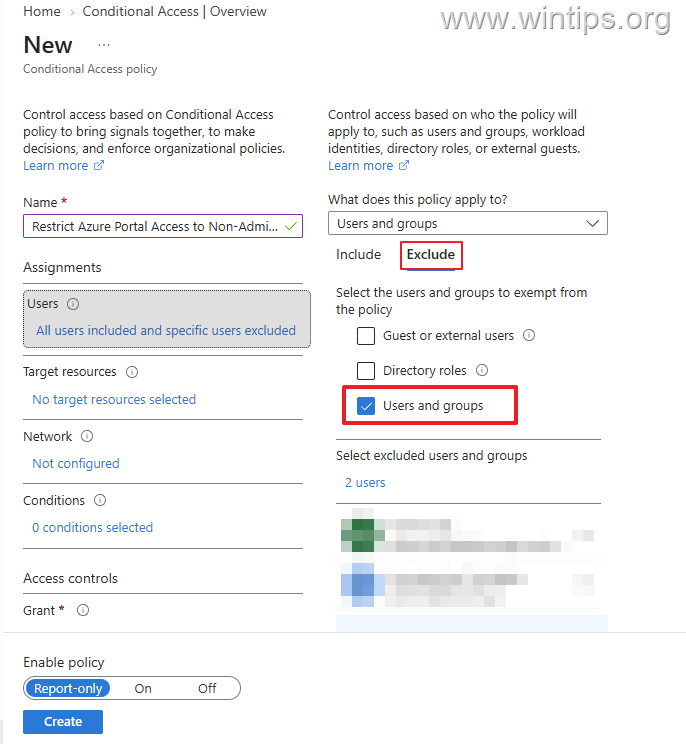
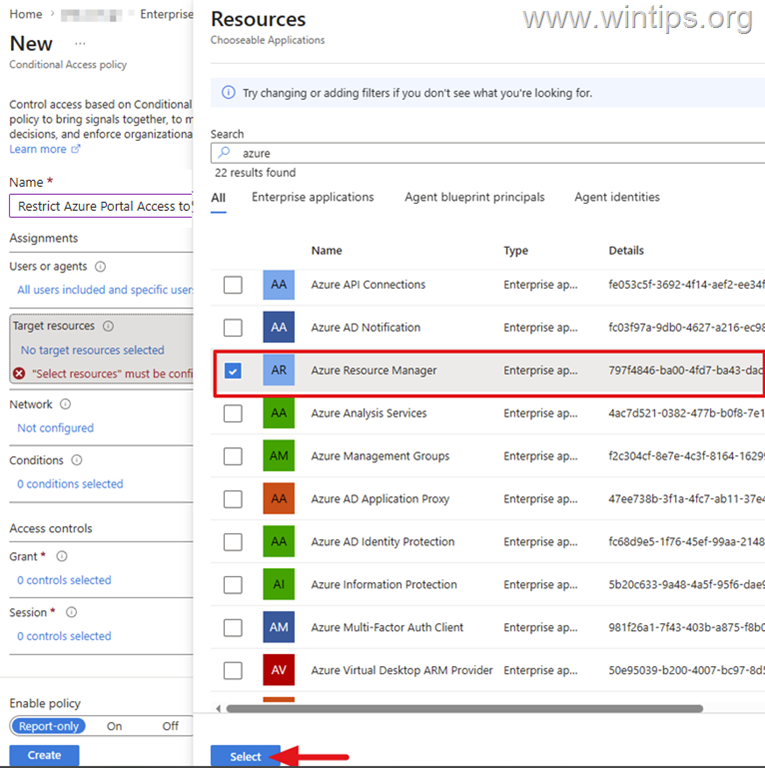
4a. Now, click Target resources.
4b. On the Include tab, select Select resources, and then choose Select specific resources.
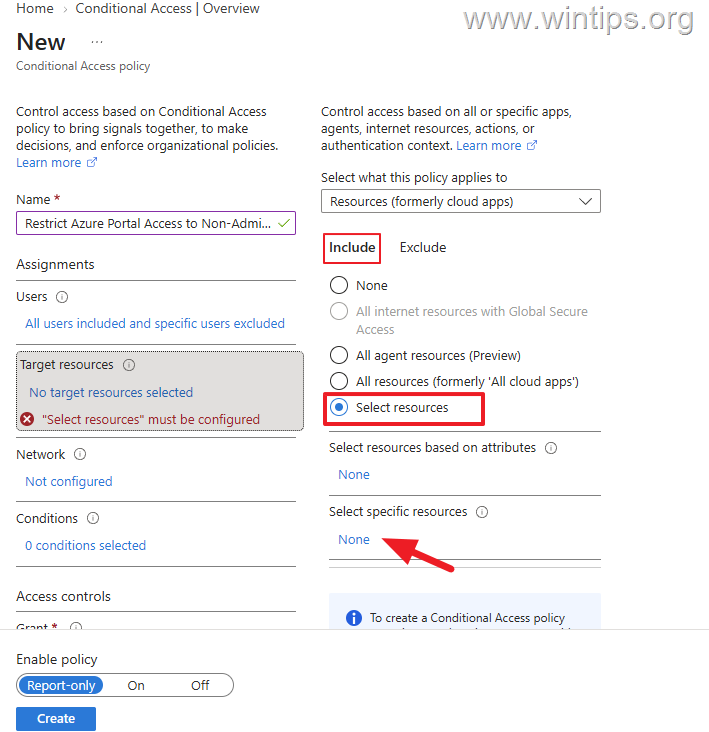
4c. In the Resources window, search for "Azure", and then select the Azure Resource Manager* from the search results (Application ID: 797f4846-ba00-4fd7-ba43-dac1f8f63013.)
Notes:
- In older tenants, this resource may appear as Microsoft Azure Management or Windows Azure Service Management API.
- Azure Resource Manager is the recommended target because it serves as the management layer for Azure resources, authenticating and authorizing each request before forwarding it to the appropriate Azure service (source: https://learn.microsoft.com/en-us/azure/azure-resource-manager/management/overview)
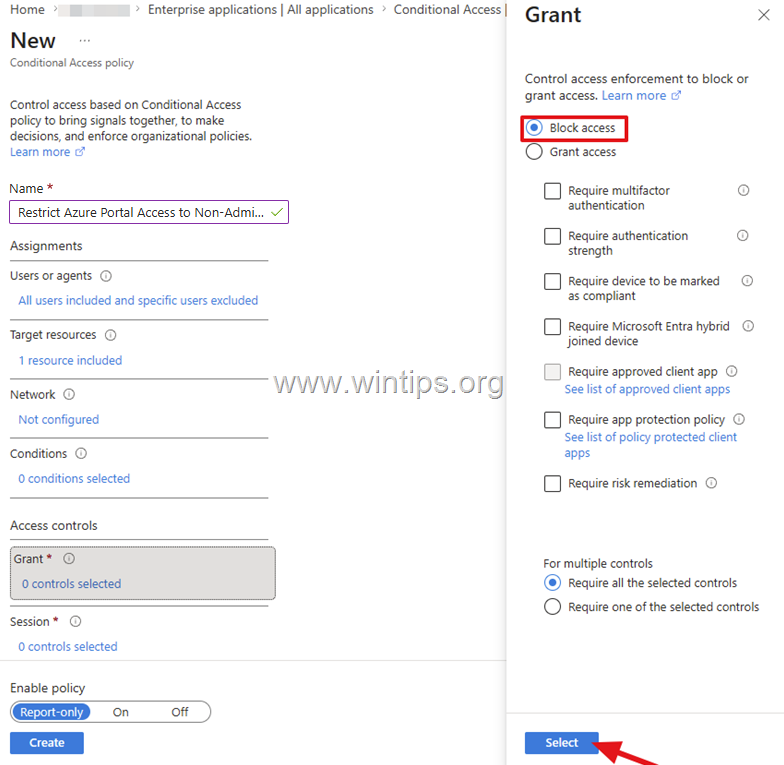
5. Then, click Grant and select Block access.
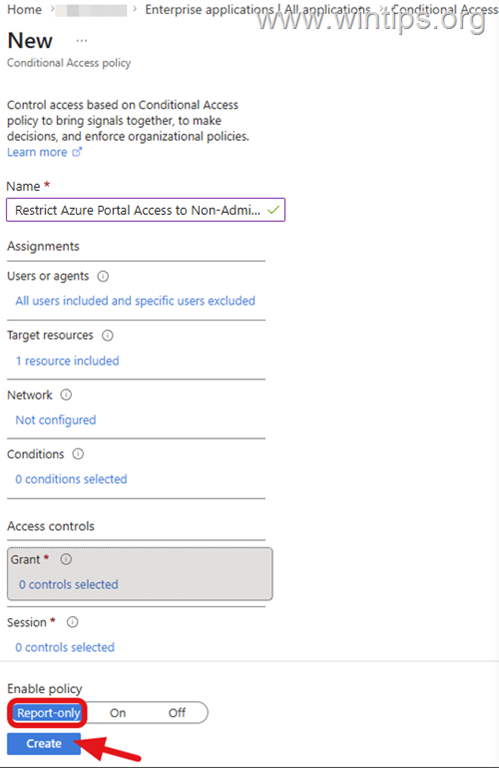
6. Finally, set the policy to Report only and click Create.
7. Test the Azure portal, Microsoft Entra admin center, and Azure CLI separately. In the sign-in logs, verify that the policy would block the intended users and does not apply to authorized users.
8. Once you have confirmed that the policy does not negatively affect user connections, set it to On and ensure that it blocks the targeted requests, while allowing authorized users to retain the access they need.
Summary
To restrict Azure management access through the Azure portal, Microsoft Entra admin center, and Azure CLI, create a Conditional Access policy that targets Windows Azure Service Management API (which may appear as Azure Resource Manager) and set Grant to Block access for the intended users.
Always test the policy in Report-only mode before enabling it, and verify that administrators and other authorized users can continue accessing the resources they need.
The built-in Restrict access to Microsoft Entra admin center setting can provide an additional UI restriction, but it shouldn't replace Conditional Access when access enforcement is required.
That's it! Let me know if this guide has helped you by leaving your comment about your experience. Please like and share this guide to help others.
Frequently Asked Questions
Why should I restrict Azure management access?
Restricting Azure management access is important to limit access only to users who need it, reduce the risk of a compromised user account accessing Azure resources, and adhere to least-privilege and compliance requirements.
What are the prerequisites for setting up access restrictions?
To restrict access, you need Microsoft Entra ID Premium P1 or P2 and Microsoft Entra ID admin permissions.
How can I block non-admin users from accessing the Azure portal and Microsoft Entra admin center?
You can create a Conditional Access policy in the Microsoft Entra admin center that blocks non-admin users from accessing the Azure portal, Azure CLI, and the Microsoft Entra admin center.
Does the built-in setting in Microsoft Entra ID fully restrict access for non-admin users?
The built-in setting restricts access to certain pages for non-admin users but does not prevent access through Microsoft Graph or other APIs. For comprehensive restrictions, use Conditional Access policies.
Still having trouble fixing this issue?
💬 Get WinTips Remote Support →

- How to Restrict Non-Admin Access to Azure Portal, CLI, and Entra admin center - November 11, 2026
- How to Install and Register PnP PowerShell for SharePoint Online. - November 9, 2026
- KB5127648 Fails to Install (0x800f0845) or Causes Windows 11 to Loop in Recovery Mode (0xc000000d): How to Fix - November 4, 2026