How to Set Microsoft Edge as the Default Browser on iOS Devices Using Intune.
This guide contains step-by-step instructions to enforce Microsoft Edge as the browser for opening organization data on iOS devices managed with Microsoft Intune.
In enterprise environments with managed iOS/iPadOS devices, enforcing the use of Microsoft Edge for accessing organizational data (e.g., SharePoint) and enterprise applications enhances security, improves productivity, and strengthens compliance.
While iOS does not allow MDM solutions like Intune to directly change the default browser system-wide, administrators can effectively set Edge as the primary browser for corporate links, Microsoft 365 apps, and protected data using an app protection policy (MAM) for iOS.
Why Use an App Protection Policy (MAM) for iOS Devices?
Using an App Protection Policy (MAM) in Microsoft Intune allows organizations to secure corporate data at the application level on iOS/iPadOS devices, without requiring full device management. More specifically, with an Intune MAM policy, you can apply the following security measures:
- Restrict backup of organizational data to iTunes and iCloud.
- Block data sharing (restrict cut, copy, and paste) to unmanaged apps (eg. Contacts, Calendar, Notes, etc.)
- Prevent "Save As" to local storage or to unmanaged iOS native apps.
- Restrict screenshots and printing of corporate data.
- Require Edge to access corporate resources (SharePoint, Outlook for Web, etc.)
How to Enforce Microsoft Edge as the Primary Browser & Protect Corporate Data on iOS Devices with an Intune MAM Policy.
Prerequisites.
- Microsoft Intune admin privileges.
- Microsoft Edge for iOS already deployed to devices.
To enforce Microsoft Edge for opening corporate web content on iOS devices, create an App Protection Policy (MAM) for iOS/iPadOS and configure the setting ‘Restrict web content transfer with other apps’ to Microsoft Edge. To do this:
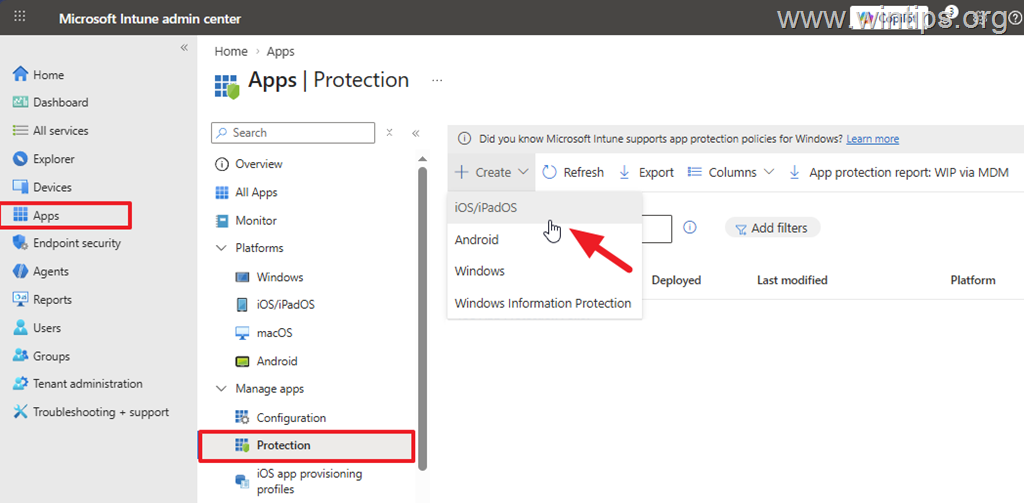
1. In Intune admin center select Apps > Protection.
2. Click Create and select iOS/iPadOS
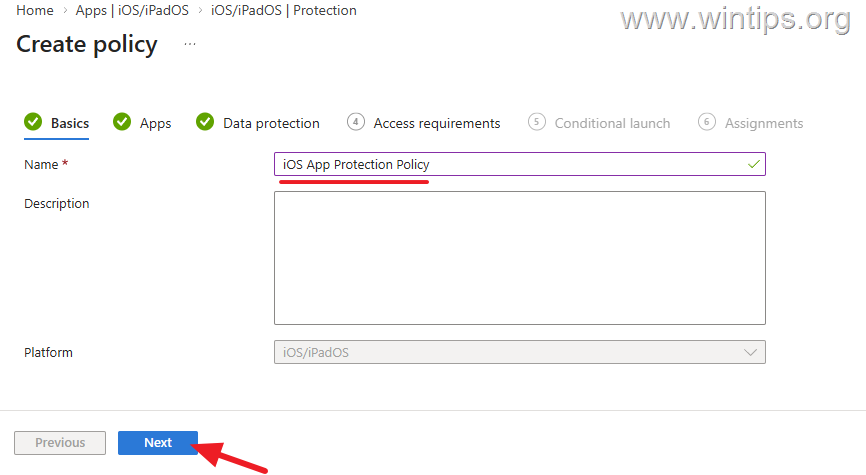
3. Type a name for the new policy (e.g. "iOS App Protection Policy") and click Next.
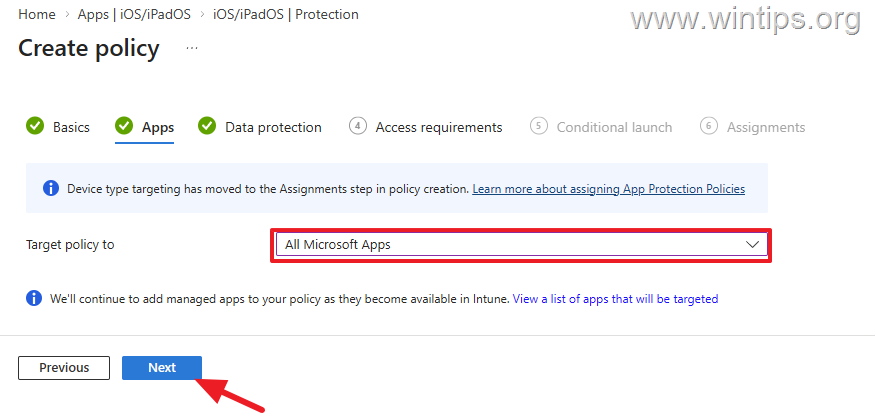
4. On the 'Apps' tab, Target policy to: All Microsoft Apps and click Next.
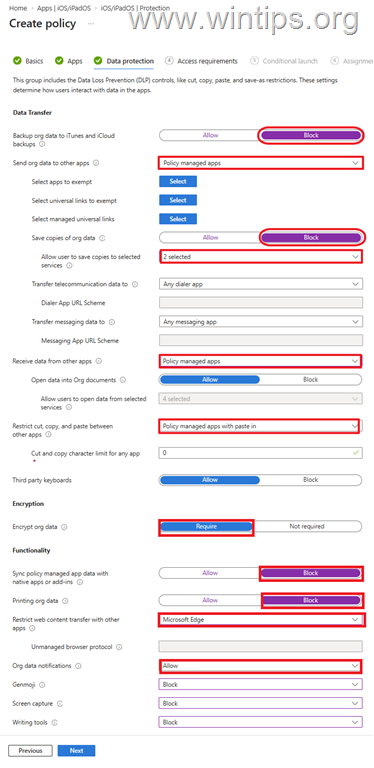
5. On the 'Data Protection' tab, set the following settings* and click Next.
* Note: The following settings represent the recommended baseline for protecting your organization's data from leaks on managed iOS devices and for enforcing Microsoft Edge as the default browser to open Microsoft 365 web content (eg. SharePoint links or links to enterprise apps). Please review these settings and adjust them according to your organization's requirements. For detailed information see here: iOS App Protection Policy Settings
-
Data Transfer
- Backup org data to iTunes and iCloud backups: Block
- Send org data to other apps: Policy managed apps
- Save copies of org data: Block
- Allow user to save copies to selected services: select only the OneDrive for Business & SharePoint
- Transfer telecommunication data to: Any dialer app
- Dialer App URL Scheme: No Dialer App URL Scheme
- Transfer messaging data to: Any messaging app
- Messaging App URL Scheme: No Messaging App URL Scheme
- Receive data from other apps: Policy managed apps
- Open data into Org documents: Allow
- Restrict cut, copy, and paste between other apps: Policy managed apps with paste in
- Cut and copy character limit for any app: 0
- Third party keyboards: Allow
- Encryption
- Encrypt org data: Require
- Functionality
- Sync policy managed app data with native apps or add-ins: Block
- Printing org data: Block
- Restrict web content transfer with other apps: Microsoft Edge *
- Org data notifications: Allow
- Genmoji: Block
- Screen capture: Block
- Writing tools: Block
* Note: To ensure that organizational links open only in Microsoft Edge, configure the "Restrict web content transfer with other apps" setting for "Microsoft Edge".
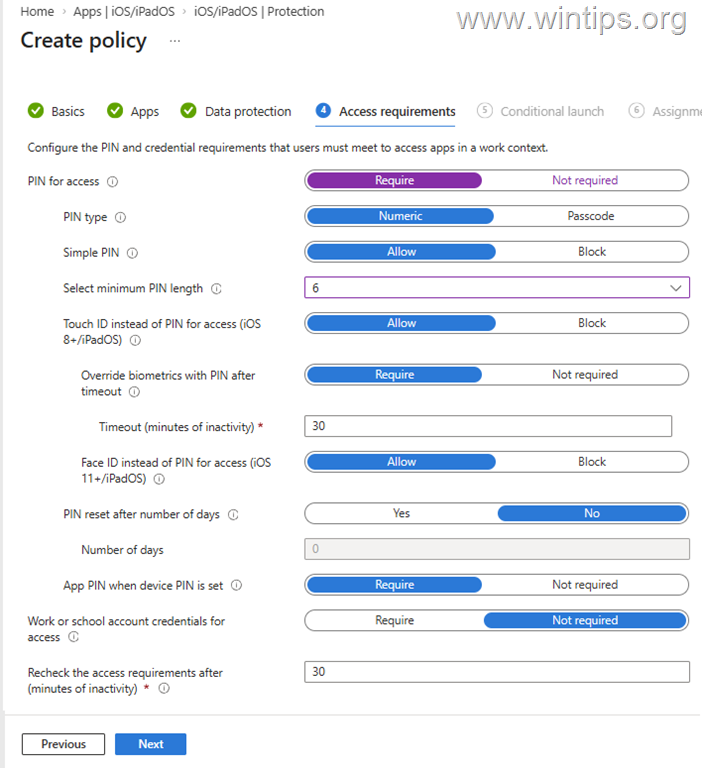
6. On the 'Access requirements' tab configure the PIN and credential requirements that users must meet to access corporate content and then click Next. *
* Note: The following settings specify the PIN and credential requirements for accessing corporate data in Microsoft 365. Please review and adjust them based on your organization's policies.
- PIN for access: Require
- PIN type: Numeric
- Simple PIN: Allow
- Select minimum PIN length: 6
- Touch ID instead of PIN for access (iOS 8+/iPadOS): Allow
- Override biometrics with PIN after timeout: Require
- Timeout (minutes of inactivity): 30
- Face ID instead of PIN for access (iOS 11+/iPadOS): Allow
- PIN reset after number of days: No
- Number of days: 0
- App PIN when device PIN is set: Not required
- Work or school account credentials for access: Not required
- Recheck the access requirements after (minutes of inactivity): 30
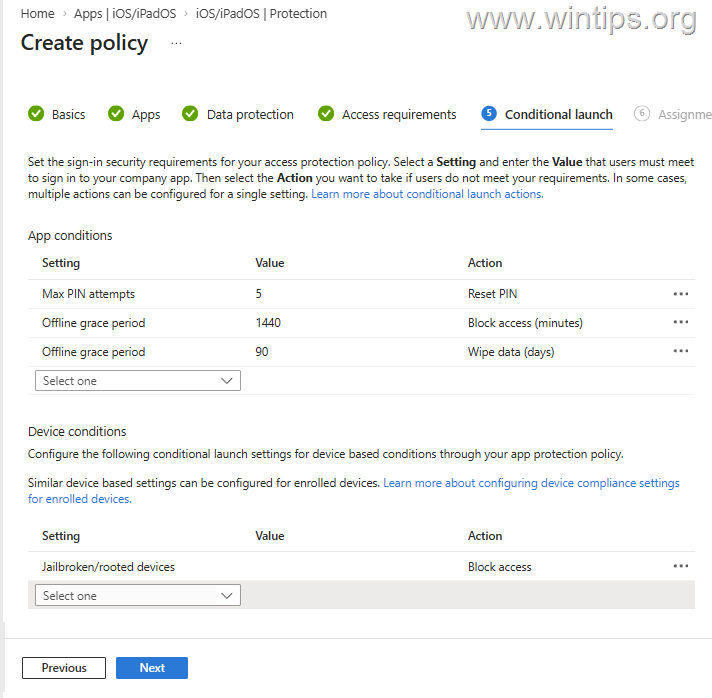
7. On the 'Conditional launch' review the default sign-in security requirements for the app protection policy and modify them according to your organization's requirements. When done, click Next to continue.
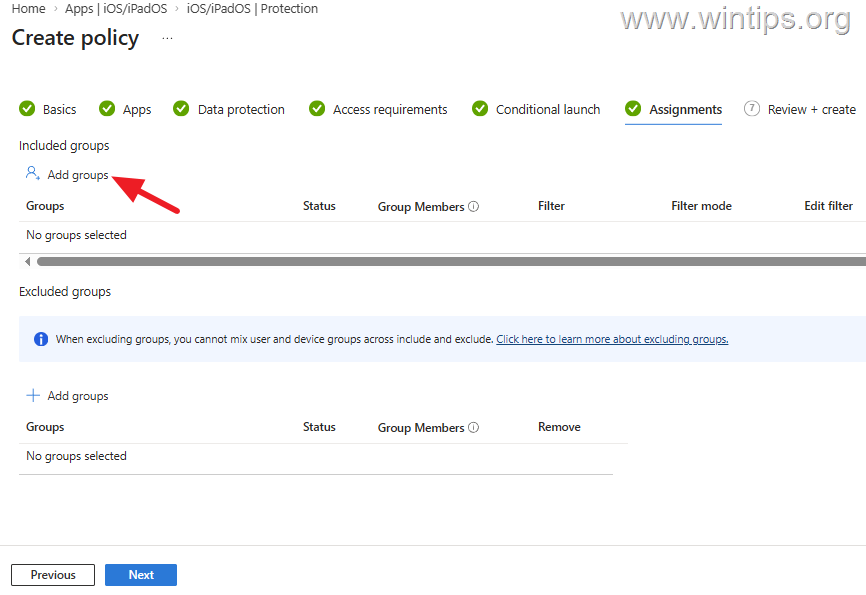
8. On the 'Assignments' tab, click Add Groups and assign the policy to either all users in the organization or to a specific group of users for testing it, before deploying it organization-wide. When done, click Next.
9. Finally, review your settings and click Create to create and apply the new policy.
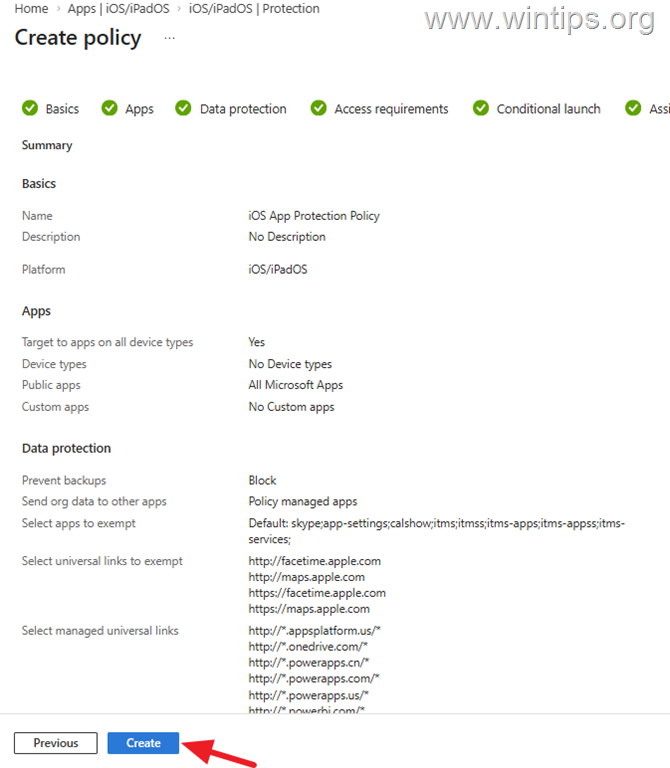
10. Now wait for the app protection policy to be applied to iOS devices and you're good to go!
Conclusion
Implementing an application protection policy and enforcing Microsoft Edge for accessing Microsoft 365 corporate data on managed iOS/iPadOS devices, as described above, enhances organizational data security and compliance.
That's it! Let me know if this guide has helped you by leaving your comment about your experience. Please like and share this guide to help others.
Frequently Asked Questions
Why enforce Microsoft Edge as the primary browser for organization data on iOS devices?
Enforcing Microsoft Edge as the browser enhances security, improves productivity, and strengthens compliance for accessing organizational data on managed iOS/iPadOS devices.
What measures can be applied with an App Protection Policy (MAM) in Microsoft Intune?
An App Protection Policy can restrict data backup, block data sharing with unmanaged apps, prevent 'Save As' to local storage, restrict screenshots and printing, and require Edge for corporate resources.
What are the prerequisites for enforcing Microsoft Edge using Intune MAM policy?
You need Microsoft Intune admin privileges and Microsoft Edge for iOS must be deployed to the devices.
How do you configure Intune to set Microsoft Edge as the primary browser?
Create an App Protection Policy, configure the setting ‘Restrict web content transfer with other apps’ to Microsoft Edge, and apply it to the desired user groups.
Still having trouble fixing this issue?
💬 Get WinTips Remote Support →

- How to Set Microsoft Edge as the Default Browser on iOS Devices Using Intune. - November 2, 2026
- How to Fix SecurityHealthSystray.exe – Bad Image Error (0xc000012f) on Windows 11. - October 26, 2026
- FIX: Windows Hello for Business PIN error 'Your credentials could not be verified' with 'status: 0xc000005e substatus: 0x0' or 'status: 0xc0000bb, substatus: 0x0'. - October 20, 2026