
FIX: Windows Hello for Business PIN error 'Your credentials could not be verified' with 'status: 0xc000005e substatus: 0x0' or 'status: 0xc0000bb, substatus: 0x0'.
If, after setting up a Windows Hello PIN, users are unable to sign in with it—due to errors such as "Your credentials could not be verified" and "status: 0xc0000005 substatus: 0x0" or "status: 0xc00000bb, substatus: 0x0"—continue reading below to resolve the issue.
Windows Hello for Business (WHfB) is a corporate authentication solution that replaces passwords with stronger authentication methods, such as PINs or biometrics (fingerprint/facial recognition).
However, when deploying or using WHfB – especially in hybrid Active Directory setups – domain users may encounter one of the following errors when trying to sign in using the PIN:
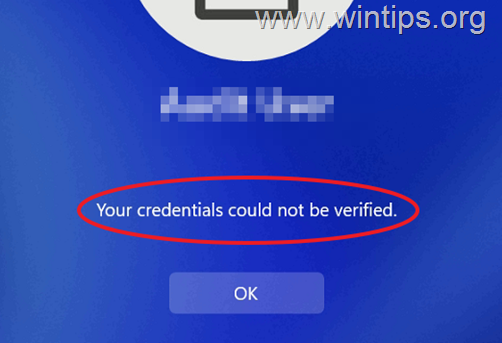
- Your credentials could not be verified.
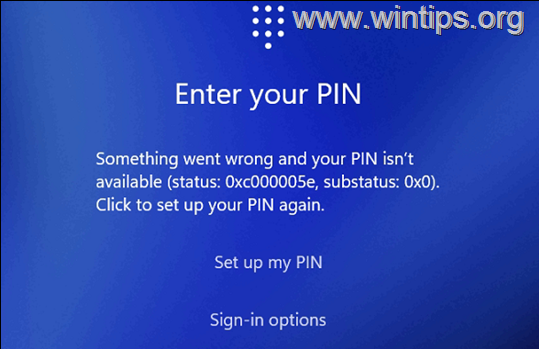
- Something went wrong and your PIN isn't available (status: 0xc000005e, substatus: 0x0). Click to set up your PIN again
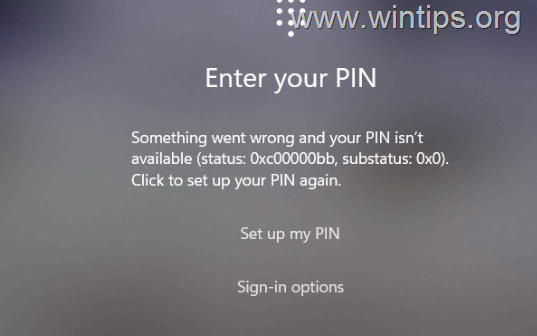
- Something went wrong and your PIN isn't available (status: 0xc0000bb, substatus: 0x0). Click to set up your PIN again
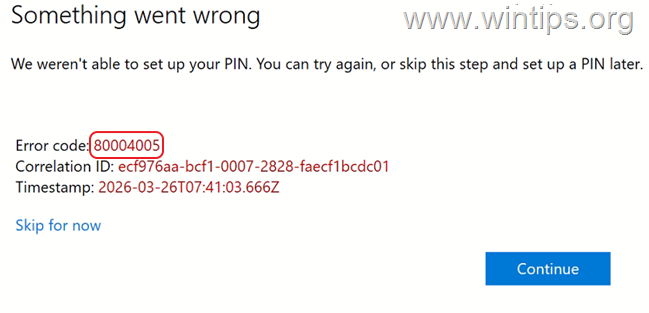
Additionally, other users cannot change or set up the PIN, because of one of the following errors:
- Something went wrong: We weren't able to set up your PIN. You can try again, or skip this step and set up a PIN later. Error code: 80004005
- Something went wrong: We weren't able to set up your PIN. You can try again, or skip this step and set up a PIN later. Error code: 0x801c0022
- Something went wrong: We weren't able to set up your PIN. You can try again, or skip this step and set up a PIN later. Error code: 0x80090010
- Event viewer error: Windows Hello processing failed with 0x80004005.
Common Causes of 0xc000005e / 0xc00000bb in Windows Hello for Business
The above errors usually occur for the following main reasons:
- Missing or Incorrect configuration of the Windows Hello for Business trust method.
- Windows Hello for Business policy is missing or not configured correctly.
- Corrupted NGC folder.
- Domain connectivity issues.
How to FIX: "Your credentials could not be verified" with error code: 0xc000005e or 0xc00000bb or 80004005, 0x801c0022 or 0x80090010 in Windows Hello for Business.
Method 1. Check the WHFB configuration and device connectivity.
Step 1. Verify Domain & Internet Connectivity.
If you have set up Windows Hello for Business in a hybrid environment, a domain connectivity is required the first time a user set up or signs in with a PIN. This means the device must be able to communicate with a Domain Controller, either locally or over a VPN.
Step 2. Verify and Correct the Deployed Trust Model for Windows Hello for Business (IMPORTANT).
The above errors are commonly caused by a missing or misconfigured authentication method (aka "trust model") between Windows Hello for Business and Active Directory in hybrid environments (Microsoft Entra Joined or Hybrid Joined devices).*
* Important: In order for Windows Hello for Business to function for domain users and devices enrolled and synchronized to Entra/Intune, one of the following trust models must be configured.
- Cloud Kerberos Trust (Modern & Recommended)
- Key Trust
- Certificate Trust
So, proceed and verify the trust model configuration on your environment because, in most cases, the problem is in the trust model configuration.
For help, see the following article which contains detailed instructions on how to deploy Windows Hello for Business with Cloud Kerberos Trust and the required Intune Policy for Cloud Trust authentication.
Step 3. Make sure you have a policy for Windows Hello for Business in Intune or AD.
If you haven't already, create a new policy for Windows Hello for Business either in your on-premises AD or Intune -which is preferable- and assign it to your hybrid devices.
- Related article: How to Set Up Windows Hello for Business in Local Active Directory.
Step 4. Remove and Re-enroll Windows Hello for Business.
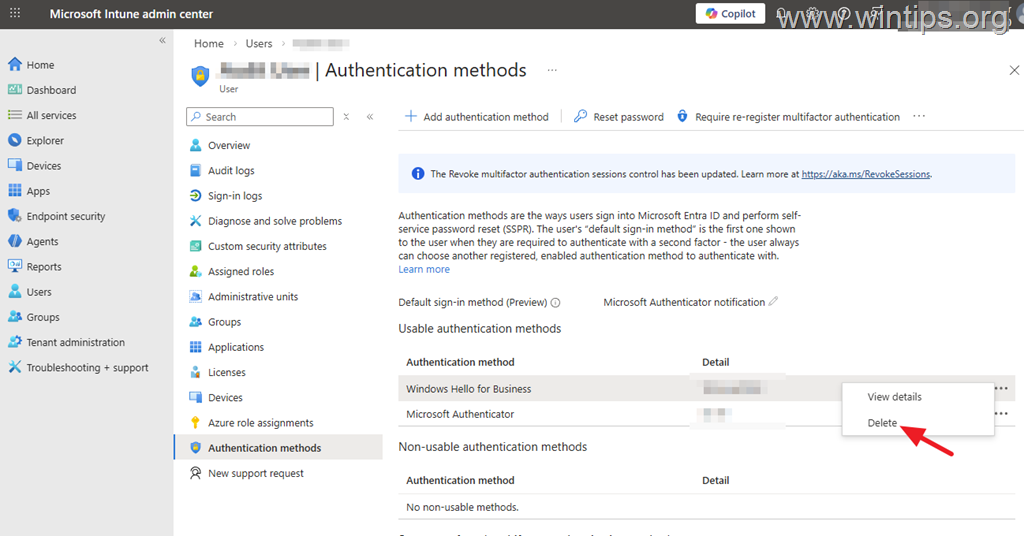
1. In Microsoft Entra or Intune go to Users & click on the User with the PIN problem.
2. In Authentication methods, delete the existing Windows Hello for Business method.
3. Ask the user to set up a PIN again.
Method 2. Remove User's Windows Hello key container from the Device.
When a user sets up a PIN or biometrics with Windows Hello for Business, an encrypted private key is created and stored in the device’s TPM. (This is known as the "Windows Hello container").
However, in some cases, problems with the private key may cause PIN errors during sign-in or PIN setup. In such scenarios, deleting the Windows Hello container and setting up the PIN again may resolve the issue. To do this:
1. On the affected device/user, open Command Prompt as Administrator and give this command:
- certutil -deletehellocontainer
2. Restart your computer.
3. Go to Start > Settings > Accounts > Sign-in options > PIN (Windows Hello) > Setup to set up a PIN.
Method 3. Delete the NGC Folder.
The final method to fix Windows Hello for Business PIN setup or sign-in errors is to delete the NGC folder, a protected system folder in Windows that stores data related to Windows Hello for Business (WHfB).
1. Open Command Prompt as Administrator and give these commands:
- takeown /f %windir%\ServiceProfiles\LocalService\AppData\Local\Microsoft\NGC /r /d y
- icacls %windir%\ServiceProfiles\LocalService\AppData\Local\Microsoft\NGC /grant administrators:F /t
2. Now, do one of the following to delete the Ngc folder:
A. Issue this command (as Admin):
- rd /s /q C:\Windows\ServiceProfiles\LocalService\AppData\Local\Microsoft\NGC\
B. Open Explorer, navigate at the below location and delete NGC folder:
- C:\Windows\ServiceProfiles\LocalService\AppData\Local\Microsoft\
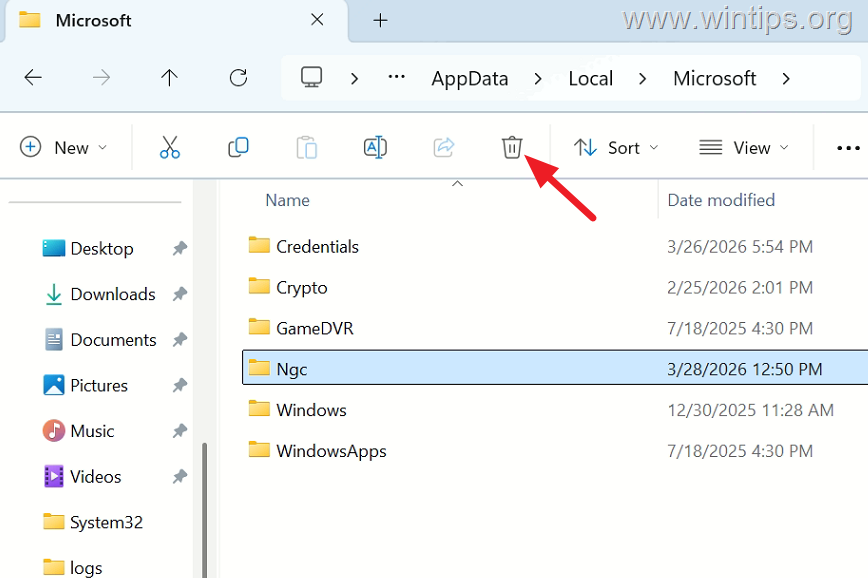
3. After deleting the NGC folder, reboot the device.
4. Finally, go to Start > Settings > Accounts > Sign-in options > PIN (Windows Hello) > Setup to set up a PIN.
Additional Help:
If the issue persists after trying the above methods, recheck your trust model configuration, as this is often the root cause. If the trust model is correctly configured, clear the TPM and try setting up the PIN or biometrics again. If the issue still persists, perform a full device reset.
- Related article: Windows Hello PIN is unavailable on Windows 10/11.
That's it! Which method worked for you?
Let me know if this guide has helped you by leaving your comment about your experience. Please like and share this guide to help others.
Frequently Asked Questions
What are common errors encountered when using Windows Hello for Business PIN?
Users may experience errors such as 'Your credentials could not be verified', or 'Something went wrong and your PIN isn't available' with status codes like 0xc000005e, 0xc00000bb, or error codes like 80004005, 0x801c0022, 0x80090010.
Why do errors like 0xc000005e or 0xc00000bb occur in Windows Hello for Business?
These errors usually occur due to missing or incorrect configuration of the Windows Hello for Business trust method, a missing or improperly configured policy, a corrupted NGC folder, or domain connectivity issues.
How can I resolve the error 'Your credentials could not be verified' in Windows Hello for Business?
To resolve this error, ensure that the device has domain connectivity, verify and correct the Windows Hello for Business trust model configuration, ensure a policy is set up for WHFB in Intune or AD, or consider removing and re-enrolling Windows Hello for Business.
What trust models should be configured for Windows Hello for Business?
The recommended trust models to configure for Windows Hello for Business are Cloud Kerberos Trust (Modern & Recommended), Key Trust, or Certificate Trust.
Still having trouble fixing this issue?
💬 Get WinTips Remote Support →

- FIX: Windows Hello for Business PIN error 'Your credentials could not be verified' with 'status: 0xc000005e substatus: 0x0' or 'status: 0xc0000bb, substatus: 0x0'. - October 20, 2026
- FIX: This Device Is Already Set Up in Another Organization in Company Portal or During Intune Enrollment - October 13, 2026
- Windows Update Uninstall Failed with Error 0x800F0825: How to Fix - October 7, 2026

October 20, 2026 @ 9:05 pm
Thanks for documenting the exact status codes. Searching for these WHfB errors usually only turns up forum threads with no answer. Is the fix the same for hybrid-joined devices using cloud Kerberos trust, or does it only apply to the key trust model?
October 21, 2026 @ 9:44 am
The fix is the same for hybrid-joined devices using cloud Kerberos trust model.