Apps and Games Crash After KB5124010 Due to AC-3 Audio: How to Fix
If some apps or games started crashing after installing KB5124010 or a later Windows 11 update, you may be affected by a known AC-3 (Dolby Digital) audio decoding issue confirmed by Microsoft.
The problem affects Windows 11 24H2, 25H2, and 26H2 and can cause games, media players, and certain productivity applications that depend on Windows' built-in AC-3 decoding to fail to launch or close unexpectedly. The issue doesn't affect every application. Many modern applications use their own audio-decoding components and don't depend on the affected Windows decoding path.
Microsoft says a permanent fix will be released in a future Windows update, but until it becomes available, you can temporarily uninstall the affected Windows update or use an alternative AC-3 decoder such as LAV Filters.
Symptoms of the KB5124010 AC-3 Issue
The problem started with the Windows update released on September 22, 2026 (KB5124010) and can also affect later Windows updates that contain the same code. According to Microsoft, an affected application may:
- Fail to launch.
- Close unexpectedly without an error.
- Work normally until an audio-related feature is used.
- Crash when music or other AC-3 audio starts playing.
What Apps and Games Are Affected?
Microsoft doesn't provide a complete list of affected applications. According to Microsoft, the problem can affect games, media players, and certain productivity applications.
The issue is more likely to affect legacy applications that rely on Windows' built-in AC-3 decoding. Reported affected applications include games such as Fallout: New Vegas and SimCity 4, as well as business software such as innovaphone myApps.
Also, not every application crash after KB5124010 is necessarily caused by the AC-3 problem. Other unrelated compatibility problems may produce crashes after the same Windows update.
In this guide, you'll learn how to fix apps and games that crash after installing KB5124010 or a later affected update on Windows 11.
How to Fix Apps and Games Crashing After KB5124010
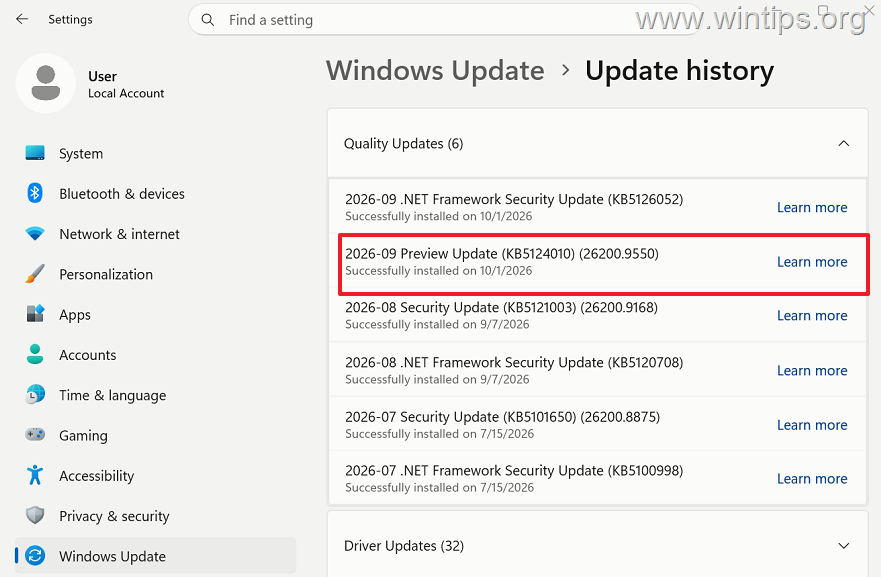
Step 1. Check If KB5124010 is Installed.
1. Go to: Settings > Windows Update > Update history
2. Look for KB5124010, installed on or after September 22, 2026.
3. If the application worked before the update and started crashing immediately afterward, proceed to the methods below to fix the issue.*
* Optional: If you want additional confirmation, open Event Viewer > Windows Logs > Application and look for an Application Error corresponding to the crash. Reports from affected systems frequently show msmpeg2ac3dec.dll as the faulting module, sometimes with exception code 0xc0000602.
Note: Microsoft hasn't stated that this DLL or error code must be present, so not seeing it doesn't rule out the AC-3 issue.
Method 1. Uninstall KB5124010 Temporarily
Temporarily removing the KB5124010 update is currently the most direct workaround. Multiple affected users have reported that their applications worked normally again after removing the update.
Important: Microsoft states that this issue can also affect updates released after KB5124010. If you installed a later cumulative update, check Microsoft's current Windows Release Health information before uninstalling it.
1. Go to: Settings > Windows Update > Update history
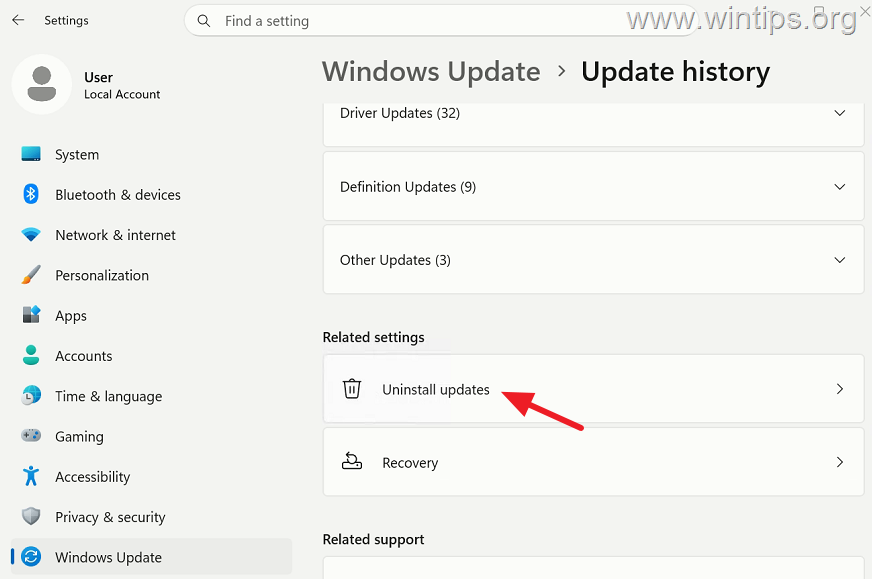
2. Scroll down and click Uninstall updates.
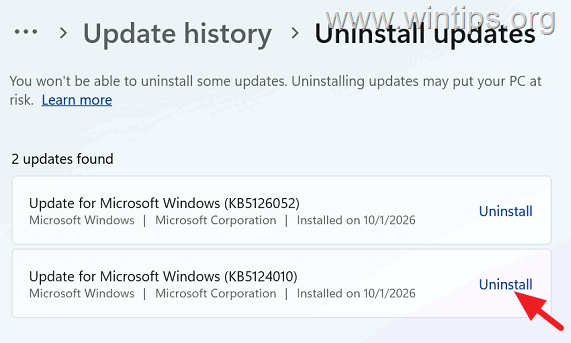
3. Locate KB5124010 and click Uninstall. Then, click Uninstall again to remove the update.
4. Once the update is removed, restart your computer.
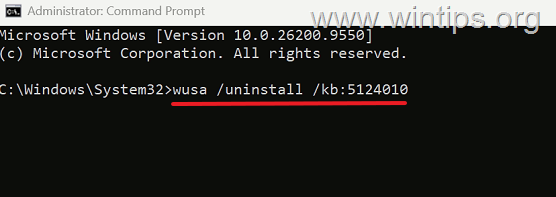
Note: If the update cannot be removed using the above instructions, do the following:
- In Search, type cmd in Search and click Run as administrator.
- Type
wusa /uninstall /kb:5124010and press Enter.- Click Yes when prompted to remove the update and then restart your computer.
5. After restarting, launch the affected application and repeat the action that previously caused it to crash.
6. After verifying that the issue is fixed, you can reduce the chance of Windows reinstalling the optional update immediately by doing the following:
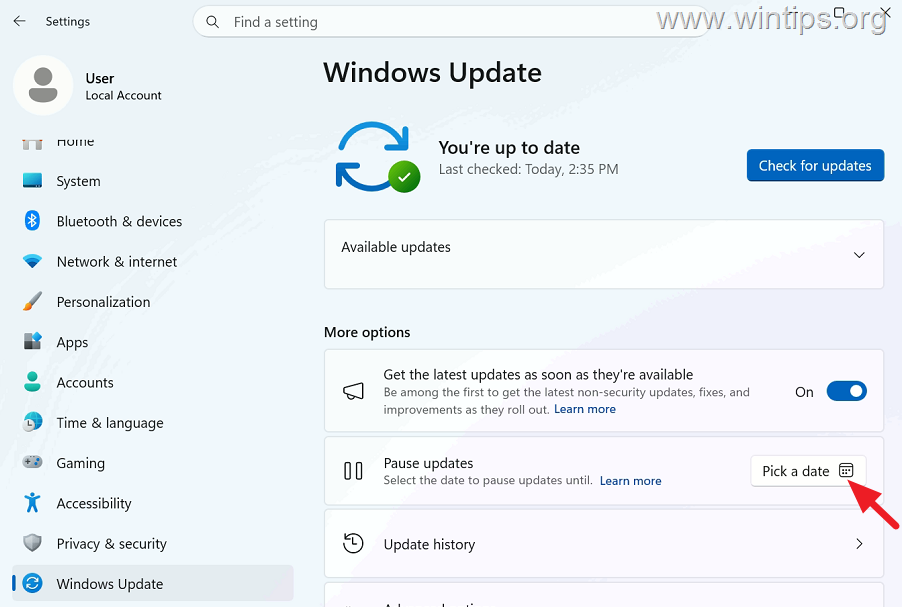
- Go to: Settings > Windows Update
- Turn off the setting: Get the latest updates as soon as they're available
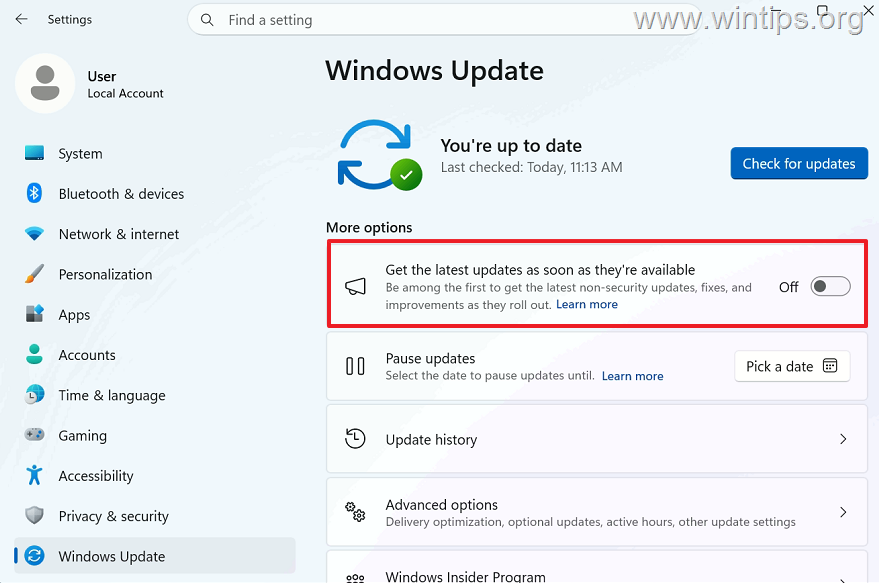
Alternatively, you can temporarily Pause updates until a specific date if Windows keeps trying to reinstall the specific update.
Important: Don't pause Windows Update indefinitely. Resume updates when Microsoft releases a corrected update for this issue.
Method 2. Install LAV Filters
If you don't want to uninstall the Windows update, another workaround is to install LAV Filters, an open-source set of DirectShow audio and video decoders based on FFmpeg.
LAV Filters can provide an alternative AC-3 decoder so that compatible applications don't rely on the affected Windows decoding path.
This is an unofficial solution that, according to user reports and independent testing, can resolve AC-3-related crashes after KB5124010 in legacy games and other applications.
1. Download the latest version of LAV Filters from the project's official GitHub repository.
Note: At the time of writing, the current release is LAV Filters 0.83.
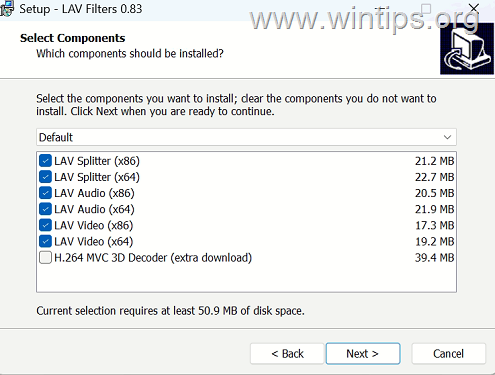
2. Run LAVFilters-0.83-Installer.exe and follow the on-screen instructions. On a 64-bit Windows PC, keep the default components selected so that both the x86 (32-bit) and x64 (64-bit) LAV Audio components are installed.
3. Close and reopen the affected application.
4. Repeat the action that previously caused the crash. If the application now works normally, the workaround was successful. If it continues to crash, the problem may not be related to the known AC-3 issue, or the application may require an application-specific workaround.
How to Remove LAV Filters
LAV Filters registers additional DirectShow decoders in Windows. This means other legacy multimedia applications may also start using LAV instead of a Windows decoder.
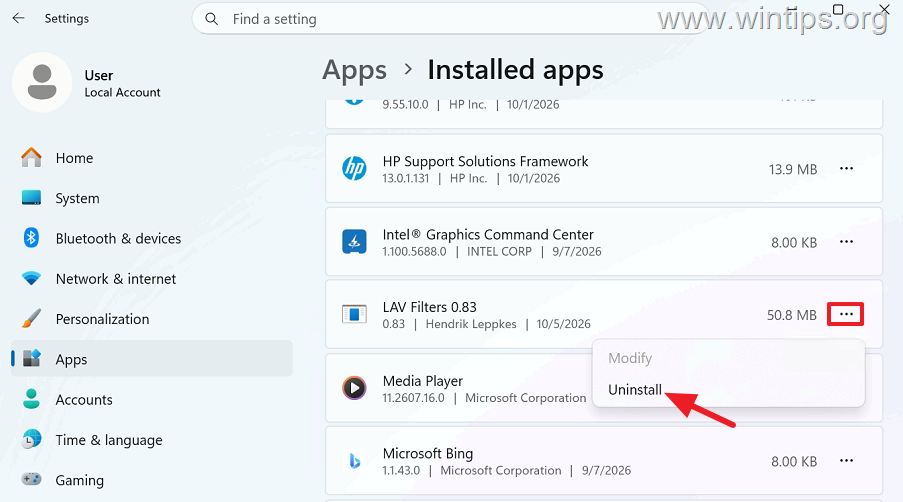
If you experience problems or want to remove the workaround after Microsoft fixes the issue, go to Settings > Apps > Installed apps, find LAV Filters, click the three dots next to it, and select Uninstall. Then restart any affected multimedia applications.
Summary
If an app or game crashes after installing update KB5124010—and the issue occurs while using AC-3/Dolby Digital audio—it may be due to an AC-3 decoding issue in Windows 11 that has been confirmed by Microsoft. Until Microsoft releases a permanent fix, you have two practical options:
- Temporarily uninstall KB5124010 if you can safely roll back the update.
- Install LAV Filters as an unofficial workaround if you prefer to keep the Windows update installed.
Once Microsoft releases a corrected Windows update, install it and verify that the affected application works normally before removing any temporary workaround.
That's it! Which method worked for you?
Let me know if this guide has helped you by leaving your comment about your experience. Please like and share this guide to help others.
Frequently Asked Questions
What is the issue caused by installing KB5124010 on Windows 11?
After installing KB5124010 or a later Windows 11 update, some apps or games might crash due to a known AC-3 (Dolby Digital) audio decoding issue. This can affect games, media players, and productivity applications that rely on Windows' built-in AC-3 decoding.
Which versions of Windows 11 are affected by the AC-3 audio issue?
The AC-3 audio decoding issue affects Windows 11 versions 24H2, 25H2, and 26H2.
What are the symptoms of the KB5124010 AC-3 audio issue?
Symptoms may include applications failing to launch, closing unexpectedly, crashing when using audio-related features, or crashing when AC-3 audio starts playing.
How can I temporarily fix the app and game crashes caused by KB5124010?
You can temporarily fix the issue by uninstalling the KB5124010 update or using alternative AC-3 decoders like LAV Filters. Be sure to check Microsoft's Windows Release Health info for updates.


- Apps and Games Crash After KB5124010 Due to AC-3 Audio: How to Fix - October 5, 2026
- How to Fix Windows 11 Update Error 0x80073712 - October 5, 2026
- How to Install Windows 11 26H2 on Unsupported Hardware - October 2, 2026