How to Deploy – Install Company Portal App in Intune Enrolled Windows Devices.
This guide contains step-by-step instructions on how to deploy Company Portal app on enrolled Windows devices in Intune.
For organizations managing Windows 10 and Windows 11 devices with Microsoft Intune, deploying the Company Portal app gives users the ability to install company-approved apps, view device compliance status, and helps IT administrators reduce their workload.
What You Can Do with Company Portal.
Within Company Portal app, users can:
- Browse and install approved applications without admin rights or reinstall apps if needed.
- Sync their device with latest updates from organization.
- Manage their profile information or change their password (If allowed).
On the other hand, using Company Portal app, administrators can:
- Force a device sync to speed up application installation or enforce policies.
- Check if a device is compliant and can access company resources.
- To troubleshoot Compliance problems.
Do you need help with your Windows computer? Try our remote support service.
Learn More About WinTips.org Remote Support →How to Install Company Portal with Intune in Managed Windows devices.
Requirements:
- Microsoft Intune admin permissions.
- Devices already enrolled in Intune.
- Windows 10 22H2 or later, or Windows 11.
Step 1. Deploy Company Portal as Microsoft Store (new) app.*
* Note: Using the Microsoft Store app (new) deployment method is the recommended and most efficient approach to install Company Portal on managed Intune devices. If you having problems deploying Company Portal using this method, then download the Offline installer of Company Portal and use these instructions to deploy it as a Line Of Business (LoB) app.
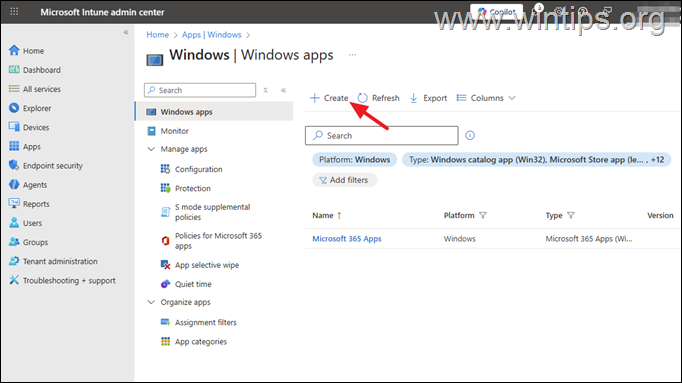
1. On the Microsoft Intune Admin Center go to Apps > Windows and click Create.
2. In the 'Select app type' window, choose Microsoft Store (New) and then click Select.
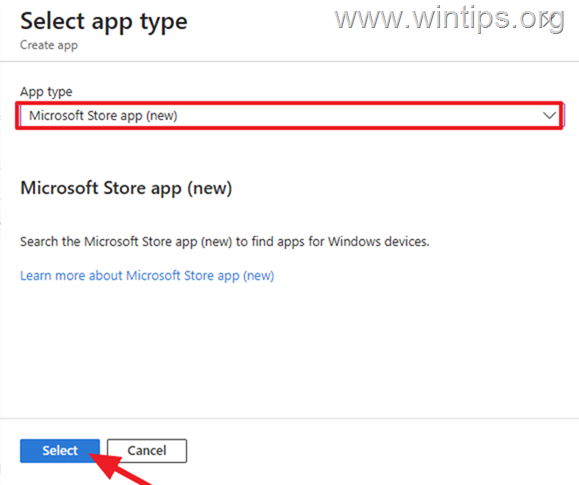
3. In the 'Add app' window, click Search the Microsoft Store app (new)
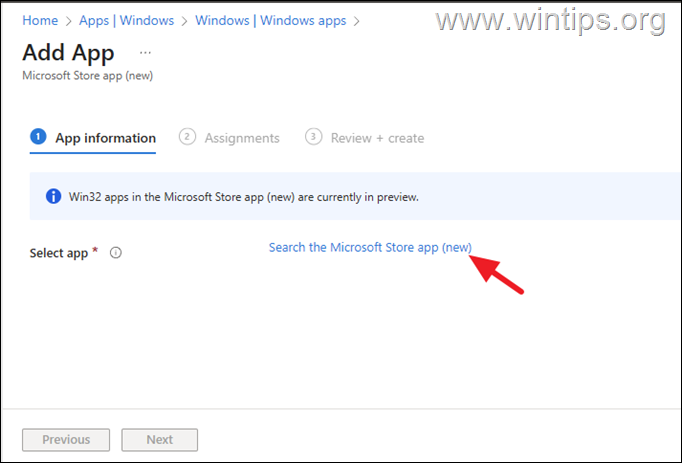
4. Type "Company Portal" in the search, then choose it from the results below and click Select.
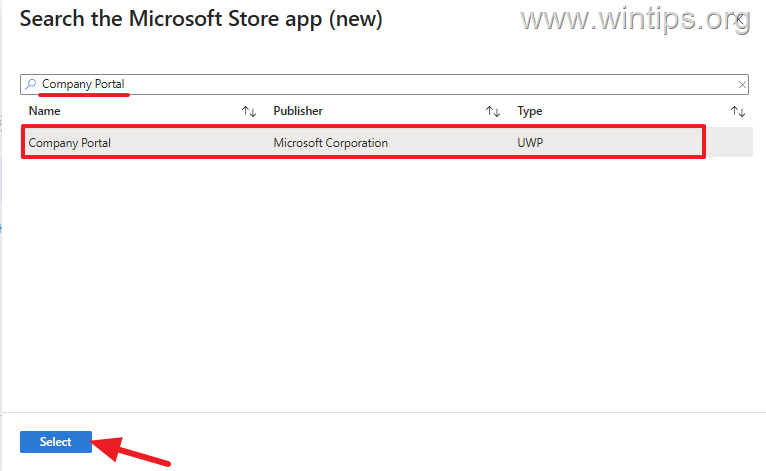
5. On the 'App Information' screen, change Install behavior to System, then select Next.
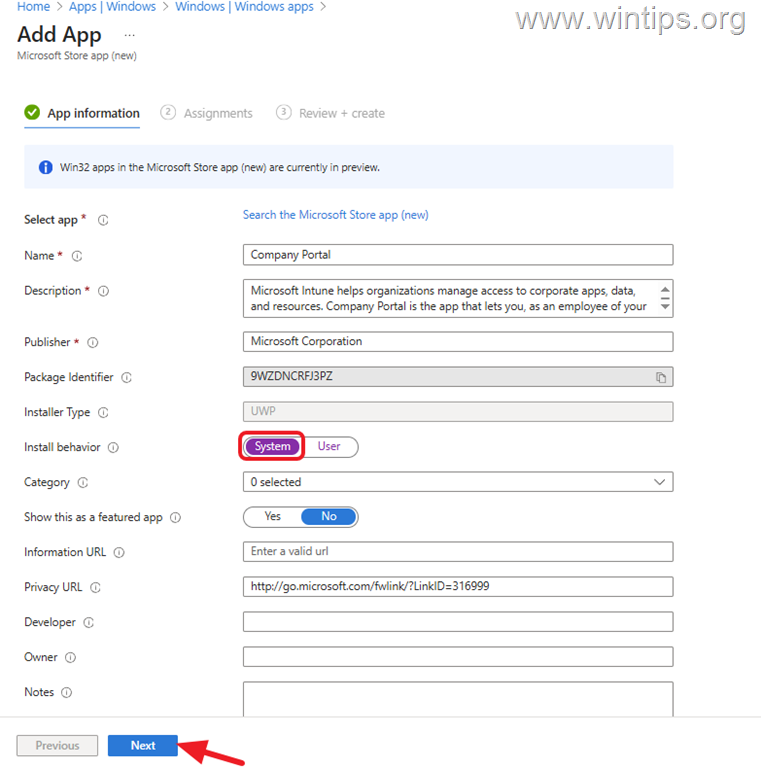
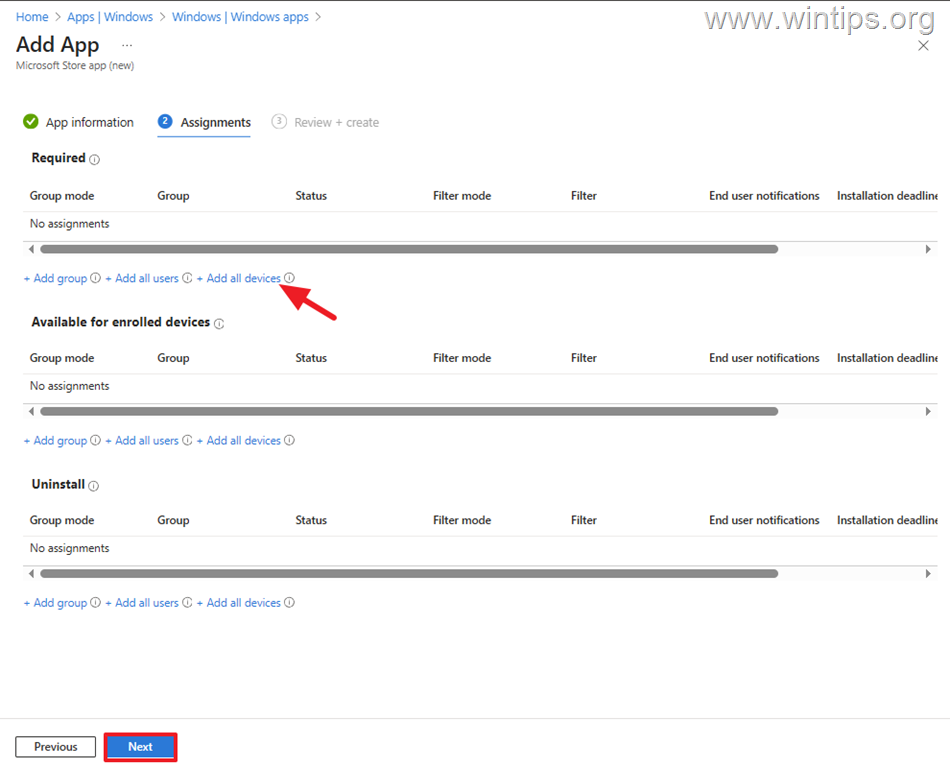
6. In the 'Assignments' select Add all devices under Required if you want to assign the app on all devices on your organization or select "Add group" to choose a specific group. Then click Next to continue.
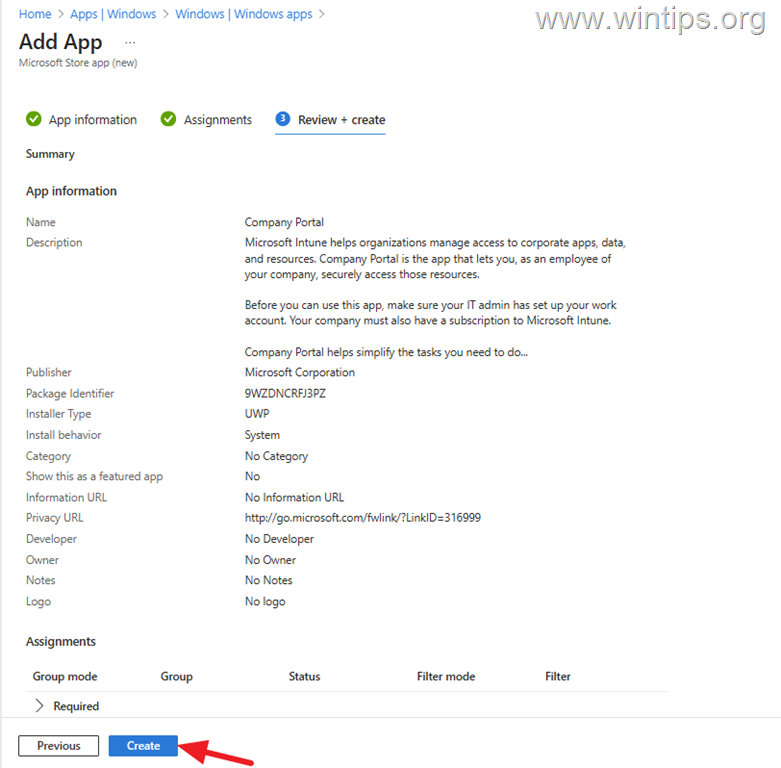
7. Finally, review your settings and click Create to deploy the new app.
Step 2.Verify Company Portal Installation Status on Enrolled Devices.
After you add the Company Portal to Managed Apps and assign it to enrolled devices, wait for it to be automatically deployed and silently installed by Intune on enrolled devices. Then…
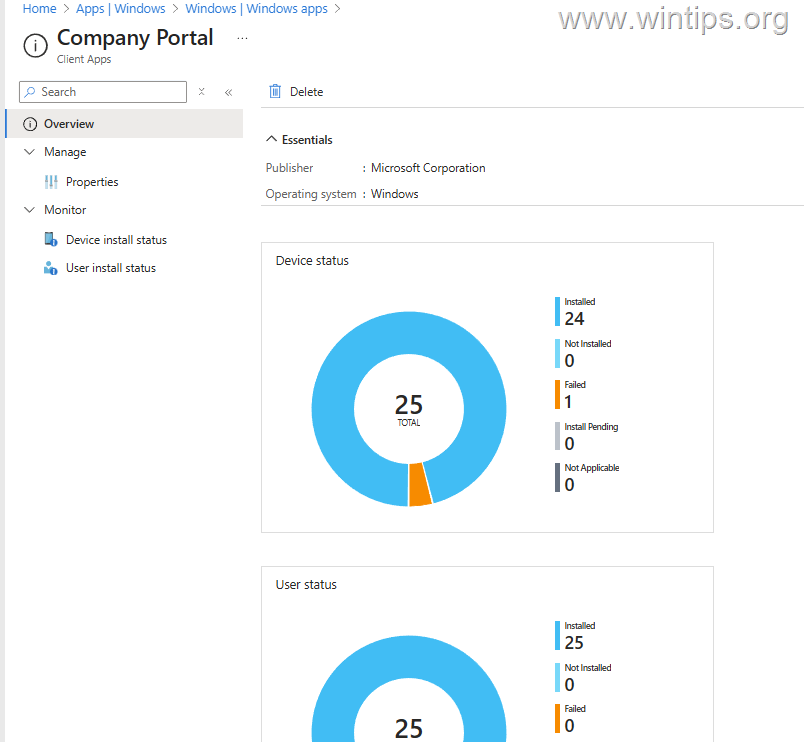
1. Go again in the Intune Admin Center > Apps > Windows and click on Company Portal app.
2. On the 'Overview' check the overall progress of the installation.
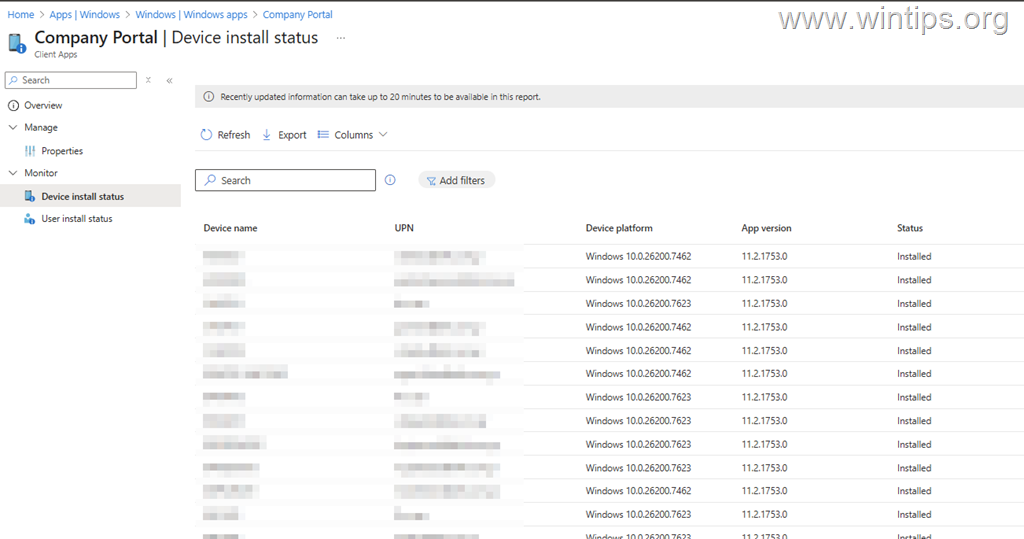
3. Then click on Device install status to see in which devices the app is installed or not.
Step 3. How to Open and Use the Company Portal App on Enrolled Devices.
To open/access the Company Portal app on the Windows device:
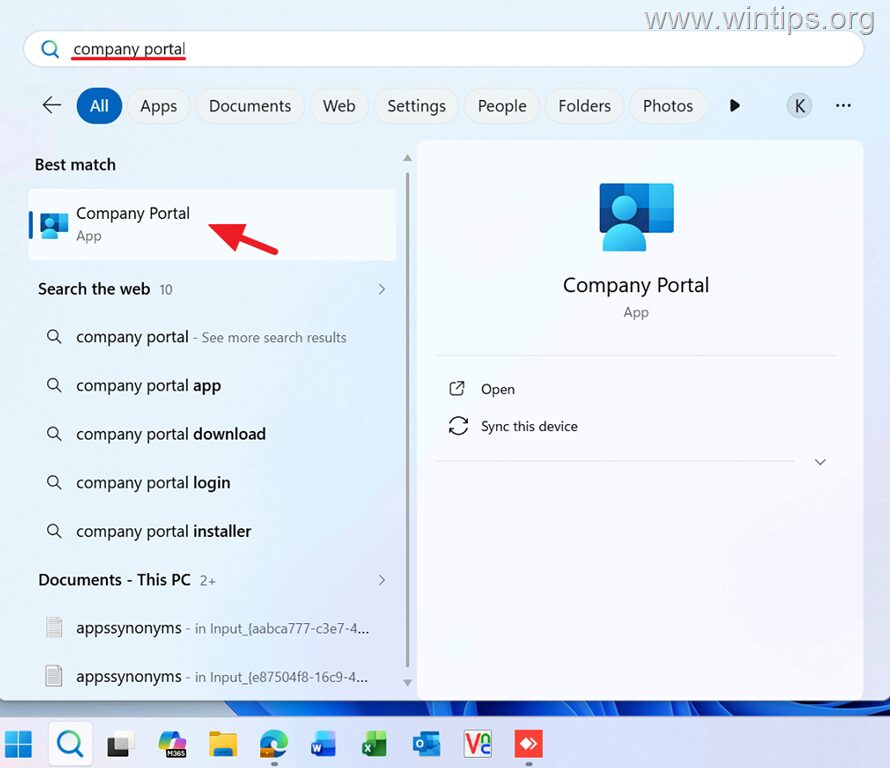
1. Click Start, type "Company Portal" and then click Company Portal from the results
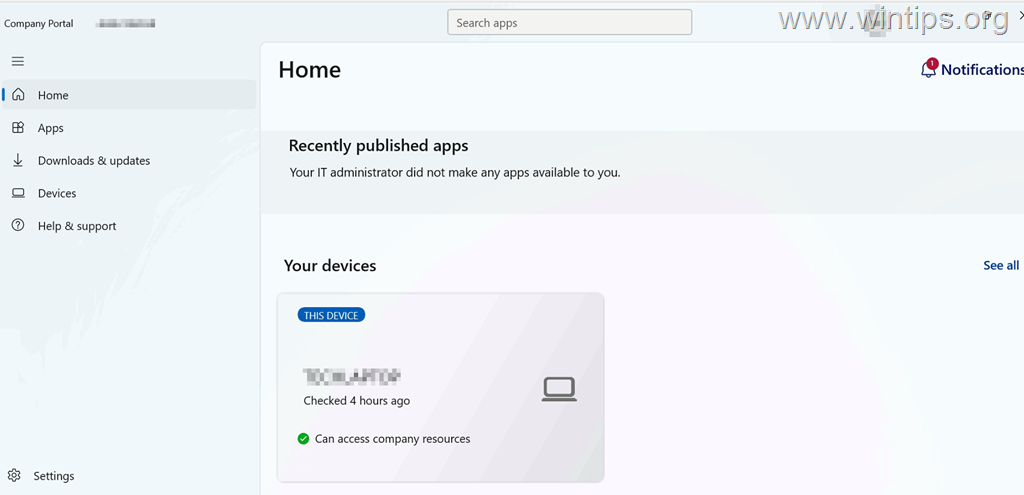
2. After opening Company Portal, go to:
-
Overview (Home), to see if your device is compliant for accessing corporate resources and if there are new apps available for installation.
-
Apps: To see which apps are available to install.
-
Downloads & updates: To view a history of the installed apps and updates.
-
Devices: To see more details about your device's compliance status and useful information about your device (such as device name, model, operating system, etc.)
-
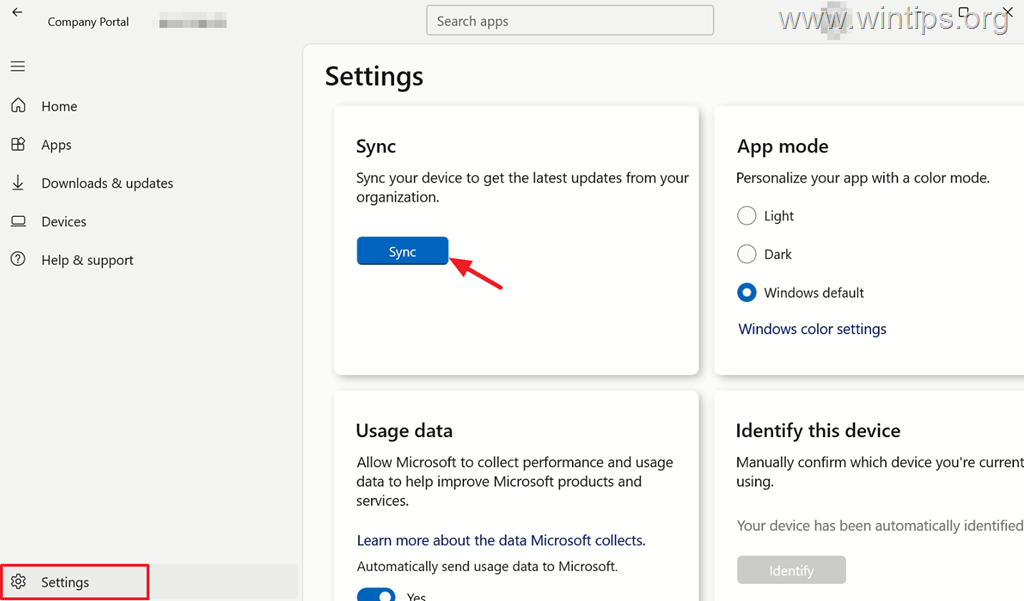
Settings: Click Sync if you want to force a device synchronization with Microsoft 365 and to get the latest updates and policies.
-
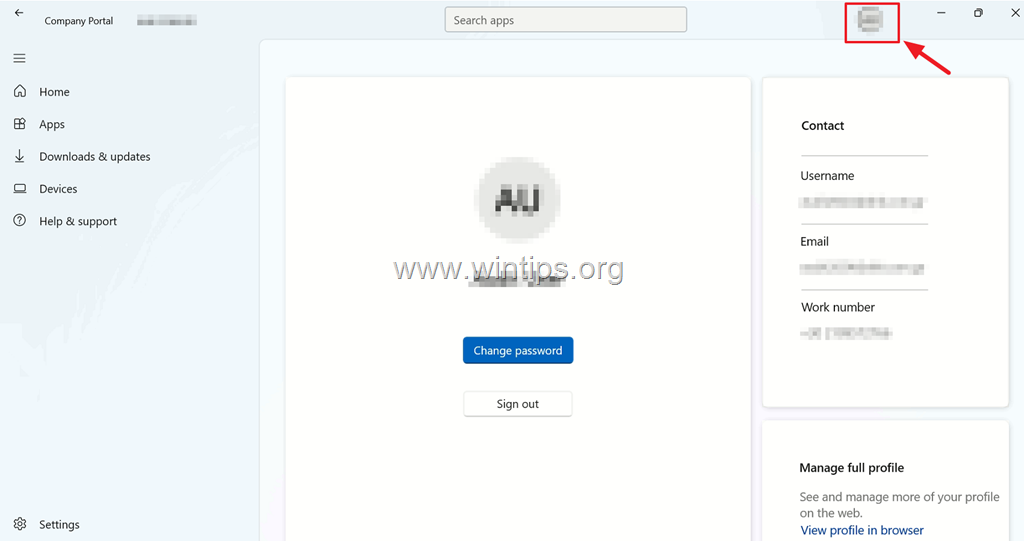
Click on the Profile icon on the top-right, if you want to change your account password or modify your account profile (if allowed by your IT admin)
Conclusion
Deploying the Company Portal app to Intune-enrolled Windows devices is useful because it provides users with a seamless self-service experience, allowing them to install apps without administrator privileges and for IT teams to more quickly apply company apps and policies to devices.
That's it! Let me know if this guide has helped you by leaving your comment about your experience. Please like and share this guide to help others.
Frequently Asked Questions
What is the purpose of deploying the Company Portal app on Windows devices using Intune?
Deploying the Company Portal app on Windows devices using Intune allows users to install company-approved apps, view device compliance status, and helps IT administrators reduce their workload.
What are the main capabilities for users in the Company Portal app?
Users can browse and install approved applications without admin rights, sync their device with the latest updates from the organization, manage their profile information, or change their password if allowed.
What are the system requirements for installing the Company Portal using Intune?
The requirements include Microsoft Intune admin permissions, devices already enrolled in Intune, and devices running Windows 10 22H2 or later, or Windows 11.
How can administrators troubleshoot compliance problems using the Company Portal app?
Administrators can use the Company Portal app to force a device sync to expedite application installation or enforce policies and check if a device is compliant to access company resources.


- How to Deploy – Install Company Portal App in Intune Enrolled Windows Devices. - November 17, 2026
- How to Fix PowerShell Script Signature Errors After KB5132061. - November 13, 2026
- How to Restrict Non-Admin Access to Azure Portal, CLI, and Entra admin center - November 11, 2026