How to Set Up Windows Hello for Business in a Local Active Directory Environment.
If you want to use Windows Hello for Business (PIN or biometrics) to sign in to domain-joined computers in your on-premises Active Directory instead of passwords, continue reading below.
Windows Hello for Business (WHfB) can be deployed entirely within a local Active Directory (on-premises) environment, allowing users to sign in with a PIN or biometrics instead of passwords—while still using Kerberos for authentication. This setup enhances security by eliminating the need for password-based authentication, which is often vulnerable to phishing attacks and other security threats.
In this guide, you'll learn how to allow domain users to sign in with a Windows Hello PIN or local Active Directory resources.
How to Enable Windows Hello for Business in Local AD Domain
Step 1. Create and Configure a New Policy for Windows Hello for Business via Group Policy (GPO)
To enable Windows Hello for Business on your premises AD domain computers, do the following:
1. On your Domain Server, open the Server Manager and from Tools open the Group Policy Management.
2. Under the 'Domains' object, right-click on your domain and select Create a GPO in this domain and Link it here.
3. Type a name for the new GPO (e.g., "Windows_Hello_Provisioning") and click OK.
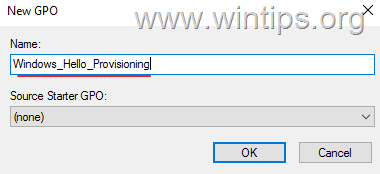
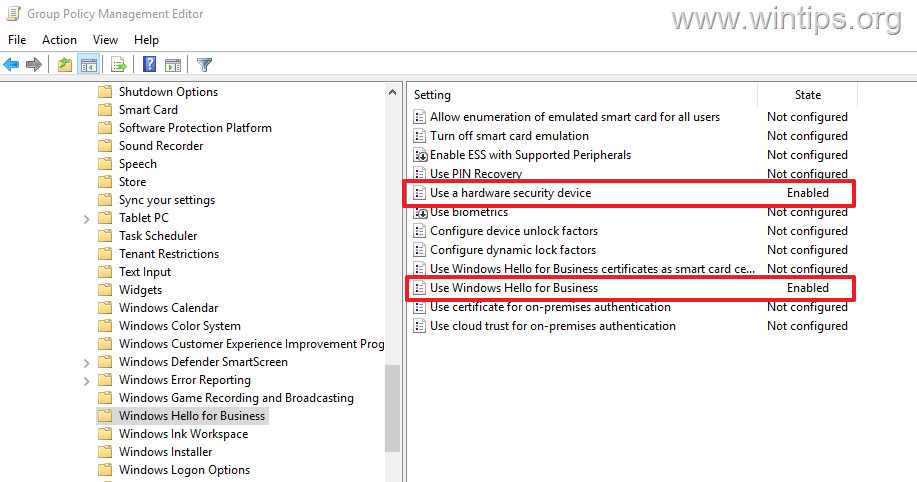
4. Now edit the new New GPO and make the following changes in the mentioned locations below:
- Computer Configuration -> Policies -> Administrative Templates -> Windows Components -> Windows Hello for Business
- Use Windows Hello for Business: Enabled
- Use a hardware security device: Enabled
* Note: If you do not see the same screen and settings on your screen, then according to the latest version of Windows installed on the workstations in the domain, proceed to download and install the corresponding administrative templates (.admx).
* eg. For Windows 11 25H2 & Domain Server 2016, download and install the Administrative Templates (.admx) for Windows 11 2025 Update (25H2)
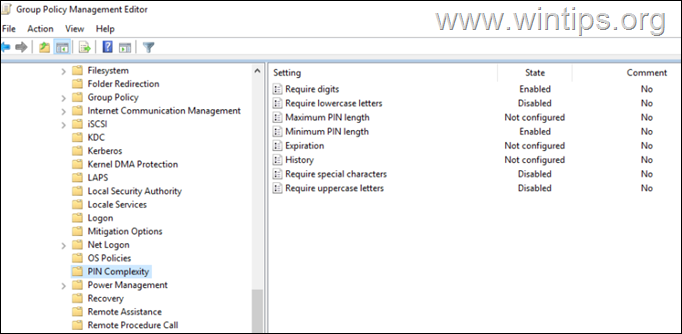
5. Next, navigate to the following location and specify the PIN requirements according to your preference:
- Computer Configuration -> Policies -> Administrative Templates -> System -> PIN Complexity
For example:
- Require digits: Enabled
- Require Lowercase Letters: Disabled (Lowercase letters not allowed)
- Maximum PIN Length: Not configured
- Minimum PIN Length: Enabled (e.g., "6")
- Expiration: Not configured (No Expiration)
- History: Not configured (No History)
- Require special characters: Disabled (Special characters not allowed)
- Require uppercase letters: Disabled (Uppercase letters not allowed)
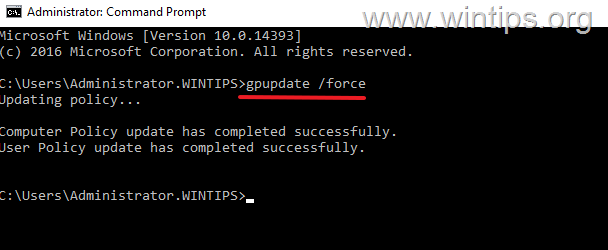
6. Close the Group Policy Management Editor and issue the following command to apply the changes:
-
gpupdate /force
Step 2. Set Up Windows Hello for Business on Devices
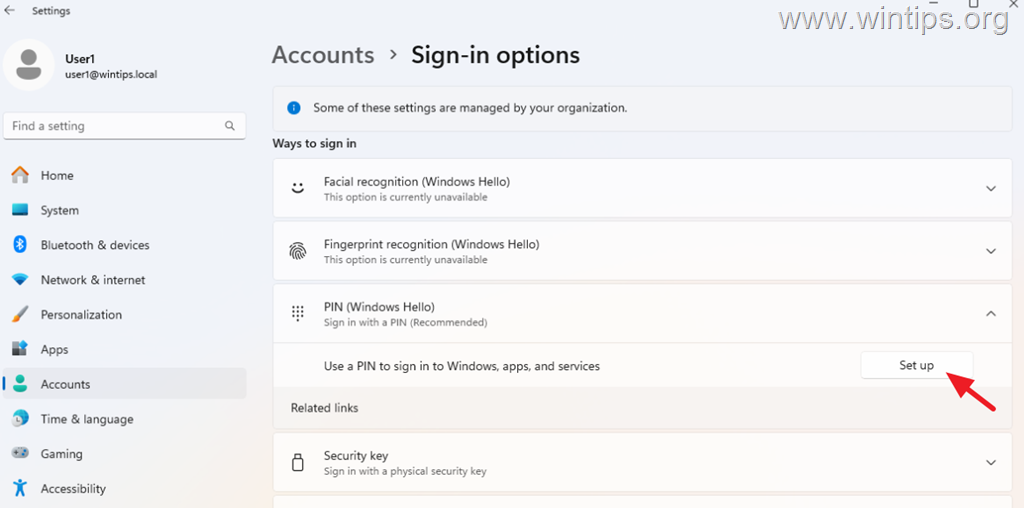
1. Go to Start > Settings > Accounts > Sign-in options > PIN (Windows Hello) > Setup
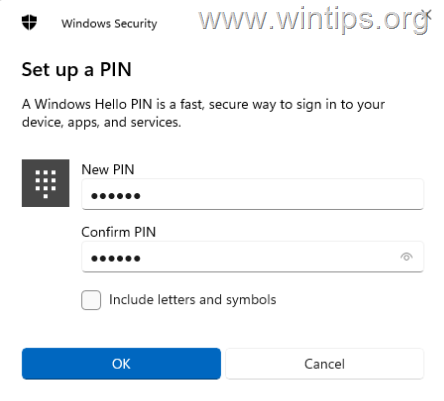
2. Type the account's password, click OK, and then specify a PIN according to the PIN requirements you specified in the GPO.
Summary
Setting up Windows Hello for Business in a local Active Directory environment involves configuring Group Policy settings to enable and manage PIN and biometric authentication. By following the steps outlined above, you can enhance security by reducing reliance on traditional passwords.
That's it! Let me know if this guide has helped you by leaving your comment about your experience. Please like and share this guide to help others.
Frequently Asked Questions
What is the purpose of Windows Hello for Business in a local AD environment?
Windows Hello for Business enhances security by allowing users to sign in with a PIN or biometrics rather than passwords in a local Active Directory environment. This reduces the risk of phishing attacks and other security threats associated with password-based authentication.
How do I apply the Group Policy configurations for Windows Hello for Business?
After setting up the Group Policy configurations in the Group Policy Management Editor, close the editor and run the command 'gpupdate /force' in the command prompt to apply the changes.
What should I do if I can't find the Windows Hello for Business settings in the Group Policy Management?
If you don’t see the Windows Hello for Business settings, you may need to download and install the corresponding administrative templates (.admx) based on the latest Windows version installed on your domain workstations.
How can users set up their PIN for Windows Hello after policy configuration?
Users can set up their PIN by navigating to Start > Settings > Accounts > Sign-in options > PIN (Windows Hello) > Setup, then enter their account password and specify a PIN according to the requirements set in the GPO.


- Windows Update Uninstall Failed with Error 0x800F0825: How to Fix - October 7, 2026
- Apps and Games Crash After KB5124010 Due to AC-3 Audio: How to Fix - October 5, 2026
- How to Fix Windows 11 Update Error 0x80073712 - October 5, 2026