How to Fix Outlook Crashing When Right-Clicking or Sending Email (June 2026)
Beginning on 29 June 2026, multiple organizations reported that Classic Outlook crashed or closed unexpectedly when users opened the message body context menu by right-clicking, during spell checking, or when sending an email. The issue was primarily reported on Microsoft 365 Apps Version 2605 (Build 20026.20182).
Symptoms
Users reported one or more of the following symptoms:
- Outlook crashes immediately after right-clicking within the body of a new or existing email.
- Outlook crashes when a misspelled word is right-clicked during spell checking.
- Outlook crashes when sending an email.
- The issue occurs even when the email body is empty.
- Draft messages are not saved because Outlook closes unexpectedly.
Additional Information:
The following troubleshooting steps were reported not to resolve this specific issue:
- Starting Outlook in Safe Mode.
- Creating a new Outlook profile.
- Disabling Outlook spell checking.
- Running a Quick Repair of Microsoft Office.
How to Fix Microsoft Outlook Crashes When Right-Clicking, During Spell Check, or When Sending an Email (Microsoft 365 Apps for Business).
To resolve the reported issue, update Microsoft 365 Apps to Version 2606, which includes fixes for various bugs and stability issues. You can update Microsoft 365 Apps by using one of the following methods.
Method 1 – Update Microsoft 365 Apps to Version 2606 from Office Account options
1. Open Outlook or any Microsoft 365 application (for example, Word or Excel).
2. Select File > Office Account.
3. Under About Outlook, check the number of the installed version.
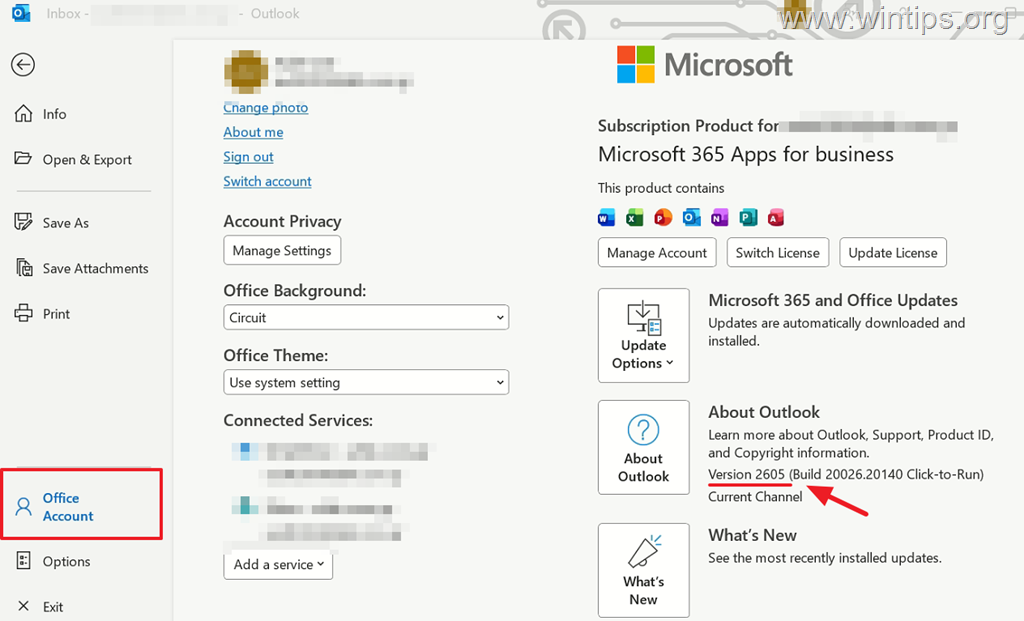
4. If you are running Version 2605, click on the Update Options button above and click Update Now. This ensures that your application is equipped with the latest features and security patches.
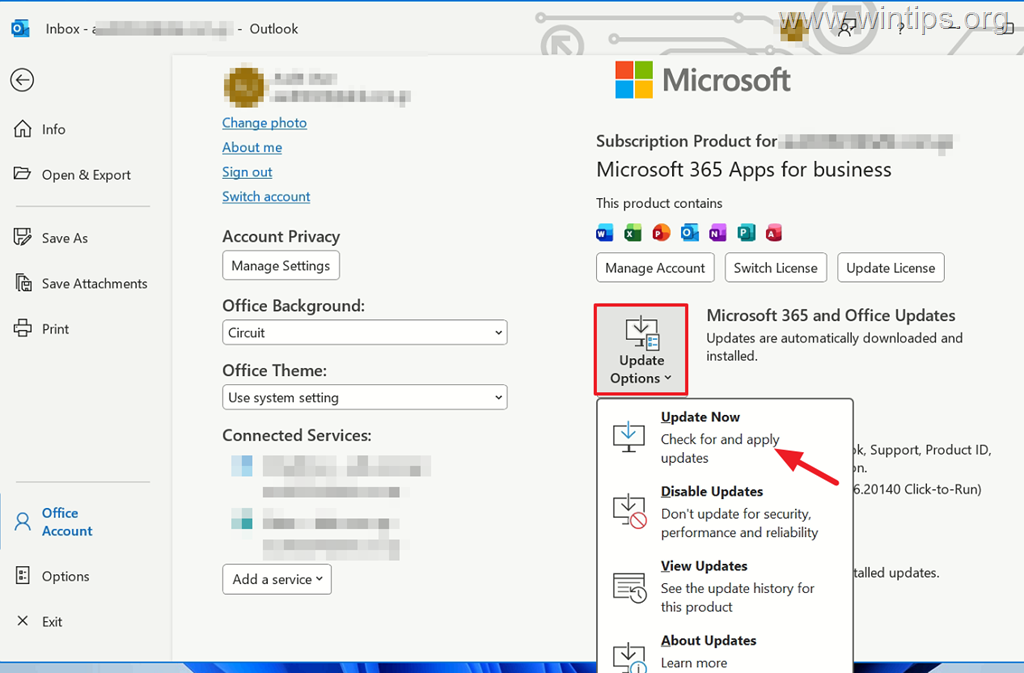
5. Allow the update to complete.*
* Note: If, after a few seconds, you receive the message, "The latest version of Microsoft 365 and Office is installed on your computer," but your Microsoft 365 Apps installation has not been updated to Version 2606 or later, proceed to Method 2.
6. Restart Outlook and check if the issue is fixed.
Method 2. Update Microsoft 365 Apps to Version 2606 or Later by Performing an Online Repair
The most reliable method to resolve the reported issue is to perform an Online Repair of Microsoft 365 Apps. This method performs a more thorough repair by reinstalling the Office applications and replacing any corrupted or missing program files while updating the installation to the latest available version.
1. Close all Microsoft Office apps.
2. Navigate to Windows Control Panel and open Programs and Features.
3. Highlight Microsoft 365 Apps for Business and select Change.
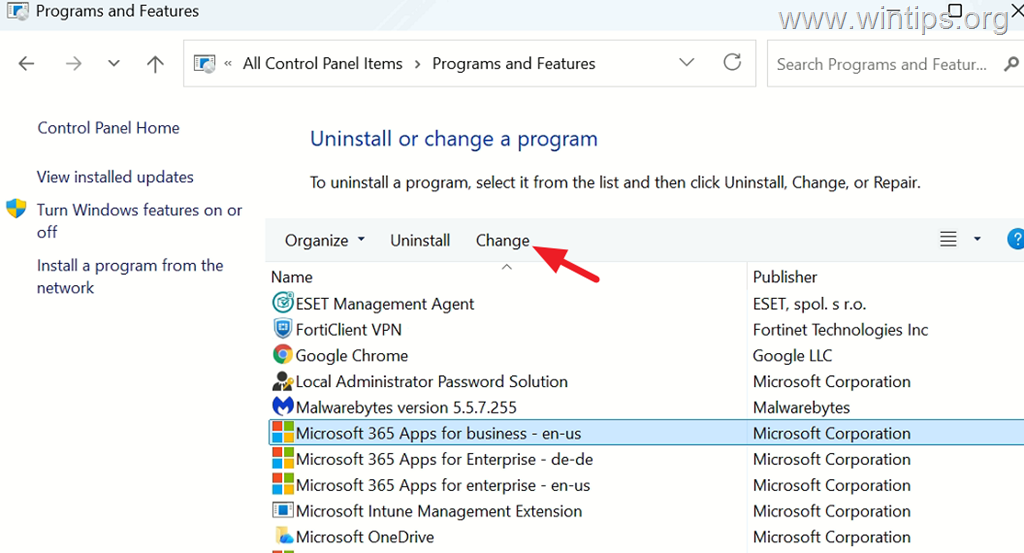
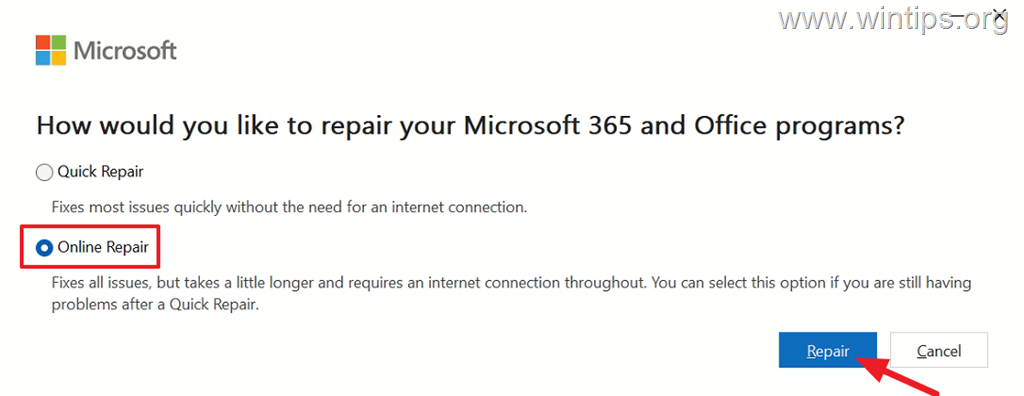
4. Select Online Repair and click Repair. This process will download fresh copies of the necessary files, potentially resolving deeper issues that a simple update might not fix.
5. Wait for the Online Repair to complete, and then click OK.
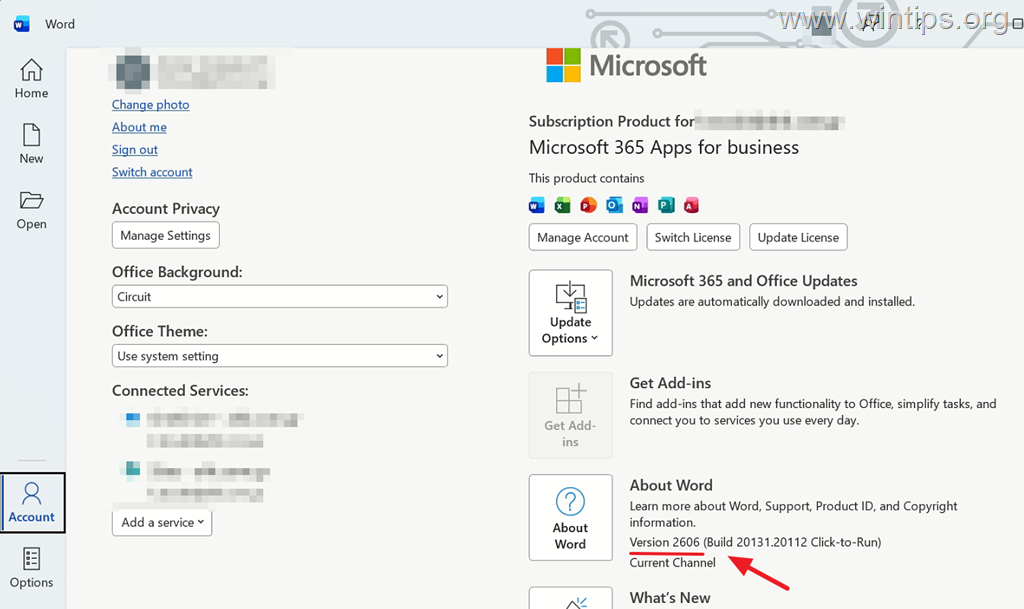
6. Open Outlook (or any other Office app) and verify that Microsoft 365 Apps has been updated to Version 2606 or later. Then, check if the problem is resolved.
Method 3: Update Microsoft 365 Apps to Version 2606 by Using the OfficeC2RClient Command.
* Note: As of 2 July 2026, the latest released version of Microsoft 365 Apps is Version 2606 (Build 16.0.20131.20112).
To update Microsoft 365 Apps to this version:
1. Open Command Prompt as an administrator.
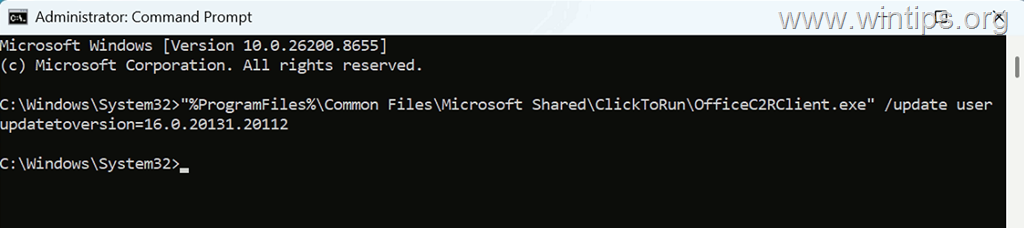
2. Run the following command:
- "%ProgramFiles%\Common Files\Microsoft Shared\ClickToRun\OfficeC2RClient.exe" /update user updatetoversion=16.0.20131.20112
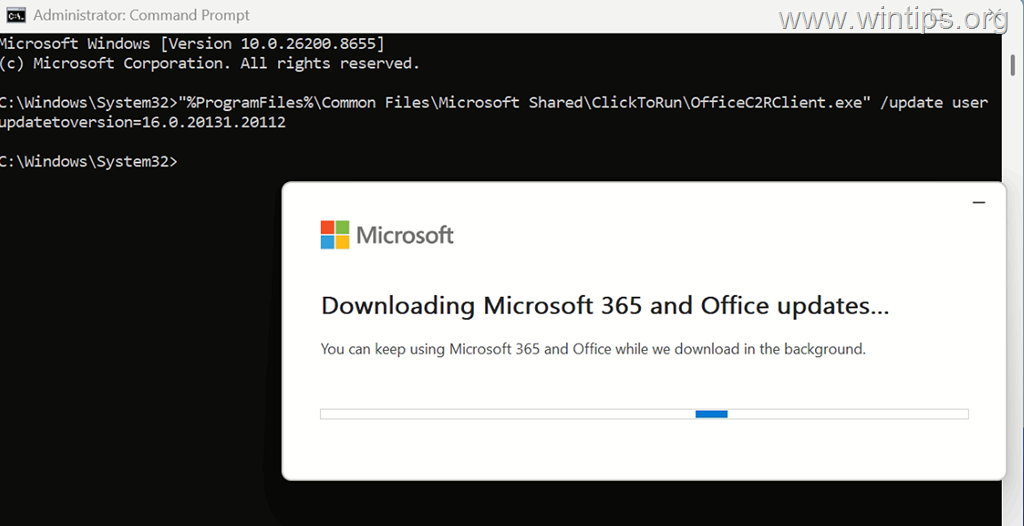
3. Wait for the update process to complete.
4. Restart Outlook (or any other Microsoft 365 application).
5. After the update is complete, open any Microsoft 365 application and verify that Version 2606 (Build 16.0.20131.20112) or a later build is installed. Then, confirm that the issue has been resolved.
Additional Troubleshooting
If the issue persists after completing the above methods, perform the following additional step:
- Check for Windows Updates: Ensure that Windows is fully up to date. Go to Settings > Windows Update (or Settings > Update & Security > Windows Update on Windows 10), and then click Check for updates. Install any available updates, restart your computer if prompted, and then verify whether the issue has been resolved.
Summary
To resolve the Outlook crashing issue that occurs when right-clicking in an email, during spell checking, or when sending an email, update Microsoft 365 Apps to Version 2606 or later. If Microsoft 365 Apps reports that the latest version is already installed but remains on Version 2605, perform an Online Repair and then verify that the installation has been successfully updated. Additionally, consider disabling hardware graphics acceleration and ensuring your Windows OS is up-to-date for optimal performance.
That's it! Which method worked for you?
Let me know if this guide has helped you by leaving your comment about your experience. Please like and share this guide to help others.
Frequently Asked Questions
What are the symptoms of the Outlook crashing issue reported on June 29, 2026?
Users reported that Outlook crashes immediately after right-clicking within an email body, when right-clicking a misspelled word during spell checking, or when sending an email. Draft messages may not be saved due to unexpected closures.
Which troubleshooting steps were found ineffective in resolving the Outlook crashing issue?
Starting Outlook in Safe Mode, creating a new Outlook profile, disabling spell checking, and running a Quick Repair of Microsoft Office were all reported not to resolve the issue.
How can I fix the Outlook crashes caused when right-clicking or sending emails?
To fix the issue, update Microsoft 365 Apps to Version 2606 or later. If the update isn't applied using standard methods, perform an Online Repair by navigating to Windows Control Panel > Programs and Features, selecting Microsoft 365 Apps for Business and choosing 'Change', followed by 'Online Repair'.
What should I do if Microsoft 365 Apps claims to be up-to-date but the issue persists?
If Microsoft 365 Apps claims to be up-to-date but remains on Version 2605, perform an Online Repair as a more comprehensive fix. Additionally, ensure your Windows OS is up-to-date by checking for updates in Settings > Update & Security > Windows Update.


- Apps and Games Crash After KB5124010 Due to AC-3 Audio: How to Fix - October 5, 2026
- How to Fix Windows 11 Update Error 0x80073712 - October 5, 2026
- How to Install Windows 11 26H2 on Unsupported Hardware - October 2, 2026