FIX: All Programs Open with Word or One Application (Solved).
If all your programs suddenly open with Microsoft Word (or another application), your system likely has a corrupted .exe file association. This issue prevents you from launching apps properly and can make your PC almost unusable.
The problem: All desktop shortcuts (.lnk files) and applications open with Microsoft Word (or another single program). As a result, you cannot open essential tools like Task Manager, Command Prompt, or System Restore.
Why Do All Programs Open with Word?
This problem usually occurs when:
- You accidentally select “Always use this app to open this type of file” for a .exe file
- A program modifies file associations incorrectly
- Malware alters the default .exe file association
This guide contains step-by-step instructions to fix the issue where all programs open with Microsoft Word or another application due to incorrect .EXE file association in Windows 11/10.
How to Fix .EXE File Association in Windows 11/10).*
* Important: Before proceeding with the steps below, it is strongly recommended to perform a full antivirus scan and a malware scan using Malwarebytes Anti-Malware.
Method 1. Reset Default Apps (Easiest Fix)
The first method to resolve this issue is to try to restore the default applications for all file and link types.
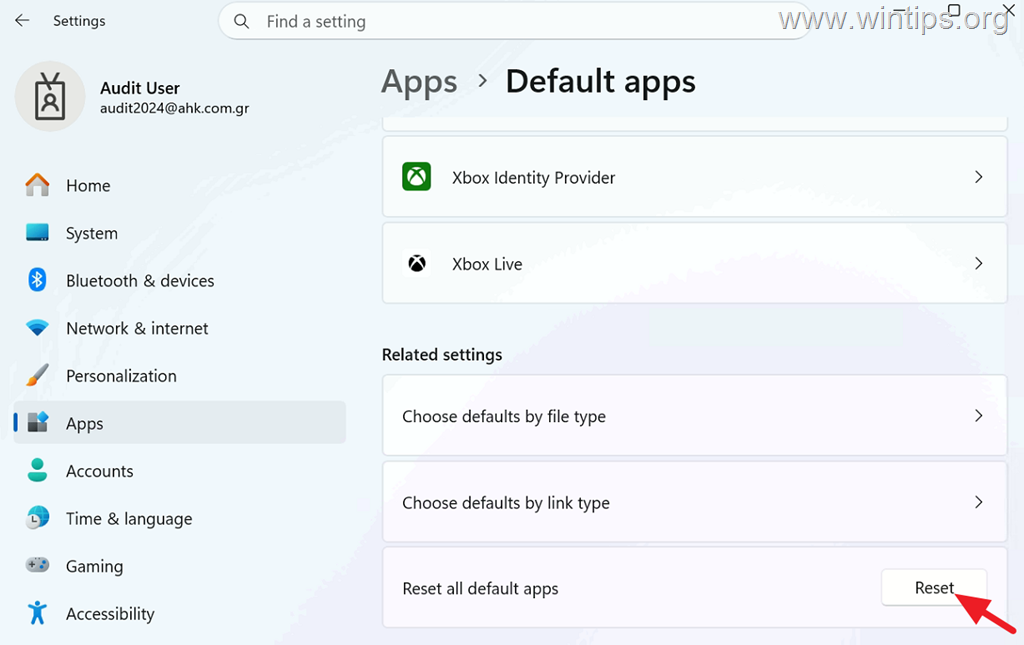
1. Go to Start > Settings > Apps > Default apps.
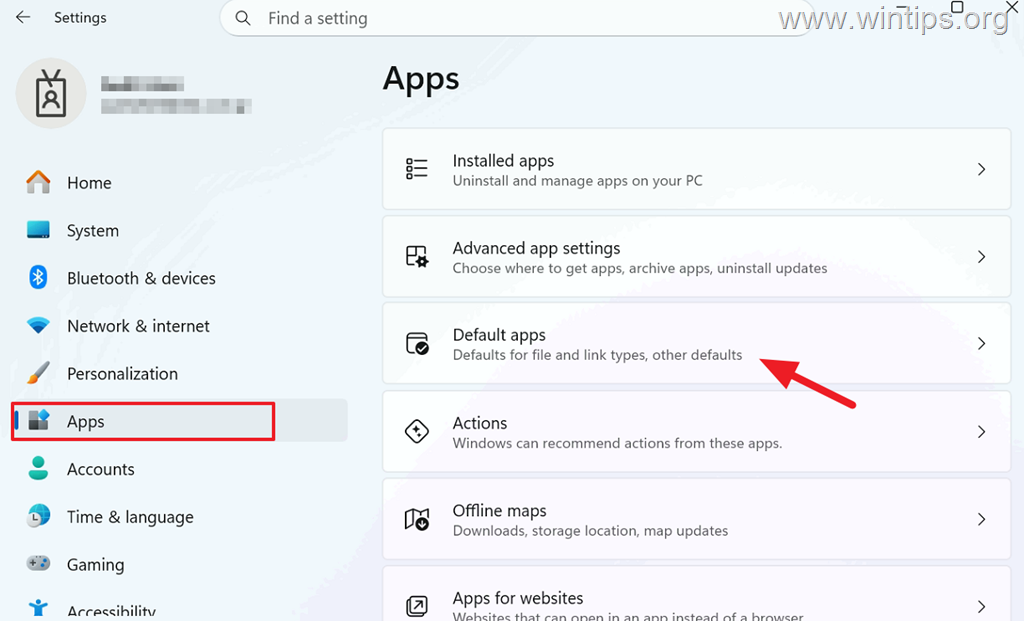
2. Scroll down to the bottom of the page and, under the "Related settings" section, click Reset all default apps.
3. Then click OK and wait a few seconds for the reset to complete. After that, check if the issue is resolved. If not, continue to the next method.
Method 2. Fix .EXE File Association Using a Registry File.
As mentioned above, when all files and programs open with the same application, the issue is typically caused by incorrect .exe file association. The easiest way to fix this behavior is to restore the default associations for executable files (.exe) by using a .reg file.
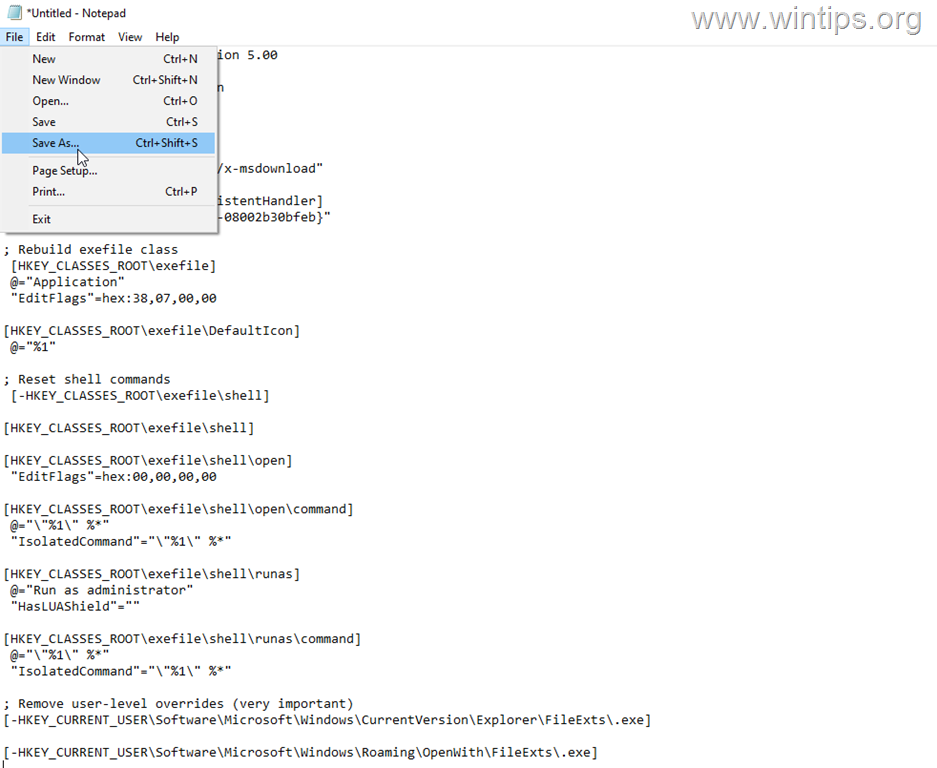
1. Open Notepad and copy-paste the following text:
2. At next, from File menu, select Save As.
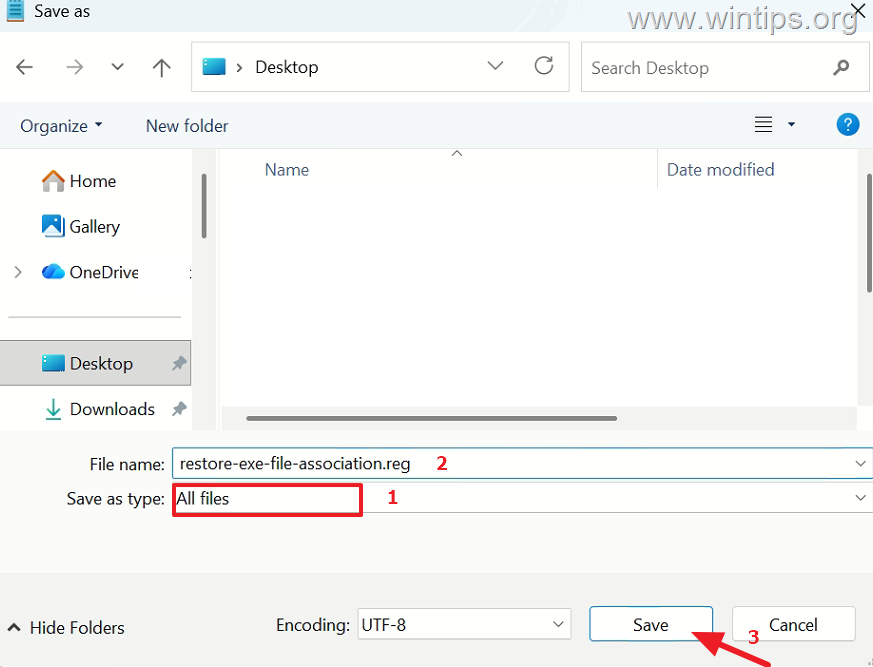
3. In the "Save As" window, choose to save the file to your Desktop, and then do the following:
-
Set Save as type to: All files
-
Type as file name "restore-exe-file-association.reg"
-
Click Save.
4. Close Notepad.
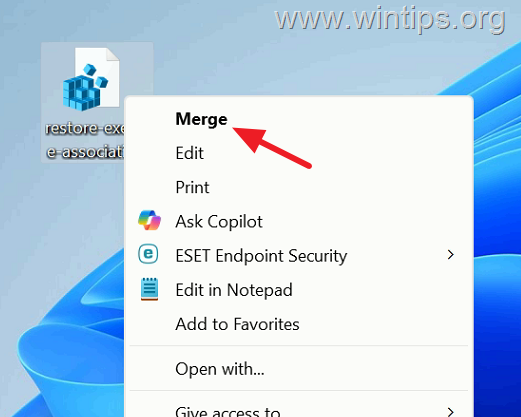
5. Finally, right-click on 'restore-exe-file-association.reg' file on your desktop and click Open or Merge.
6. Click Yes to continue.
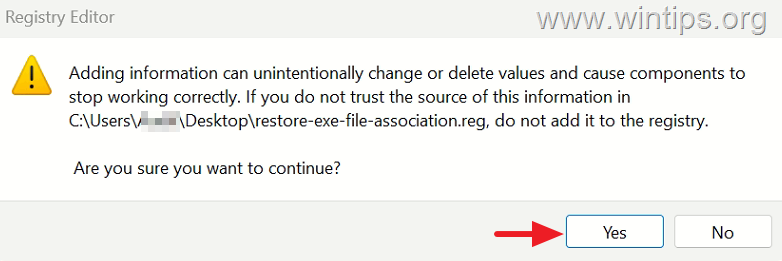
7. Sign out or restart your computer, then check if the issue is resolved.*
* Note: If the problem isn't solved, you can try to restore the association of the .exe files using the reg file provided by tenforums.com
Method 3. Create a New User Profile.
Since the issue may be related to the user profile, another solution is to create a new user profile and migrate the affected user's files to it. To do this:
1. Simultaneously press the Win + R keys to open the run command box and type
- control userpasswords2
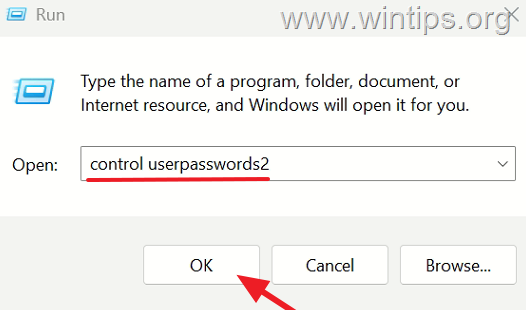
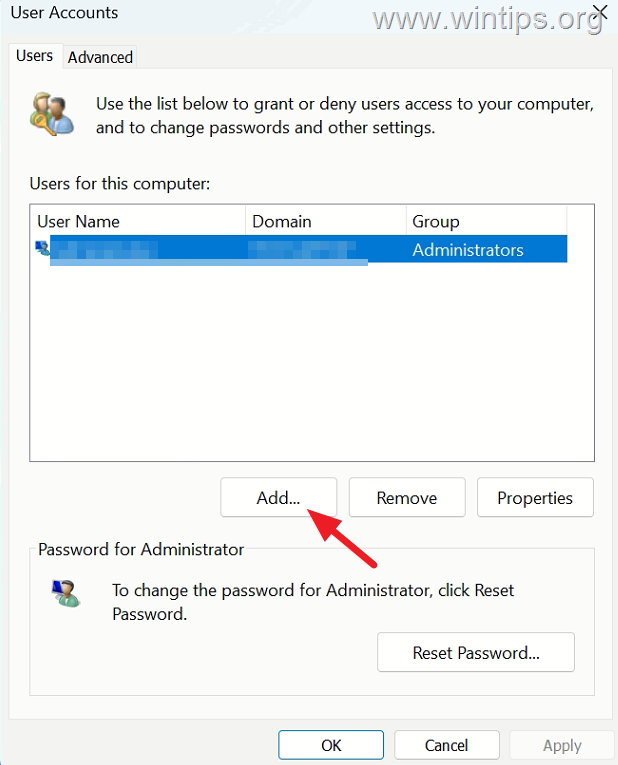
2. On the 'User Accounts' window, click Add to create a new user.
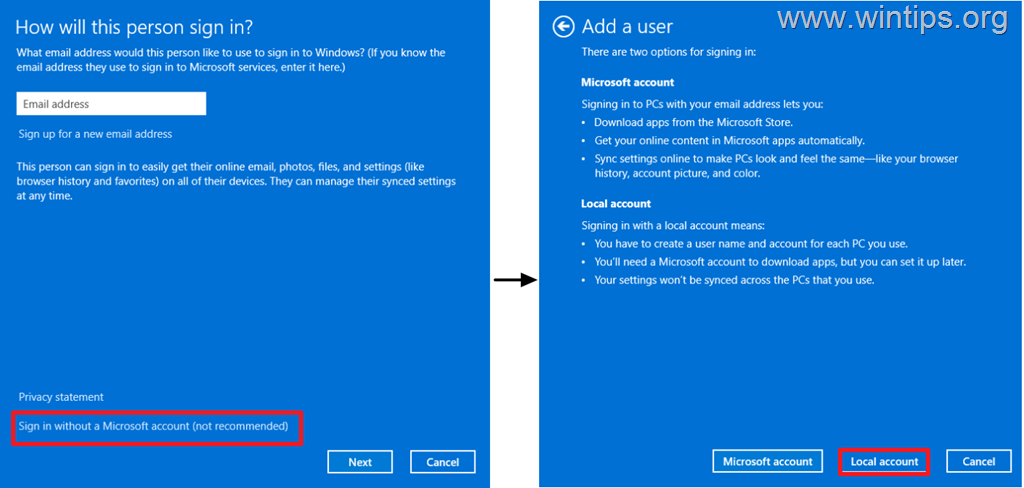
3. At next, click Sign in without Microsoft account (not recommended) and then select Local Account.
4. Now, type the new account credentials (Username and password), a password hint and then press Next & Finish at the last screen.
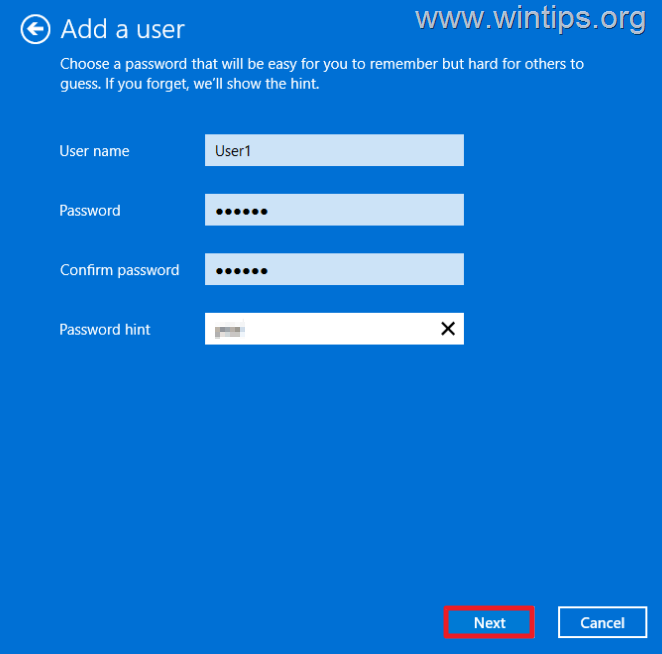
7. Finally, double-click the new user account, go to the "Group Membership" tab, and assign the user Administrator privileges.
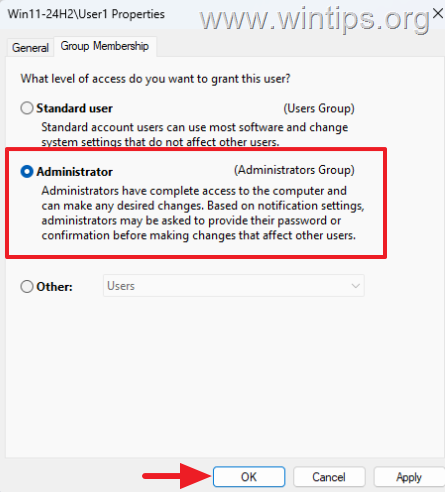
8. Now, restart the computer and on the login screen, select the new user to log in.
9. Finally, copy the user data from the old profile (e.g., 'C:\Users\OldUsername') to the new user profile (e.g., 'C:\Users\NewUsername') and you're done!
That's it! Which method worked for you?
Let me know if this guide has helped you by leaving your comment about your experience. Please like and share this guide to help others.
Frequently Asked Questions
Why do all my programs open with Microsoft Word?
This issue usually occurs because of a corrupted .exe file association, which might happen if you've accidentally set Word to open all exe files, a program modified file associations incorrectly, or malware altered the default .exe file association.
What should I do before trying to fix the .exe file association issue?
Before proceeding with fixing the issue, it's strongly recommended to perform a full antivirus scan and a malware scan using Malwarebytes Anti-Malware.
How do I reset the default apps in Windows 11/10 to fix the .exe file association problem?
Go to Start > Settings > Apps > Default apps, scroll to the bottom under 'Related settings,' click 'Reset all default apps,' then click OK and wait for the reset to complete.
What steps should I follow to fix the .exe file association using a registry file?
Open Notepad, copy the specific registry script for resetting .exe associations, save it as 'restore-exe-file-association.reg' on your Desktop, then right-click the file and select 'Open' or 'Merge.' Confirm any prompts and restart your computer to check if the issue is resolved.


- Always On VPN Stuck on Connecting After KB5124008 Update: How to Fix - September 24, 2026
- How to Disable Passkey Prompts and Delay Enforcement in Microsoft 365 - September 24, 2026
- Remote Desktop (RDP/RDS) Stops Working After September 2026 Windows Update: How to Fix - September 15, 2026