FIX: Your organization has deleted the device – 700003
If you encounter the error "Your organization has deleted the device – Error 700003" when signing in to Microsoft Outlook, Teams, or another Microsoft service, or when trying to enroll a device in Entra/Intune, continue reading below to learn how to fix the issue.
Issue: After deleting a device from Microsoft Entra or Microsoft Intune, when you try to reconnect it to Entra/Intune or when you try to sign in to Microsoft 365 applications/services, the following error message appears:
Something went wrong.
Your organization has deleted the device.
To fix this, contact your system administrator and provide the error code 700003.
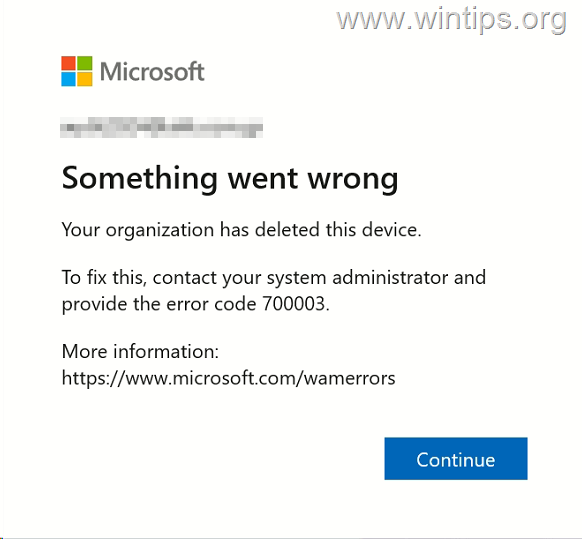
Error 700003 typically occurs when a device that was previously registered in Microsoft Entra ID or managed by Intune has been deleted from those services and then attempts to register again without properly resetting its previous registration state. To fix the problem, read the instructions below.
How to FIX: Your organization has deleted the device (error code 700003)
Method 1. Restart the Device.
When you delete a device from Microsoft Entra ID or Microsoft Intune, you must wait a few minutes for the change to take effect and then it is necessary to restart the device before trying to enroll it again. So,
1. Restart the device.
2. After restarting, do one of the following according what you want to do:
A. If you want to enroll the device in Entra and Intune continue to next method.
B. If you want to just sign-in to Office Apps or to register the device in Entra:
-
Open any Microsoft Office app (e.g. Outlook) and sign-in with your Microsoft Account.
-
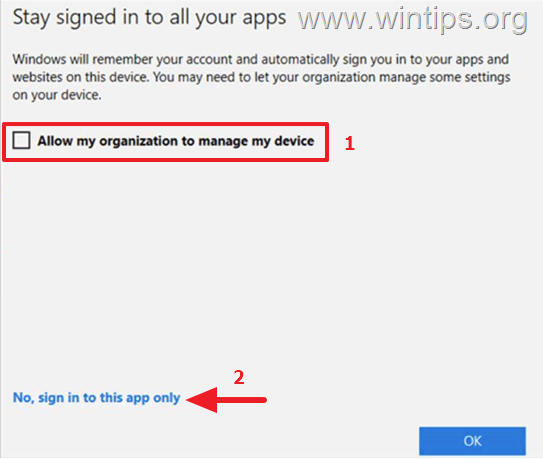
When prompted to Stay signed in to all apps, uncheck the option Allow my organization to manage my device and then click No, sign in to this app only. *
* Note: If the sign-in fails again with the error "Your organization has deleted the device – 700003", continue to next method, otherwise you're done here!
Method 2. Disconnect Microsoft Account in Settings.
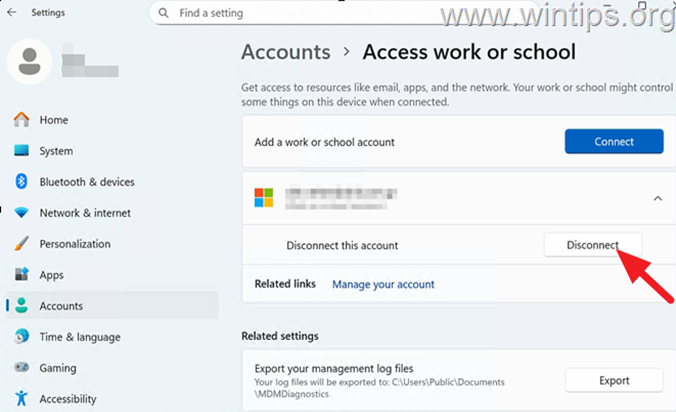
1. Go to Start > Settings > Accounts > Access work or school.
2. Click Disconnect and then click Yes to remove the account.*
* Note: Sometimes, the first time you disconnect an account, the account doesn't disconnected/removed and still shows as "Connected". If this happens, tap the Disconnect button again (and select Yes).
3. Now, do one of the following according what you want to do:
A. If you want to just sign-in to Office Apps or to register the device in Entra:
-
Open any Office app (e.g. "Outlook") and sign-in with your Microsoft Account.
-
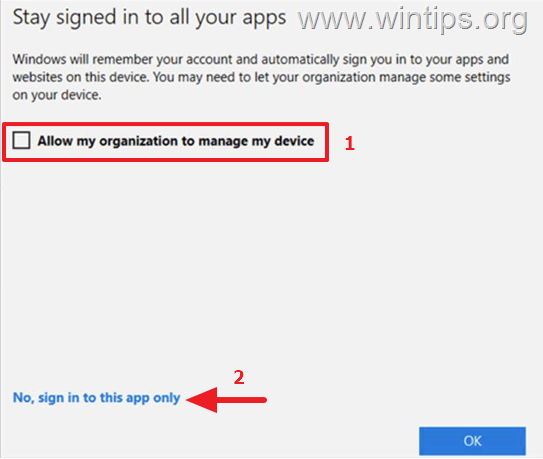
When prompted to Stay signed in to all apps, uncheck the option Allow my organization to manage my device and then click No, sign in to this app only.
B. If you want to enroll the device in Entra and Intune:
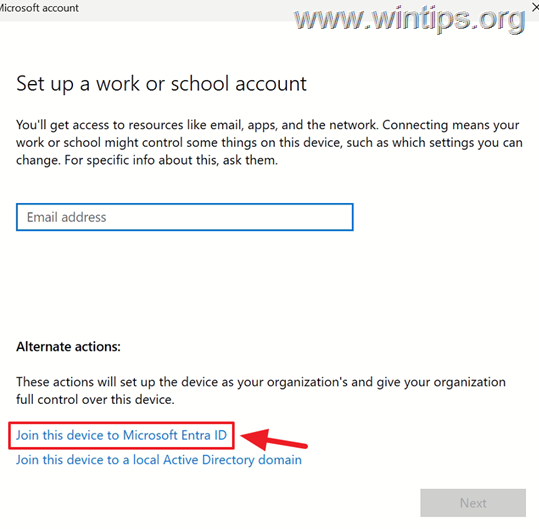
1. On Access work or school options, click Connect.
2. Then choose Join this device to Microsoft Entra ID.
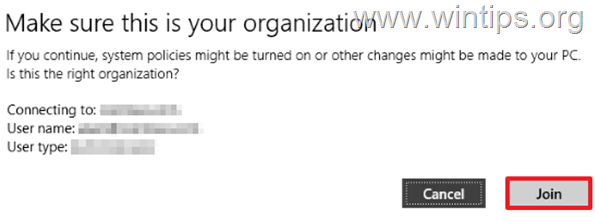
3. Finally, type your MS account credentials and when asked to Make sure this is your organization, click Join.
Method 3. FIX error 700003 with DSREGCMD command.
1. Open Command Prompt as Administrator
2. Now, according on how the device was previously connected to Microsoft Entra, follow the corresponding instructions provided below.
A. For MICROSOFT ENTRA REGISTERED or MICROSOFT ENTRA JOINED devices:
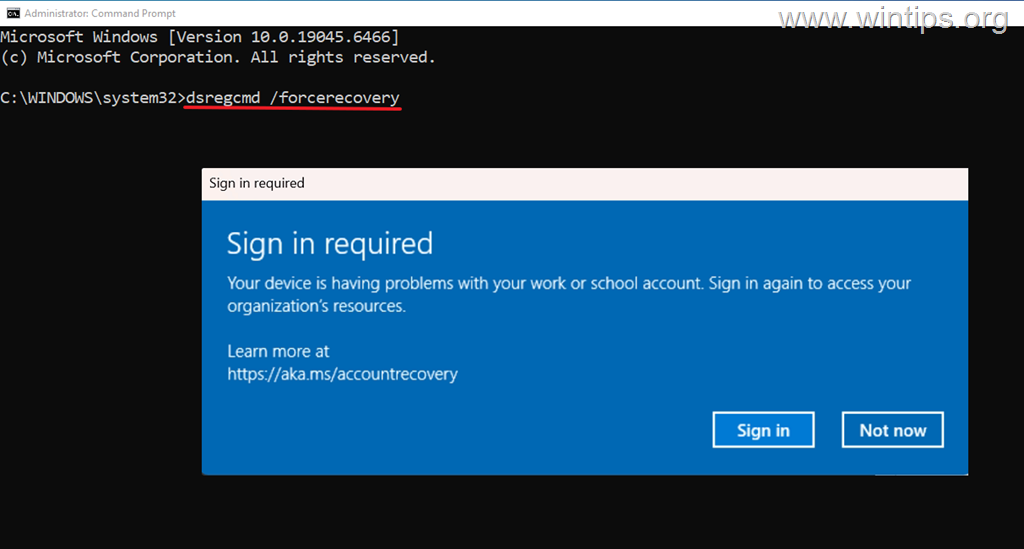
a. Give this command:
- dsregcmd /forcerecovery
b. Then, in Sign-in required window, do one of the following according want you want to do:
- if you want to register the device in Entra: click Sign in and login with your MS account credentials.
OR…
- If you want to enroll the device in Entra & Intune: click Not now. Then, navigate to Add a work or school account settings, click Connect & select Join this device to Microsoft Entra ID as instructed in the above method.
c. Restart the device.
B. For MICROSOFT HYBRID JOINED devices:
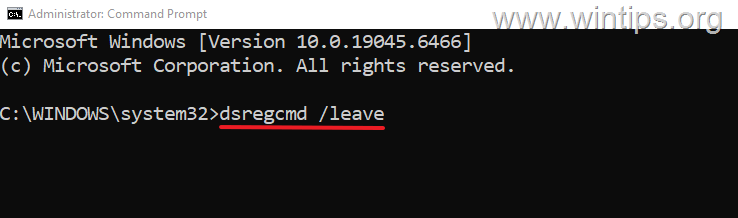
a. Give this command:
- dsregcmd.exe /leave
b. Restart the computer.
c. Login to Windows with your domain account credentials.
d. Wait for Azure AD Connect/Entra Connect tool to synchronize the device in Entra ID.
d. Add your work or school account and enroll the device in Microsoft Entra ID & Intune by following the corresponding instructions in method-2 above.*
* Note: If you receive again the error 700003, give this command in command prompt:
-
dsregcmd.exe /debug /leave
e. Restart the device.
That's it! Which method worked for you?
Let me know if this guide has helped you by leaving your comment about your experience. Please like and share this guide to help others.
Frequently Asked Questions
What does error code 700003 mean in Microsoft services?
Error 700003 typically occurs when a device previously registered in Microsoft Entra ID or managed by Intune has been deleted and is trying to register again without resetting its registration state.
How can I fix error code 700003 when it appears on my device?
To fix this error, you can try the following: restart your device, disconnect your Microsoft account from the device settings, or use the DSREGCMD command for recovery depending on your device's previous connection state.
What should I do first if I encounter error 700003?
First, try restarting your device and then attempt to sign in again to the Microsoft service or enroll the device following the specific steps for your situation.
How do I use the DSREGCMD command to resolve error 700003?
Open Command Prompt as Administrator and use the command 'dsregcmd /forcerecovery' for Entra Registered or Joined devices, or 'dsregcmd.exe /leave' for Hybrid Joined devices, then follow the appropriate sign-in instructions.


- Windows Update Uninstall Failed with Error 0x800F0825: How to Fix - October 7, 2026
- Apps and Games Crash After KB5124010 Due to AC-3 Audio: How to Fix - October 5, 2026
- How to Fix Windows 11 Update Error 0x80073712 - October 5, 2026