How to Fix SecurityHealthSystray.exe – Bad Image Error (0xc000012f) on Windows 11.
If you encounter the message "SecurityHealthSystray.exe – Bad Image" with error status 0xc000012f when starting Windows or launching Windows Security, this guide provides comprehensive instructions to resolve the issue effectively.
What is "SecurityHealthSystray.exe"?
The SecurityHealthSystray.exe is a legitimate Windows process associated with the Windows Security notification icon. It runs in the system tray to display security alerts and protection status, ensuring the user is informed about the system's security posture.
Why does the "SecurityHealthSystray.exe – Bad Image" error occur?
This error typically arises when the SecurityHealthSSO.dll file of the Windows Security application becomes corrupted. This corruption can prevent Windows Security from functioning correctly, or to display a blank screen when opened.
What can cause the "SecurityHealthSystray.exe – Bad Image" error?
The error is common in Windows 11, often following Windows updates. Other potential causes include malware infections, corrupted Windows files due to sudden power outages, or disk errors.
This guide outlines several methods with step-by-step instructions to fix the following error on Windows 11:
SecurityHealthSystray: - SecurityHealthSystray.exe – Bad Image

\\?\C:\Windows\System32\SecurityHealth\1.0.2303.28002-0\SecurityHealthSSO.dll is either not designed to run on Windows or it contains an error. Try installing the program again using the original installation media or contact your system administrator or the software vendor for support. Error status 0xc000012f.
How to FIX: SecurityHealthSystray – Bad Image (0xc000012f).
Important: Scan for Malware/Viruses
Before proceeding, ensure your computer is free from viruses and malware. Use this Malware Scan and Removal Guide to check and remove any malicious programs that may be affecting your system.
Method 1. Repair Windows System Files
The first method involves repairing Windows system files using the instructions below. This step is crucial to fix any corrupted system files that may be causing the issue.*
* Note: This method usually does not solve the mentioned problem, but it is a good idea to follow these steps to first fix any possible corrupted system files.
1. Open Command Prompt as Administrator. Type "cmd" or "command prompt" in the search bar, then click Run as administrator in the Command Prompt result.

2. At the command prompt, copy-paste the following command and press Enter:
Dism.exe /Online /Cleanup-Image /Restorehealth
* Info: This command uses the Deployment Imaging Service and Management Tool (DISM) to repair the Windows image, ensuring that all components are intact and operational.
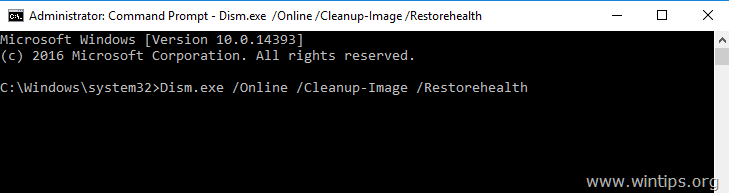
3. Once DISM completes, copy-paste the command below and press Enter:
sfc /scannow
* Info: The System File Checker (SFC) scans and repairs corrupted system files, ensuring the integrity of Windows system files.
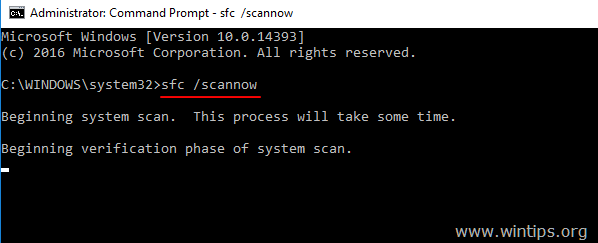
4. After the SFC scan completes, restart your computer and check if the problem is resolved.
Method 2. Reset Windows Security App to its Default Settings via PowerShell
The next method to fix the mentioned problem is to use Windows PowerShell to reset the Windows Security app package to its factory default state, which can resolve issues caused by corrupted app settings.
1. In Windows Search, type PowerShell and select Run as Administrator to open PowerShell with elevated privileges.

2. In the PowerShell window, copy and paste the following command and press Enter:
Get-AppxPackage Microsoft.SecHealthUI -AllUsers | Reset-AppxPackage
* Info: This command resets the Windows Security app, which can fix issues caused by corrupted app configurations.
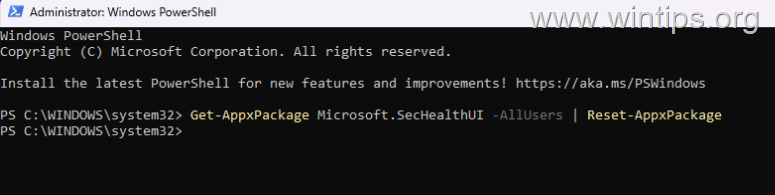
* Note: If you receive an error "package not found", use this command:
Get-AppxPackage -AllUsers *SecHealthUI* | Foreach {Add-AppxPackage -DisableDevelopmentMode -Register "$($_.InstallLocation)\AppXManifest.xml"}
3. After the command executes, close PowerShell, reboot your PC, and attempt to open Windows Security again.
Method 3. Delete the SecurityHealth Folder and Force a Windows Update
As mentioned above, the “SecurityHealthSystray.exe – Bad Image” error is typically caused by corrupted Windows Security app files, particularly the “SecurityHealthSSO.dll” file.
In such cases, the most effective way to resolve the issue is to force Windows Update to force Windows Update to reinstall the Windows Security application after deleting the "C:\Windows\System32\SecurityHealth" folder that contains the corrupted files.
Because the "SecurityHealth" is a protected system folder, the easiest and safest way to delete it is by booting Windows into Recovery Mode.
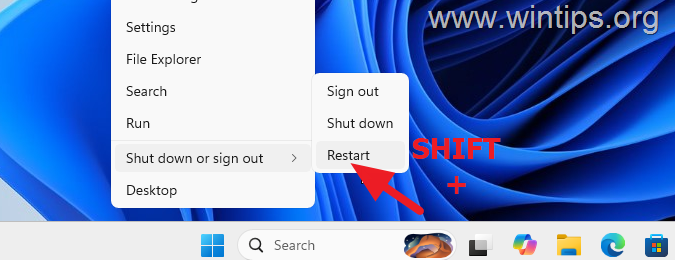
1. While holding down the SHIFT key, right-click the Start menu and select Restart.
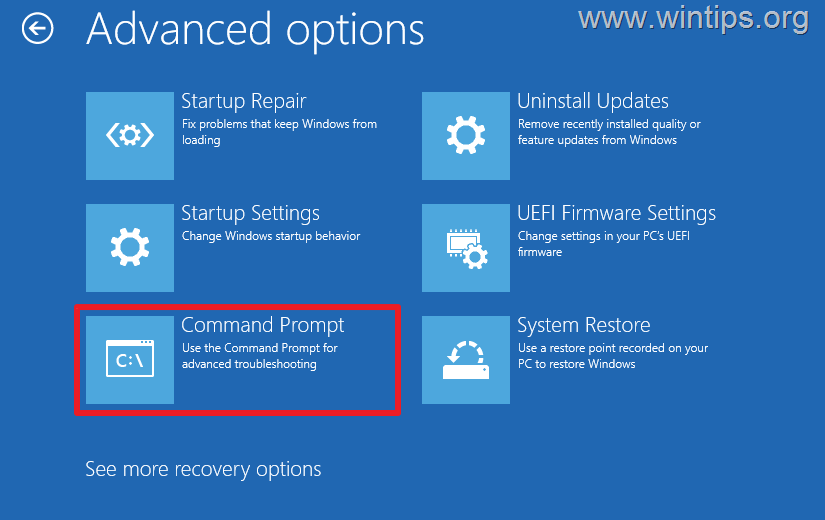
2. After restarting, navigate to Troubleshoot > Advanced options > Command Prompt.
3a. In Command Prompt, type the following command and press Enter:
bcdedit
3b. Identify the drive letter of the partition where Windows is installed (e.g., D:).
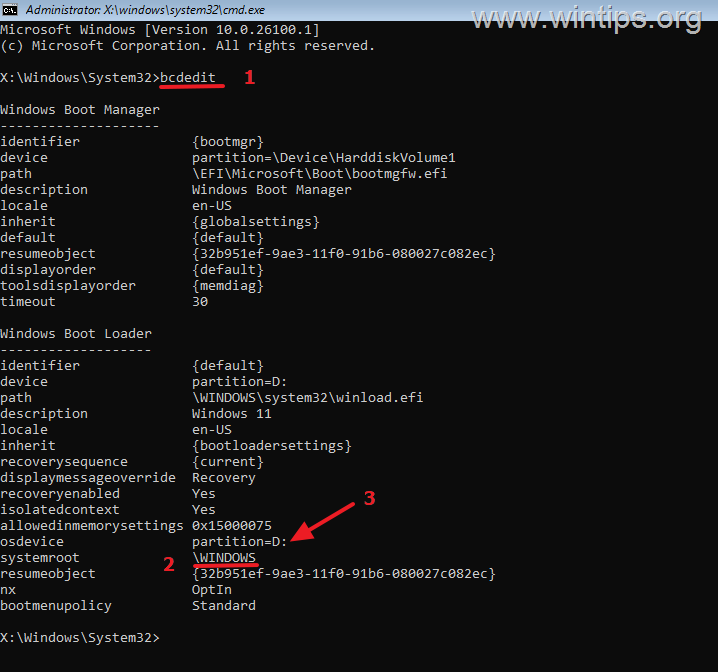
4. To take ownership of the SecurityHealth folder, type the following command, replacing Z: with the drive letter of the Windows installation drive:
takeown /f "Z:\Windows\System32\SecurityHealth" /r /d y

5. Grant full permissions to the SecurityHealth folder by typing:
icacls "Z:\Windows\System32\SecurityHealth" /grant administrators:F /t
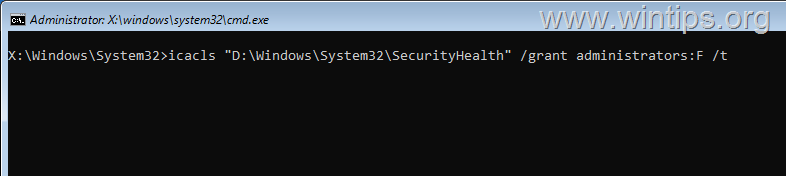
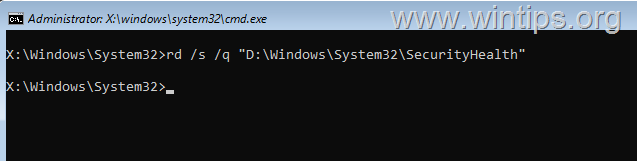
6. Delete the SecurityHealth folder using the command:
rd /s /q "Z:\Windows\System32\SecurityHealth"
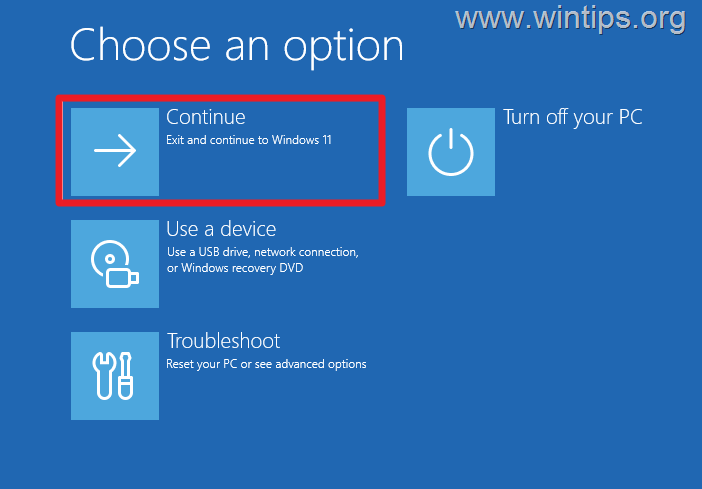
7. Close Command Prompt and click Continue to start Windows normally.
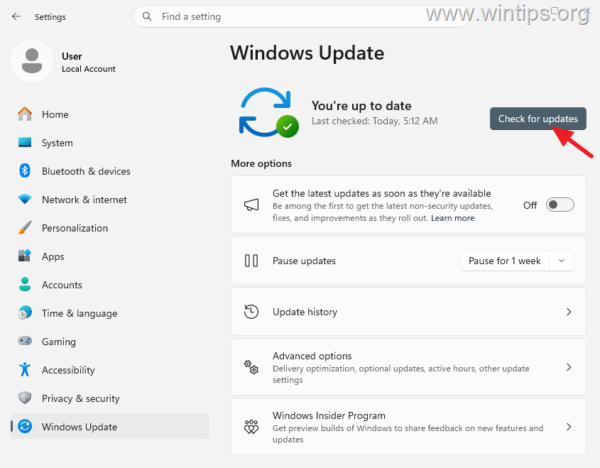
8. Once in Windows, navigate to Start > Settings > Windows Update and click Check for updates.
9. After installing the updates, restart your computer and verify if the issue is resolved.
Method 4. Delete the SecurityHealth Folder & Reinstall Security Health from Microsoft Update Catalog
The next method is to reinstall Security Health components from the Microsoft Update Catalog, which can resolve persistent issues with SecurityHealthSystray.exe.
Step 1. Delete 'SecurityHealth' folder.
If you haven't already, follow the instructions in Method 3 to delete the C:\Windows\System32\SecurityHealth folder. Then proceed to Step-2.
Step 2. Download & Install Security Health components.
1. Visit the Microsoft® Update Catalog.
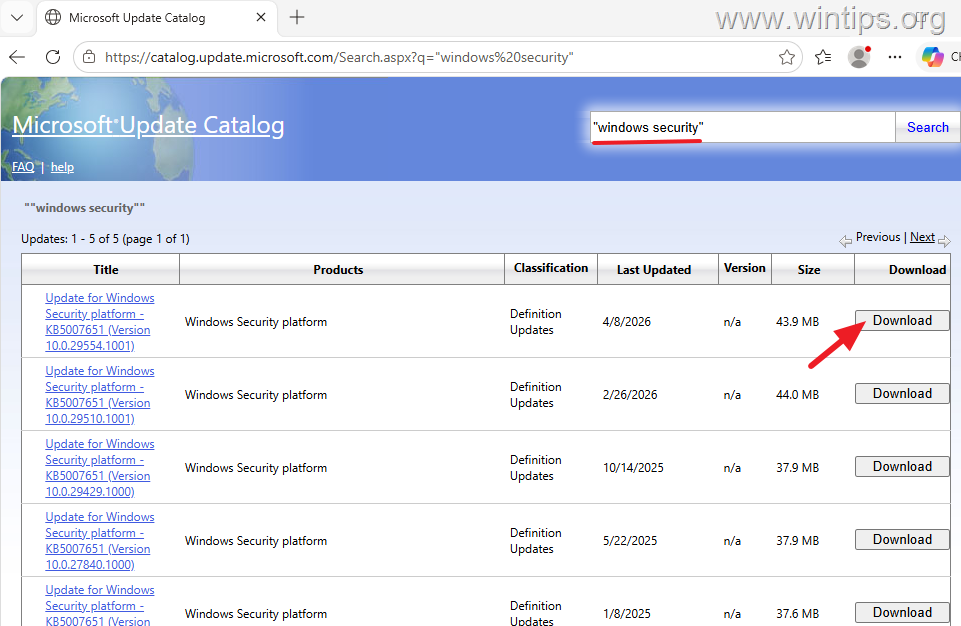
2. In the search bar, type "windows security" (in quotation marks) and click Search.
3. Click Download on the first result, which is the latest version of Security Health.
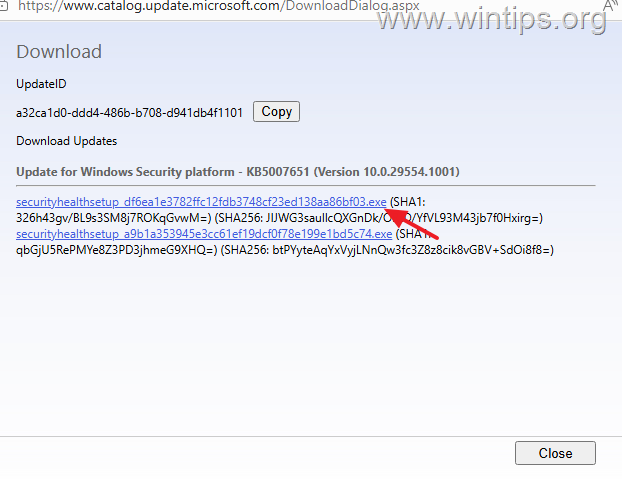
4. In the 'Download' window, click on the first ".exe" file to download it.
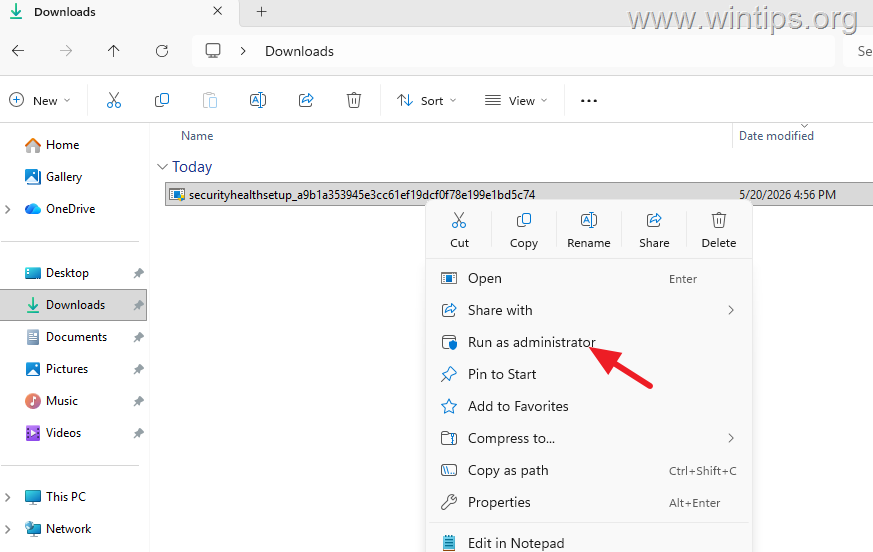
5. Navigate to the 'Downloads' folder, right-click on the downloaded file, and choose Run as Administrator. Click Yes on the UAC warning to run the app.
* Note: If you receive "This app can't run on your PC", download the second .exe file from the previous step and repeat this step.
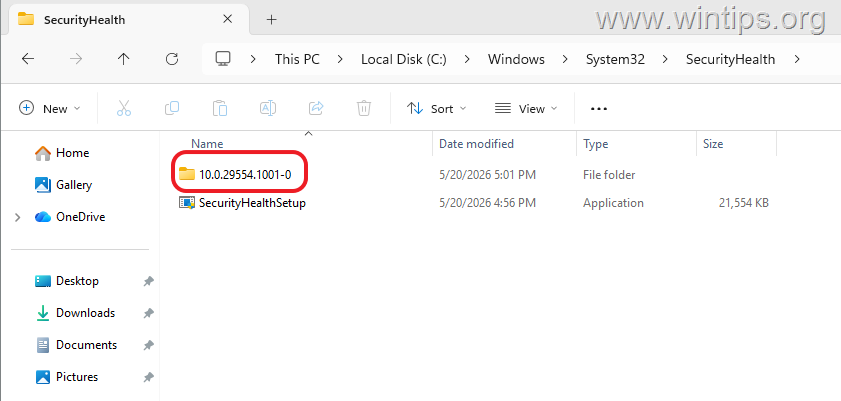
6. After a few seconds, you should now see a new folder inside C:\Windows\System32\SecurityHealth with the version number of the latest Windows Security release, and the Windows Security app should open. If so, you're good to go!
Method 5. Reinstall Current Version of Windows
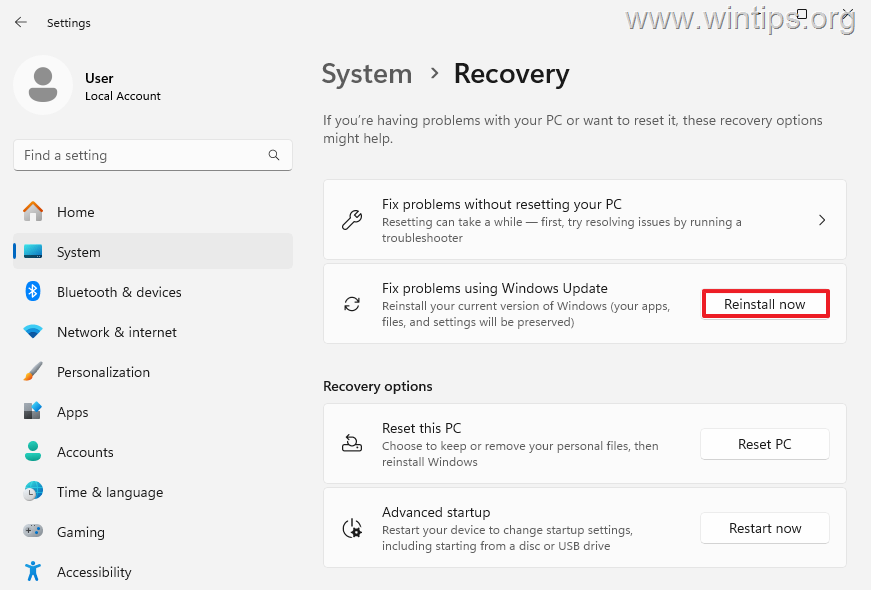
Windows 11 allows you to reinstall the operating system without losing files, settings, or apps. This method can resolve issues by refreshing the Windows installation.
1. Navigate to Start > Settings > System > Recovery.
2. Click Reinstall now next to 'Fix problems using Windows Update'.
3. Click OK to repair Windows without losing files and settings.
Method 6. Repair Windows with an In-place Upgrade
If the problem persists, consider performing an in-place upgrade to repair Windows 11. This process reinstalls Windows while preserving your files and applications.
Summary
To resolve the "SecurityHealthSystray.exe – Bad Image" error, begin by scanning for malware, then repair system files using DISM and SFC. If the issue persists, reset the Windows Security app via PowerShell, delete the SecurityHealth folder and force a Windows Update, or reinstall Security Health components from the Microsoft Update Catalog. As a last resort, consider reinstalling Windows or performing an in-place upgrade to ensure system integrity.
Let us know which method worked for you by leaving a comment. Please like and share this guide to help others.
Frequently Asked Questions
What is SecurityHealthSystray.exe?
SecurityHealthSystray.exe is a legitimate Windows process associated with the Windows Security notification icon. It runs in the system tray to display security alerts and protection status, ensuring the user is informed about the system's security posture.
Why does the 'SecurityHealthSystray.exe – Bad Image' error occur?
This error typically arises when the SecurityHealthSSO.dll file of the Windows Security application becomes corrupted. Corruption can occur due to Windows updates, malware infections, or other issues like power outages or disk errors.
How can I fix the 'SecurityHealthSystray.exe – Bad Image' issue?
To fix this error, start by scanning for malware and repairing Windows system files using utility commands (DISM and SFC) in Command Prompt or resetting the Windows Security app using PowerShell. Follow the detailed steps in the guide provided.
Still having trouble fixing this issue?
💬 Get WinTips Remote Support →

- How to Fix SecurityHealthSystray.exe – Bad Image Error (0xc000012f) on Windows 11. - October 26, 2026
- FIX: Windows Hello for Business PIN error 'Your credentials could not be verified' with 'status: 0xc000005e substatus: 0x0' or 'status: 0xc0000bb, substatus: 0x0'. - October 20, 2026
- FIX: This Device Is Already Set Up in Another Organization in Company Portal or During Intune Enrollment - October 13, 2026