
How to Remove or Add Users in Local Administrators Group on Domain computers via Group Policy (GPO).
This tutorial contains step-by-step instructions on how to remove domain users or other local user accounts (other than the built-in Administrator account), from the local Administrators group on domain-joined computers.
A major security risk in an Active Directory environment is allowing Domain or Local users to manage a workstation.
Removing domain users, and local users from the Local Administrators group on domain computers is a best practice for domain security, and we'll explain why this should be done below.
- When a domain or a standard local user has administrator rights on a domain computer, any breach of their account by an unauthorized person can lead to full control of the computer. For example, an attacker can use this increased access to install malware, steal data, or gain access to other systems on the network.
In this guide, you'll find detailed instructions to delete the standard domain user(s)", or other local users (other than the standard "Administrator" account) from the local "Administrators" group on each domain computer.
How to Delete Unwanted Accounts from Local Administrators Group and Set any Domain User as Local Administrator in Active Directory Domain Workstations.
Info: In this example we will show how to remove from the local "Administrators" Group, the local user "Admin" and the domain user "User1", while keeping only in the group the "Administrator"* account and the "Domain Admins"** group as shown in the image(s) below.
* After removing the unwanted accounts, you can use Microsoft's Local Administrator Password Solution (LAPS) to manage the passwords of local Administrators on your domain computers.
** If you want to keep your network more secure, you can deny Domain Admins to logon locally on domain PCs, by applying the instructions on this article: How to Deny Domain Admins to Log On Locally on Workstations.

1. Open Server Manager and from the Tools menu open the Group Policy Management.
2. In Group Policy Management, either edit the default domain policy or create a new group policy for the entire domain or just for the OU that contains the Computers on which you want to specify the Local Administrator accounts.*
* Note: In this example, we will define the local administrator accounts with a new policy, in a specific OU called "Workstations" that contains all the domain computers where we want this policy to apply.
3. Right-click and select Create a GPO in this domain, and Link it here…

4. Name the new GPO as "Local Administrators on Workstations" and click OK.

5. Now Edit the created GPO.

6. Go to Computer Configuration > Preferences > Control Panel Settings > Local users and Groups.
7. Right-click on Local users and Groups and select New > Local Group.

8. On the "New Local Group Properties" window, do the following:
-
-
In Action, choose: Update
-
In Group Name, choose: Administrators (Built-in)
-
Check Delete all member users
-
Check Delete all member groups
-
Click the Add button.

-
Type Administrator and click OK.

-
Now, click Add again.
-
Click on three dots next to the "Name" filed.

-
Type "Domain Admins", click Check Names and click OK & OK.*
* Related article: Why and how to prevent Domain Admins to logon locally on domain workstations.

-
Finally click Apply > OK to save the GPO. *
* Note: Repeat (if you want) the same steps, to add any other standard or domain user(s) in the local administrators group.

-


11. Close all the Group Policy Management windows.
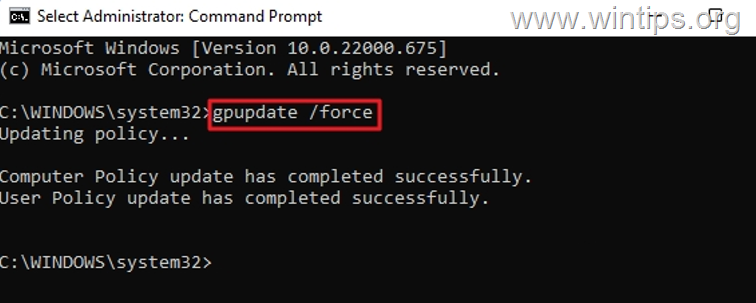
12. Finally, open Command Prompt as Administrator and give the following command to apply the changes (or restart the workstations):
- gpupdate /force
That's it! Let me know if this guide has helped you by leaving your comment about your experience. Please like and share this guide to help others.
Frequently Asked Questions
What is the main security risk of allowing Domain or Local users to manage a workstation?
Allowing Domain or Local users to manage a workstation poses a security risk because it can lead to unauthorized full control of the computer by attackers, who may install malware, steal data, or gain network access.
How can you manage local Administrator passwords after removing unwanted accounts from the Local Administrators group?
After removing unwanted accounts, you can use Microsoft's Local Administrator Password Solution (LAPS) to manage the passwords of local Administrators on your domain computers.
Which steps should you take to define local administrator accounts using Group Policy Management?
First, open Server Manager and Group Policy Management. Edit the default domain policy or create a new one. Right-click to create and link a new GPO named "Local Administrators on Workstations". Edit the GPO, navigate to Local users and Groups, select New Local Group, and update settings to remove unwanted accounts and add necessary ones like "Administrator" and "Domain Admins".
How do you apply the changes made in Group Policy Management?
To apply the changes, you can open Command Prompt as Administrator and enter the command 'gpupdate /force', or restart the workstations for the updates to take effect.


- Remote Desktop (RDP/RDS) Stops Working After September 2026 Windows Update: How to Fix - September 15, 2026
- Windows 11 KB5124008 Causes No Sound or USB Audio Code 10: How to Fix - September 14, 2026
- Copilot Missing or Grayed Out in Outlook: How to Fix - September 10, 2026



