
FIX: Device encryption is temporarily suspended and does not resume after the computer restarts (Windows 11).
If you see the message "Device encryption is temporarily suspended. Encryption will resume automatically the next time you restart this device" when encrypting your Windows 11 PRO device, and the error persists even after restarting your computer, proceed below to resolve the issue.
Issues resolved in this guide:
1. After you enable Device Encryption in Windows 11, you receive an informational message that says "Device encryption has been temporarily suspended. Encryption will resume automatically the next time you restart this device," and the message remains even after you restart your device.
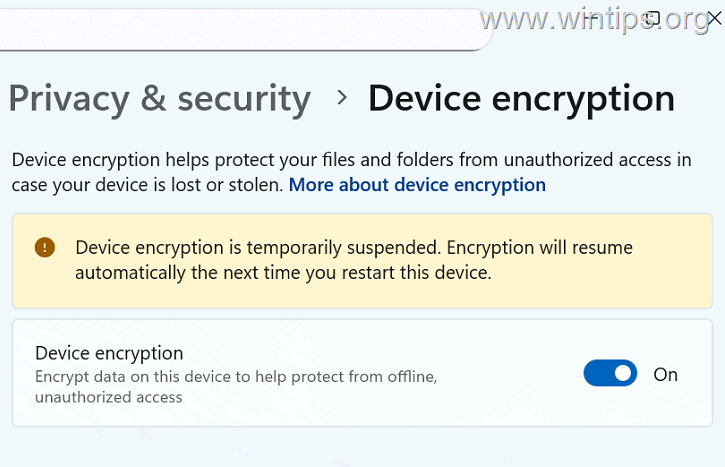
2. When you run the "manage-bde -status" command to see the BitLocker encryption status, you see that BitLocker protection is disabled.
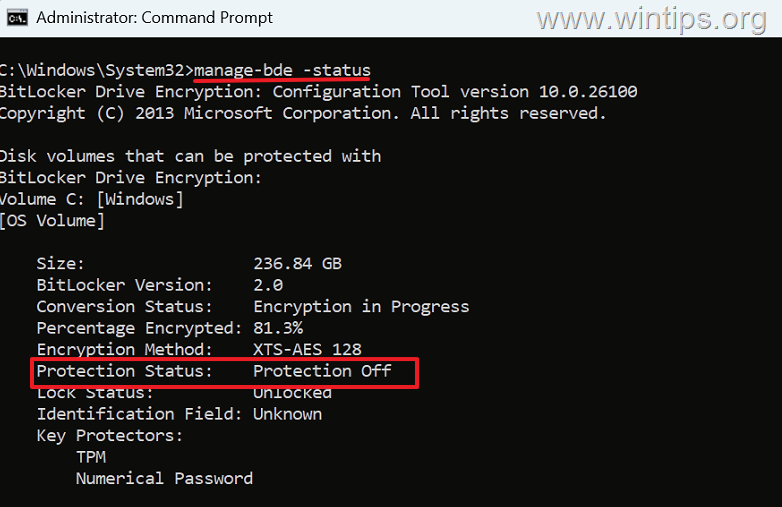
The message "Device encryption is temporarily suspended" on a Windows 11 PRO device usually means that BitLocker failed to resume properly after a reboot or that BitLocker protection is disabled on a fixed drive. This can leave the device partially unprotected, which is a serious security concern, especially in enterprise or Intune-managed environments.
In this guide, you will find detailed instructions to enforce Device Encryption on the C: drive and exit its suspended state.
How to FIX: Device encryption is temporarily suspended on Windows 11.
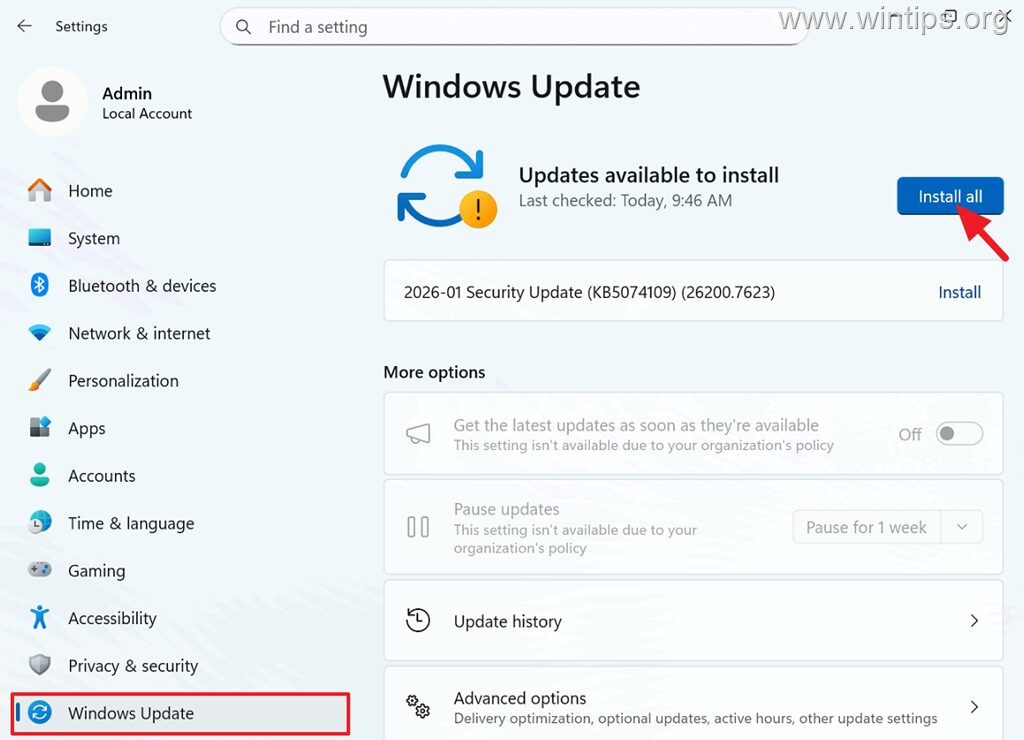
Step 1. Download and Install the latest Windows Updates.
When you enable Device Encryption in Windows, encryption may be temporarily suspended during Windows Updates, so in most cases, the issue is resolved after installing the latest updates. So,
1. Navigate to Start > Settings > Windows Updates.
2. Install all available updates.
3. Restart your computer and then check if the problem is resolved. If not, continue to next step.
Step 2. Turn on BitLocker.
In most cases, encryption is suspended because BitLocker is not automatically enabled after a restart and must be manually enabled to start encryption. To turn on BitLocker on C: drive do the following:
On Windows 11 Home:
1. Open Command Prompt as Administrator and give the following command:
- manage-bde -protectors -enable C:
2. Restart your computer and continue to Step-3 below.
On Windows 11 Pro:
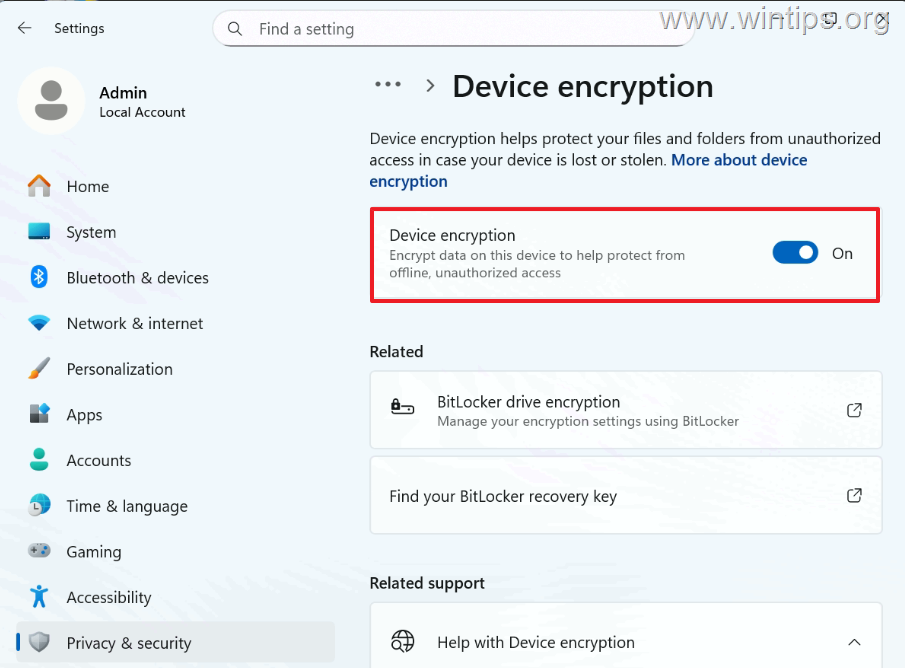
1. Navigate to Start > Settings > Device Encryption and open BitLocker drive encryption settings.
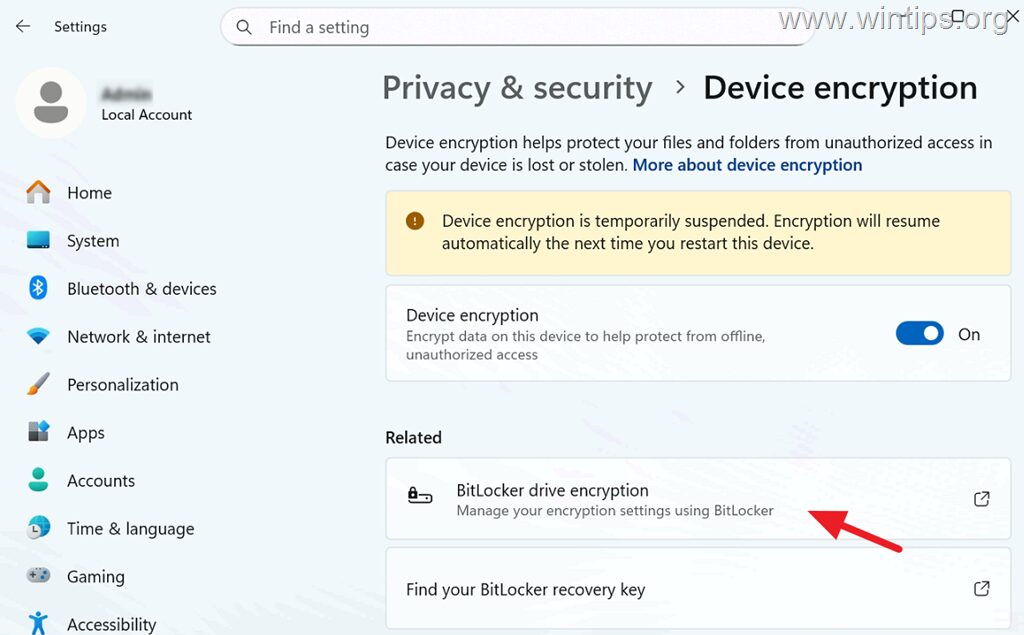
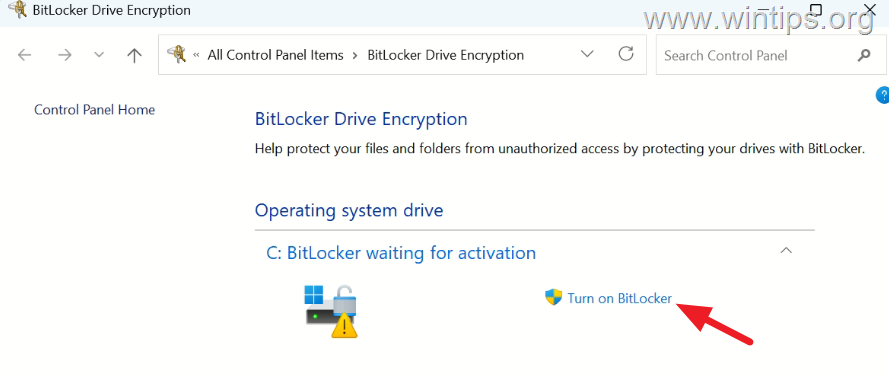
2. Click Turn on BitLocker next to the operating system drive to activate BitLocker.
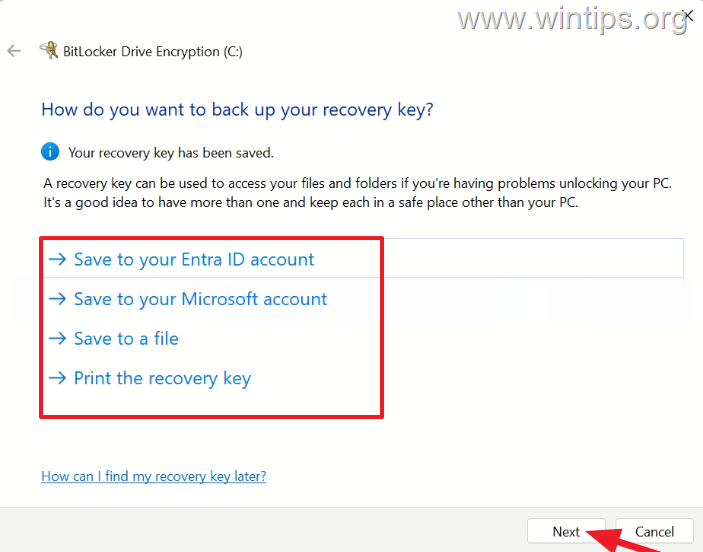
3. In next screen, choose where you want to back up the recovery key* and click Next.
* Attention: The recovery key is used to access the contents of the drive or to unlock your device in case you encounter problems. Therefore, choose the storage location carefully and make sure you can access it from another device if necessary.
- Save to your Entra ID account: Select this option if your device is corporate (managed by your organization) and enrolled in Entra ID/Intune. In this case, the recovery key is stored and can be found in the device's properties in Microsoft 365 Entra ID or the Intune admin center.
- Save to your Microsoft account: Select this option if your device is personal. In this case you'll able to get your recovery key after signing with your Microsoft Account at https://onedrive.live.com/recoverykey
- Save to a file: If you want to save the recovery key to a file, then plug a USB drive on the PC and then save the recovery key on the USB. If you can't unlock your PC in the future, then read the saved text file from another computer in order to find out the recovery key to unlock your computer.
- Print the recovery key and save the printed document to a safe place.
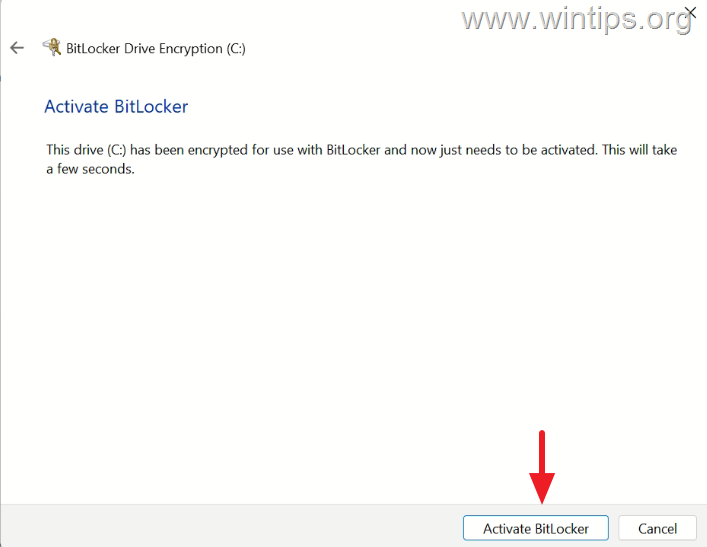
4. Finally, click Activate BitLocker to start the encryption and continue to next step.
Step 3. Check Encryption Progress and Protection Status.
After you enable BitLocker, you need to wait a while for the encryption to complete and not turn off your computer until then.
To check the encryption progress:
1. Open Command Prompt as Administrator and give the following command:
- manage-bde -status
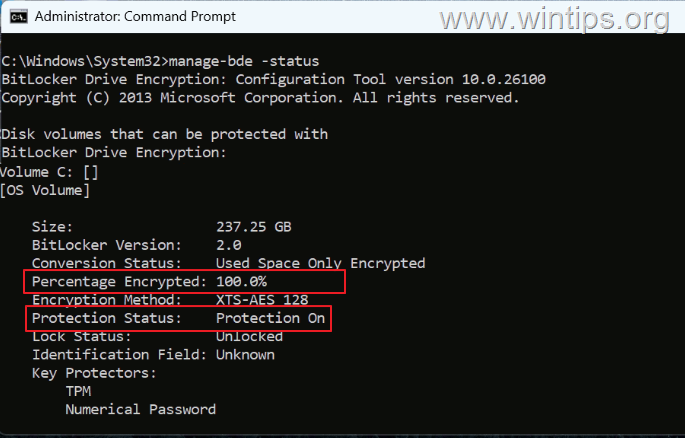
2. Check the "Percentage encrypted" and wait until it reaches "100%". *
* Note: If the "Percentage encrypted" is below 100%, wait a while and run the above command again to see the updated percentage.
3. When encryption is 100% complete and the protection is "On" you're done!
4. Close the Command Prompt, go back to Start > Settings > Device Encryption, and the "Device encryption is temporarily suspended" message should be gone!
Summary.
If device encryption is temporarily suspended and does not complete after restart, install any pending Windows updates and manually enable BitLocker on your device using the instructions in this guide.
That's it! Let me know if this guide has helped you by leaving your comment about your experience. Please like and share this guide to help others.
Frequently Asked Questions
What does it mean when I see 'Device encryption is temporarily suspended' on Windows 11 PRO?
This message typically means that BitLocker did not resume properly after a reboot or that BitLocker protection is disabled on a fixed drive, leaving the device partially unprotected.
Why is Device Encryption suspended and how can updates help?
Encryption may be temporarily suspended during Windows Updates. Installing the latest updates often resolves the issue. Navigate to Start > Settings > Windows Updates, install all updates, and restart your computer to see if the problem is resolved.
How do I enable BitLocker manually on Windows 11 Pro?
You can enable BitLocker by navigating to Start > Settings > Device Encryption, then click 'Turn on BitLocker' next to the operating system drive. Follow the on-screen instructions to back up your recovery key, and then click 'Activate BitLocker' to start the encryption process.
How important is it to back up the BitLocker recovery key and what are my options?
It is crucial to back up the recovery key as it is needed to access the contents of the drive or unlock your device if you encounter issues. You can save it to your Entra ID account, Microsoft account, a file on a USB drive, or print it and store it safely.


- Remote Desktop (RDP/RDS) Stops Working After September 2026 Windows Update: How to Fix - September 15, 2026
- Windows 11 KB5124008 Causes No Sound or USB Audio Code 10: How to Fix - September 14, 2026
- Copilot Missing or Grayed Out in Outlook: How to Fix - September 10, 2026



