How to Fix Duplicate Device Entries in Microsoft Entra ID in Hybrid Join.
If you are synchronizing on-premises Active Directory devices with Microsoft Entra ID (Hybrid Join) and you see duplicate devices in Microsoft Entra, continue reading below to fix the issue.
Scenario: On-premises Active Directory Devices are Synchronized with Microsoft Entra ID using the Azure AD Connect/Entra Connect tool for Hybrid Join.
Issue: After enrolling a device in Entra, the device appears twice in Entra ID (formerly Azure AD).
Hybrid Azure AD Join allows devices that are joined to on-premises Active Directory to also be registered in Microsoft Entra ID. However in some cases a device may listed twice in Microsoft Entra ID, because of Azure AD Connect Sync Issues or other reasons.
How to Cleanup Duplicate Device Records in Microsoft Entra (Azure AD) & Hybrid Join.
In this guide, we'll cover two common cases where a device appears twice in your Microsoft Entra ID and the steps to remove the duplicate entries in each case.
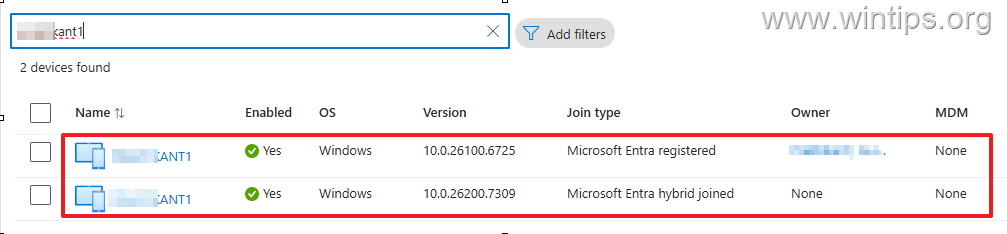
Case No 1. The same device appears as "Microsoft Entra registered" registered and as "Microsoft Entra hybrid joined" but is not managed by MDM (Intune).
If you see two records of the same Windows device in Entra ID, where one record shows the device as registered with Microsoft Entra while the other shows it as a hybrid joined to Entra but neither is managed by MDM*, apply the steps below.
* Example:
- Device1 > Microsoft Entra registered > MDM: None
- Device1 > Microsoft Entra hybrid joined > MDM: None
Step 1. Disconnect Account from Device.*
On the affected device*, disconnect the Microsoft Account.
* Important: Before you apply the steps below, make sure that the computer experiencing the problem can communicate with your local domain, either through the local network or through a VPN.
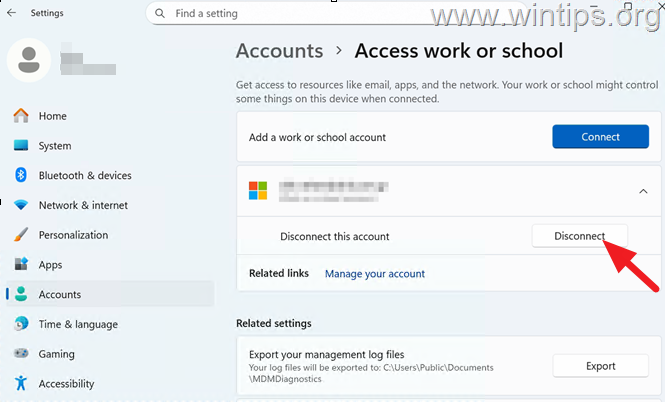
1. Go to Start > Settings > Accounts > Access work or school.
2. Next to the connected Microsoft account, select Disconnect.
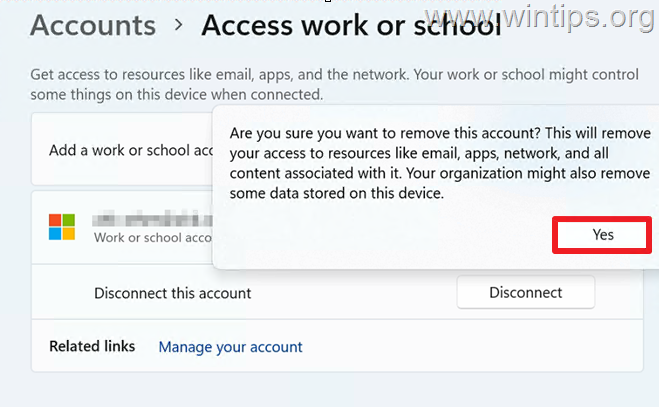
2. Select Yes when prompted to remove the account.
3. Ensure that the account is disconnected/removed* and then restart the computer.
* Note: Sometimes, the first time you disconnect an account, the account doesn't disconnected/removed and still shows as "Connected". If this happens, tap the Disconnect button again (and select Yes). Then, when the connected account disappears, restart your computer.
Step 2. Re-register the Device.
After restarting, force Windows to re-register the device and recover its identity with Microsoft Entra ID (Azure AD):
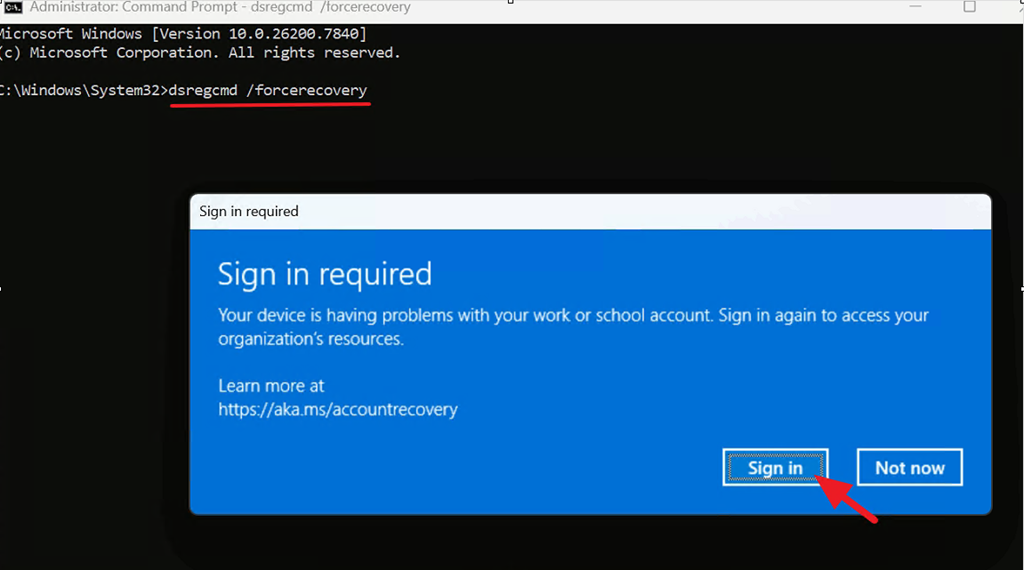
1. Open Command Prompt as Administrator and run the following command:
- dsregcmd /forcerecovery
3. Click Sign-in and login your Microsoft Account credentials to register the device with Entra.
4. Restart the computer again.
5. Open any Office application and sign-in if prompted.*
* Note: If prompted to allow your organization to manage the device, select Yes.
Step 3. Verify that Device is Hybrid Joined.
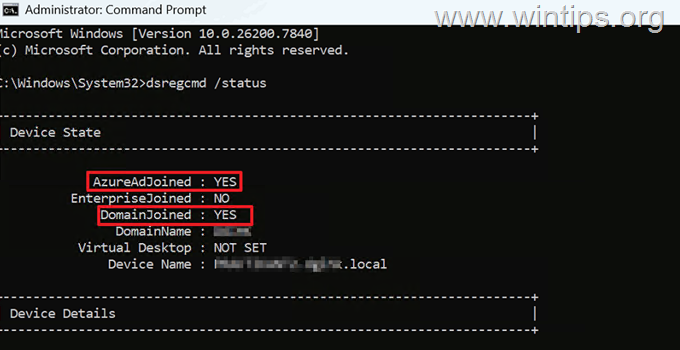
1. Open Command Prompt as Administrator and run the following command:
- dsregcmd /status
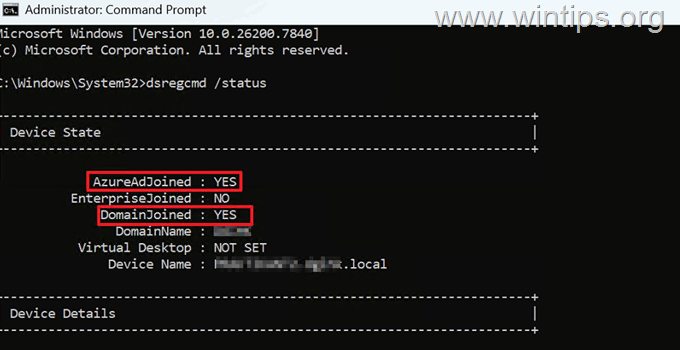
2. Verify that both the status of AzureAdJoined and DomainJoined is YES. If so, proceed to next step.*
* Note: If the AzureAdJoined status is NO, see the additional help section at the end of this article.
Step 4. Verify Removal of Duplicate Device Entries in Entra Admin Center.
1. Wait 1 to 4 hours until the changes appear in Entra ID. In the meantime, it is a good idea to restart the device 2-3 times (or sign-out and sign back again).
2. Finally, go to the Microsoft Entra admin center > Devices and make sure that the device you are having trouble with, appears only once.
Case No 2. The same device appears as "Microsoft Entra hybrid joined but not Managed by MDM" and as without "Join type" but managed by MDM.
If you see duplicate records of the same device in Entra ID, where one record shows the device as Microsoft Entra hybrid joined but not Managed by MDM, while the other shows it without a join type but managed with MDM (Microsoft Intune),* apply the steps bellow:
* Example:
-
- Device1 > Microsoft Entra hybrid joined > MDM: None
- Device1 > _______________________ > MDM: Microsoft Intune
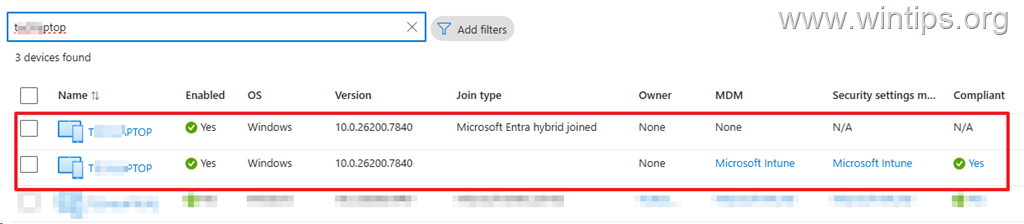
Step 1. Delete Duplicate Device Entries in Entra.
* Important: Before you apply the steps below, make sure that the computer experiencing the problem can communicate with your local domain, either through the local network or through a VPN.
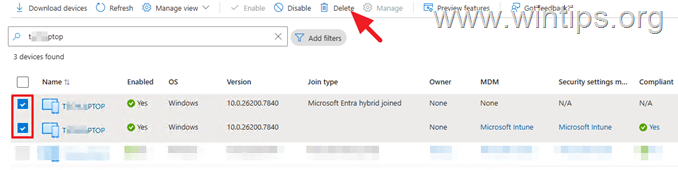
1. From Entra admin center > Devices, select and delete the duplicate entries of the device.
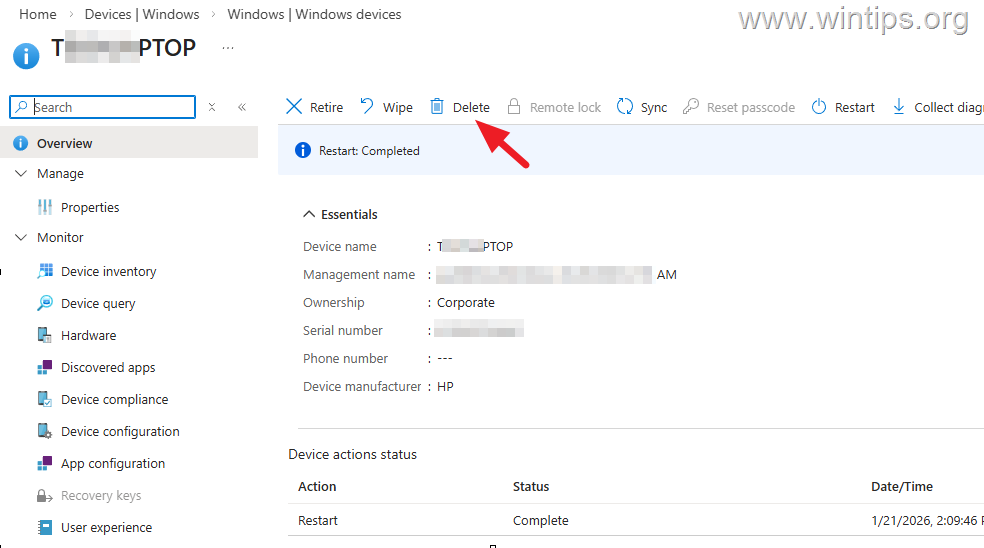
2. Then go to Intune admin center, click on affected device and then click Delete to remove the device from Intune.
3. Wait about 5-10 for the removal to apply and then continue to next step.
Step 2. Restart & Re-register the Affected Device.
* Important: Before you apply the steps below, make sure that the computer experiencing the problem can communicate with your local domain, either through the local network or through a VPN.
1. Restart the affected device
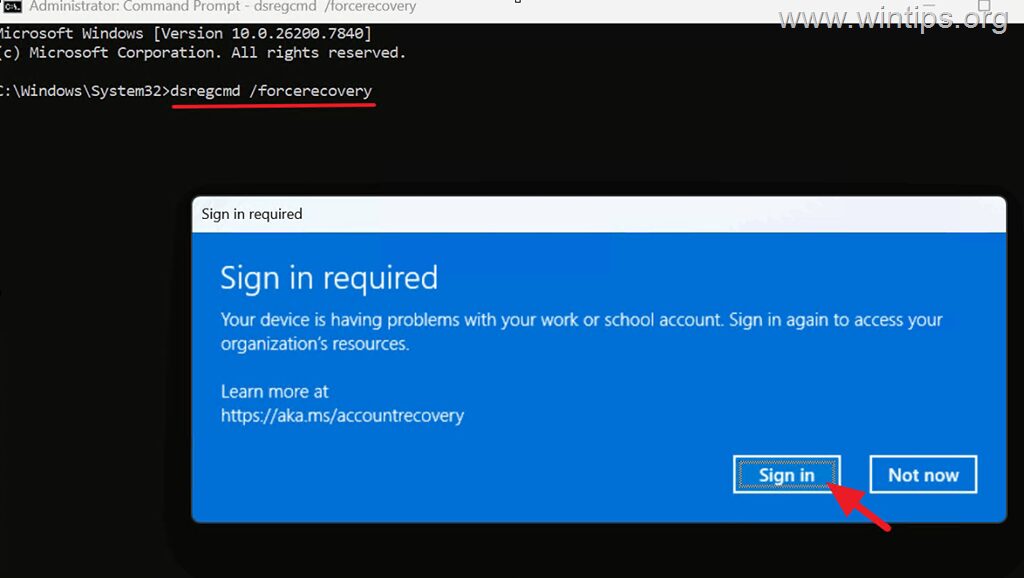
2. Open Command Prompt as Administrator & run the following command to re-register the device in Microsoft Entra ID (Azure AD):
- dsregcmd /forcerecovery
3. Click Sign-in and login your Microsoft Account credentials to re-register and join the device in Entra.
4. Restart the computer again.
5. Open any Office app and sign-in if prompted.*
* Note: If prompted to allow your organization to manage the device, select Yes.
6. Open Command Prompt as Administrator and run the following command:
- dsregcmd /status
7. Verify that both AzureAdJoined and DomainJoined are set to YES. If so, proceed to next step*
* Note: If the AzureAdJoined status is NO, see the additional help section at the end of this article.
Step 4. Verify Removal of Duplicate Device Entries in Entra Admin Center.
1. Wait 1 to 4 hours until the changes appear in Entra ID. In the meantime, it is a good idea to restart the device 2-3 times (or sign-out and sign back again).
2. Finally, go to the Microsoft Entra admin center > Devices and make sure that the device you are having trouble with, appears only once.
Additional Help
If the device status reports that the device is not enrolled in Intune (AzureAdJoined = NO), like in screenshot below…
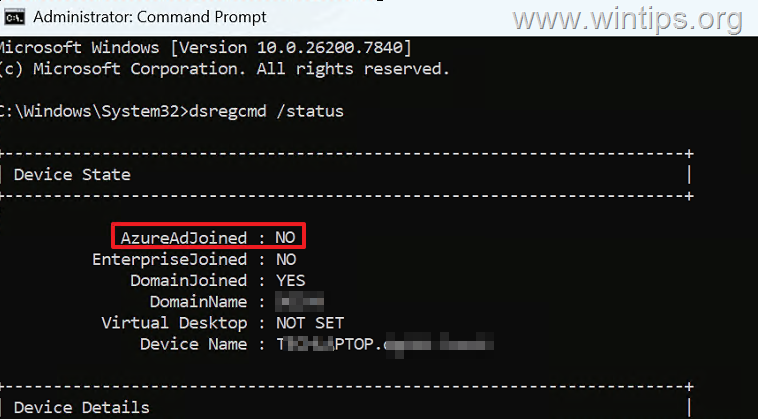
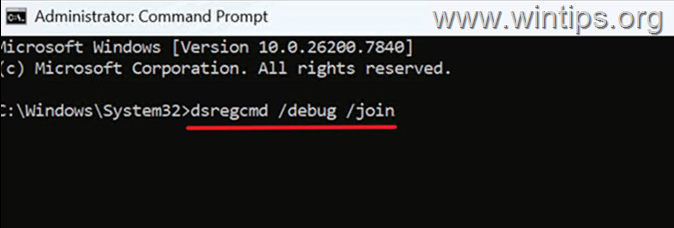
…run the following command to force join the device to Entra ID (AzureAD)
- dsregcmd /debug /join
That's it! Let me know if this guide has helped you by leaving your comment about your experience. Please like and share this guide to help others.
Frequently Asked Questions
What should I do if my on-premises Active Directory device appears twice in Microsoft Entra ID after synchronization?
If your device appears as both 'Microsoft Entra registered' and 'Microsoft Entra hybrid joined' but is not managed by MDM, follow these steps: Disconnect the Microsoft account on the affected device, ensure proper domain communication, re-register the device using the 'dsregcmd /forcerecovery' command, verify the hybrid join status, and check for duplicate removal in the Entra Admin Center.
How can I re-register a device with Microsoft Entra ID after disconnecting the Microsoft account?
After disconnecting the Microsoft account, open Command Prompt as Administrator and run 'dsregcmd /forcerecovery'. Sign in with your Microsoft Account credentials when prompted, restart the device, and verify device registration by checking the hybrid join status using 'dsregcmd /status'.
Why does it take time to see changes in device entries in Microsoft Entra ID?
After re-registering the device and disconnecting the duplicate account, it can take 1 to 4 hours for the changes to propagate through Microsoft Entra ID. During this time, restarting the device 2-3 times or signing out and back in can help synchronize the changes.
What should I verify to ensure a device is properly hybrid joined to Microsoft Entra ID?
Run 'dsregcmd /status' in Command Prompt. Verify that both 'AzureAdJoined' and 'DomainJoined' statuses are 'YES'. If 'AzureAdJoined' is 'NO', additional troubleshooting may be needed.
Still having trouble fixing this issue?
💬 Get WinTips Remote Support →

- FIX: Windows Hello for Business PIN error 'Your credentials could not be verified' with 'status: 0xc000005e substatus: 0x0' or 'status: 0xc0000bb, substatus: 0x0'. - October 20, 2026
- FIX: This Device Is Already Set Up in Another Organization in Company Portal or During Intune Enrollment - October 13, 2026
- Windows Update Uninstall Failed with Error 0x800F0825: How to Fix - October 7, 2026