How to Mail Merge from Shared Mailbox (Microsoft 365).
If you want to send a mail merge from a shared mailbox using Microsoft Word and Outlook, then this guide is for you.
A shared mailbox in Microsoft 365 (also known as "Office 365") allows multiple users to send and receive emails from a common address (e.g., "sales@example.com") without needing a separate license. However, by default, Microsoft Word’s Mail Merge feature sends emails only from the default Outlook user account and not from a shared mailbox. With the right setup in Office 365 and Outlook, you can send merged emails "From" a shared mailbox.
How to Send Mail Merge Emails from a Microsoft 365 Shared Mailbox.
When a mail merge is performed in Word, the emails are sent from the default email account in Outlook. This means that if you have more than one email account set up in Outlook (e.g., "email account A" and "email account B"), and you want to do a mail merge from "email account B," you will need to set "email account B" as the default account in Outlook before performing the mail merge.
However, an Office 365 shared mailbox usually cannot be added as an additional email account in Outlook because it is automatically mapped* to the regular email account of the user(s) who has delegation rights to it.
* Info: This is due to the Office 365 and Outlook "Automapping" feature, which is enabled by default in Office 365 and forces the shared mailbox to appear automatically in the user's Outlook, without requiring any additional action/configuration on the user's part to access the shared mailbox.
To bypass this problem and be able to perform a mail merge using the shared mailbox's account, use the instructions in one of the methods below:
- Create a Dedicated Outlook Profile for the Shared Mailbox.
- Disable Automapping and Add the Shared Mailbox as a Standard Account in Outlook.
Method 1. Create a Dedicated Outlook Profile for the Shared Mailbox
The first and easiest method for merging mail from a shared mailbox is to create a new Outlook profile and add the shared mailbox account to that profile. To do this:
1. Close Outlook.
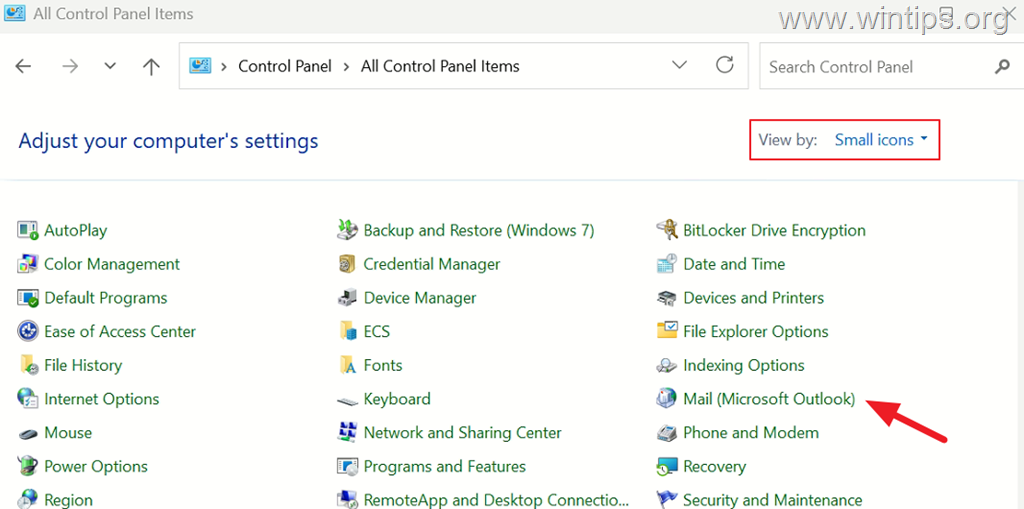
2. Navigate to Windows Control Panel, change 'View by' to Small icons, and then open Mail (Microsoft Outlook).
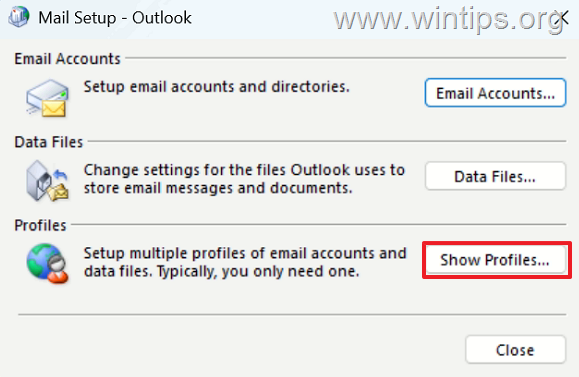
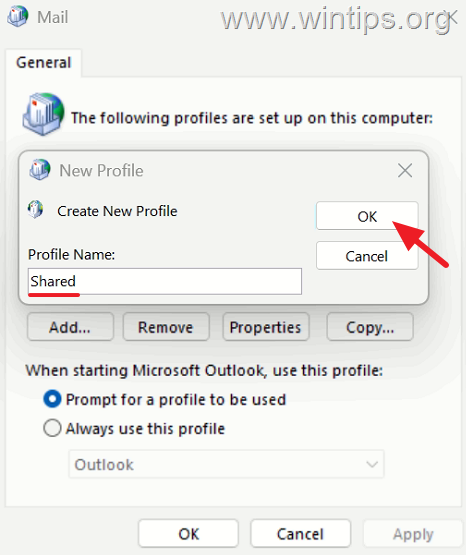
3. Click Show Profiles.
4. Type a name for the new profile (e.g., "Shared") and click OK.
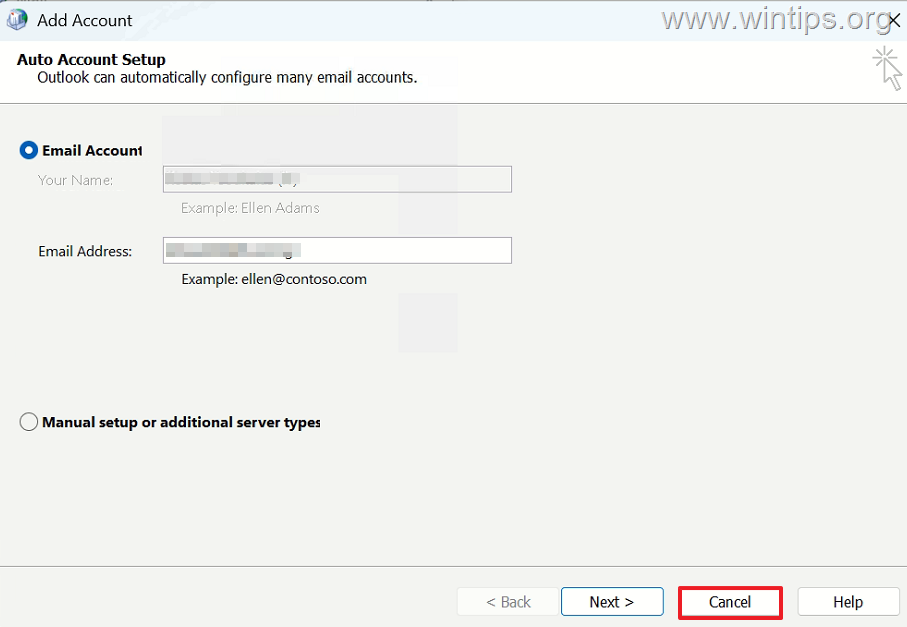
5. In the 'Add Account' window, click Cancel and then click OK to create the profile without adding an account.
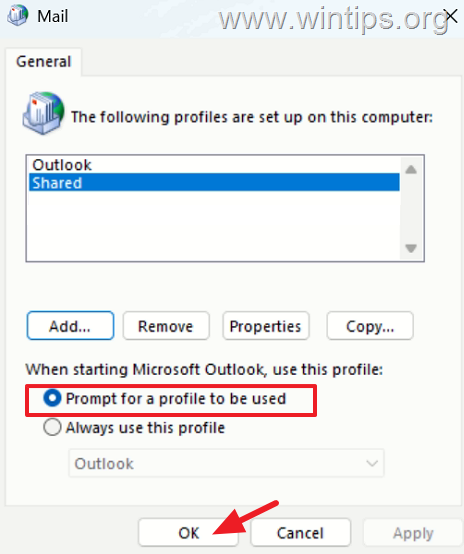
6. Finally, check the option 'Prompt for a profile to be used' and click OK.
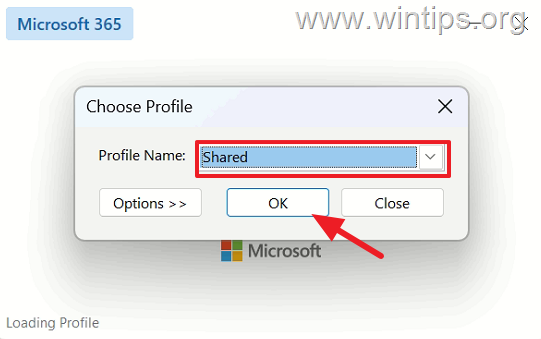
7. Now open Outlook.
8. On the 'Choose Profile' window, select the new profile you created and click OK.
9. In the next screen, type the email address of the Shared Mailbox (e.g., "sales@example.com" in this example) and click Connect.
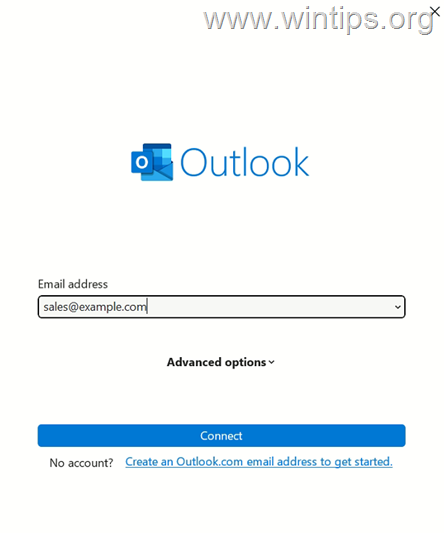
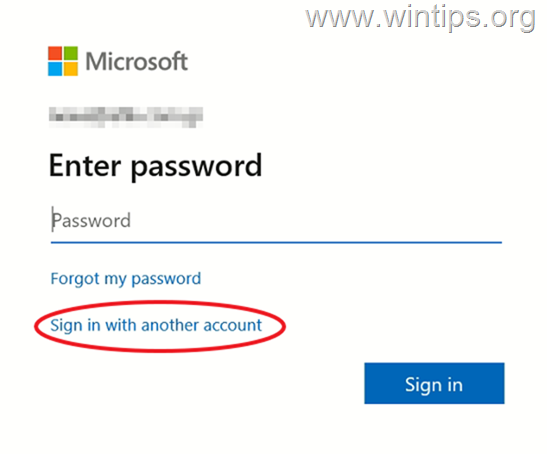
10. On the "Enter Password" screen, click Sign in with another account.
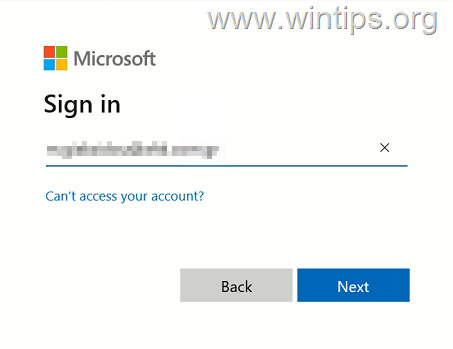
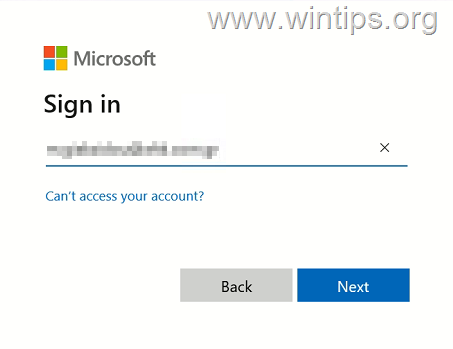
11. Now type the personal email address of the user who has delegation permissions to the shared mailbox and click Next.
12. Then type the password, press Sign in, and complete the MFA authentication.
13. Once the shared mailbox account is added, you will be able to perform mail merge in Word using it!
14. After you're done with your work, you can go back to Control Panel > Mail > Show Profiles and set your default profile to always be used with Outlook.
Method 2. Disable Automapping and Add the Shared Mailbox as a Standard Account in Outlook
The second method to perform a Word Mail Merge using a shared mailbox is to turn off the "Automapping" feature on the shared mailbox so you can add it as a regular account in Outlook. To do this:
Step 1. Disable Shared Mailbox Automapping in Office 365
To disable the Outlook Automapping of a shared mailbox, connect to Exchange Online through PowerShell, remove the user's full access permissions on the shared mailbox, and then re-add the permissions with the "Automapping" feature disabled. To do that:
* Note: This step requires administrator privileges in Microsoft 365.
1. Connect to Exchange online via PowerShell using your Office 365 admin credentials.
2. After connecting to Exchange Online, issue the below command to remove the user's full access permissions on the shared mailbox and then press "y" (YES) when asked to confirm your decision:
- Remove-MailboxPermission -Identity SharedMailboxName -User UserName -AccessRights FullAccess
* Where:
- SharedMailboxName: is the name or email address of the Shared mailbox.
- UserName: is the name or email address of the person who has delegation rights on the Shared mailbox.
For example: If you want to remove the permissions of the User "helen@example.com" on the Shared Mailbox "sales@example.com", issue the following command:
- Remove-MailboxPermission -Identity sales@example.com -User helen@example.com -AccessRights FullAccess

3. Then reassign to the user the full access permissions on the Shared mailbox but with the "Automapping" feature disabled, with this command:
- Add-MailboxPermission -Identity SharedMailboxName -User UserName -AccessRights FullAccess -AutoMapping $false
* Where:
- SharedMailboxName: is the name or email address of the owner's mailbox.
- UserName: is the name or email address of the person who will have full access rights on the Shared mailbox, with the Outlook automapping feature disabled.
For example: If you want to give permissions to the user "helen@example.com" on the Shared mailbox "sales@example.com" but with automapping disabled, issue the following command:
- Add-MailboxPermission -Identity sales@example.com -User helen@example.com -AccessRights FullAccess -AutoMapping $false

4. After running the above command, you should receive a similar screen below:

5. Disconnect from Exchange Online and continue to the next step.
Step 2. Add the Shared Mailbox Email Account as a New Account in Outlook
1. Restart Outlook on the user's computer and verify that the Shared Mailbox is no longer automatically mapped (does not appear) in the Outlook folder pane.
* Note: For this to happen, you may need to wait a while or restart the computer.
2. After you verify that the Shared mailbox no longer appears in the user's Outlook, add the account of the Shared mailbox as a new email account. To do this:
a. From the File menu, go to Account Settings and click New.

b. In the next screen, type the email address of the Shared Mailbox (e.g., "sales@example.com" in this example) and click Connect.

c. On the "Enter Password" screen, click Sign in with another account.
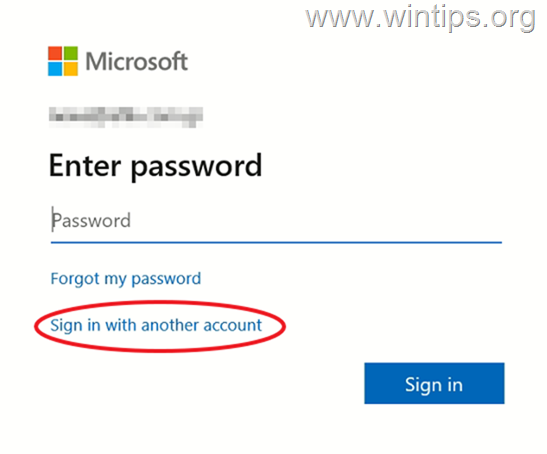
d. Now type the personal email address of the user who has delegation permissions to the shared mailbox and click Next. Then type the password, press Sign in, and complete the MFA authentication.
3. Once the account is successfully added, restart Outlook to apply the change.
4. After restarting, the Shared Mailbox's email account will be added in Outlook's left navigation pane. Now, proceed to the next step to learn how to perform a Word mail merge using the shared mailbox.
Step 3. How to Mail Merge in Word from the Shared Mailbox
When you want to Mail Merge using the Shared Mailbox's account, do the following:
1. Close Word (if open).
2. In Outlook, go to the File menu and open Account Settings.
3. In the 'Email' tab, select the shared mailbox's email account and click Set as Default.

4. Then select the 'Data Files' tab, select the shared mailbox data file, and click Set as Default again. When done, close Account Settings and restart Outlook.

5. Now open Word and perform the mail merge as you normally would. After sending the email messages, you will see that each message has been sent using the shared mailbox account, and all sent messages are stored in the shared mailbox's "Sent Items" folder.
6. After you complete the mail merge, reopen Account Settings in Outlook and set both the user's email account and its data file as the default.
Summary
Sending a mail merge from a shared mailbox in Microsoft 365 requires specific configurations in Outlook. By creating a dedicated Outlook profile or disabling automapping and adding the shared mailbox as a standard account, you can achieve this functionality. By following these steps, you can ensure that your mail merge process is efficient and effective.
That's it! Which method worked for you? Let me know if this guide has helped you by leaving your comment about your experience. Please like and share this guide to help others.
Frequently Asked Questions
What is a shared mailbox in Microsoft 365?
A shared mailbox in Microsoft 365 allows multiple users to send and receive emails from a common address (e.g "sales@example.com") without needing a separate license.
How does automapping affect shared mailboxes in Outlook?
Automapping in Office 365 automatically displays the shared mailbox in the user's Outlook without additional configuration. It maps the shared mailbox to the user's regular email account if they have delegation rights.
Can I perform a mail merge from a shared mailbox in Microsoft Word?
Yes, you can perform a mail merge from a shared mailbox, but you first need to set the shared mailbox as the default account in Outlook.
How can automapping be disabled for a shared mailbox?
To disable automapping, connect to Exchange Online via PowerShell, remove the user's full access permissions on the shared mailbox, and then re-add the permissions with automapping disabled using the command: Add-MailboxPermission -Identity SharedMailboxName -User UserName -AccessRights FullAccess -AutoMapping $false.
Still having trouble fixing this issue?
💬 Get WinTips Remote Support →

- How to Fix SecurityHealthSystray.exe – Bad Image Error (0xc000012f) on Windows 11. - October 26, 2026
- FIX: Windows Hello for Business PIN error 'Your credentials could not be verified' with 'status: 0xc000005e substatus: 0x0' or 'status: 0xc0000bb, substatus: 0x0'. - October 20, 2026
- FIX: This Device Is Already Set Up in Another Organization in Company Portal or During Intune Enrollment - October 13, 2026