How to Securely Allow SMTP AUTH Only from a Specific IP Address in Microsoft 365 with a CA Policy.
If you want to securely allow SMTP AUTH only from a specific IP address in Microsoft 365, this guide will walk you through the safest and recommended approach to do that.
SMTP AUTHENTICATION is still required for some applications or devices (printers, scanners, etc.) and older mail systems that don't support Multi-Factor Authentication (MFA), to be able to send email through Microsoft 365 Exchange Online (formerly Office 365).
However, enabling SMTP AUTH globally can create a security risk, so restricting access to a specific Public IP address & Mailbox(s) is a secure way to protect your organization from brute-force attacks.
In this comprehensive guide, you will learn how to allow SMTP authentication in a specific Microsoft 365 mailbox only from a certain Public IP address using a Conditional Access Policy.
* Critical Note: Since, Microsoft has officially announced that SMTP AUTH basic authentication will be disabled by default for existing tenants at the end of December 2026, I suggest to do one of the following:
- If you device/application supports OAuth 2.0 (MFA), then use it from sending emails through Microsoft 365.
- If your device/app does not support OAuth 2.0 (MFA), then securely allow SMTP Sending using SMTP Relay.
How to Restrict SMTP AUTH Only from a Specific IP Address & Mailbox in Microsoft 365 using a Conditional Access Policy.
Prerequisites:
- Microsoft 365 admin & Entra center administrator privileges.
- The static Public IP address of the application/device sending email.
- Authenticated SMTP is enabled on the specific mailbox.
- Microsoft 365 username & App password (Of the Authenticated SMTP mailbox).
Step 1. Enable SMTP Authentication on the User Mailbox.
For the Microsoft 365 User/Mailbox you want to allow the SMTP AUTH, do the following:
1. In Microsoft 365 admin center, go to Users > Active Users and select the user/mailbox you want to allow SMTP authentication.
2. In Mail tab click Manage email apps.
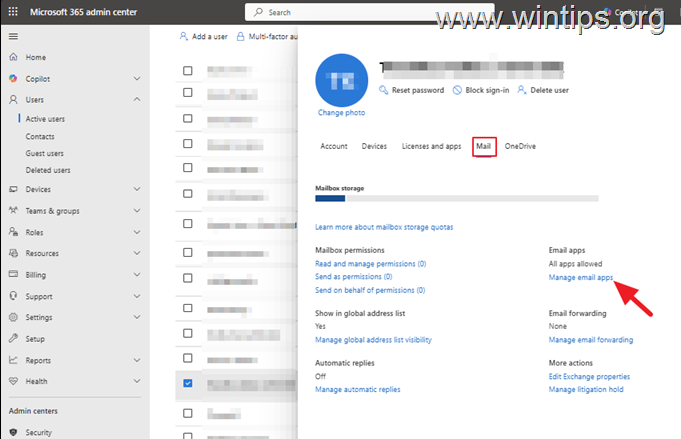
3. Here check the "Authenticated SMTP" box and click Save.

Step 2. Restrict SMTP AUTH to a Specific IP Address in "Named Locations".
Now go ahead and create a new Named Location entry with the Public IP Address of your network that you want to allow SMTP Authorization on.
1. Navigate to Entra admin center, go to Conditional Access select Named Locations and click +IP ranges location.
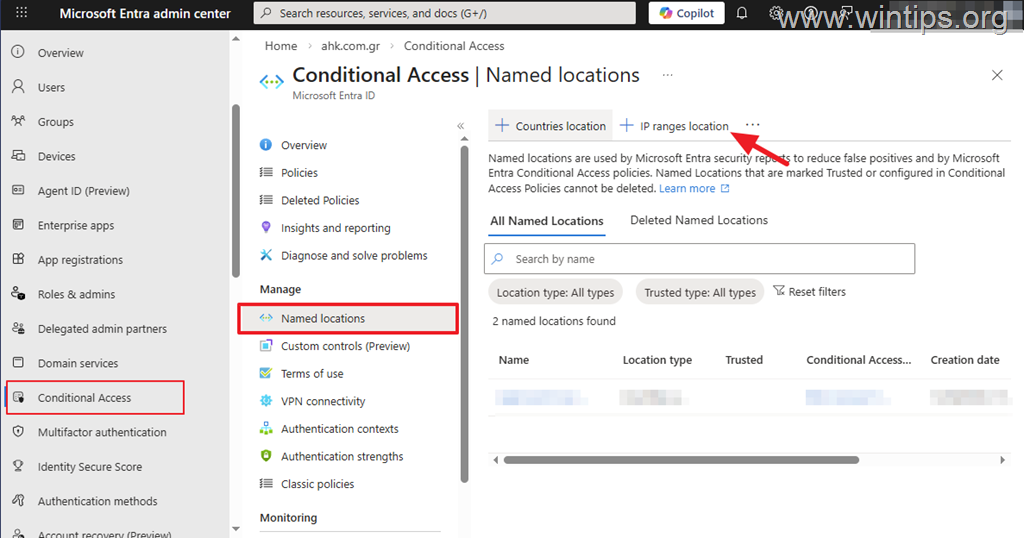
2. In the 'New location (IP Ranges)' window, do the following:
a. Type a name for the named location (eg. "SMTP AUTH Allowed IP").
b. Click on plus (+) symbol and then type the public IP address of the network you want to allow the SMTP AUTH from, in this form: IP Address/32.*
* Example: If your public IP Address is "165.74.201.110" type "165.74.201.110 /32"
c. When done, click Add and then click Create.
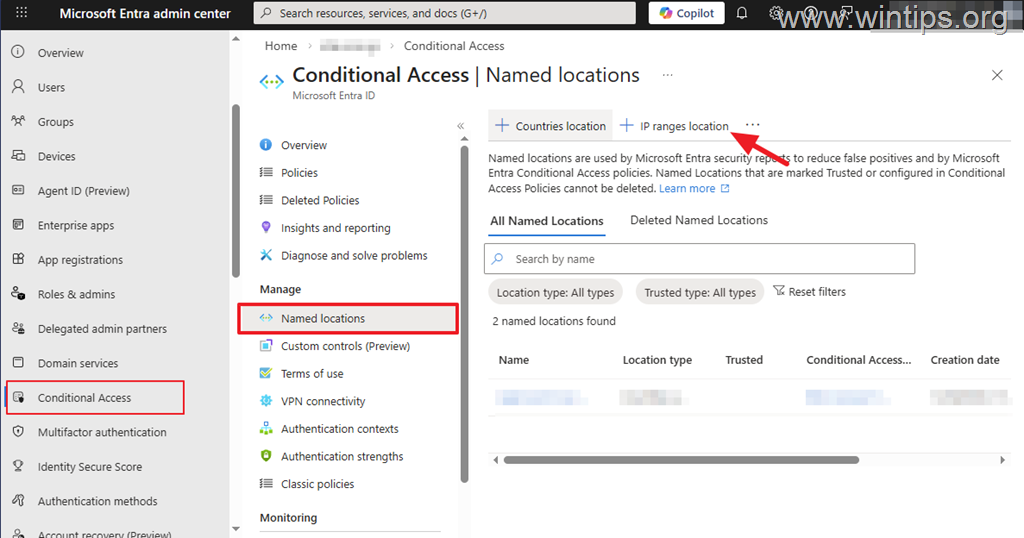
Step 3. Create A Conditional Access Policy to Allow SMTP AUTH only for the certain Public IP Address.
Now go ahead and create a CA Policy to allow SMTP authorization only for the specific public IP address you specified in Named Location before.
1. In Entra admin center > Conditional Access, select Policies and then click New policy.
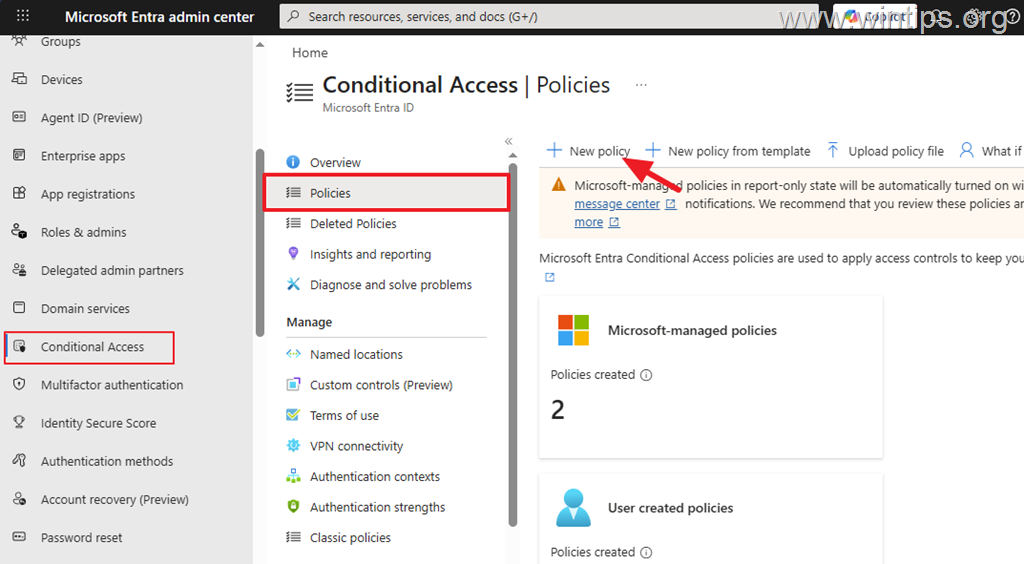
2. In Policy settings, do the following:
- Type a name for the new policy (eg. "Allow SMTP AUTH Only From Specific IP")
- User or Agents Preview: on the Include tab check Select users and groups, click then on Users and groups and select the User/Mailbox you enabled the Authenticated SMTP in Step-1 before.
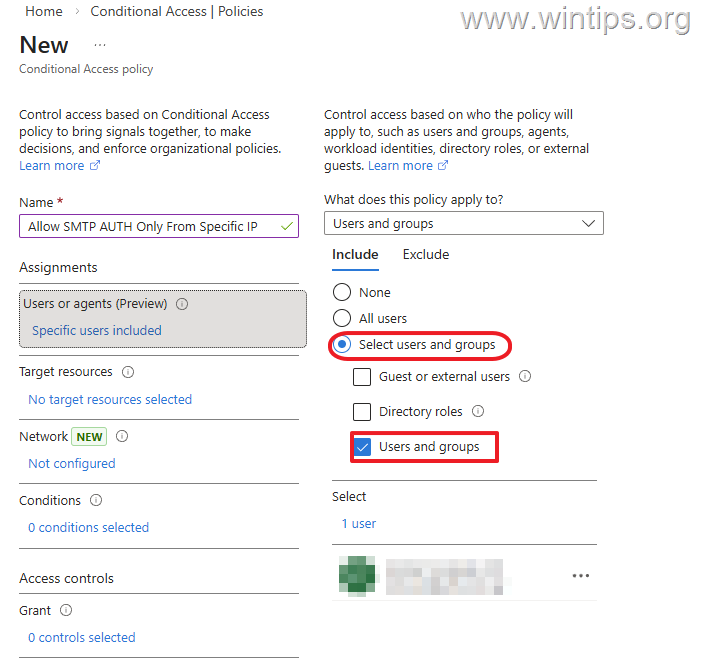
-
Target resources: on the Include tab select Select resources and under Select specific resources click on "None" link. Search for "Office 365 Exchange Online" and click Select to add it.
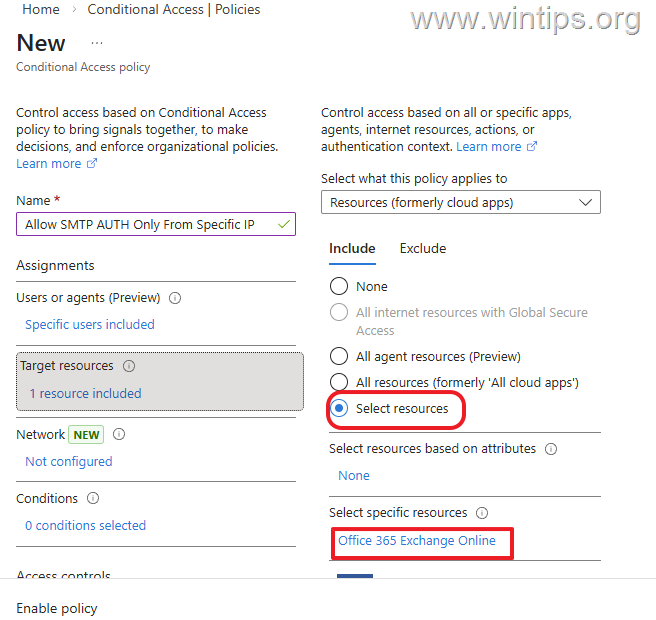
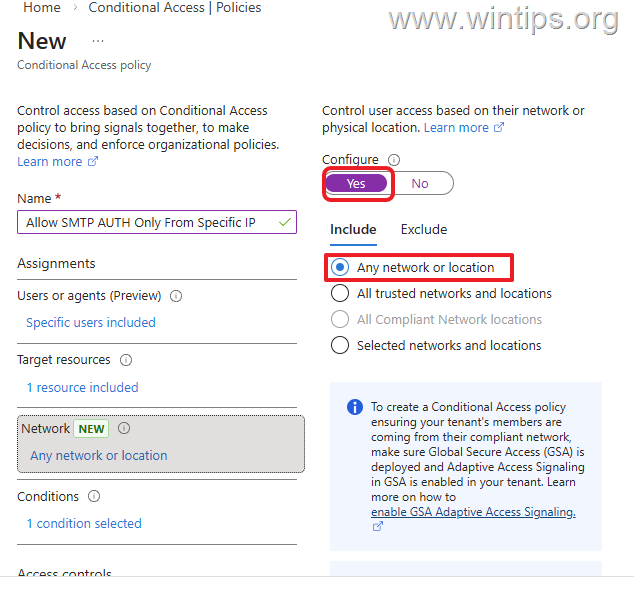
- Network: Set Configure to Yes and…
a. On the Include tab choose Any network or location.
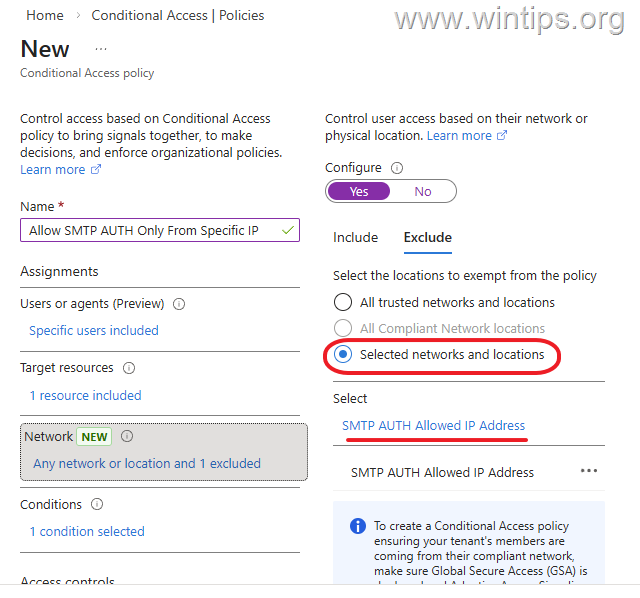
b. On the Exclude tab choose Selected networks and locations and add the named location you specified in step-2 with the allowed IP for SMTP AUTH.
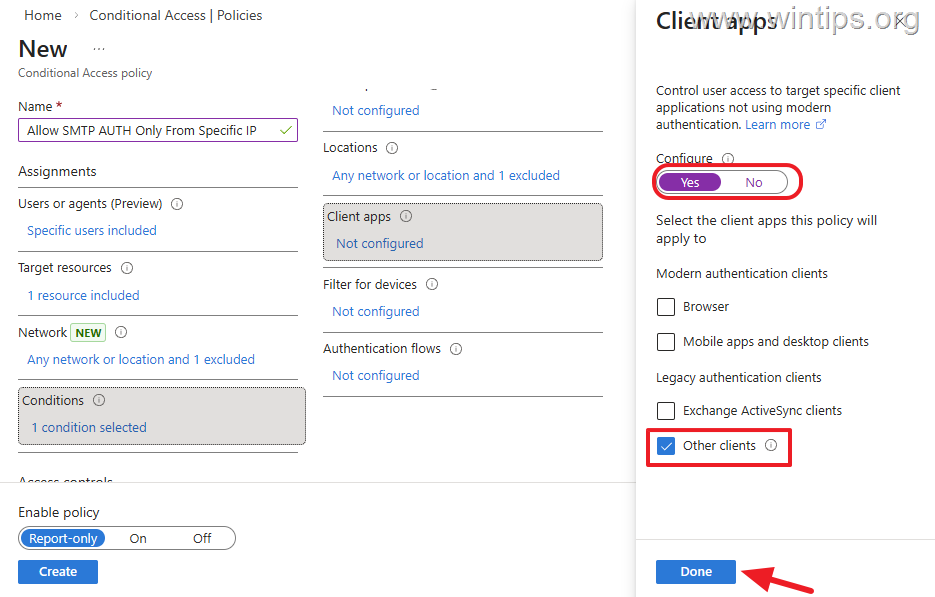
- Conditions: Click on "Not configured" link under Client apps. Set Configure to Yes and below select only Other clients and click Done.
* Note: This includes older office clients and other mail protocols(POP, IMAP, SMTP, etc..)
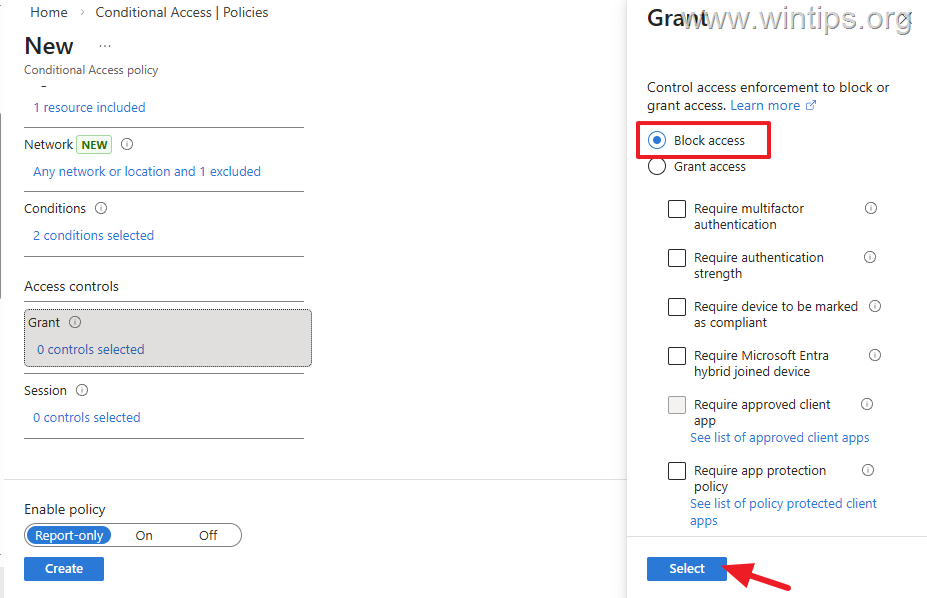
- Grant: Select Block access and then click Create to create the policy.
Step 4. Create an App Password for the user/mailbox that is allowed SMTP AUTH.
1. Navigate to https://myaccount.microsoft.com/
2. Log in with the credentials of the user/mailbox you enabled SMTP AUTH for in Step-1.
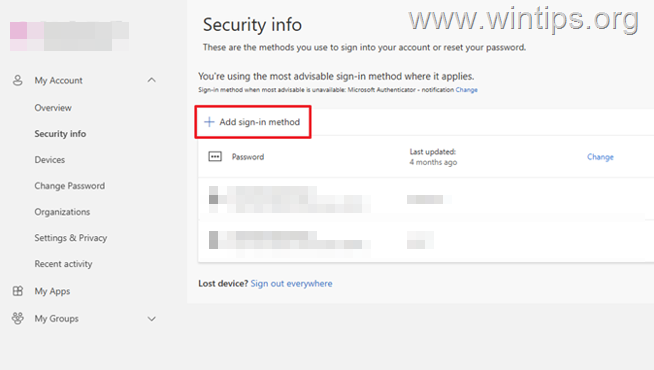
3. Select Security info and then choose Add Sign-in method > App Password.
4. Note the password and proceed to the next step.
Step 5. Configure the SMTP Server Settings on Client Device/Application.
On the application/device you want to send email through Exchange Online using SMTP AUTH, specify the following settings:
- Server Name: smtp.office365.com
- Port Number: 587
- Encryption Method: STARTTLS or TLS
- Authentication: YES
- Username: Type the email address of the user/mailbox you enabled the SMTP AUTH in step-1.
- Password: Type the App Password you created in previous step.
Step 6. Test the Configuration.
Finally, test your configuration by sending an email from the application/device you applied the SMTP settings in previous step and check if the recipient receives it. If you are experiencing problems*, check the Entra Sign-in logs** to see where the problem is.
* Notes:
1. If after sending you receive the error "530 5.7.57Client not authenticated to send mail", read the instructions in this tutorial.
2. To check sign-in logs, navigate to Microsoft Entra Admin Center > Sign-in logs and filter by: Client app: SMTP
Summary.
If you need to securely restrict the SMTP AUTH only to a specific mailbox and a Public IP address in Microsoft 365, the safest approach is to allow the SMTP Authentication on the mailbox you want and to combine a Conditional Access policy with an IP restriction, by following the steps in this tutorial.
That's it! Let me know if this guide has helped you by leaving your comment about your experience. Please like and share this guide to help others.
Frequently Asked Questions
What is the purpose of enabling SMTP AUTH in Microsoft 365?
SMTP AUTH is required for applications or devices like printers, scanners, and older mail systems that don't support Multi-Factor Authentication (MFA) to send email through Microsoft 365 Exchange Online.
Why is it important to restrict SMTP AUTH to a specific IP address?
Enabling SMTP AUTH globally can create a security risk by exposing your organization to brute-force attacks. Restricting SMTP AUTH to a specific Public IP address and Mailbox helps protect against unauthorized access.
How can I enable SMTP AUTH for a specific user mailbox in Microsoft 365?
To enable SMTP AUTH for a specific user mailbox, go to the Microsoft 365 admin center, select Users > Active Users, choose the user/mailbox, and in the Mail tab, click 'Manage email apps'. Check the 'Authenticated SMTP' box and click 'Save'.
What should I do if my device/application does not support OAuth 2.0 (MFA)?
If your device/application does not support OAuth 2.0 (MFA), you should securely allow SMTP Sending using SMTP Relay, as SMTP AUTH basic authentication will be disabled by the end of December 2026.