How to Securely Allow SMTP Sending through Microsoft 365 using SMTP RELAY.
If you want to securely allow SMTP Sending in Microsoft 365 using SMTP Relay, then in this guide you'll find detailed instructions to do that.
Enabling SMTP relay in Microsoft 365 allows an on-premises mail server, application, or device (such as a printer, scanner, etc.) to send outbound email through Microsoft 365 Exchange Online, without requiring username/password for authentication (SMTP AUTH), but instead using an IP address for validation and TLS encryption for security.
When and Why to use SMTP Relay?
- SMTP Relay is an excellent and secure solution for sending emails through Microsoft 365 from devices that do not support modern authentication (OAuth 2.0/MFA)
- SMTP Relay does not require authentication on your part, but is authenticated and secured to Exchange Online through the public IP address of the application/device sending the email.
- SMTP Relay uses TLS Encryption and is compliant with modern security standards.
This guide explains how to enable SMTP Relay in order to securely send emails from applications or devices through Microsoft 365 (formerly Office 365).
How to Enable SMTP Relay in Microsoft 365.
Prerequisites:
- Microsoft 365 Exchange admin privileges.
- The static Public IP address of the application/device sending email.
Step 1. Add a Connector with your Public IP Address to Exchange Online.
1. Log in to Exchange Admin Center and navigate to Mail flow > Connectors > Add a connector.
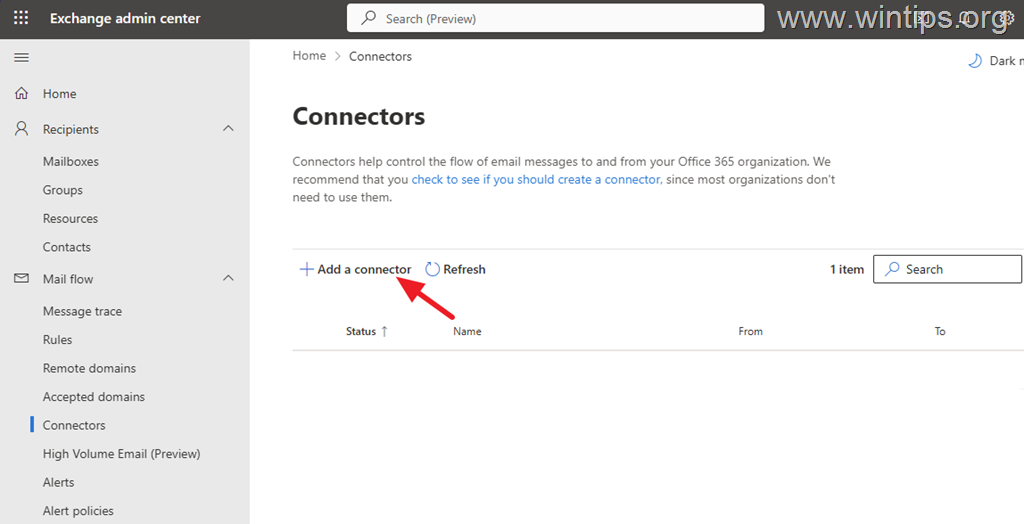
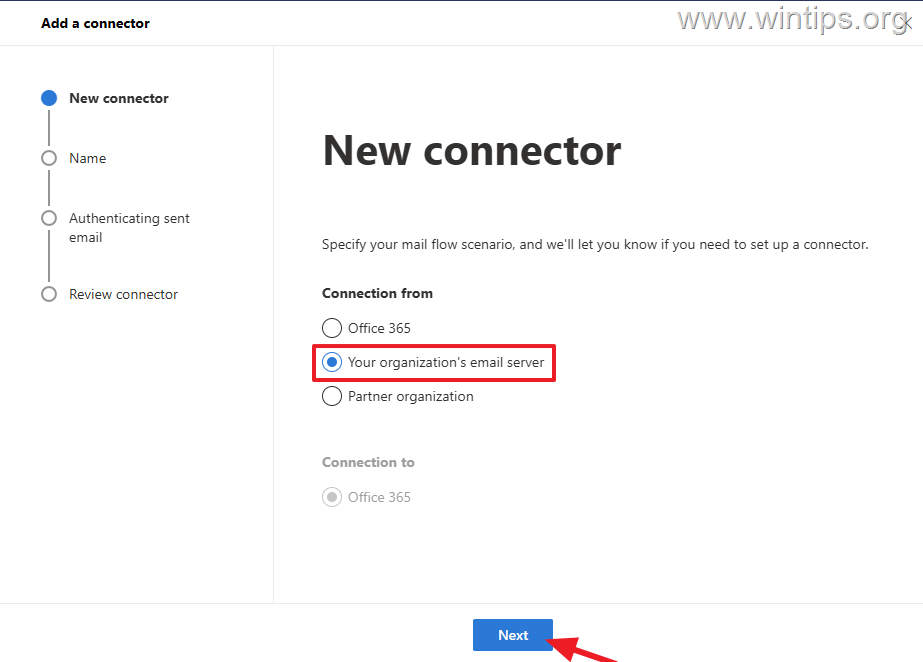
2. Choose Connection from Your organization's email server and click Next.
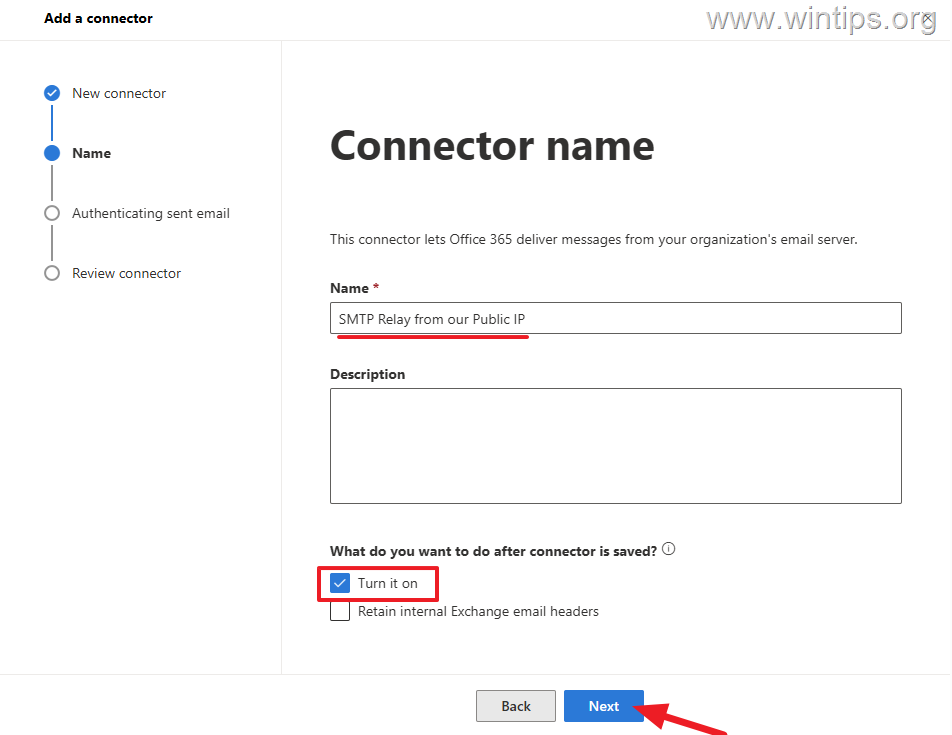
3. Type a name from the new connector (eg. "SMTP Relay from our Public IP"), verify Turn it on is selected and click Next.
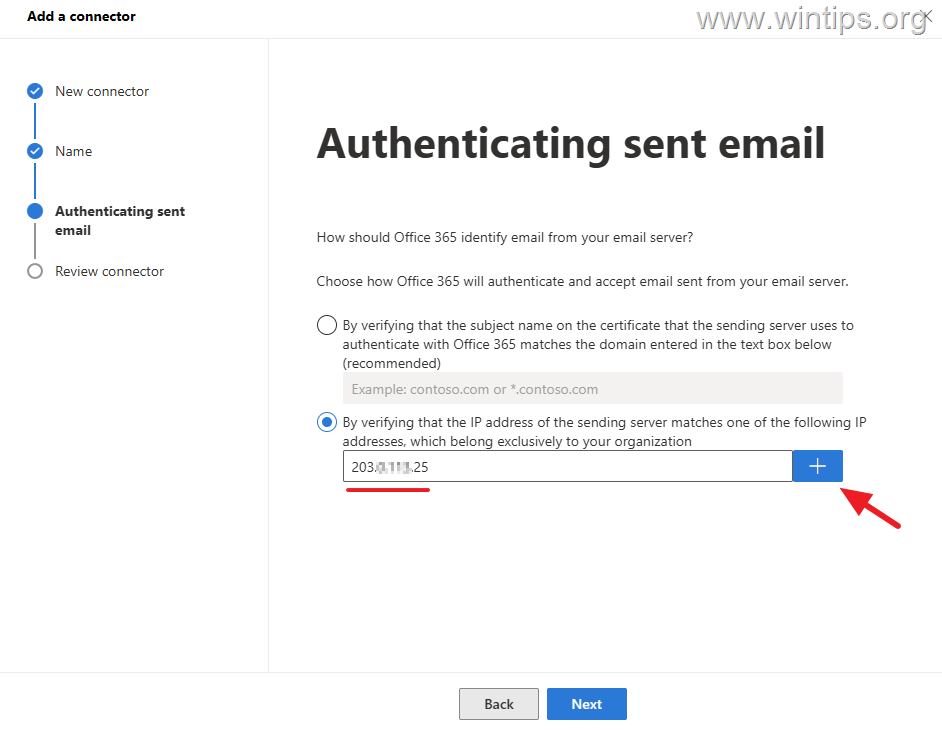
4. On the next screen to the following:
a. Select By verifying that the IP address or the sending server matches one of the following IP addresses, which belong exclusively to your organization"
b. Type the Public IP Address of the application/device sending the emails and click the plus (+) button to add it.
c. Click Next to continue
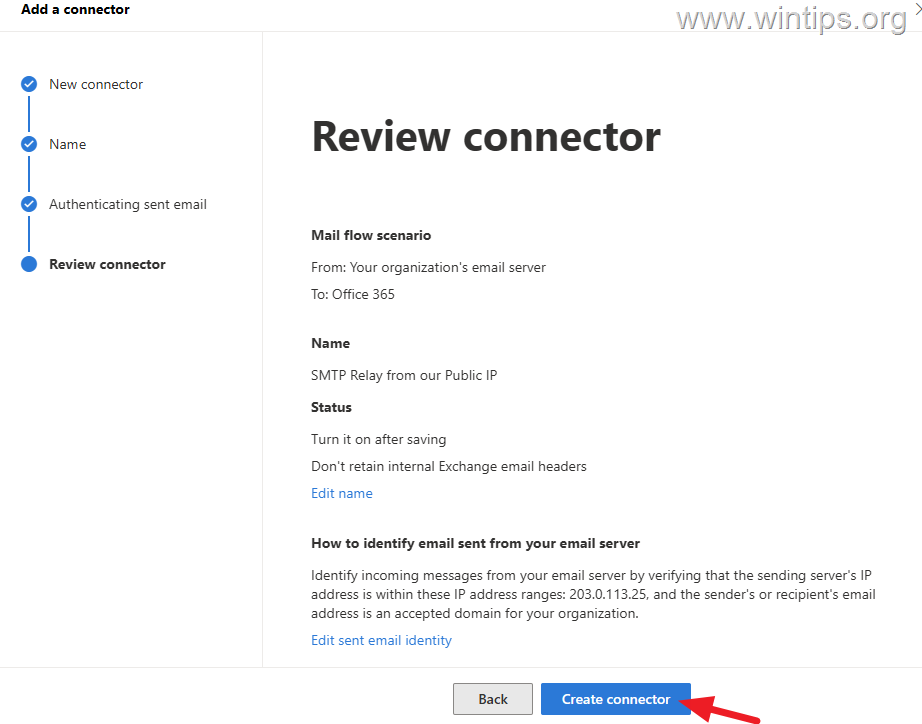
5. Finally review your settings and Create connector.
Step 2. Configure the SMTP Server Settings on Client Device/Application.
On the application/device you want to send email through Exchange Online using SMTP RELAY, specify the following settings:*
- Server Name*: yourdomain-com.mail.protection.outlook.com
- Port Number: 25
- Encryption Method: TLS
- Authentication: No
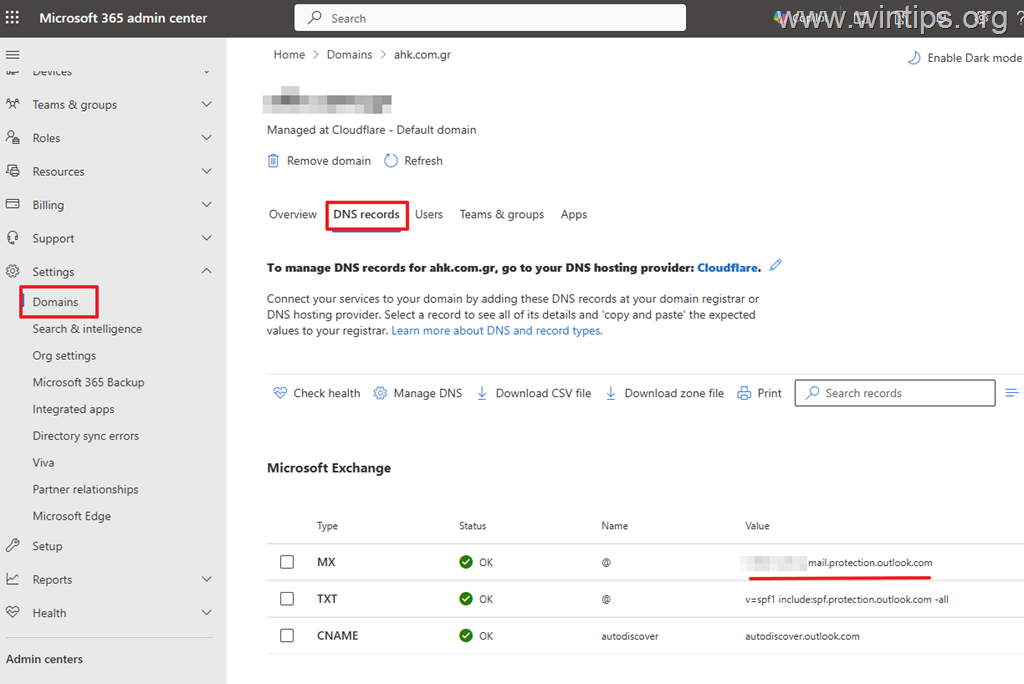
* Note: The "Server Name" is the MX record value for the accepted domain in Microsoft 365 and typically uses the syntax "yourdomain-com.mail.protection.outlook.com". For example, if the domain is "wintips.org" the MX record is:
- wintips-org.mail.protection.outlook.com
To find out & verify the MX value value for your domain, do the following:
1. Navigate to Microsoft 365 admin center, click Show all > Settings > Domains.
2. Click on your Domain, go to DNS records tab and see the MX record value.
Step 3. Test the Configuration.
Finally, test your configuration by sending an email from the application/device you applied the SMTP RELAY settings in previous step and check if the recipient receives it.
Additional Help:
To avoid these messages being marked as spam by recipients, add the following SPF record for your domain in the DNS settings at your domain registrar:*
- v=spf1 ip4:your-public-ip-address include:spf.protection.outlook.com -all
* Example: If your public IP Address is "192.168.10.10", then add this SPF record:
- v=spf1 ip4:192.168.10.10 include:spf.protection.outlook.com -all
Summary.
Configuring SMTP relay in Microsoft 365 is the most secure and reliable way to allow SMTP sending from devices and applications, especially after the removal of SMTP AUTH Basic Authentication at the end of 2026.
That's it! Let me know if this guide has helped you by leaving your comment about your experience. Please like and share this guide to help others.
Frequently Asked Questions
What is SMTP Relay and why should I use it in Microsoft 365?
SMTP Relay in Microsoft 365 allows on-premises mail servers, applications, or devices to send outbound emails through Exchange Online without needing username/password authentication. It's ideal for devices not supporting modern authentication, and it uses IP address validation and TLS for security.
What are the prerequisites for enabling SMTP Relay in Microsoft 365?
To enable SMTP Relay, you need Microsoft 365 Exchange admin privileges and the static public IP address of the application or device sending the email.
How can I test if the SMTP Relay configuration is successful?
To test the configuration, send an email from the application or device you configured with SMTP Relay settings. Verify if the recipient receives the email to ensure everything is set up correctly.
How can I prevent emails sent via SMTP Relay from being marked as spam?
To avoid emails being marked as spam, add an SPF record in your domain's DNS settings specifying your public IP address and include the standard Microsoft protection entry, forming a mechanism like: v=spf1 ip4:your-public-ip-address include:spf.protection.outlook.com -all.


- Windows Update Uninstall Failed with Error 0x800F0825: How to Fix - October 7, 2026
- Apps and Games Crash After KB5124010 Due to AC-3 Audio: How to Fix - October 5, 2026
- How to Fix Windows 11 Update Error 0x80073712 - October 5, 2026