How to Add a Shared Calendar in Outlook for Web (OWA)
If you're looking to add a shared calendar to Outlook for the web, this comprehensive guide will walk you through the process. Utilizing shared calendars is a prevalent practice in organizations to streamline workflow and enhance team coordination. With Outlook on the web, managing and viewing shared calendars becomes a seamless experience.
This guide provides detailed instructions on adding a Microsoft 365 shared calendar to Outlook for the web, also known as Outlook on the web or OWA.
- Related article: How to Open a Shared Calendar in Microsoft Outlook Desktop App.
Prerequisites:
- A Microsoft 365 (Office 365) account with at least "View" (Read Only) permissions on the shared calendar.
How to Open Shared Calendars in Outlook on the Web (OWA)
1. Open Outlook on the Web. Accessing Outlook on the Web allows you to manage your emails and calendars directly from your browser, providing a centralized platform for all your communication needs.
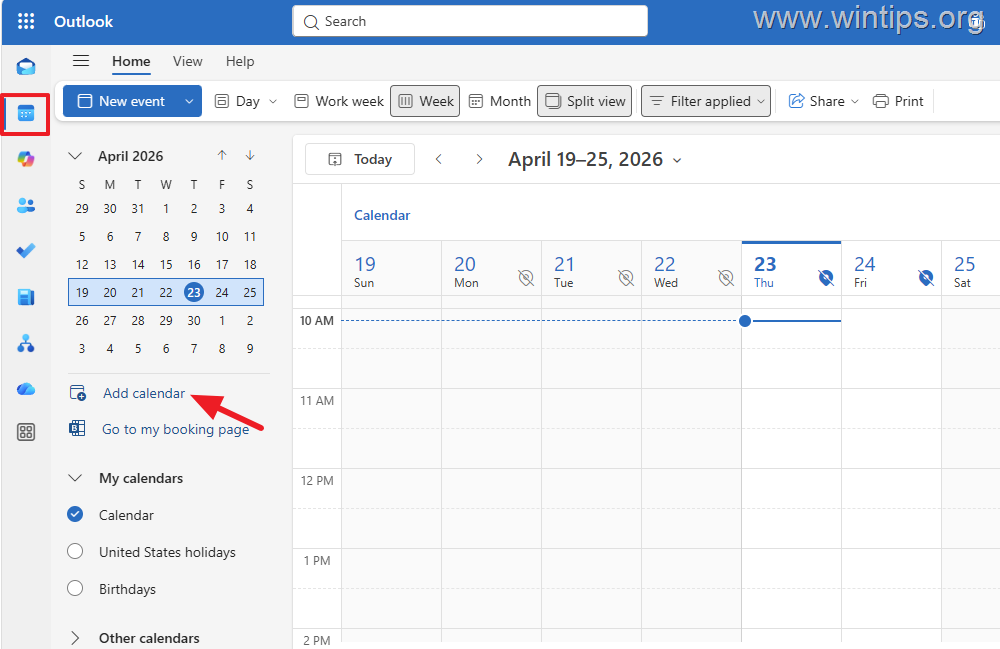
2. Click the Calendar icon in the left sidebar and then click Add Calendar. This action initiates the process of integrating additional calendars into your Outlook interface, enabling you to view multiple schedules simultaneously.
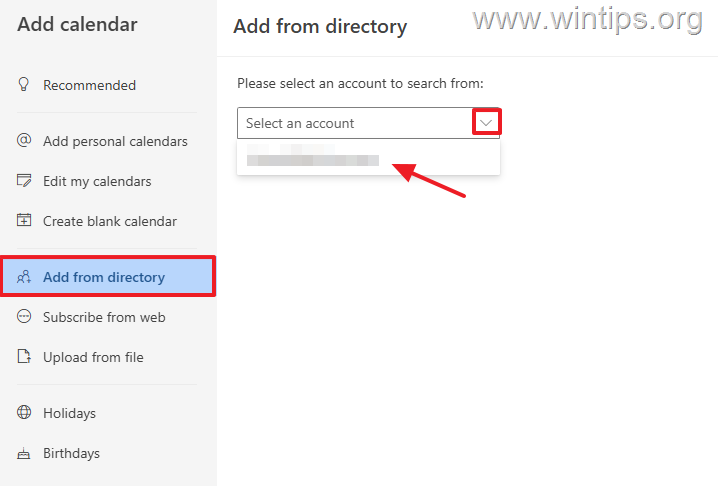
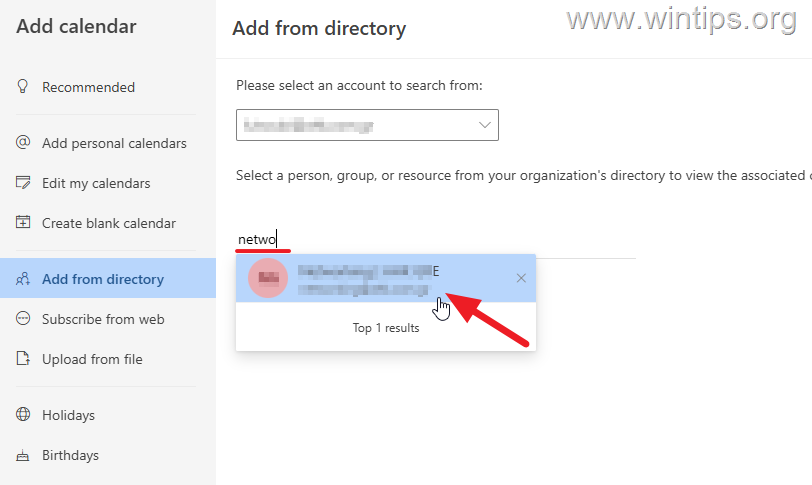
3. In the 'Add calendar' window, click Add from directory on the left and select your account from the drop-down menu on the right. This step allows you to search for and add calendars that are available within your organization's directory.
4. From the list of available shared calendars, select the one you want to add to OWA. If the shared calendar is not visible, it indicates that the calendar has not been shared with you yet.
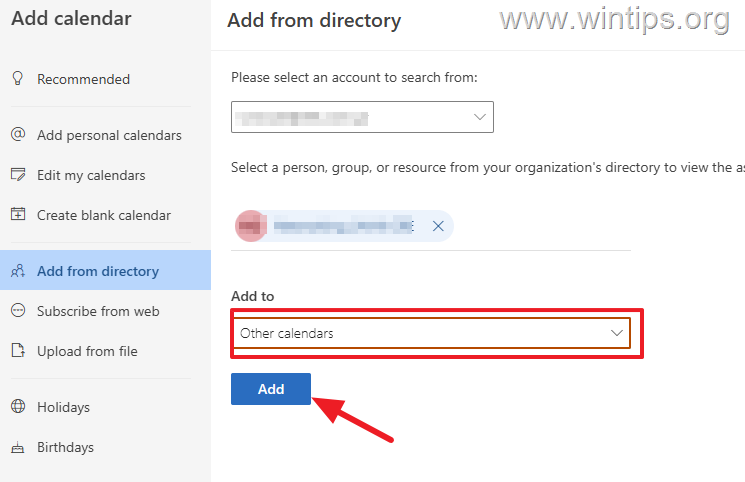
5. From the "Add to" drop-down menu, select which calendar group the shared calendar will appear in (e.g., "Other Calendars") and click Add. This step categorizes the shared calendar within your existing calendar groups for better organization and accessibility.
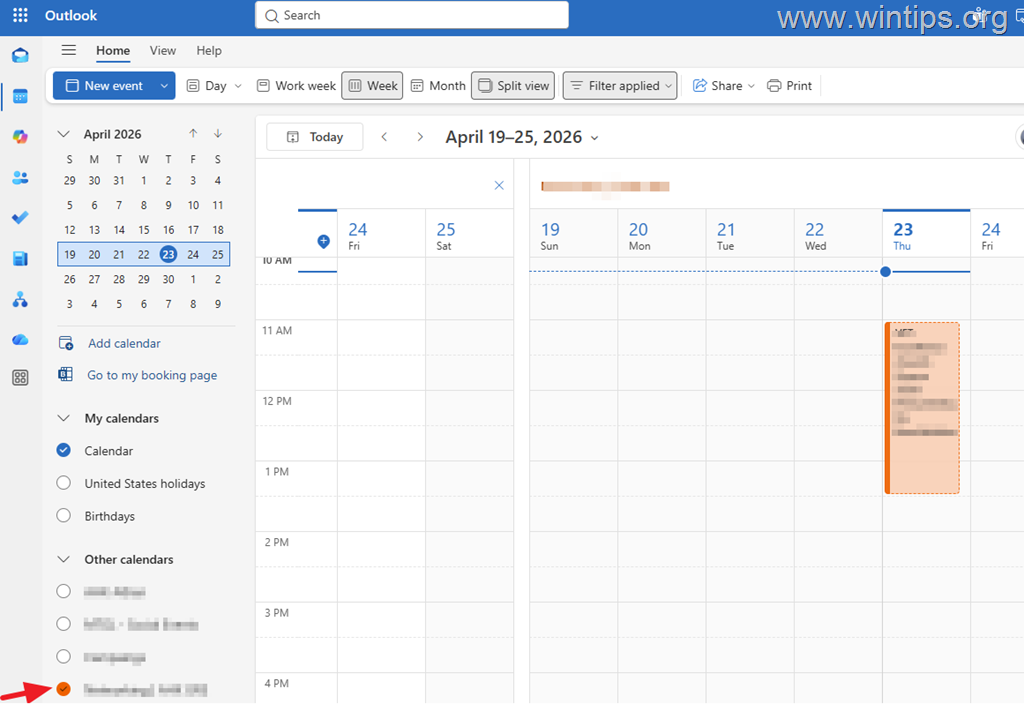
6. After completing the above steps, the shared calendar should appear in the specified calendar group. Select it to view all associated events, thereby integrating it into your workflow.
How to Remove a Shared Calendar in Outlook for Web (OWA)
If you need to remove the shared calendar:
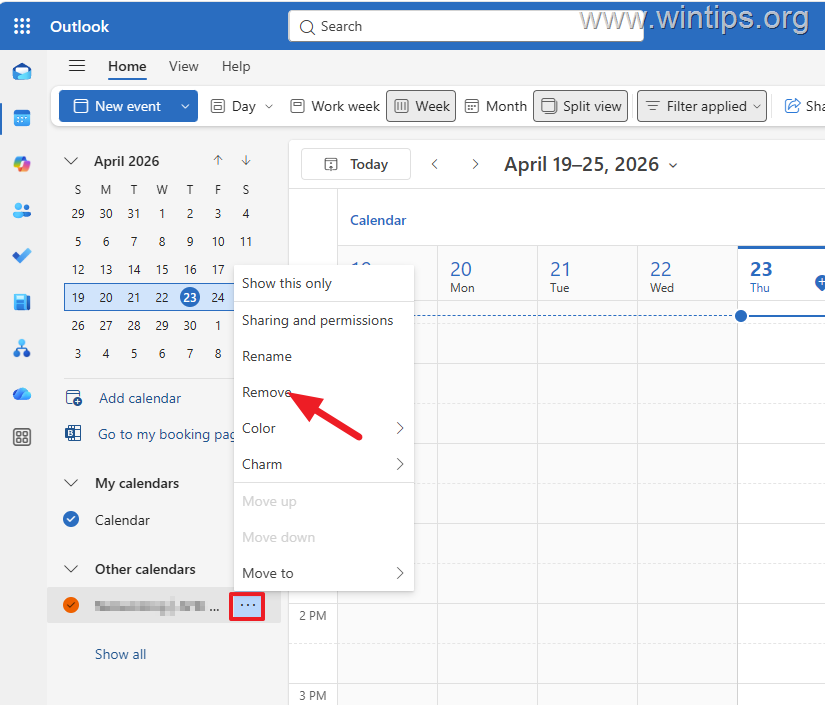
1. Click the 3-dot menu next to the calendar and select Remove. This action will delete the calendar from your view, helping you maintain a clutter-free calendar interface.
Summary:
Adding a shared calendar to Outlook on the web is straightforward and enhances team collaboration by providing a unified view of schedules. By following the outlined steps, you can efficiently integrate shared calendars into your workflow.
Let us know if this guide has helped you by leaving a comment about your experience. Please like and share this guide to assist others.
Frequently Asked Questions
What is required before adding a shared calendar to Outlook on the web?
You need a Microsoft 365 (Office 365) account with at least 'View' (Read Only) permissions on the shared calendar.
How do you initiate the process of adding a shared calendar in Outlook on the web?
Open Outlook on the Web, click the Calendar icon in the left sidebar, and then click Add Calendar.
What should you do if the shared calendar is not visible when adding it from the directory?
If the shared calendar is not visible, it indicates that the calendar has not been shared with you yet.
How can you remove a shared calendar from Outlook on the web?
Click the 3-dot menu next to the calendar and select Remove to delete it from your view.


- How to Fix Windows 11 Update Error 0x80073712 - October 5, 2026
- How to Install Windows 11 26H2 on Unsupported Hardware - October 2, 2026
- How to Install Windows 11 version 26H2 - October 2, 2026