How to Allow Sing-in to Microsoft 365 cloud services from Google Chrome to Fix the "You can't get there from here" error.
If you want to allow users to access Microsoft 365 web resources—such as SharePoint, Outlook on the web, and other services—from Google Chrome and resolve the following error, continue reading below:
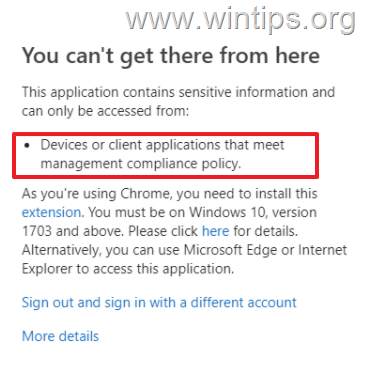
"You can't get there from here. This application contains sensitive information and can only be accessed from devices or client applications that meet management compliance policy."
Many organizations enforce the Conditional Access (CA) policy "Requires MDM-enrolled and compliant device" in Microsoft 365 to enhance security. However, although this policy allows a compliant and enrolled device to access Microsoft 365 online resources (e.g., SharePoint, Outlook Web, etc.), through Microsoft Edge browser, it blocks access through Chrome and reports the device as non-compliant, even though it is.
This is because Microsoft Edge by default sends a signal when authenticating to Microsoft 365, which informs Entra ID that the device is enrolled in Intune and compliant, while Chrome does not send a similar signal, resulting in Entra ID marking this device as non-compliant and blocking access. By configuring Chrome to send the necessary compliance signal, you can ensure seamless access to Microsoft 365 services.
More specifically, when a user tries to access Microsoft 365 resources from Google Chrome even from a compliant device, it receives the error "You can't get there from here. This application contains sensitive information and can only be accessed from devices or client applications that meet management compliance policy" and…
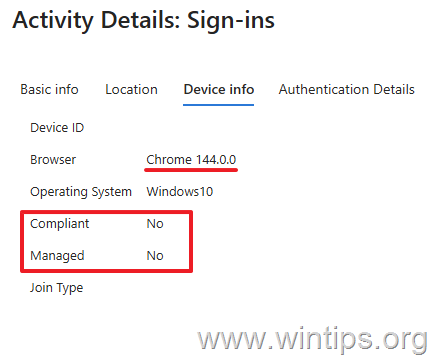
…in Entra-ID Sign-in logs of the affected user the device is reported as non-compliant and unmanaged.
In this guide, you’ll find detailed instructions on how to resolve the ‘This Application Contains Sensitive Information…’ error by allowing Google Chrome to access Microsoft 365 cloud resources using a policy for managed devices in Microsoft Intune.
* Note: For standard Microsoft 365 users on unmanaged devices (not managed by Microsoft Entra ID or Microsoft Intune), this error can be resolved by installing the Microsoft Single Sign-On extension for the Chrome browser. Then restart Chrome and try to access Microsoft 365 cloud resources.
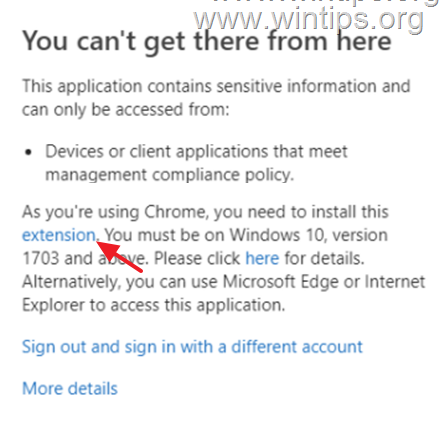
How to Fix: 'This Application Contains Sensitive Information and Can Only Be Accessed from Compliant Devices' Chrome Error in Microsoft 365 resources.*
* Note: Below are two methods to resolve the issue: the newer (recommended) approach and the older method, which is no longer recommended and may not work reliably.
Method 1. Allow automatic sign-in to Microsoft cloud identity providers for Chrome.
The modern and recommended method to resolve the "Application Contains Sensitive Information…" error in Chrome, is to use the 'Automatic sign-in to Microsoft cloud identity providers (CloudAPAuthEnabled)' Intune policy.
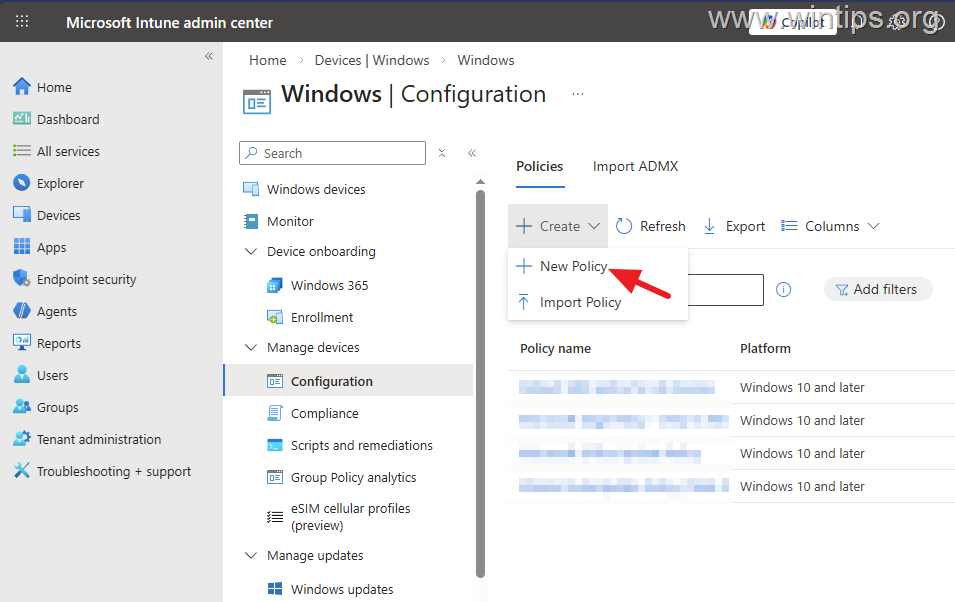
1. Navigate to Intune admin center > Devices > Windows > Configuration and click Create > New Policy.
![image_thumb[7]](https://www.wintips.org/wp-content/uploads/2026/04/image_thumb7.png "image_thumb[7]")
2. In Create a profile, select:
- Platform: Windows 10 and later
- Profile type: Settings catalog
![image_thumb[12]](https://www.wintips.org/wp-content/uploads/2026/04/image_thumb12.png "image_thumb[12]")
3. Type a name for the new policy (e.g., "Allow automatic sign-in to Microsoft Cloud Services via Chrome") and optionally add a description below. Then click Next.
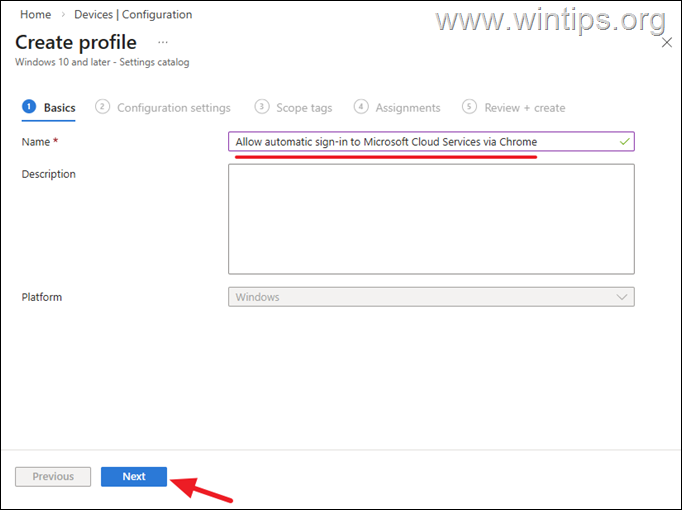
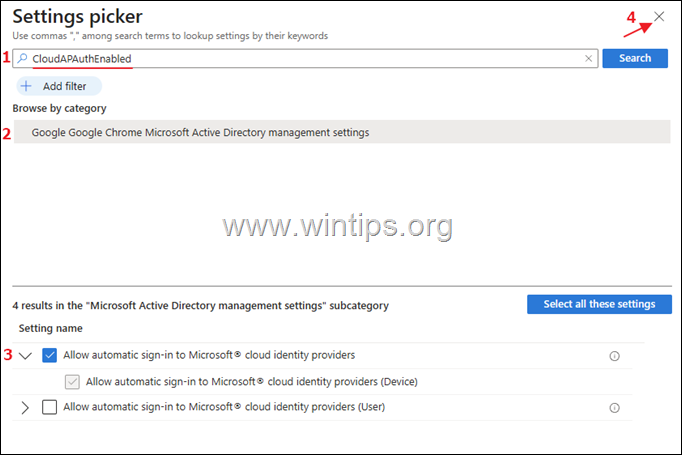
4A. In Configuration settings click Add Settings and then in Settings picker, do the following:
1. Search for "CloudAPAuthEnabled"
2. Then, under Browse by category, select:
- Google Google Chrome Microsoft Active Directory management settings.
3. Under Setting name, select:
- Allow automatic sign-in to Microsoft® cloud identity providers (Device)*
* Note: This setting will apply to ALL users on that device. If you want to apply this setting only to SPECIFIC users, select "Allow automatic sign-in to Microsoft® cloud identity providers (User).
4. Close the Settings picker window.
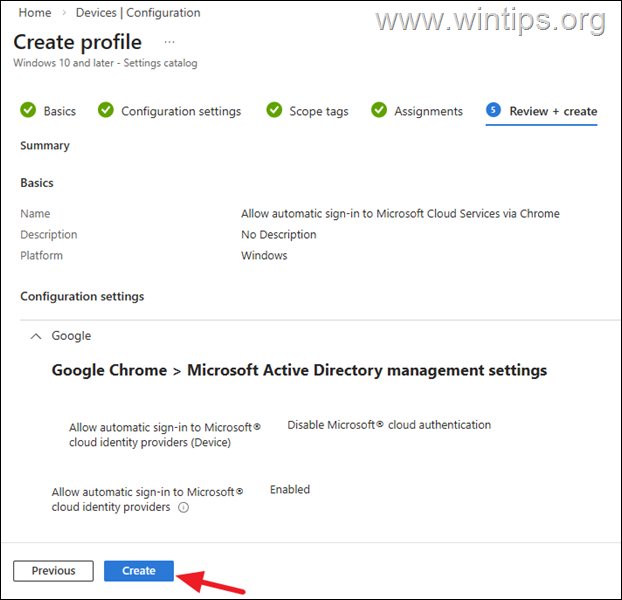
4B. Now set the "Allow automatic sign-in to Microsoft® cloud identity providers" to Enabled (to enable the "Microsoft® cloud authentication") and then click Next.
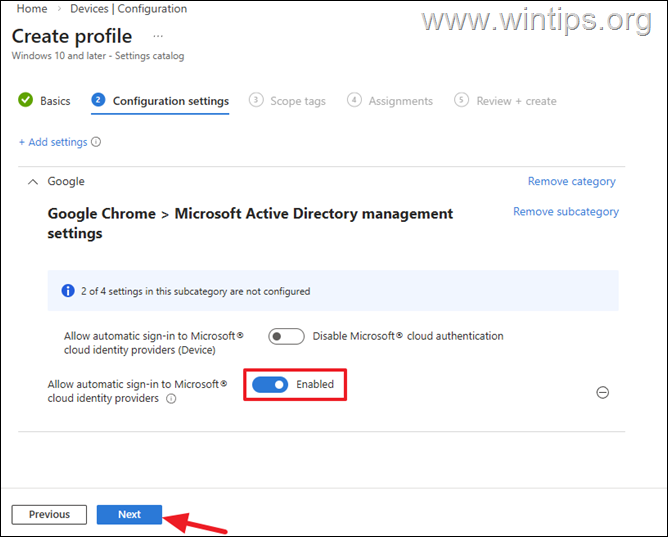
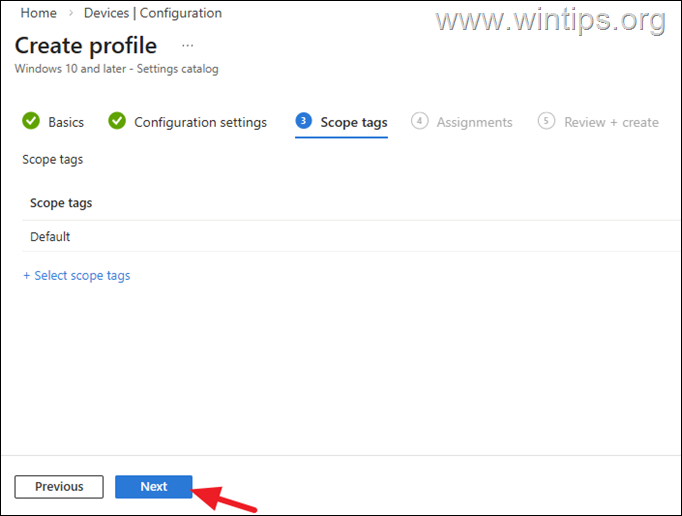
5. In Scope tags click Next.
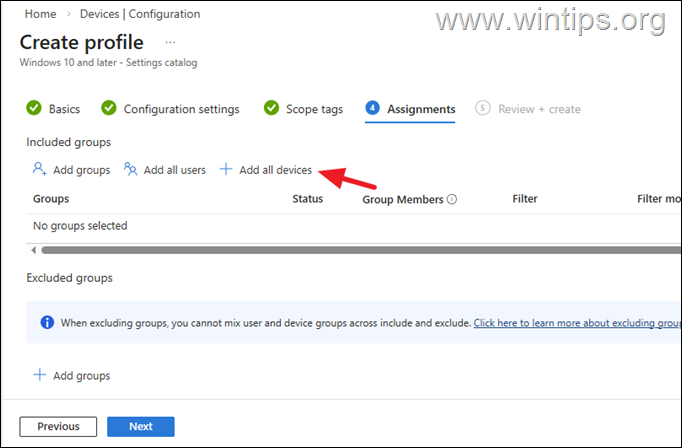
6. On the Assignments page, click Add all devices if you want to assign the new policy to all devices, or click Add groups and select the group with the specific users you want to assign the policy to. When done, click Next.
7. Finally click Create to create and apply the new policy.
8. Wait a few hours for the policy to be applied to all Microsoft 365 users, periodically checking the progress/status of the implementation.
9. Once the policy is applied to the selected devices, access to Microsoft 365 web resources from Chrome browser will be allowed.
Method 2. Install and Enable Single Sign On extension for Chrome via Intune.
The second but LEGACY* method to enable the access to Microsoft 365 cloud services from Google Chrome and fix the "You can't get there from here" error, is to install the Chrome Single Sign-On Chrome extension on all managed Windows devices via an Intune policy. *
* Note: This method is not recommended anymore.
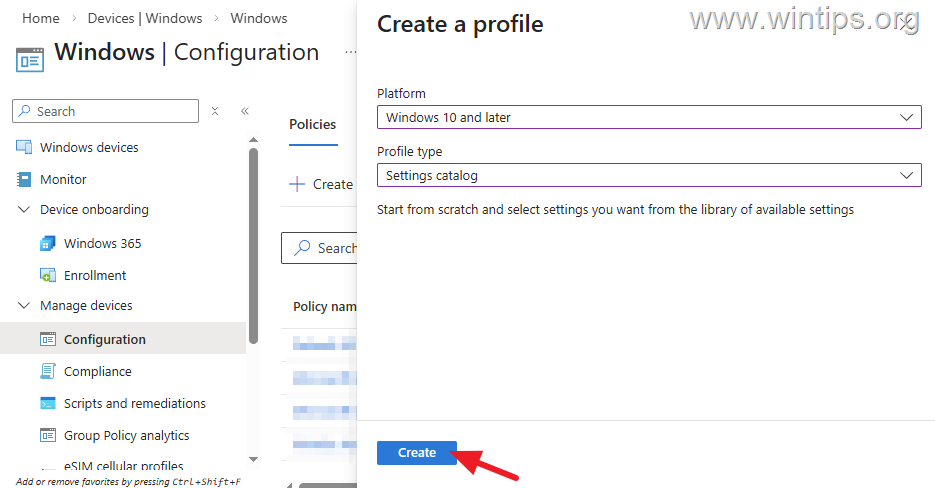
1. Navigate to Intune admin center > Devices > Windows > Configuration and click Create > New Policy.
2. In Create a profile, select:
-
Platform: Windows 10 and later
-
Profile type: Settings catalog
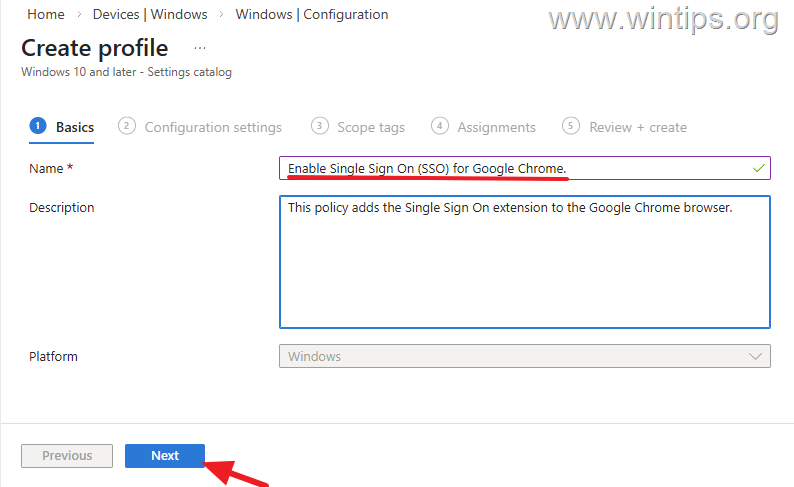
3. Type a name for the new policy (e.g., "Enable Single Sign-On for Chrome") and optionally add a description below. Then click Next.
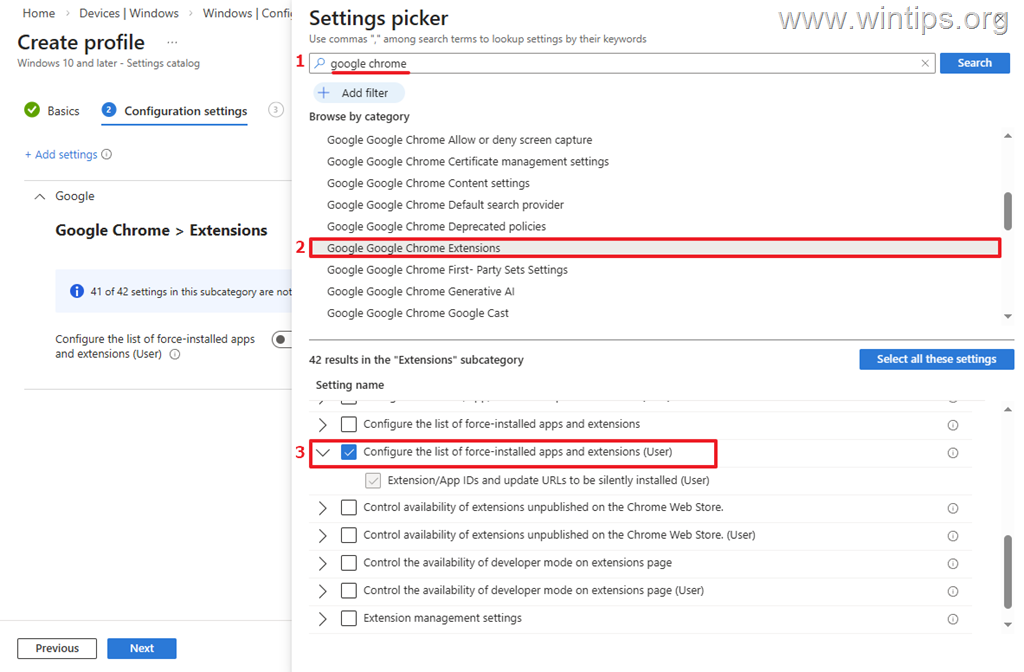
4A. In Configuration settings click Add Settings and then in Settings picker, do the following:
1. Search for "google chrome".
2. Under Browse by category, select Google Google Chrome Extensions.
3. Under Setting name, select Configure the list of force-installed apps and extensions (User).
4B. Close the Settings picker window.
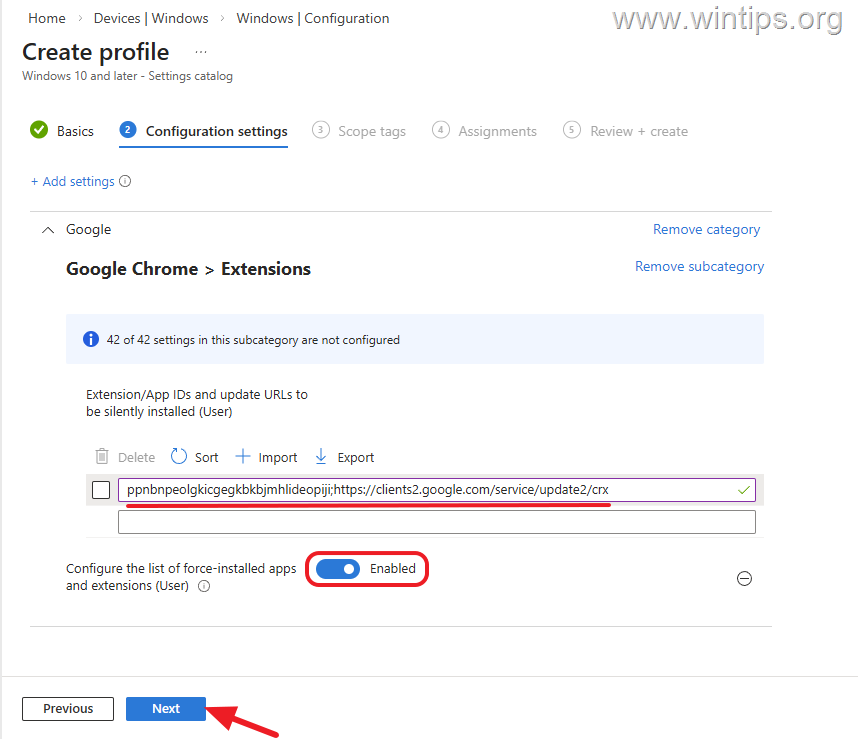
4C. Now, Enable the policy settings and then copy and paste the Chrome Single Sign-On Extension/App ID below. When done, click Next.
-
ppnbnpeolgkicgegkbkbjmhlideopiji;https://clients2.google.com/service/update2/crx
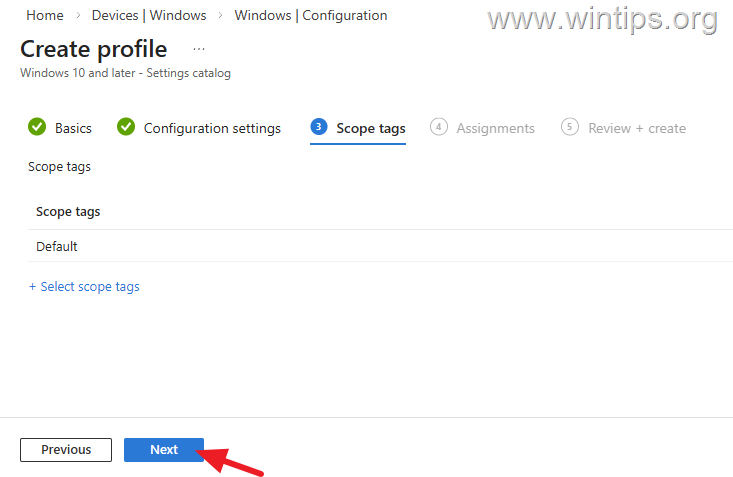
5. In Scope tags click Next.
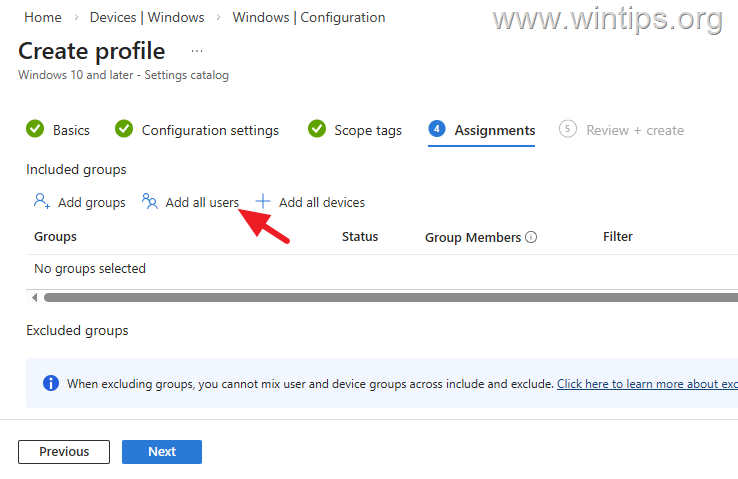
6. On the Assignments page, click Add all users if you want to assign the new policy to all Microsoft 365 users, or click Add groups and select the group with the users you want to assign the policy to. When done, click Next.
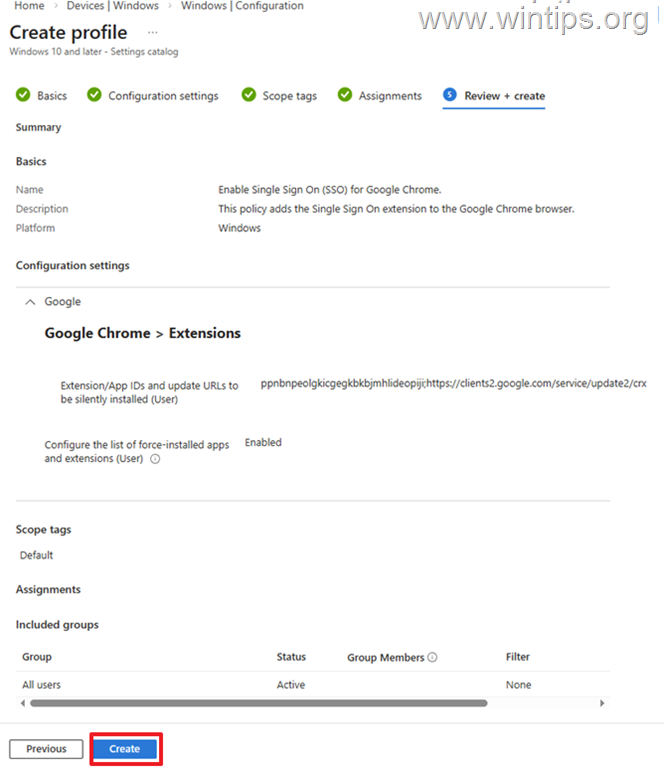
7. Finally click Create to create and apply the new policy.
8. Wait a few hours for the policy to be applied to all Microsoft 365 users, periodically checking the progress/status of the implementation.
9. Once the policy is applied to the workstations, try connecting to Microsoft 365 services via Chrome on one of these workstations and you will see that you can now connect normally without getting the error "You can't get there from here. This application contains sensitive information and can only be accessed from devices or client applications that meet management compliance policy".
Summary
To resolve the "You can't get there from here" error when accessing Microsoft 365 services via Google Chrome, you can use the recommended method of enabling automatic sign-in to Microsoft cloud identity providers through Intune. Alternatively, the legacy method involves installing the Single Sign-On extension for Chrome. Ensure that Chrome is updated and check for any conflicting group policies to further troubleshoot access issues.
That's it! Let me know if this guide has helped you by leaving your comment about your experience. Please like and share this guide to help others.
Frequently Asked Questions
Why can't I access Microsoft 365 resources from Google Chrome?
Organizations often enforce a Conditional Access policy requiring devices to be MDM-enrolled and compliant. While compliant devices can access resources through Microsoft Edge, Chrome does not send the compliance signal to Entra ID, resulting in a block.
How does Microsoft Edge differ from Chrome in accessing Microsoft 365?
Microsoft Edge automatically sends a signal that informs Entra ID of the device's compliance and enrollment status, while Chrome doesn't, leading to access being blocked for devices using Chrome.
What is the recommended method to enable Chrome access to Microsoft 365?
Implement the 'Automatic sign-in to Microsoft cloud identity providers (CloudAPAuthEnabled)' Intune policy. This involves creating a configuration profile in the Intune admin center to allow automatic sign-in for Microsoft cloud services via Chrome.
Can unmanaged devices access Microsoft 365 resources via Chrome?
Yes, standard Microsoft 365 users on unmanaged devices can resolve access issues by installing the Microsoft Single Sign-On extension for Chrome, then restarting the browser.


- Windows Update Uninstall Failed with Error 0x800F0825: How to Fix - October 7, 2026
- Apps and Games Crash After KB5124010 Due to AC-3 Audio: How to Fix - October 5, 2026
- How to Fix Windows 11 Update Error 0x80073712 - October 5, 2026