
How to Update Third-Party Apps via Intune using WinGet AutoUpdate for Intune.
In this guide, you’ll learn how to automatically update third-party apps on managed Windows devices in Microsoft Intune using WinGet-AutoUpdate for Intune.
Updating third-party applications on enrolled Windows devices through Microsoft Intune can be a complex task for IT administrators. While Intune facilitates easy updates for Microsoft apps or Microsoft Store apps, third-party application updates typically require intricate scripting or additional tools, such as the Microsoft Intune Enterprise App Management add-on from the Intune Suite. This allows updates via the Enterprise App Catalog.
Fortunately, with WinGet integration in Intune, you can now automatically update thousands of applications on managed Windows devices via Microsoft Intune at no cost and without the need for repackaging installers or writing complex scripts.
Specifically, you can install WinGet-AutoUpdate-aaS (known as "WinGet-AutoUpdate-Configurator as a Service" or "WAUaaS") on Intune-enrolled devices and auto-update third-party apps using Microsoft Intune ADMX policies.
WinGet (Windows Package Manager) is Microsoft's open-source package manager, a set of tools that allows you to install and upgrade almost any third-party application on a Windows device. It supports thousands of third-party apps like Google Chrome, Adobe Acrobat Reader, Zoom, VLC, and more.
How to Auto Update Third-Party Apps in Intune with WinGet-AutoUpdate-aaS (Microsoft 365)
Requirements:
- Microsoft Intune admin permissions
- Devices already enrolled in Intune
- Windows 10 22H2 or later, or Windows 11
Step 1. Download WinGet AutoUpdate for Intune ADMX Files
The first step is to download the ADMX files, which contain the necessary policy settings to manage third-party app updates using WinGet.
1. Navigate to the Winget-AutoUpdate-Intune GitHub page and download the ADMX files in a ZIP file.
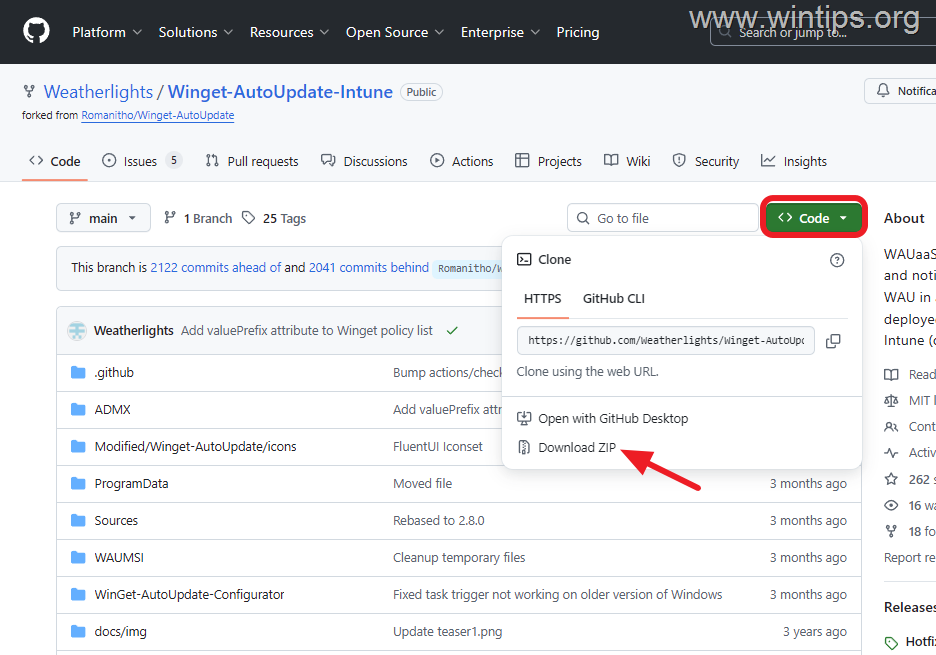
2. Once the download is complete, extract the contents of the "Winget-AutoUpdate-Intune-main.zip" file to a folder and proceed to the next step.
Step 2. Import "Winget-AutoUpdate for Intune" ADMX into Intune
After downloading the WinGet-AutoUpdate-Intune ADMX files, proceed to import them into Microsoft Intune.
1. Navigate to the Microsoft Intune admin center > Devices > Windows.
2. Select Configuration and then click Import ADMX.
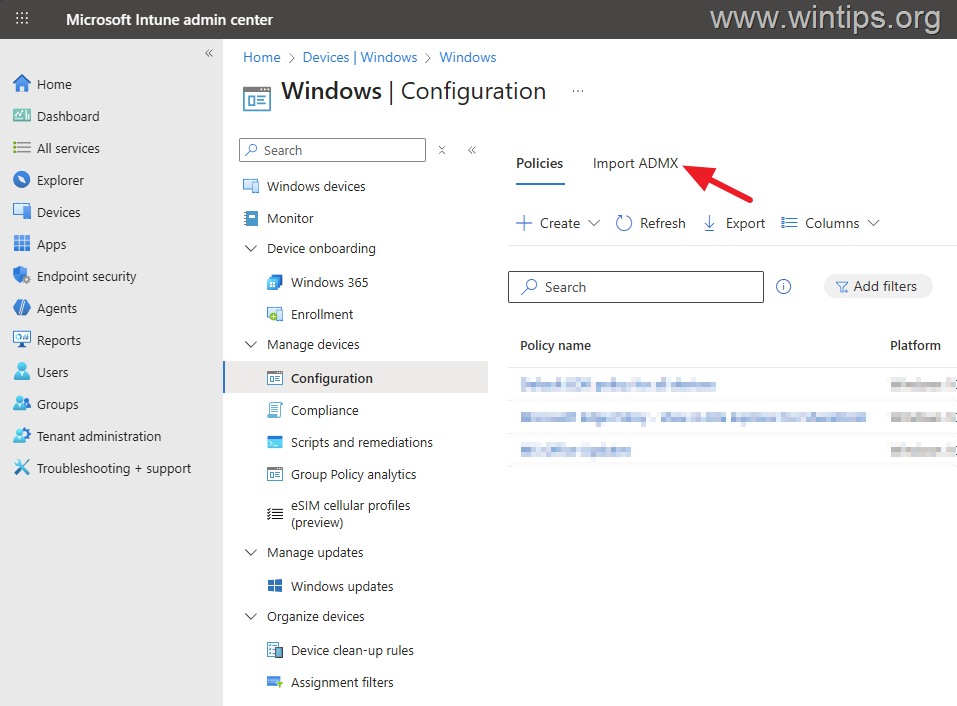
3. Click Import to import the Winget-AutoUpdate ADMX files.
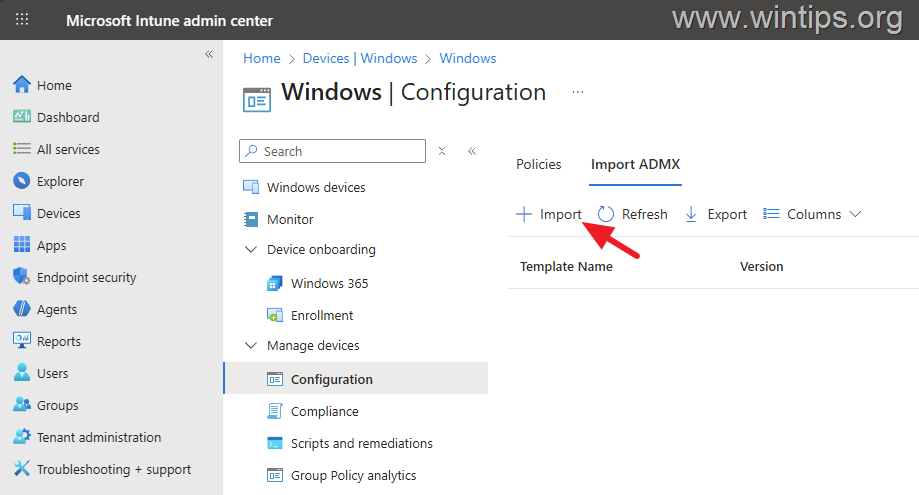
4a. In ADMX file, click the "Select .admx file" icon.
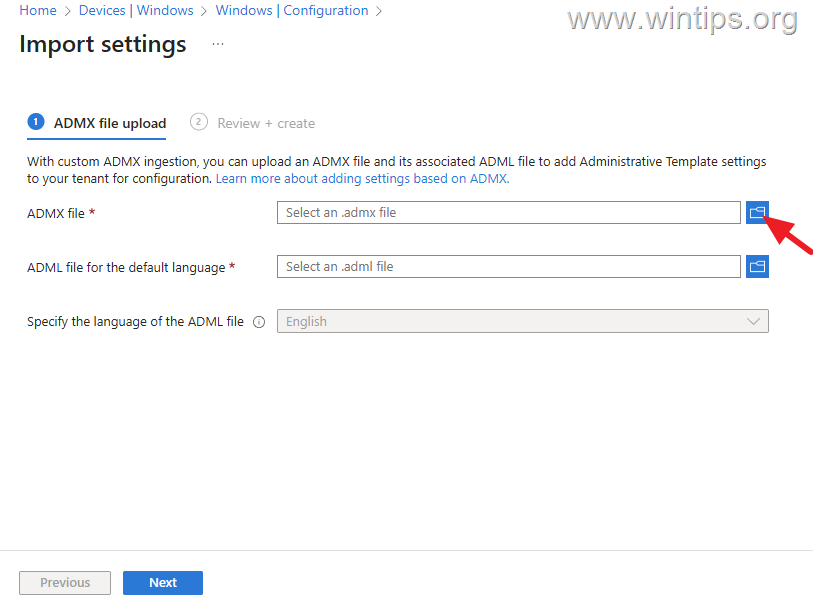
4b. Navigate to "Winget-AutoUpdate-Intune-main\ADMX" folder, select the "WinGet-AutoUpdate-Configurator.admx" file and click Open.
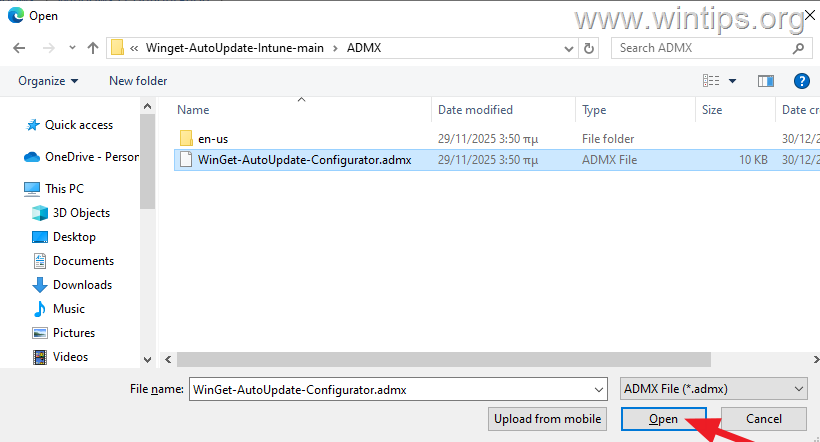
4c. Now click the "Select .adml file" icon.
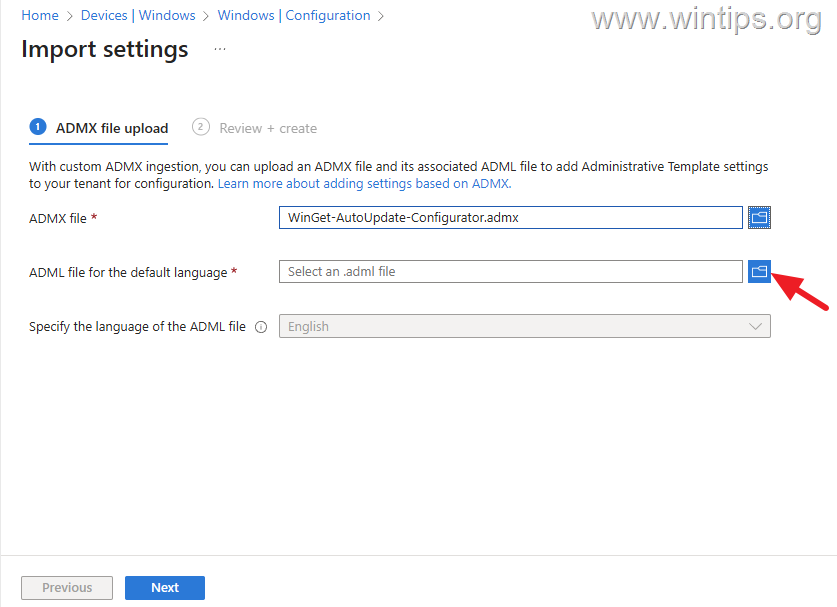
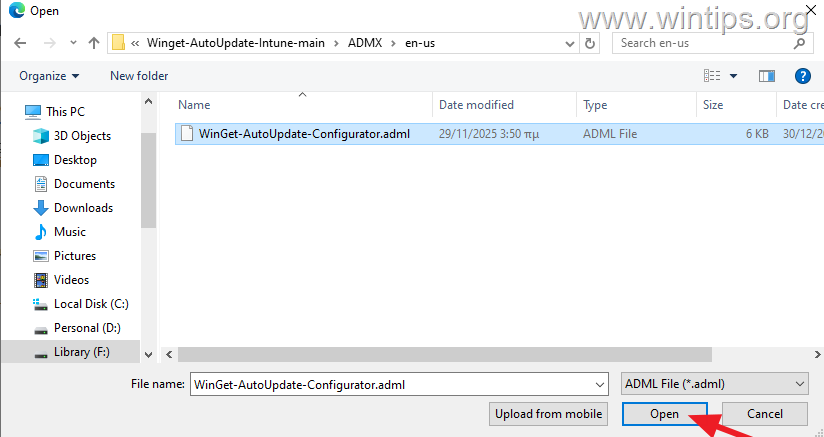
4d. Navigate to "Winget-AutoUpdate-Intune-main\ADMX\en-us" folder, select the "WinGet-AutoUpdate-Configurator.adml" file and click Open.
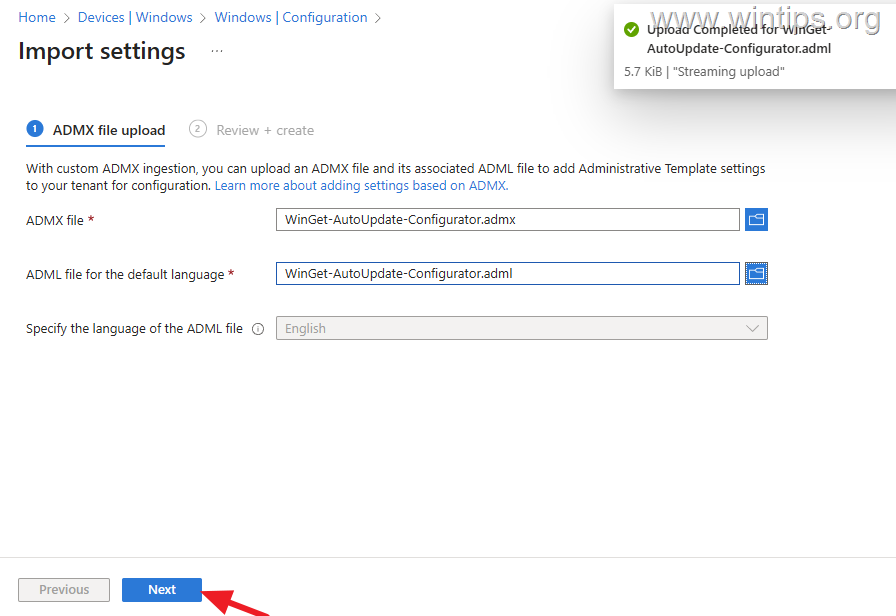
5. Click Next to continue.
6. Finally, click Create to upload the "WinGet-AutoUpdate-Configurator.admx" ADMX template files.
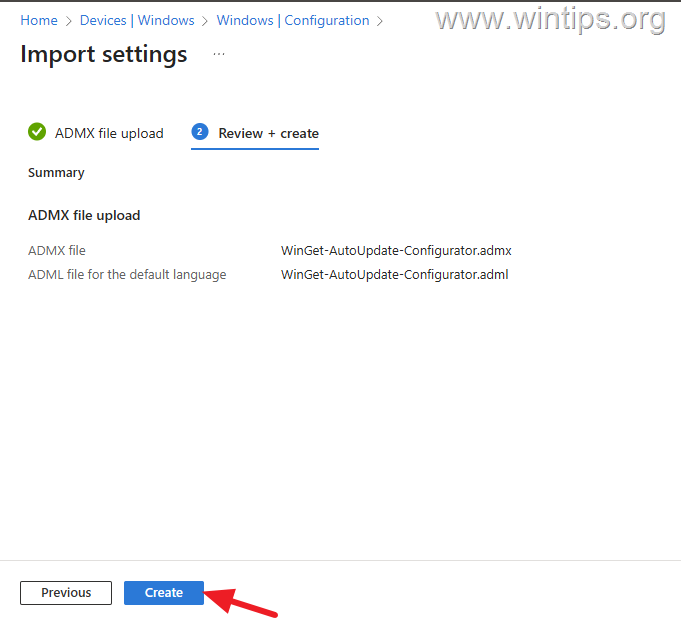
7. Wait a few minutes for the upload to complete and then refresh the screen. If the status now says "Available", proceed to the next step to configure the WinGet-AutoUpdate Policy.
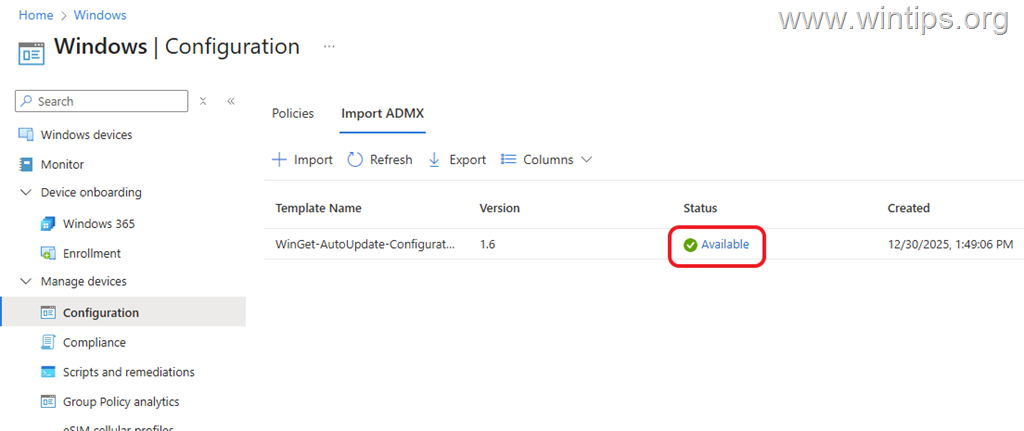
Step 3. Configure a New Policy for Installing Updates Using the "WinGet Auto-Update" Application (Winget-AutoUpdate-aaS)
To configure a new policy for third-party app updates using the WinGet-AutoUpdate app, follow these steps:
1. While you're in the Microsoft Intune Admin Center, go to Devices > Windows > Configuration:
2. Select the Policies tab and click Create > New Policy.
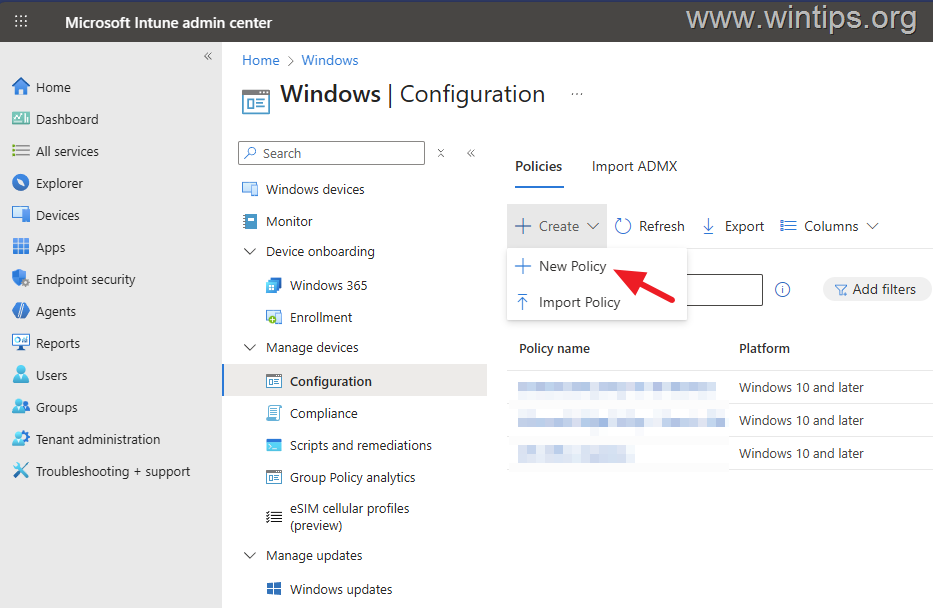
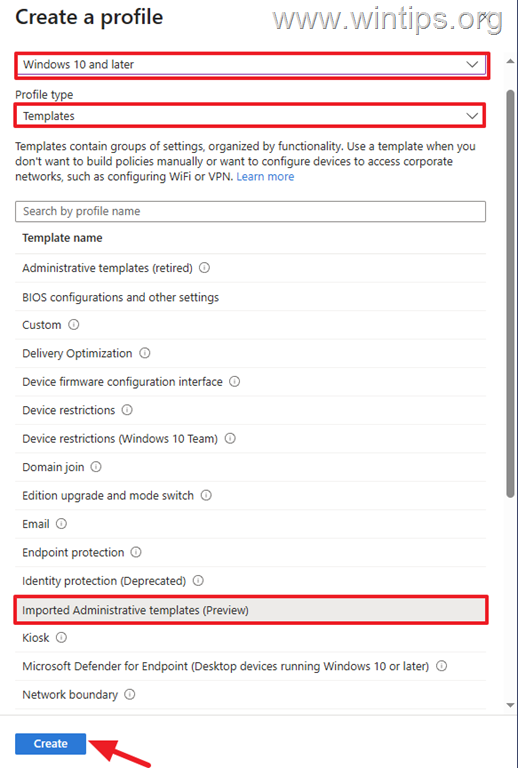
3. In 'Create a profile' options, select the following and then click Create:
- Windows 10 and later
- Profile type: Templates
- Template name: Imported Administrative templates (Preview)
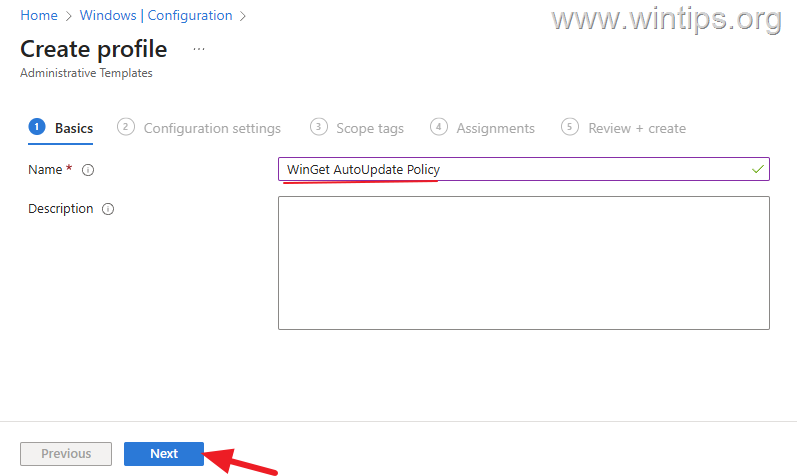
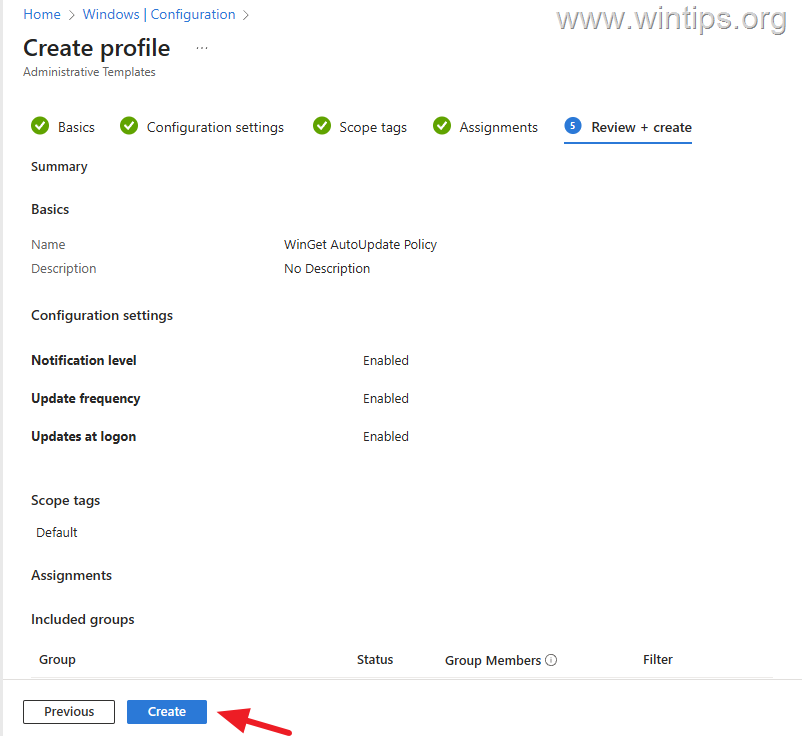
4. Type a name for the new profile (e.g., "WinGet AutoUpdate Policy") and click Next.
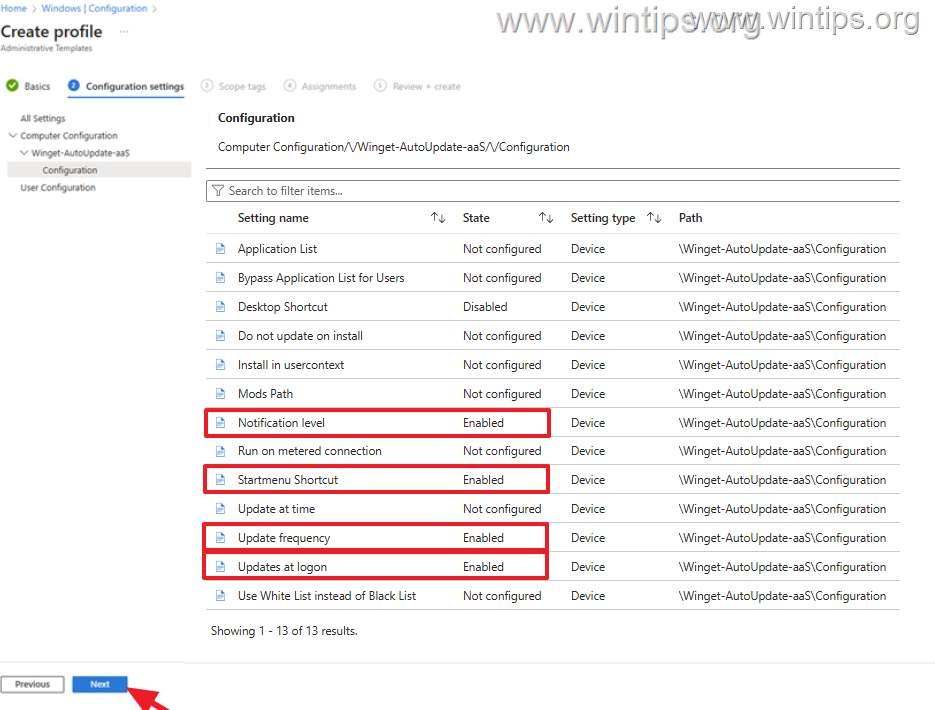
5. Now set the following settings to Enabled and then click Next:
- Notification level with Notification level: Only success
- Startmenu Shortcut
- Update Frequency with Update Interval: Daily
- Updates at logon
Note: Optionally, you can check and configure any other settings listed here, such as setting the "Update at time" option to "Enabled" if you want third-party apps to update at a different time than the default (6 AM).
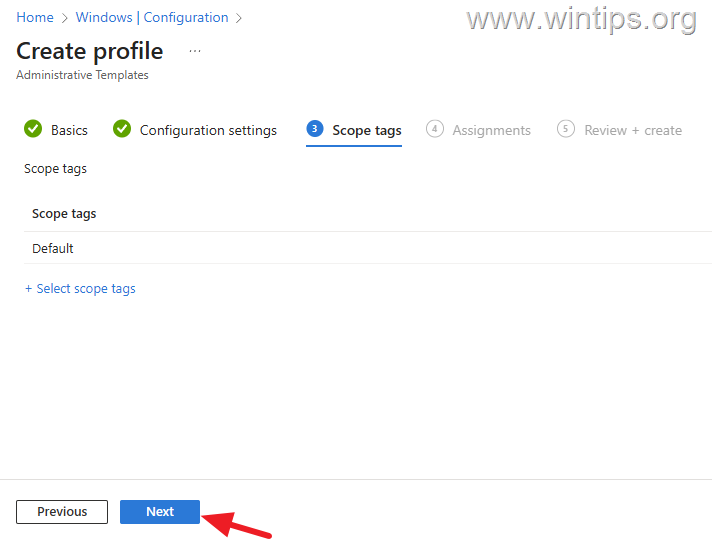
6. At 'Scope tags' click Next.
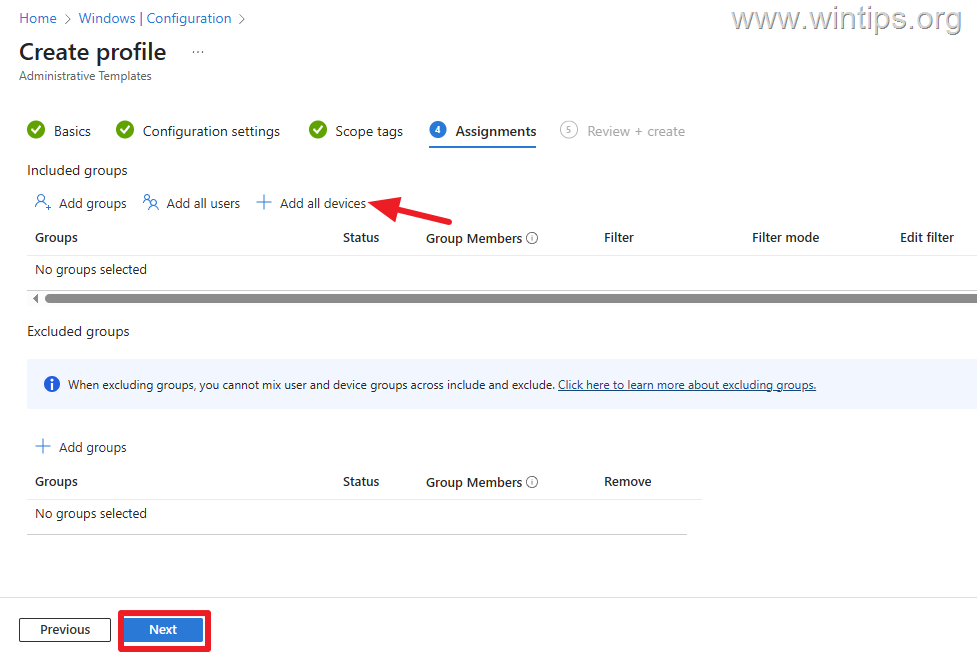
7. In the 'Assignments' select Add all devices if you want to apply the new policy on all devices in your organization or select "Add group" to choose a specific group. Then click Next to continue.
8. Finally, click Create to create the new policy and proceed to the next step.
Step 4. Deploy "Winget-AutoUpdate-aaS" Application on Windows Devices via Intune
After configuring the WinGet AutoUpdate policy in Intune, proceed to install the "Winget-AutoUpdate-aaS" client on the managed Windows devices using one of the methods below:
Note: Winget-AutoUpdate-aaS (aka "Winget-AutoUpdate-Configurator") can be deployed either from Microsoft Store (Method-1) or using an MSI file (Method-2) as a "Line-of-business app" (LoB app).
Method 1. Install "Winget-AutoUpdate-aaS" as a "Line-of-business app" using the MSI file.
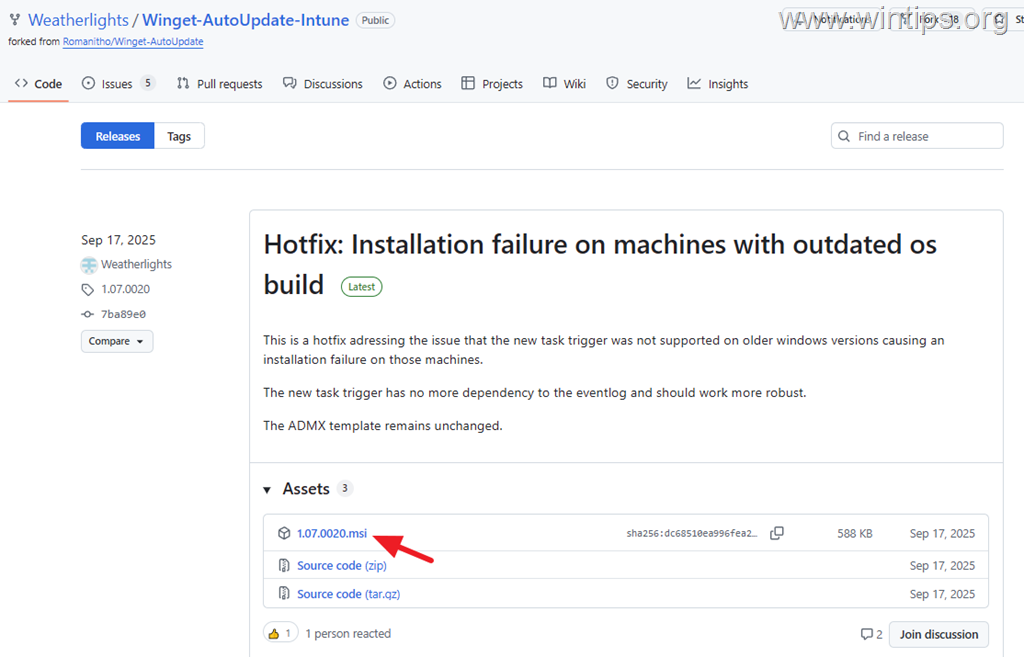
1. Download the latest version of "Winget-AutoUpdate-aaS" app in .MSI file from the Release Page.
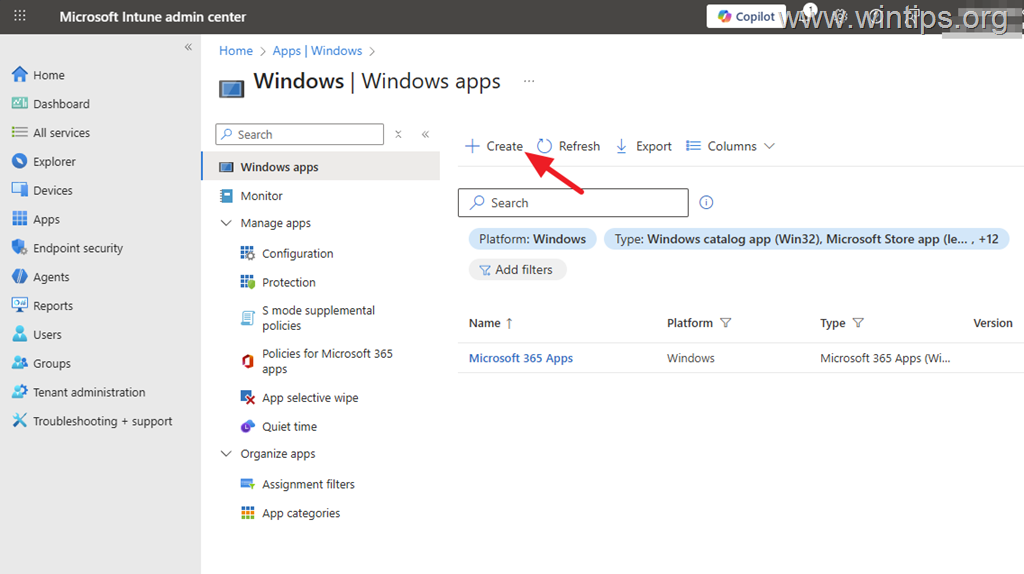
2. On the Microsoft Intune Admin Center, go to Apps > Windows and click Create.
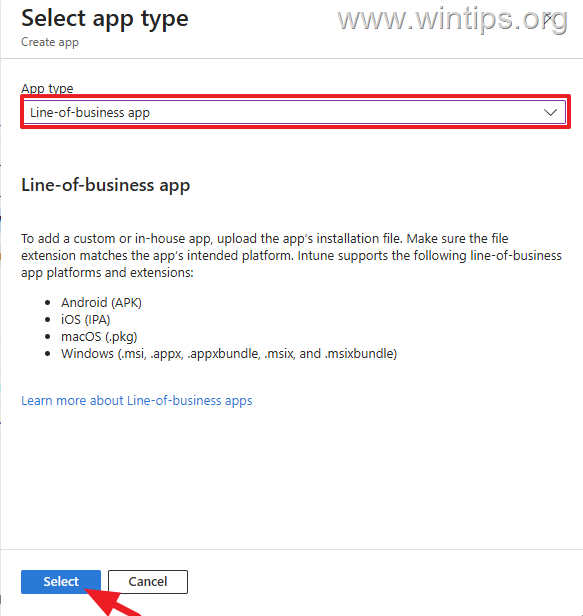
3. In the 'Select app type' window, choose Line-of-business app and then click Select.
4a. Now, click Select app package file.
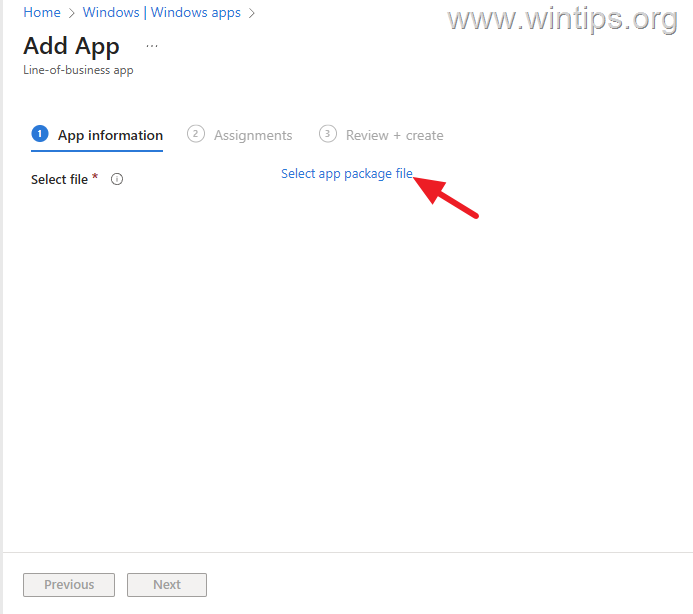
4b. In the "App package file" window, click the Browse icon.
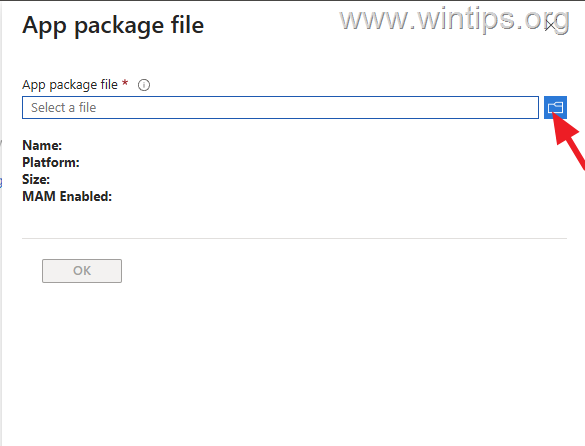
4c. Select the MSI file you downloaded and click Open.
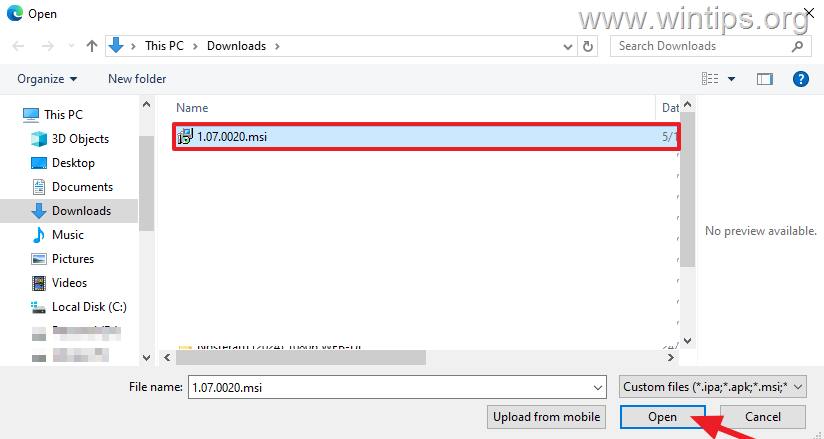
4d. Click OK
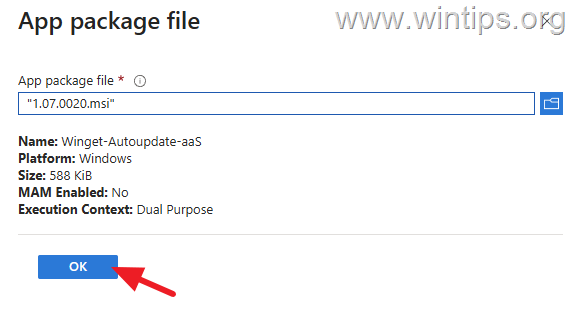
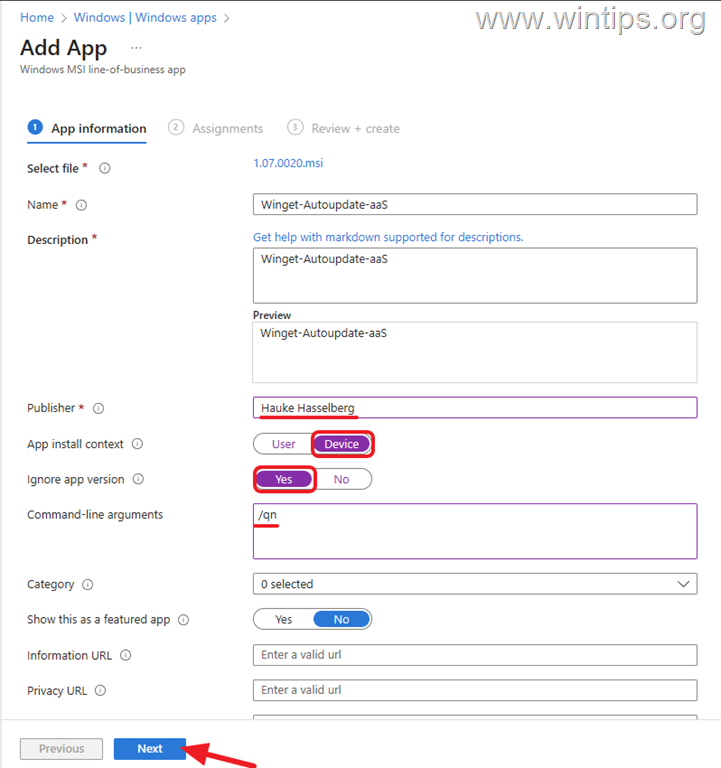
5. In the App information, do the following and then click Next:
- In Publisher field, type "Hauke Hasselberg"
- In App install context select Device
- In Ignore app version, select Yes
- In Command line arguments field type "/qn" for silent installation.
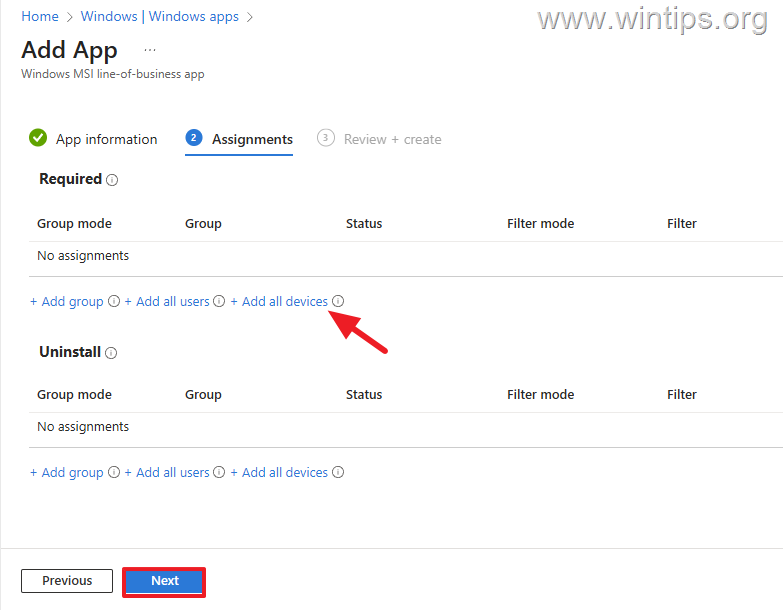
6. In the 'Assignments' select Add all devices under Required if you want to install the app on all devices in your organization or select "Add group" to choose a specific group. Then click Next to continue.
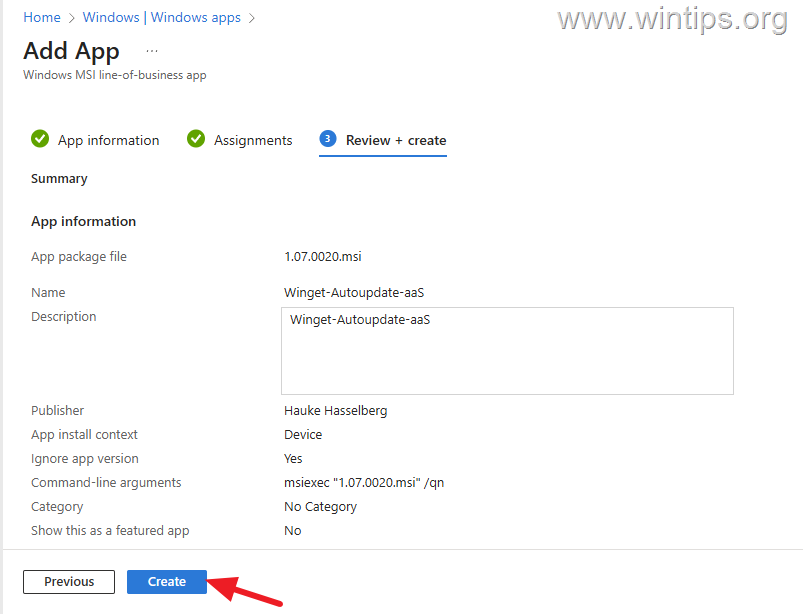
7. Finally, click Create to create the new app and then proceed to the next step.
Method 2. Install "Winget-AutoUpdate-aaS" Using the Microsoft Store
1. On the Microsoft Intune Admin Center go to Apps > Windows and click Create.
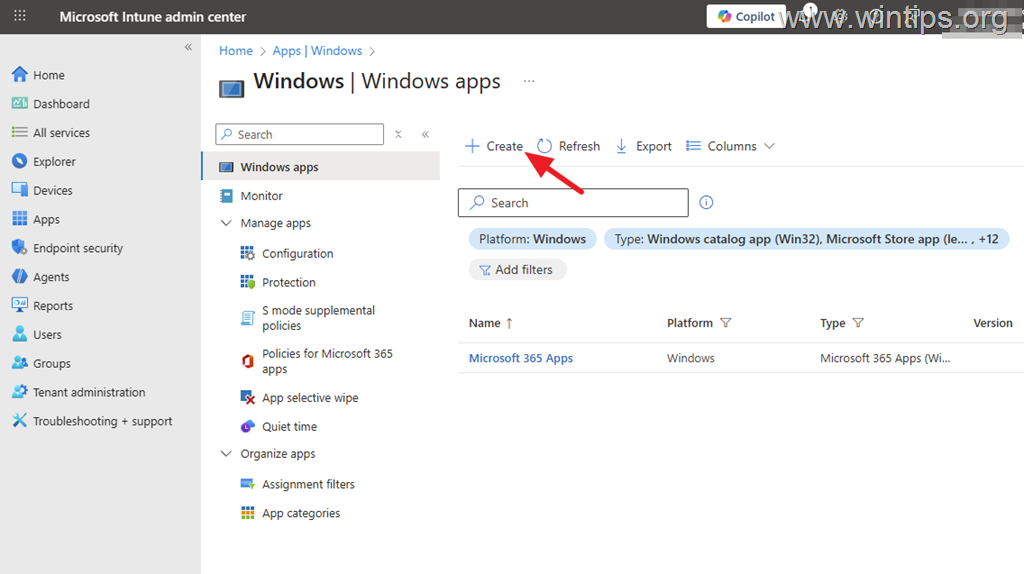
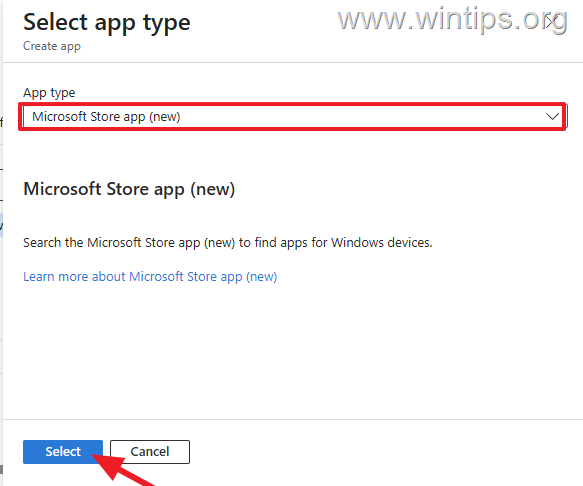
2. In the 'Select app type' window, choose Microsoft Store (New) and then click Select.
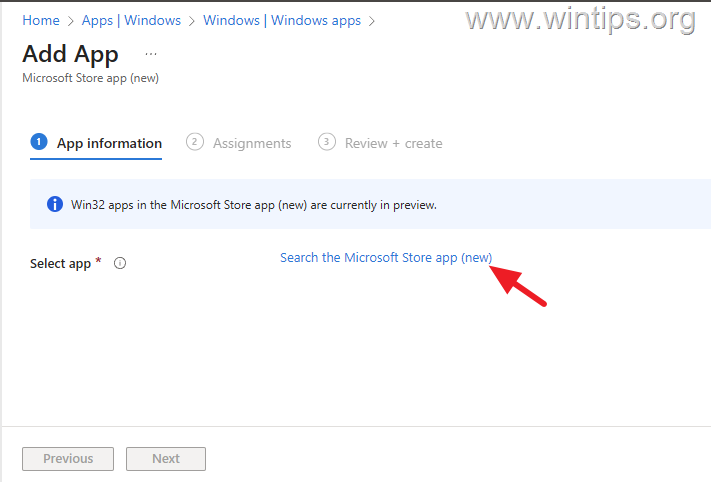
3. In the 'Add app' window, click Search the Microsoft Store app (new).
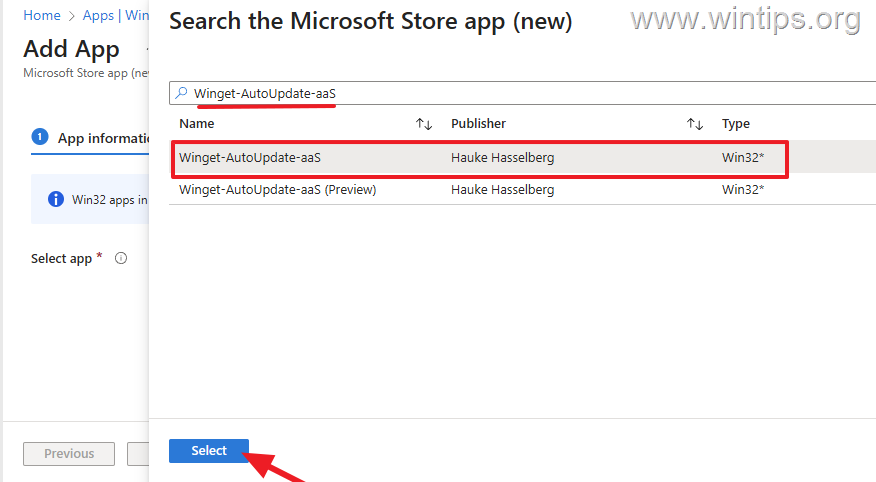
4. Type "Winget-AutoUpdate-aaS" in the search, then choose it from the results below and click Select.
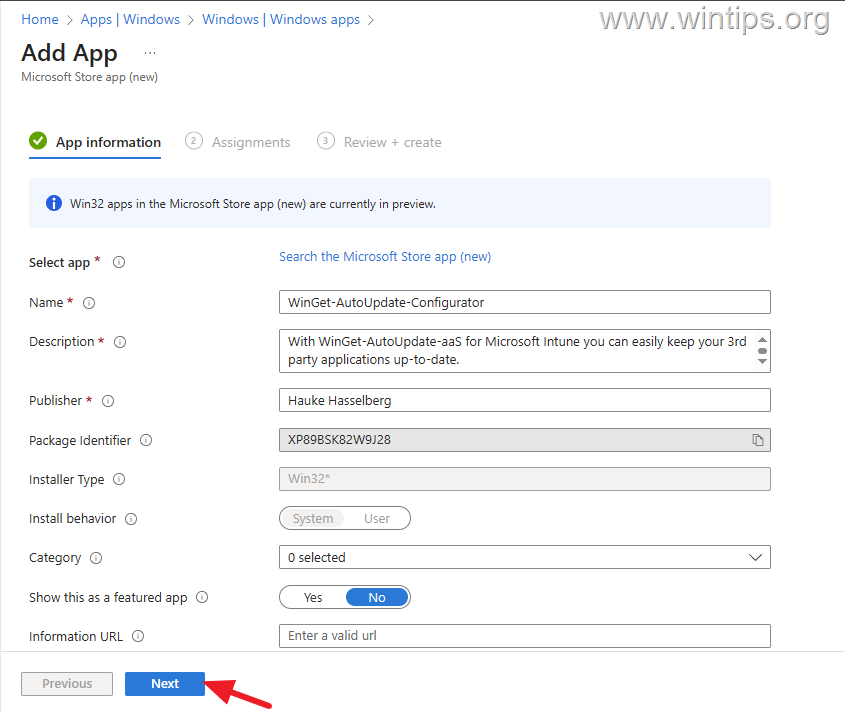
5. In the 'App information' options, leave the default settings and click Next.
6. In the 'Assignments' select Add all devices under Required if you want to install the app on all devices in your organization or select "Add group" to choose a specific group. Then click Next to continue.
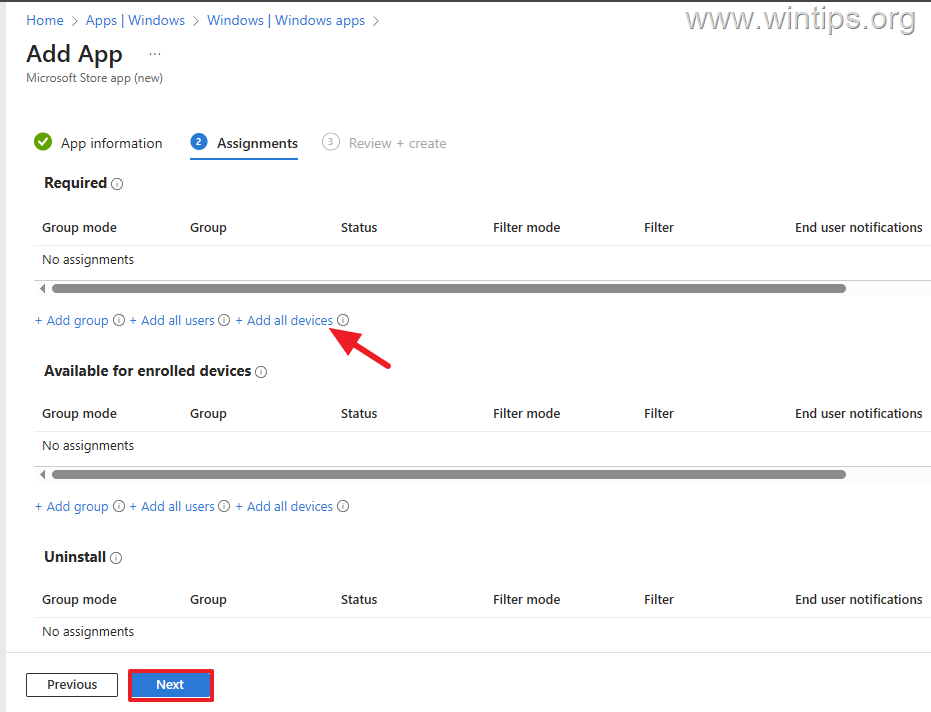
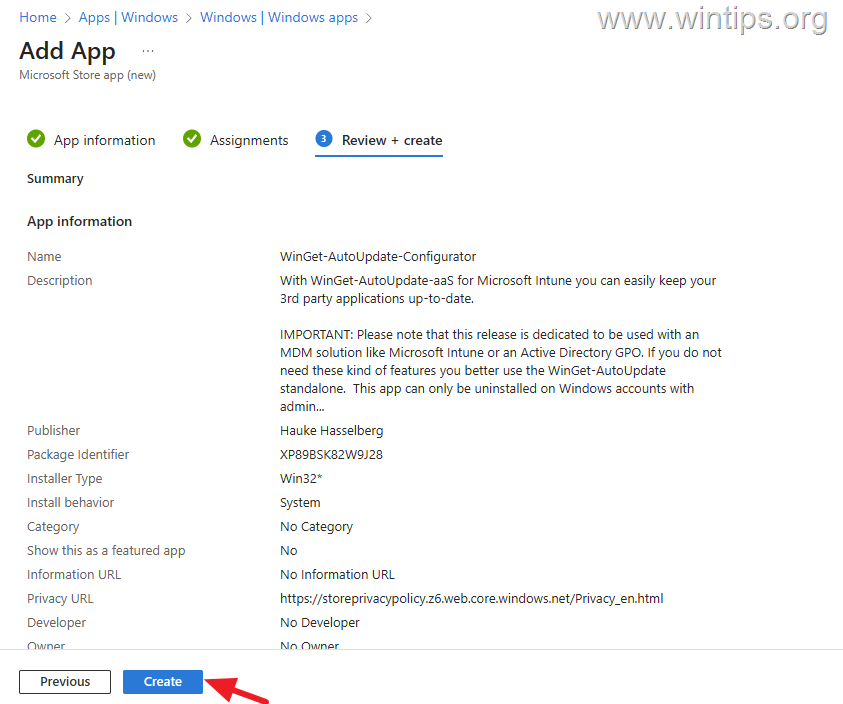
7. Finally, click Create to create the new app and then proceed to the next step.
Step 5. Verify if the "WinGet AutoUpdate Policy" is Applied & if the "Winget-AutoUpdate-aaS" Client is Installed
1. Navigate to Microsoft Intune Admin Center > Devices > Windows.
2. Click on a device you applied the "WinGet AutoUpdate Policy" and deployed the "Winget-AutoUpdate-aaS" application.
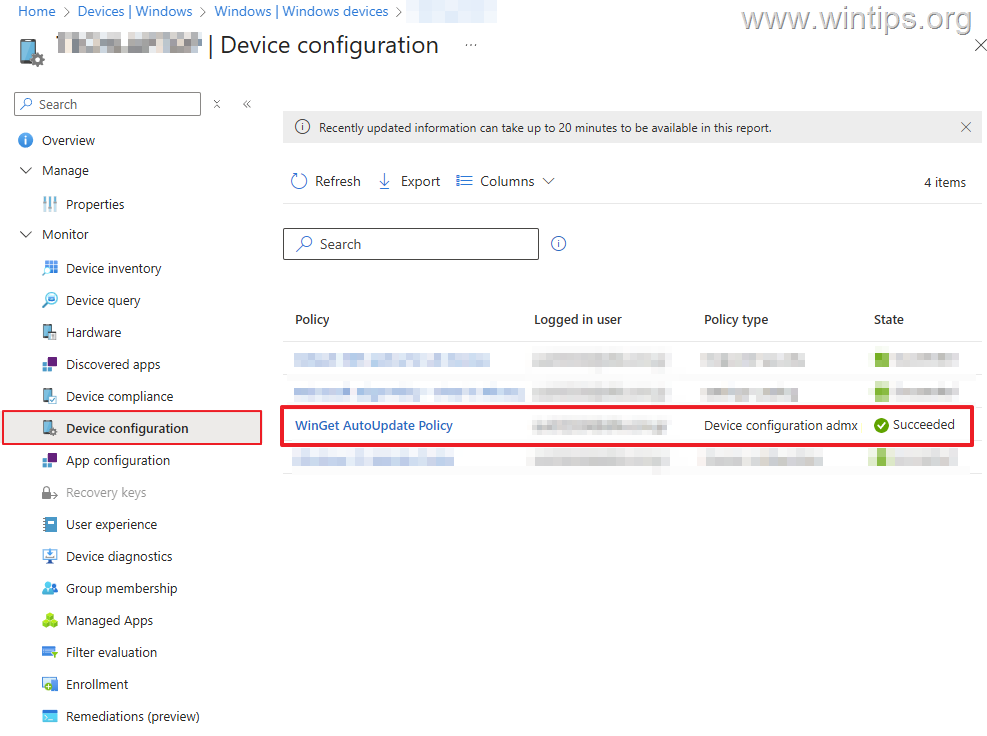
3. Select Device configuration on the left, and then, on the right, ensure that the "WinGet AutoUpdate Policy" has been applied and completed successfully (Succeeded).
Note: To see if the policy is applied on the workstation side, check if the following registry key exists:
HKEY_LOCAL_MACHINE\SOFTWARE\Microsoft\PolicyManager\current\device\WinGet-AutoUpdate-Configurator9a28492d-21ba-4ead-9361-1e1c64975460~Policy~WAUC~Configuration
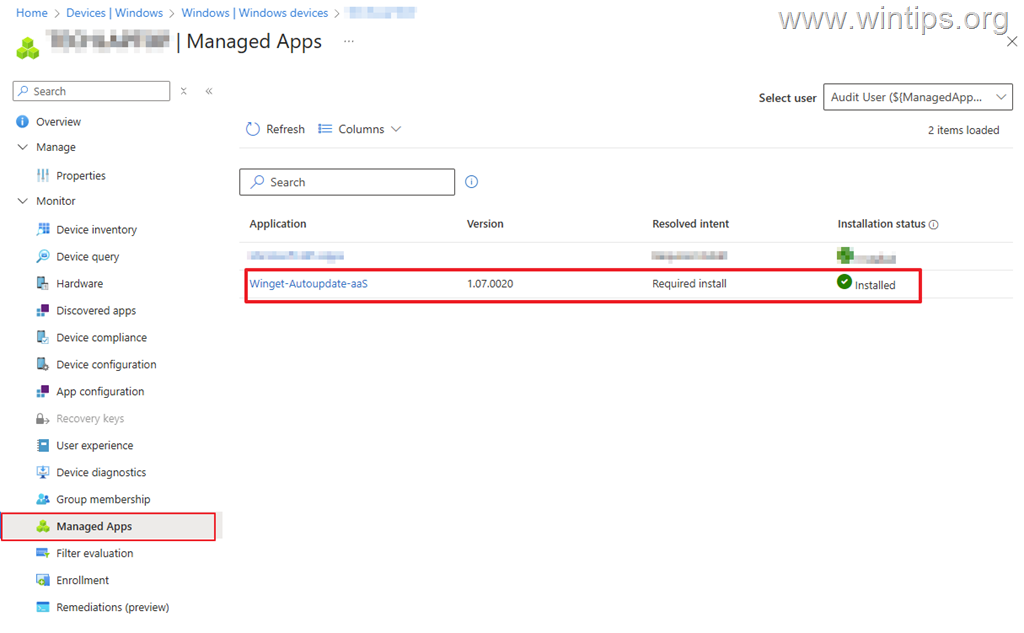
4. Then select the Managed apps and verify that the "Winget-AutoUpdate-aaS" (aka "Winget-AutoUpdate-Configurator" or "WAUaaS") application is Installed.
Note: Installing any application can take a long time and you may need to restart the device several times until this is done.
Step 6. Verify that the Third-Party Apps are Automatically Updated on Client Devices
After installing "Winget-AutoUpdate-aaS" on client computers, the "Winget-AutoUpdate-aaS" app will receive the configuration from Intune (from "WinGet AutoUpdate Policy") and then will check and install updates for any third-party applications installed on the computer.
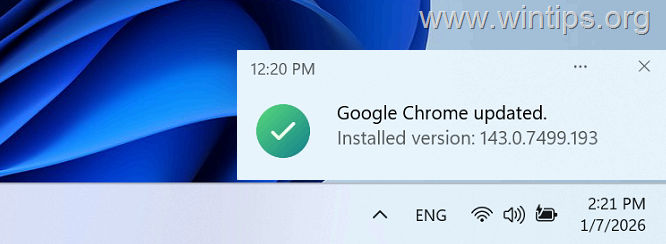
After the update of an application is completed, users will receive a notification in the taskbar for its successful update (as shown in the screenshot below).
Additional Help:
1. To check if the "Winget-AutoUpdate-aaS" is installed on the client device, navigate to Control Panel > Programs & Features, or to Settings > Apps > Installed Apps.
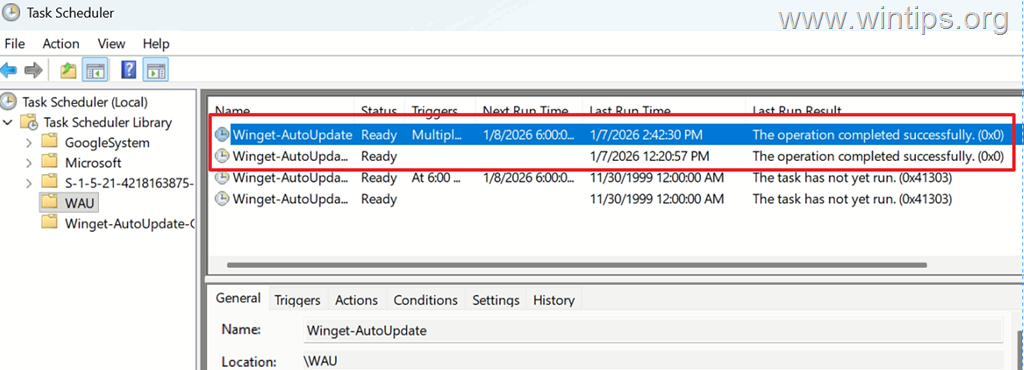
2. To see if "Winget-AutoUpdate-aaS" ran successfully and installed updates, open Task Scheduler and under the Task Scheduler Library open the WAU folder to see the "Winget-AutoUpdate" tasks.
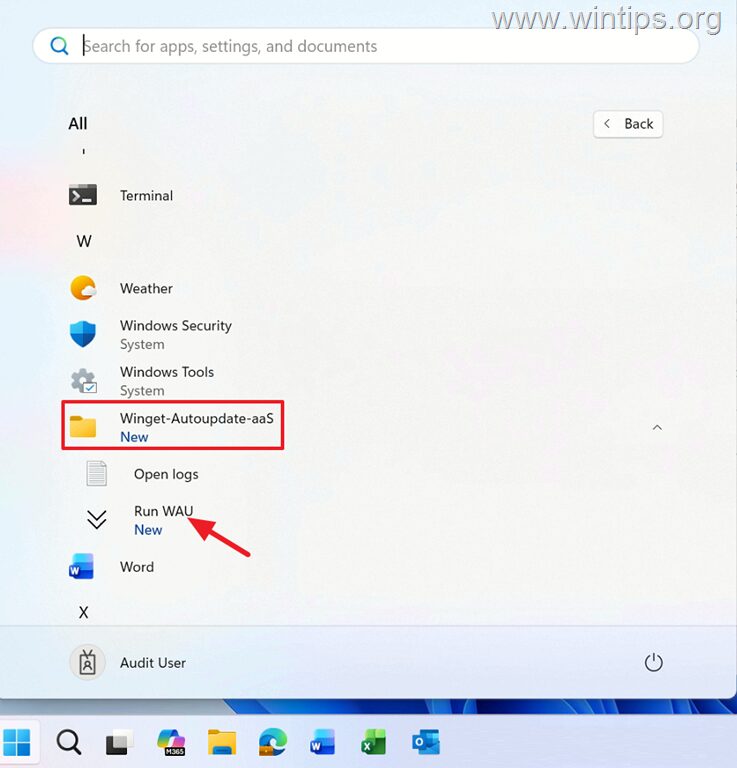
3. To force the "Winget-AutoUpdate-aaS" to check and install updates manually, navigate to Start > All Apps > Winget-AutoUpdate-aaS and click "Run WAU".
4. The WinGet_AutoUpdate log files are stored in the following location:
C:\Program Files\Winget-Autoupdate-aaS\Winget-AutoUpdate\logs
Summary
Updating third-party apps through Intune using WinGet-AutoUpdate-aaS is an efficient and cost-effective way to keep enrolled Windows devices updated and secure. Start by importing and configuring ADMX policies for Intune management, then deploy the "WAUaaS App" (Winget-AutoUpdate-aaS) to client devices and let WinGet keep all your third-party apps up to date and your environment secure.
That's it! Let me know if this guide has helped you by leaving your comment about your experience. Please like and share this guide to help others.
Frequently Asked Questions
What is WinGet-AutoUpdate-aaS and how does it work with Intune?
WinGet-AutoUpdate-aaS, also known as 'WinGet-AutoUpdate-Configurator as a Service,' is a tool that allows IT administrators to automatically update third-party applications on Intune-managed Windows devices using Microsoft Intune ADMX policies. It integrates with WinGet, Microsoft's open-source package manager, to facilitate these updates without the need for complex scripting or repackaging installers.
What are the requirements to use WinGet-AutoUpdate in Intune?
The requirements to use WinGet-AutoUpdate in Intune include having Microsoft Intune admin permissions, devices enrolled in Intune, and running Windows 10 22H2 or later, or Windows 11 on managed devices.
How do I import the WinGet-AutoUpdate ADMX files into Microsoft Intune?
To import the WinGet-AutoUpdate ADMX files into Microsoft Intune, navigate to the Microsoft Intune admin center, select Devices > Windows, click Configuration, and then Import ADMX. From there, select the 'WinGet-AutoUpdate-Configurator.admx' and 'WinGet-AutoUpdate-Configurator.adml' files from the downloaded Winget-AutoUpdate-Intune-main ZIP file, and complete the import process by following the on-screen instructions.
What steps are involved in configuring a WinGet Auto-Update policy in Intune?
To configure a WinGet Auto-Update policy in Intune, go to the Devices > Windows > Configuration section in the Microsoft Intune Admin Center, select the Policies tab, and create a new policy. Set the profile type to 'Templates', use 'Imported Administrative templates (Preview)' as the template name, and configure settings such as notification levels, update frequency, and more according to your preferences. Finally, complete the creation of the policy by giving it a name and configuring desired settings.


- How to Fix Windows 11 Update Error 0x80073712 - October 5, 2026
- How to Install Windows 11 26H2 on Unsupported Hardware - October 2, 2026
- How to Install Windows 11 version 26H2 - October 2, 2026


July 9, 2026 @ 4:36 pm
I have implemented this but its auto closing apps. Is there any solution.
July 10, 2026 @ 12:27 pm
What do you mean? WinGet may need to close an app before updating it, which is completely normal behavior.