
How to Add an Email Alias to an Active Directory User Synchronized with Microsoft 365.
In this guide, you will learn how to add email aliases to Active Directory users that are synchronized with Microsoft 365 Entra ID. This process is essential for organizations operating in a hybrid environment where on-premises Active Directory is synchronized with Microsoft 365 via Azure AD Connect (Entra Connect).
If you attempt to add a secondary email address (alias) directly in the Microsoft 365 admin center for an AD synchronized user, you will encounter the error message: "This user is synchronized with your local Active Directory. Some details can be edited only through your local Active Directory".
Moreover, if you try to add the email alias through the Exchange admin center, you'll receive this error:
Email address type update failed
Error:
Error executing request. The operation on mailbox "a376e295-6b05-404f-a360-1e008a062d91" failed because it's out of the current user's write scope. The action 'Set-Mailbox', 'EmailAddresses', can't be performed on the object 'a376e295-6b05-404f-a360-1e008a062d91' because the object is being synchronized from your on-premises organization. This action should be performed on the object in your on-premises organization.
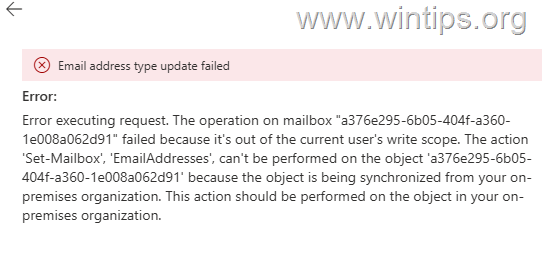
This occurs because, in a hybrid environment, aliases must be configured in the user's properties on your on-premises Active Directory.
How to Add a Secondary Email Address (Alias) on an Active Directory User Synced with Microsoft 365.
Requirements:
- Your on-premises Active Directory is synchronized with Microsoft Entra ID using Microsoft Entra Connect.
- Mailbox is hosted in Exchange Online (Microsoft 365).
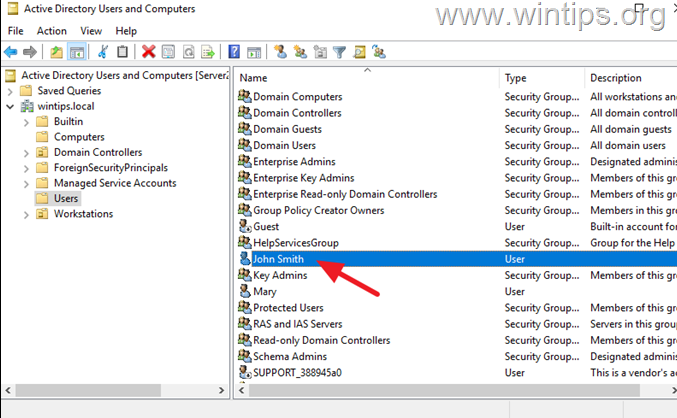
1. Open Active Directory Users and Computers.
2. From the View menu, enable Advanced Features (if not active). This option allows you to access additional properties and settings for user accounts, which are necessary for managing email aliases.
3. Double-click the domain user you want to add an alias to open its Properties.
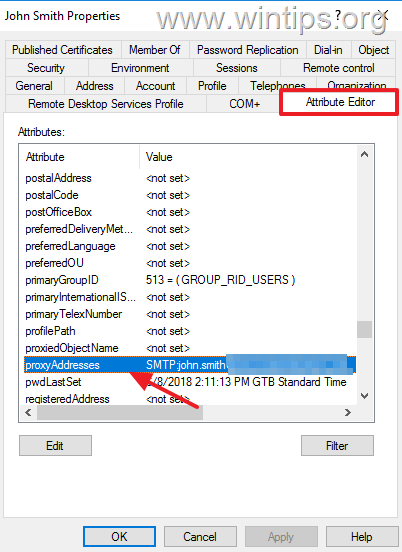
4. Select the Attribute Editor tab and then double-click to edit the proxyAddresses attribute. The proxyAddresses attribute stores all email addresses associated with the user, including aliases.
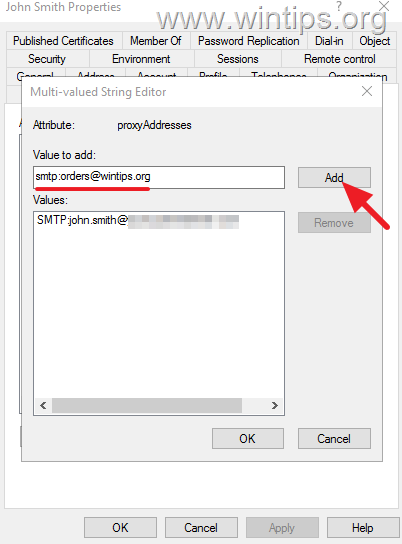
5. Add the alias address in this form: smtp:alias@yourcustomdomain.com (e.g., smtp:orders@wintips.org). Then click Add and OK to save the change. This ensures that the alias is recognized by the mail system as a valid address for the user.
* Notes:
- The primary email address must be specified with the "SMTP:" prefix in CAPITAL LETTERS (UPPERCASE).
- The secondary email addresses (aliases) must be specified with the "smtp:" prefix in lowercase letters.
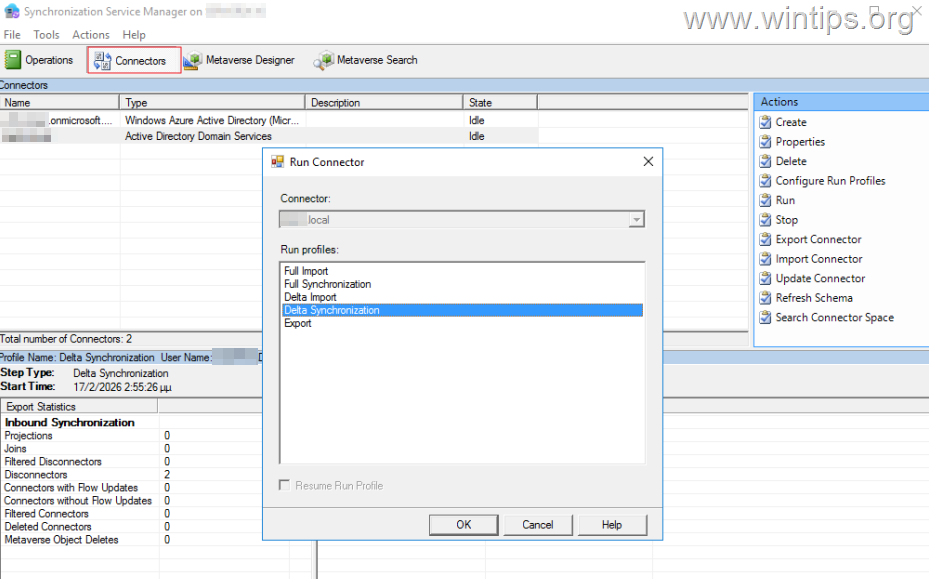
6. After adding the alias, wait approximately 30 minutes for Azure AD Connect Synchronization Services Manager to sync the change, or sync it immediately by selecting your on-premises domain on the Connectors tab and performing a Delta sync. This step ensures that changes made in the on-premises Active Directory are reflected in Microsoft 365.
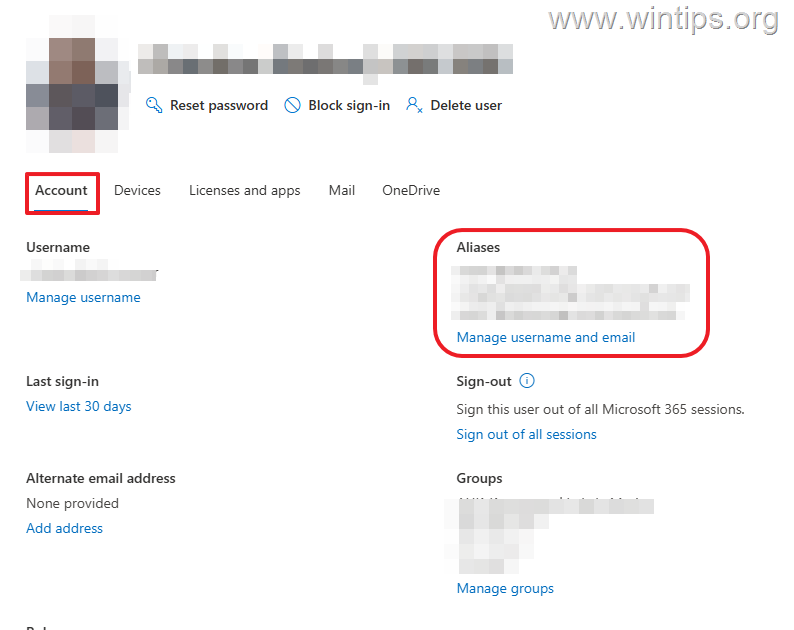
7. After the changes are synced, go to either the Microsoft 365 admin center or the Exchange admin center, open the properties of the user you added the alias to, and verify that the alias was added. This confirmation step ensures that the alias is correctly set up and operational.
Additional Method: Using PowerShell to Add an Alias
An alternative method to add an email alias is by using PowerShell, which can be particularly useful for bulk operations or automation. To do this, open a PowerShell session with administrative privileges and run the following command:
Set-ADUser -Identity "username" -Add @{proxyAddresses="smtp:alias@yourcustomdomain.com"}This command adds the specified alias to the user's proxyAddresses attribute in Active Directory. Ensure you replace username and alias@yourcustomdomain.com with the appropriate values for your environment.
Summary
Adding an email alias to an Active Directory user synchronized with Microsoft 365 requires modifications in the on-premises Active Directory. This guide provided a step-by-step process to achieve this, including enabling advanced features, editing user properties, and ensuring synchronization with Azure AD Connect. Additionally, a PowerShell method was introduced for efficient alias management.
That's it! Let me know if this guide has helped you by leaving your comment about your experience. Please like and share this guide to help others.
Frequently Asked Questions
Why can't I add email aliases directly in Microsoft 365 for synchronized users?
In a hybrid environment, users synchronized with Microsoft 365 are managed through on-premises Active Directory. Attempting to add aliases directly in Microsoft 365 will result in an error because changes must be made in the local Active Directory.
What is the correct way to format email aliases when adding them in Active Directory?
When adding email aliases in Active Directory, the primary email address should be formatted with the "SMTP:" prefix in uppercase, while aliases should be prefixed with "smtp:" in lowercase letters.
How do I ensure that changes made to email aliases are reflected in Microsoft 365?
After modifying the proxyAddresses in Active Directory, wait for approximately 30 minutes for Azure AD Connect to sync changes, or perform a Delta sync immediately via the Azure AD Connect Synchronization Services Manager.
Can I use PowerShell to add email aliases for synchronized users?
Yes, you can use PowerShell for adding email aliases. Open a PowerShell session with administrative privileges and use the command: Set-ADUser -Identity "username" -Add @{proxyAddresses="smtp:alias@yourcustomdomain.com"} to add the alias.


- Always On VPN Stuck on Connecting After KB5124008 Update: How to Fix - September 24, 2026
- How to Disable Passkey Prompts and Delay Enforcement in Microsoft 365 - September 24, 2026
- Remote Desktop (RDP/RDS) Stops Working After September 2026 Windows Update: How to Fix - September 15, 2026



