FIX: This Device Is Already Set Up in Another Organization in Company Portal or During Intune Enrollment
If you cannot enroll a Windows device in Microsoft Entra/Intune due to the error message "The device is already set up with another organization," continue reading below to resolve the issue.
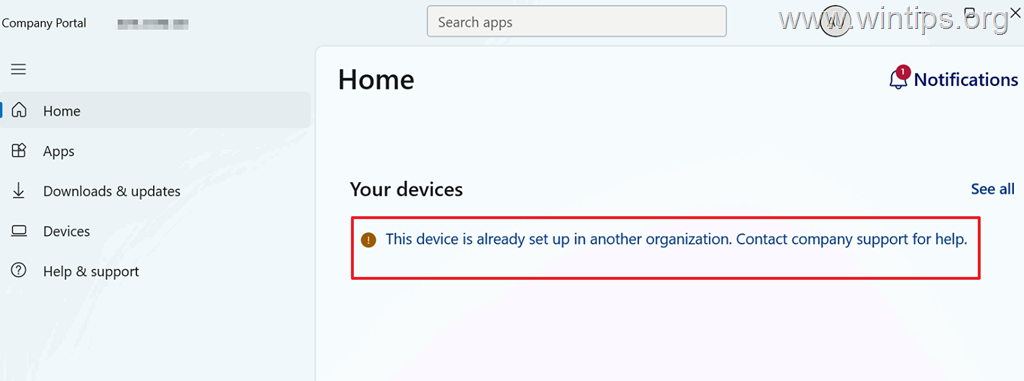
The message "The device is already setup in another organization. Contact company support for help." in Company Portal app or during Windows Enrollment in Entra/Intune, appears when a device is (or was previously) enrolled or joined to a different Microsoft Entra ID tenant and is managed by another organization's MDM solution.
However, if the device does not belong to another organization, the error may appear for one of the following reasons:
- Due to incomplete previous registration/enrollment
- The device was previously registered with a different account.
- There is residual device registration data after a device reset or user change.
In this guide, you will find detailed instructions for resolving the following errors:
- "Device is already set up in another organization" in the Company Portal or when trying to join/enroll a device to Microsoft Entra ID/Intune.
- Event 95: CanEnroll Error: Found existing other enrollment(s) (in "Event Viewer > Applications and Services Logs > Microsoft > Windows > DeviceManagement-Enterprise-Diagnostics-Provider/Enrolment)
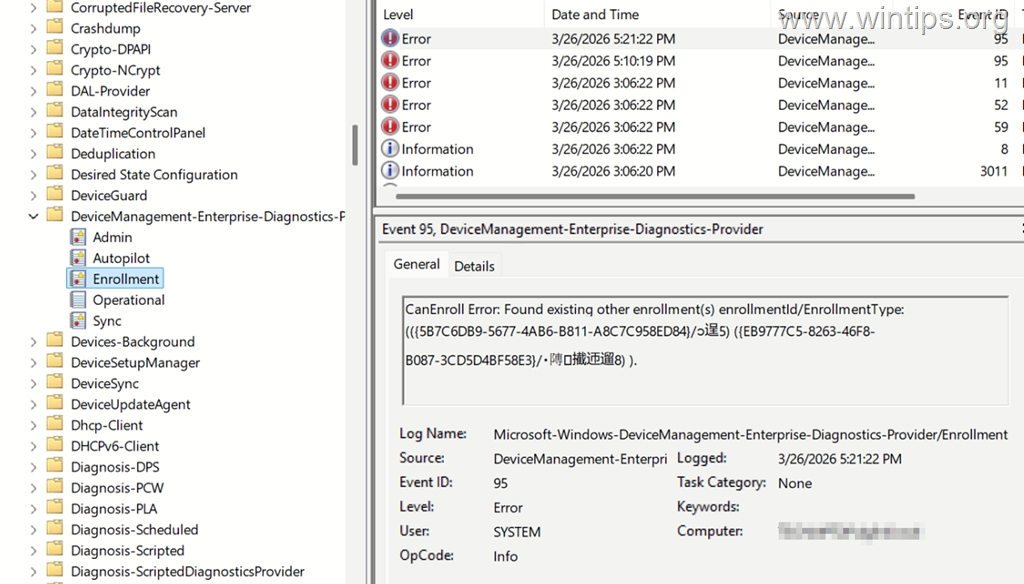
How to FIX: "Device is already set up in another organization" when trying to enroll a device in Entra ID and Intune.
Step 1. Disconnect Microsoft Account.
1. Go to Start > Settings > Accounts > Access work or school.
2. Next to the connected Microsoft account, select Disconnect.
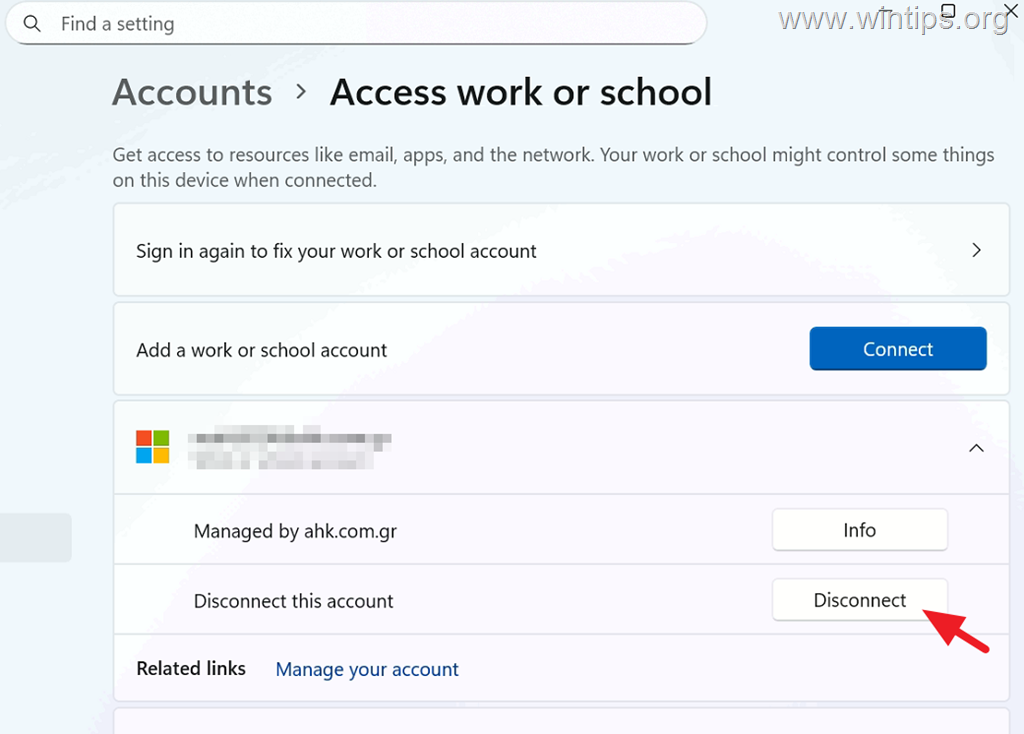
Step 2. Delete "Enrollments" keys in Registry.
1. Open Registry Editor (regedit.exe) and navigate to this location:
- HKEY_LOCAL_MACHINE\SOFTWARE\Microsoft\Enrollments
2. Under the 'Enrollments' key, delete all other GUID* keys EXCEPT the following:
- Context
- Ownership
- Status
- ValidNodePaths
* Note: Some keys will fail to delete with the error "Cannot delete. Error while deleting key". Don't worry though, this is normal. Just click OK on the error and proceed to delete the next key.
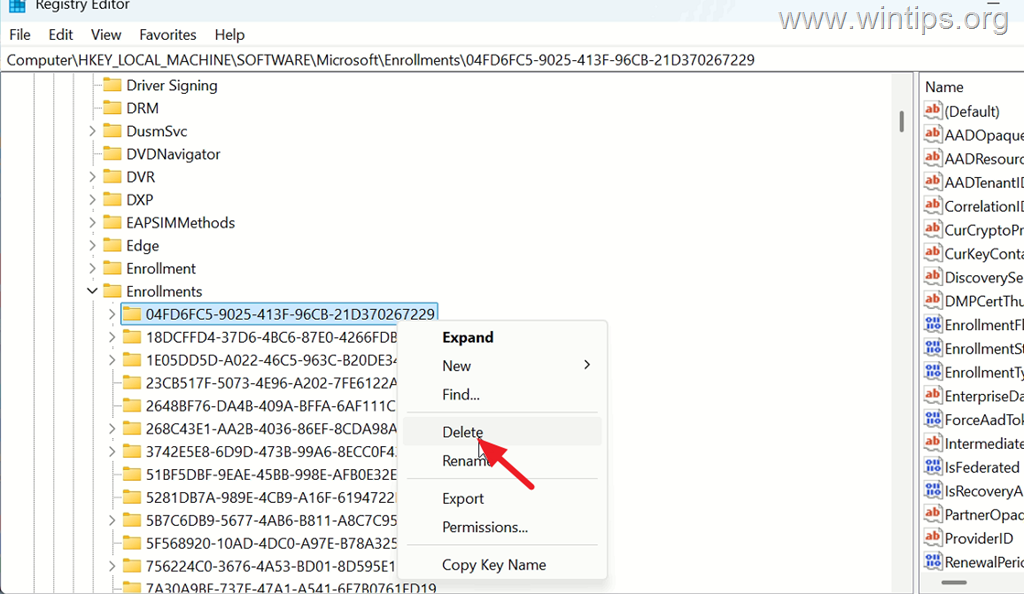
3. When done, close Registry Editor and restart the computer.
Step 3. Remove Device from Microsoft Entra ID & Intune if exists.
Now ensure that the device is not listed in Entra & Intune.
1. Go to Intune Admin Center > Devices > Windows
2. Check if the device appears in the list of devices and, if so, delete it.
3. Next navigate to Entra Admin Center > Devices > All Devices.
2. Check if the device appears in the list of devices and, if so, delete it.
Step 4. Connect a Microsoft Account.
1. Navigate to Start > Settings > Accounts > Access Work or School
2. Click Connect and follow the prompts to add the account.
3. Normally the problem should have been fixed by now.
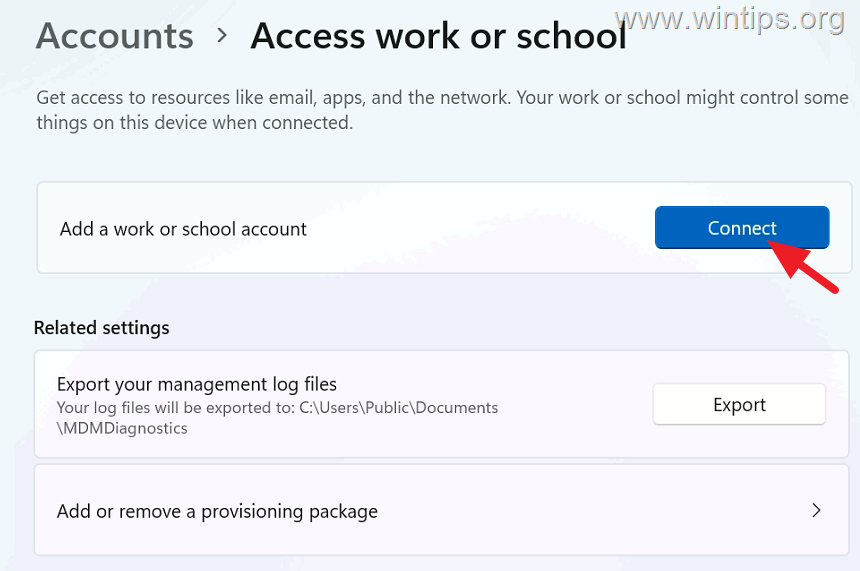
Additional Help:
If after following the above instructions the problem persists, try the following:
1. Open Command Prompt as Administrator and issue the command below:
-
dsregcmd /leave
2. Then restart the device and try to connect the account again. If the problem persists, your last option is to fully reset the device.
That's it! Let me know if this guide has helped you by leaving your comment about your experience. Please like and share this guide to help others.
Frequently Asked Questions
What causes the 'Device is already set up with another organization' error during Windows Enrollment in Entra/Intune?
This error typically occurs when a device is or was previously enrolled or joined to a different Microsoft Entra ID tenant, managed by another organization's MDM solution. It can also appear due to incomplete previous registration, previous registration with a different account, or residual device registration data after a device reset or user change.
How can I fix the 'Device is already set up in another organization' error when enrolling in Entra ID and Intune?
To fix this error, you should: 1) Disconnect the Microsoft account via Start > Settings > Accounts > Access work or school; 2) Delete the 'Enrollments' keys in the Registry Editor, except for 'Context,' 'Ownership,' 'Status,' and 'ValidNodePaths'; 3) Ensure the device is not listed in Entra & Intune by checking the Intune and Entra Admin Centers; 4) Reconnect the Microsoft account through Start > Settings > Accounts > Access Work or School.
What should I do if the problem persists after trying the initial steps?
If the problem still exists after following the initial steps, try running the command 'dsregcmd /leave' in Command Prompt as Administrator, then restart the device and attempt to connect the account again. If these steps do not solve the issue, consider performing a full reset of the device.
Can I delete all Registry keys under 'HKEY_LOCAL_MACHINE\SOFTWARE\Microsoft\Enrollments'?
No, you should not delete all keys. Only delete the GUID keys, while retaining 'Context,' 'Ownership,' 'Status,' and 'ValidNodePaths.' Some keys might fail to delete due to permission errors, which is expected. When this happens, click OK and continue deleting the next keys.