Fix New Outlook and Teams Not Opening After KB5121003 on ARM PCs
If you own an ARM-based computer and Microsoft Teams or the new Outlook for Windows won't open or closes unexpectedly after installing Windows 11 update KB5121003, continue below to learn how to fix the issue.
On September 1, 2026, Microsoft confirmed that Microsoft Teams and the new Outlook for Windows might fail to launch or might close unexpectedly on ARM-based devices, such as Surface Pro 11 and Surface Laptop 7. Classic Outlook, Word, Excel, and other applications are not known to be affected. This issue is most likely to occur on new or freshly imaged PCs that have not yet installed any Microsoft Store updates.
For Windows 11 24H2 and 25H2, the issue is associated with KB5121003, released on August 11, 2026. Windows 11 26H1 is also affected, but its corresponding update is KB5121000.
In this guide, you'll learn how to check whether your PC is affected by this issue and how to fix it.
How to Fix Microsoft Teams & New Outlook Won't Open After Installing KB5121003 on ARM-based computers.
Microsoft has already provided a workaround: update the Auto Super Resolution Package to version 1.0.19.0 or later through Microsoft Store. However, before applying the fix verify that your PC is affected by this specific issue.
UPDATE (September 9, 2026): Microsoft says the problem where New Outlook and Teams fail to launch or close unexpectedly on ARM PCs was resolved by the September 8 Windows update KB5124008. If you're experiencing the problem, install the latest Windows updates before trying the workarounds below.
Step 1. Check If Your PC Is ARM-Based
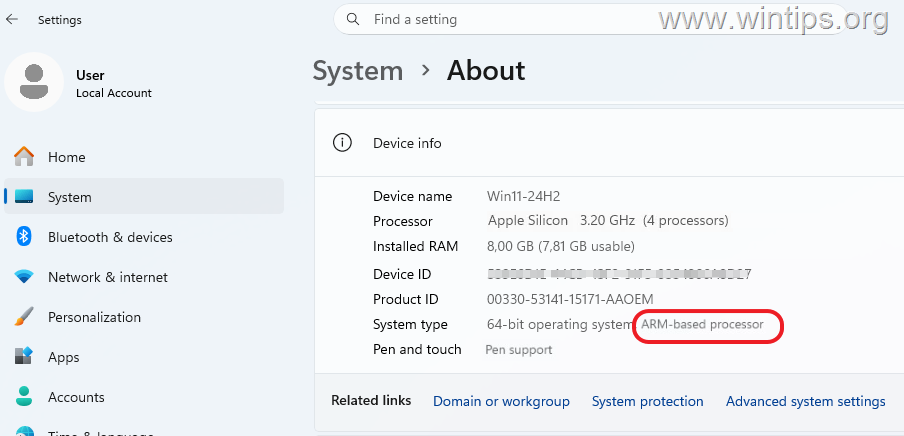
Since this issue affects only ARM-based PCs, verify that your PC is ARM-based by doing the following:
1. Go to Settings > System > About
2. Under Device specifications, check the information next to System type. If it indicates that your computer has an ARM-based processor, continue to the next step. If System type indicates an x64-based processor, this particular known issue is not responsible for Teams or the new Outlook not opening.
Step 2. Verify that KB5121003 is Installed
To check if the KB5121003 has been installed, go to:
- Settings > Windows Update > Update history
- Under Quality Updates, look for KB5121003.*
Note: KB5121003 applies to Windows 11 24H2 and 25H2. If you're running Windows 11 26H1, the corresponding update is KB5121000.
Step 3. Fix Teams and New Outlook by Updating Auto Super Resolution
Microsoft's official workaround is to install the latest Microsoft Store updates and update the Auto Super Resolution Package to version 1.0.19.0* or later. To do that:
*Note: Microsoft lists updating the Auto Super Resolution Package as the official workaround for this issue. However, Microsoft has not publicly explained the technical reason why this package resolves the application-launch failures.
1. Open Microsoft Store and go to Downloads.
2. Click Check for updates and allow Microsoft Store to download and install all available updates.
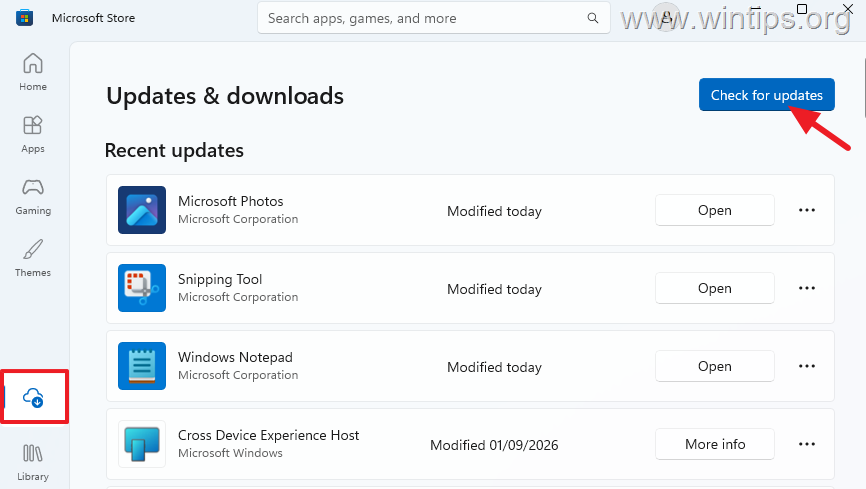
3. Make sure the Auto Super Resolution Package is updated to version 1.0.19.0 or later.
4. When all Microsoft Store updates have been installed, restart your computer.
Verify the Fix
After updating the Auto Super Resolution Package:
- Open Microsoft Teams and confirm that it remains open.
- Open the new Outlook for Windows and confirm that it starts normally.
If both applications now launch and operate normally, no further action is required.
What If Teams or New Outlook Still Won't Open?
Until the issue is resolved, you can use:
- Classic Outlook, which Microsoft says is not known to be affected.
- Outlook on the web
- Microsoft Teams on the web
Alternatively, you can uninstall KB5121003* since several affected ARM users have reported that uninstalling the update restored Teams and the new Outlook.
IMPORTANT: KB5121003 is a cumulative security update. Uninstalling it also removes the security fixes included in the update and should therefore be considered only as a temporary last resort. Microsoft does not list uninstalling KB5121003 as the official workaround for this issue.
To uninstall the update:
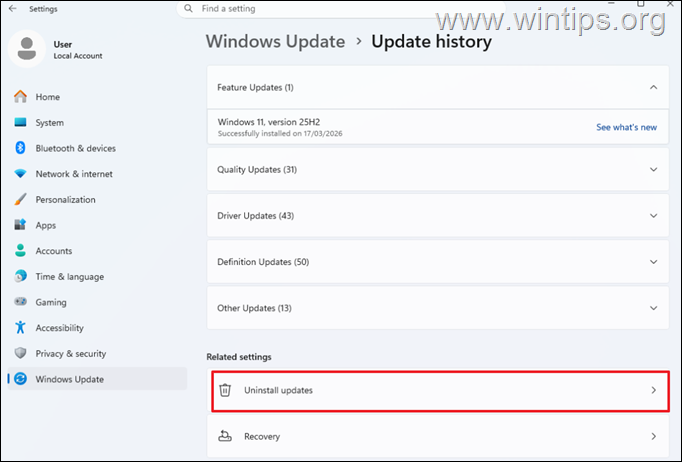
1. Navigate to Settings > Windows Update, and click Update history.
2. Scroll down and under the Related Settings, select Uninstall updates.
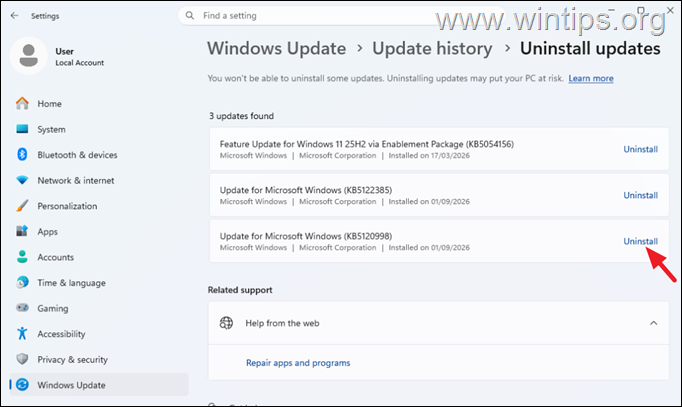
3. Locate KB5121003* and click Uninstall. Then click Uninstall again to confirm the removal.
* If you are running Windows 11 26H1, look for KB5121000 instead of KB5121003.
4. Restart your computer when prompted.
5. After Windows starts, check whether Teams and the new Outlook work again. If removing the update resolves the problem, you can temporarily pause Windows updates. To do that:
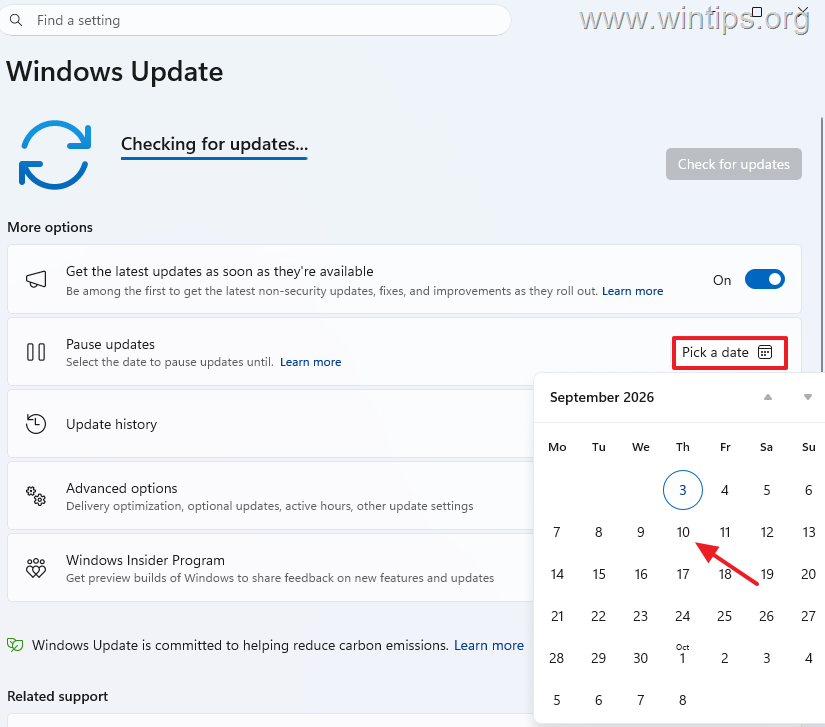
- Go to Settings > Windows Update
- Next to Pause updates, click Pick a date and pause updates for a week or two, until Microsoft releases a fix.
Summary
Microsoft has confirmed that Teams and the new Outlook may fail to open or close unexpectedly on ARM-based Windows 11 computers after installing KB5121003 or KB5121000. This guide explains how to verify whether your PC is affected and resolve the problem by installing the latest Auto Super Resolution Package from Microsoft Store.
That's it! Let me know if this guide has helped you by leaving your comment about your experience. Please like and share this guide to help others.
Frequently Asked Questions
Why won't Microsoft Teams or the new Outlook open after the Windows 11 update?
Microsoft Teams and the new Outlook for Windows may not open or might close unexpectedly on ARM-based computers due to update KB5121003 or KB5121000 depending on the Windows 11 version.
Which devices are affected by the Windows 11 update issue with Teams and Outlook?
ARM-based devices, such as Surface Pro 11 and Surface Laptop 7, are affected by the issue where Teams and the new Outlook might not open after certain Windows 11 updates.
What should I do if Microsoft Teams and the new Outlook won't open on my ARM-based computer?
First, verify that your PC is ARM-based and has update KB5121003 or KB5121000 installed. Then, update the Auto Super Resolution Package to version 1.0.19.0 or later through Microsoft Store as a workaround.
What can I use if the workaround doesn't solve the issue of Teams and Outlook not opening?
You can use the Classic Outlook, Outlook on the web, or Microsoft Teams on the web. Alternatively, uninstalling KB5121003 might resolve the issue, but be aware that it also removes security fixes included in the update.
Still having trouble fixing this issue?
💬 Get WinTips Remote Support →

- FIX: Windows Hello for Business PIN error 'Your credentials could not be verified' with 'status: 0xc000005e substatus: 0x0' or 'status: 0xc0000bb, substatus: 0x0'. - October 20, 2026
- FIX: This Device Is Already Set Up in Another Organization in Company Portal or During Intune Enrollment - October 13, 2026
- Windows Update Uninstall Failed with Error 0x800F0825: How to Fix - October 7, 2026