Fix "The Trust Relationship Between This Workstation and the Primary Domain Failed"
If you receive the error "The trust relationship between this workstation and the primary domain failed" when signing in to a Windows computer joined to an Active Directory domain, this guide provides step-by-step instructions for resolving it.

This error, also known as Error 1789 or 0x800706FD (ERROR_TRUSTED_RELATIONSHIP_FAILURE), indicates that the secure channel between the computer and the Active Directory domain is no longer functioning correctly.
The error can occur when the computer account password stored locally no longer matches the password stored in Active Directory.
It can also occur after restoring a virtual machine from an older snapshot, because of Active Directory replication issues, or when the computer account has been deleted or corrupted.
* Note for Windows Autopilot: If this error occurs during Windows Autopilot pre-provisioning for Microsoft Entra hybrid join, it may have a different cause.
Microsoft has documented that pre-provisioning can fail when an assigned policy requires domain controller connectivity but the device cannot reach a domain controller.
In this case, pre-provision the device on a network with domain controller connectivity or avoid assigning such policies during the technician flow.
How to Fix “The Trust Relationship Between This Workstation and the Primary Domain Failed”
Before proceeding, make sure that:
- The computer is connected to the corporate network and can reach a domain controller.
- You can sign in with a local Administrator account.
- You have domain credentials with sufficient permissions to repair the secure channel or rejoin the computer to the domain.
Method 1. Repair the Trust Relationship with PowerShell
The first method to fix the problem is to test and repair the secure channel directly using PowerShell.
1. Sign in to the workstation computer using a local Administrator account.
2. Open Windows PowerShell as Administrator.
3. Type the following command and press Enter:
Test-ComputerSecureChannel
Note: The
Test-ComputerSecureChannelcmdlet is intended for domain-member computers. Do not use this procedure to repair the secure channel of a domain controller.
4. If the command returns True, the secure channel is working correctly and you shouldn't continue with the repair steps below. In this case, investigate another cause, such as a DNS, network, or authentication problem. If it returns False, verify that the computer can reach a domain controller, and then continue to the next step.
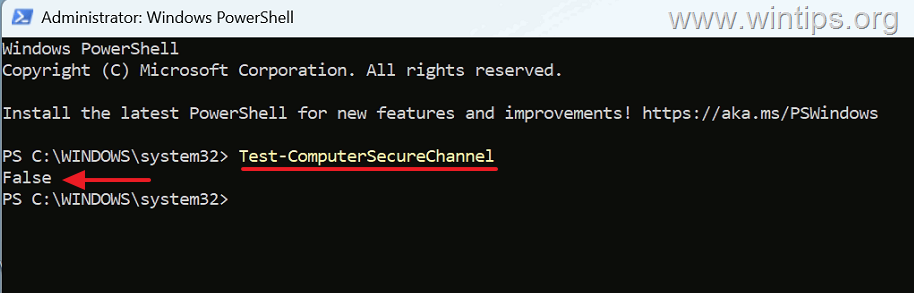
5. Run the following command to repair the secure channel:
Test-ComputerSecureChannel -Repair -Credential (Get-Credential)
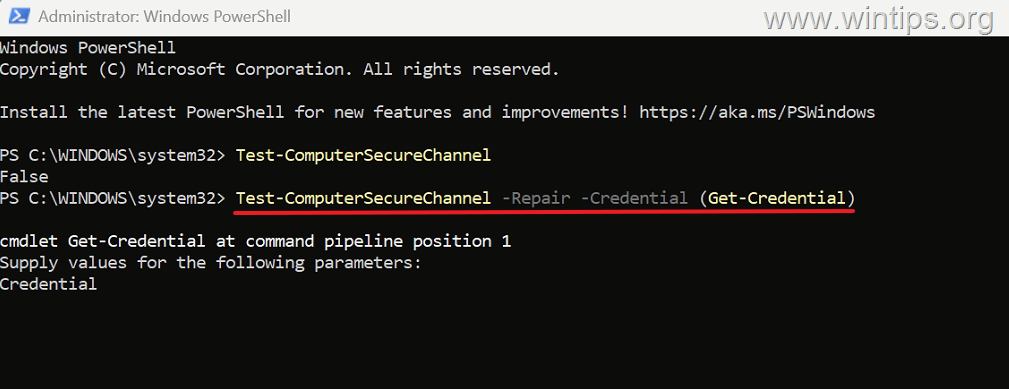
6. When prompted, enter the credentials of a domain administrator account.
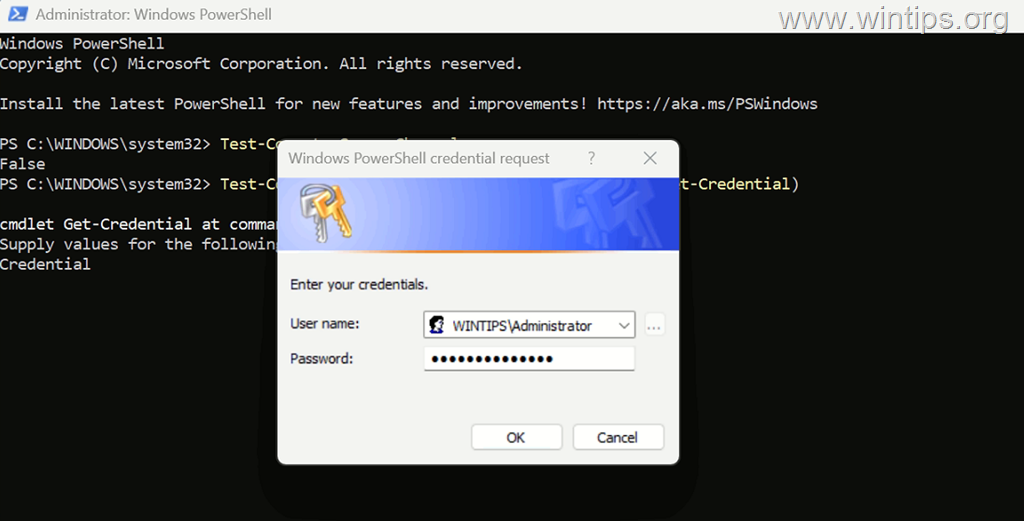
7. After the repair is complete, restart the computer.
8. Sign in again using the local Administrator account, open PowerShell as Administrator, and run:
Test-ComputerSecureChannel
9. If the repair was successful, the command should now return: True
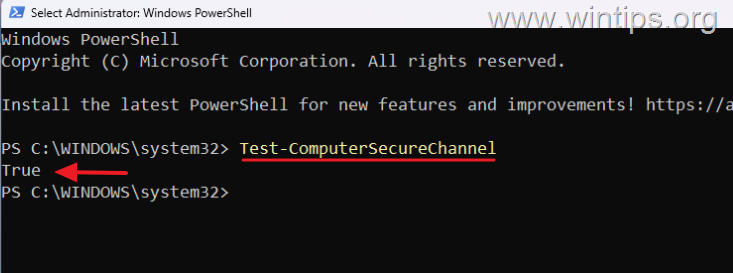
10. Finally, sign out and verify that you can sign in with your domain account without receiving the trust relationship error.
Method 2. Reset the Computer Account Password with PowerShell
If repairing the secure channel with Test-ComputerSecureChannel doesn't resolve the problem, reset the computer account password that Windows uses to authenticate with the domain.
1. Sign in using a local Administrator account and open Windows PowerShell as Administrator.
2. Run the following command:
$credential = Get-Credential
3. Enter the credentials of the domain administrator account when prompted.
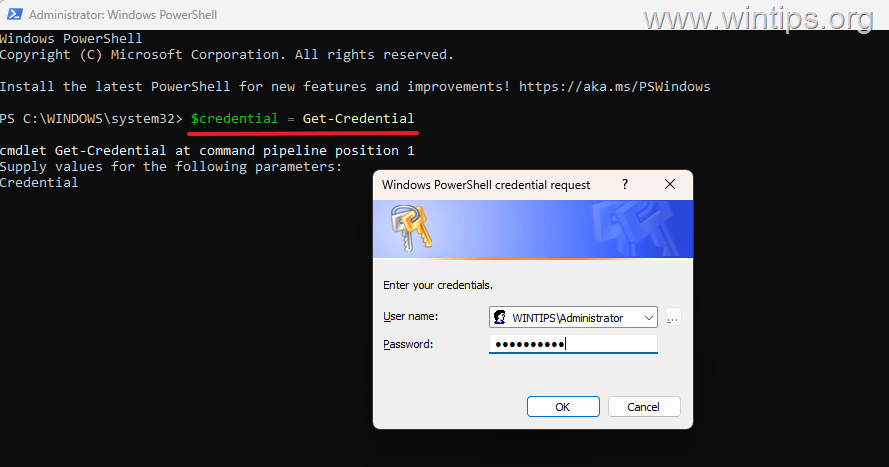
4. Then run the following command:
Reset-ComputerMachinePassword -Credential $credential
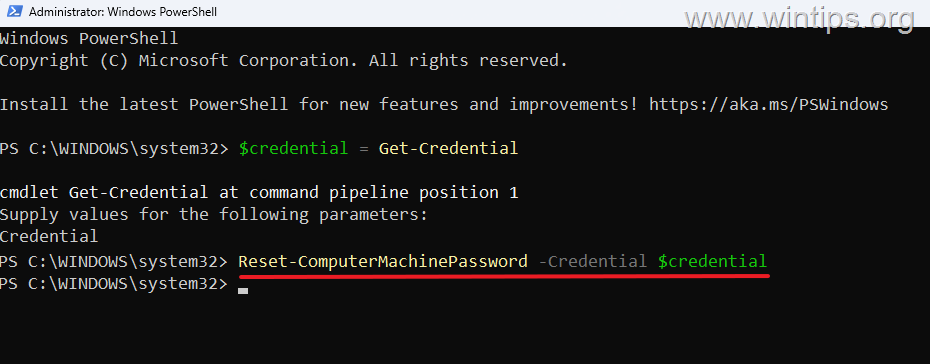
5. Restart the computer.
6. After the restart, sign in using the local Administrator account and run:
Test-ComputerSecureChannel
7. If the command returns True, sign out and verify that you can sign in with your domain account.
Method 3. Reset the Secure Channel with NLTEST
If PowerShell cannot repair the trust relationship, you can reset the secure channel using the NLTEST command.
1. Sign in using a local Administrator account and open Command Prompt as Administrator.
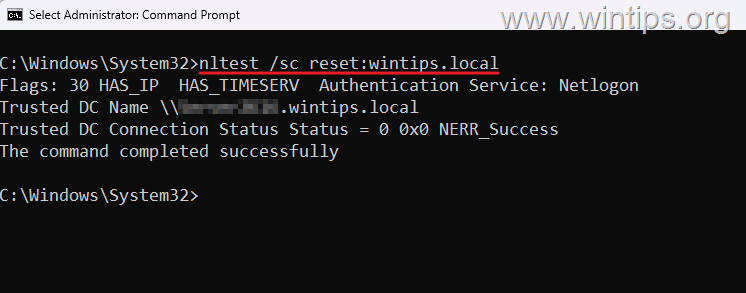
2. Type the following command, replacing domain.com with your Active Directory domain name:
nltest /sc_reset:domain.com
3. If the command completes successfully, the secure channel between the computer and the domain has been reset.
4. Restart the computer.
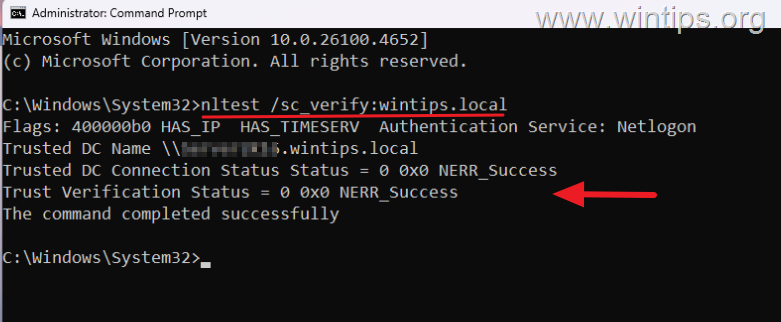
5. After the restart, sign in using the local Administrator account and open Command Prompt as Administrator. Then run the following command, replacing domain.com with your Active Directory domain name, to verify the secure channel:
nltest /sc_verify:domain.com
6. If the command returns Status = 0 0x0 NERR_Success, the trust relationship is working correctly. Try signing in again using your domain account. If the trust relationship is still broken, proceed to the next method.
Method 4. Remove and Rejoin the Computer to the Domain
If the secure channel cannot be repaired, remove the computer from the domain and then join it again.
1. Sign in using a local Administrator account.
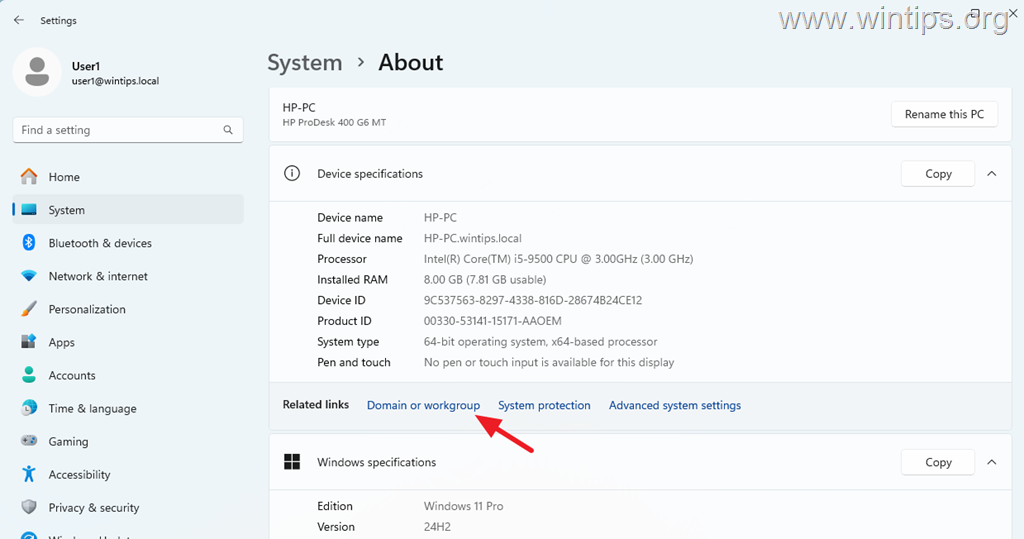
2. Open Settings and select System > About.
3. From Related links, click Domain or workgroup.
4. On the Computer Name tab, click Change.
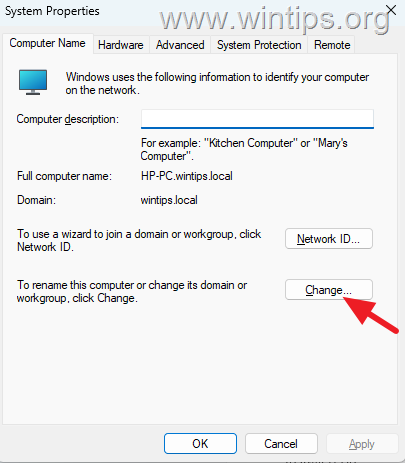
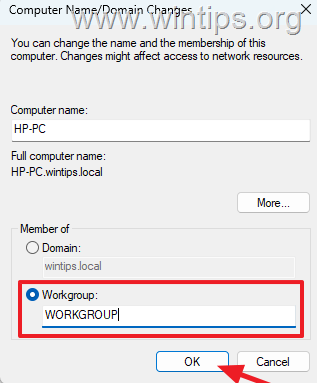
5. Under Member of, select Workgroup, type a workgroup name such as WORKGROUP, and click OK.
6. Enter the domain admin account credentials when prompted and click OK. Then, restart the computer.
7. After the restart, sign in using the local Administrator account and return to System Properties > Computer Name > Change.
8. Select Domain, enter the name of your Active Directory domain, and click OK.
9. Enter the required domain credentials when prompted.
10. After Windows confirms that the computer has joined the domain, restart it again.
11. You should now be able to sign in using your domain account.
What to Do If the Trust Relationship Keeps Failing
If the error continues to occur after the computer has been successfully repaired or rejoined to the domain, the problem may be caused by an underlying Active Directory or network infrastructure issue, such as:
- Active Directory replication issues.
- A domain controller that has been restored from a backup.
- Virtual machines restored from older snapshots or deployed from outdated images.
- Duplicate computer names.
- Network communication problems between the computer and the domain controller.
In this case, check the health of Active Directory and the domain controllers, and resolve any replication or network connectivity issues before attempting to repair the trust relationship again.
Check the NETLOGON Event Log
For additional information about a recurring trust relationship problem, open Event Viewer and check Windows Logs > System for NETLOGON Event ID 3210.
This event can indicate that the computer account password isn't recognized by the domain or that another computer on the network is using the same computer name.
Summary
In most cases, start by running Test-ComputerSecureChannel to verify whether the computer's secure channel with the domain is broken. If it is, repair the secure channel with PowerShell, restart the computer, and verify that the command now returns True.
If the repair fails, reset the computer account password with Reset-ComputerMachinePassword. You can also use NLTEST to reset and verify the secure channel. As a final step, remove the computer from the domain and join it again.
If the trust relationship continues to fail after a successful repair or domain rejoin, investigate the Active Directory environment for replication problems, Domain Controller issues, restored virtual machines or outdated images, and duplicate computer names.
That's it! Which method worked for you?
Let me know if this guide has helped you by leaving your comment about your experience. Please like and share this guide to help others.
Frequently Asked Questions
What is the common cause of the error 'The trust relationship between this workstation and the primary domain failed'?
The error often occurs when the computer account password stored locally doesn't match the password stored in Active Directory. This mismatch can result from restoring a virtual machine from an older snapshot, Active Directory replication issues, or if the computer account has been deleted or corrupted.
How can I verify if the secure channel between the workstation and the domain is functioning correctly?
You can verify the secure channel by signing into the workstation as a local administrator, opening Windows PowerShell as Administrator, and executing the command 'Test-ComputerSecureChannel'. If the command returns 'True', the secure channel is functioning correctly.
What should I do if the secure channel is not working correctly and 'Test-ComputerSecureChannel' returns 'False'?
If the command returns 'False', ensure the computer can reach a domain controller and then attempt to repair the secure channel by running 'Test-ComputerSecureChannel -Repair -Credential (Get-Credential)' in PowerShell. When prompted, provide domain administrator credentials.
What steps should be taken if repairing the secure channel doesn't resolve the trust relationship error?
If repairing the secure channel does not fix the issue, you can reset the computer account password by first obtaining domain administrator credentials using '$credential = Get-Credential', and then executing 'Reset-ComputerMachinePassword -Credential $credential' in PowerShell. Lastly, restart the computer and verify the connection.
Still having trouble fixing this issue?
💬 Get WinTips Remote Support →

- FIX: Windows Hello for Business PIN error 'Your credentials could not be verified' with 'status: 0xc000005e substatus: 0x0' or 'status: 0xc0000bb, substatus: 0x0'. - October 20, 2026
- FIX: This Device Is Already Set Up in Another Organization in Company Portal or During Intune Enrollment - October 13, 2026
- Windows Update Uninstall Failed with Error 0x800F0825: How to Fix - October 7, 2026