Microsoft Defender Antivirus Is Turned Off Even Though It Is Running – How to Verify Your Protection
If Windows displays the "Microsoft Defender Antivirus is turned off" notification even though Defender appears to be active, your computer may be affected by a known Microsoft Defender issue. However, you should verify Defender’s status before dismissing the warning.
Microsoft confirmed on August 28, 2026, that recent updates to Microsoft Defender Antivirus may cause Windows to incorrectly report that "Defender is turned off" while the antivirus remains enabled and working properly. This issue was resolved in the Microsoft Defender Antivirus update (version 4.18.26080.4), released on September 17, 2026.
IMPORTANT: On Microsoft Intune-managed devices, the incorrect antivirus status may also cause the Antivirus compliance requirement to report the device as Noncompliant, even though Microsoft Defender Antivirus is active and Real-Time Protection is enabled. If your organization uses Conditional Access to require compliant devices, this may also prevent the affected device from accessing corporate resources.
According to Microsoft, the issue can occur on any version of Windows or Windows Server running Microsoft Defender Antivirus with the latest Defender updates.
In this guide, you will learn how to verify that Microsoft Defender is running correctly and determine whether the warning on your computer is related to the issue reported by Microsoft.
How to Verify Your Protection When Microsoft Defender Says "Antivirus Is Turned Off" Even Though It Is Running*
* Notes:
1. The following instructions apply only when Microsoft Defender Antivirus is the primary antivirus solution on your computer. When a compatible third-party antivirus product is installed and registered as the primary security provider, Microsoft Defender Antivirus may automatically enter passive mode or become disabled. In that case, the results may be different.
2. If the computer is managed by Microsoft Intune and Antivirus is reported as Noncompliant, follow the instructions in the How to Fix Antivirus Showing Noncompliant in Microsoft Intune section below.
Step 1. Check Whether Microsoft Defender Is Active.
The quickest way to determine whether Defender is really active is to check its status with PowerShell instead of relying only on the Windows Security notification.
1. Open Windows PowerShell as Administrator.
2. Type the following command and press Enter:
Get-MpComputerStatus | Select-Object AMRunningMode, AntivirusEnabled, AMServiceEnabled, RealTimeProtectionEnabled
3. If Microsoft Defender is active and working normally, you should see:
AMRunningMode             : Normal
AntivirusEnabled          : True
AMServiceEnabled          : True
RealTimeProtectionEnabled : True
4. If AntivirusEnabled, AMServiceEnabled, and RealTimeProtectionEnabled all report True, Microsoft Defender Antivirus is active on the device and you're likely affected by the false notification issue confirmed by Microsoft.
If Windows Security or Microsoft Intune still reports that antivirus protection is disabled or noncompliant, the problem may be related to an incorrect or stale antivirus status rather than Defender actually being turned off.
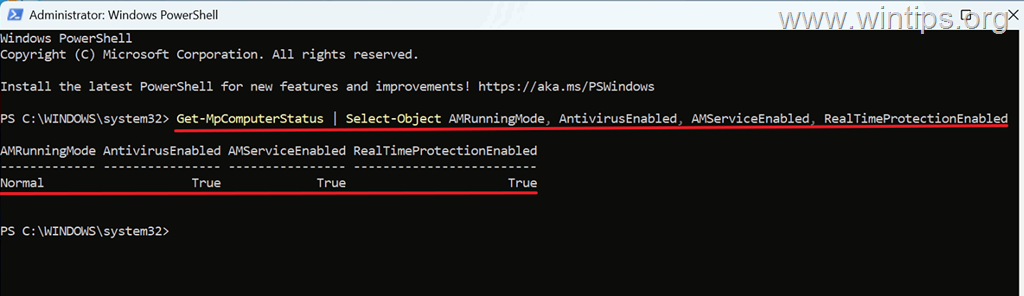
If PowerShell reports that Defender is active, you can perform some additional steps to make sure your virus protection is working.
Step 2. Verify That the Microsoft Defender Service Is Running.
1. In the same PowerShell window, run the following command to ensure that the Microsoft Defender Antivirus service is active:
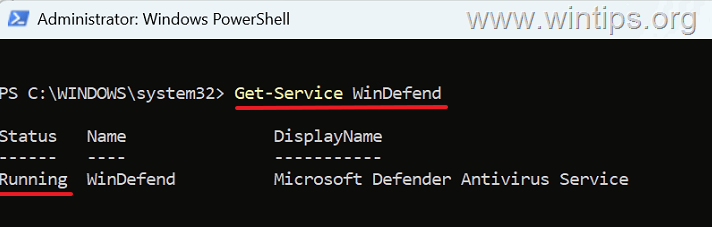
Get-Service WinDefend
2. On a computer where Microsoft Defender is active, Status should normally show: Running
If the WinDefend service is running and the checks in Step 1 show that Defender Antivirus and Real-Time Protection are enabled, continue with the next steps instead of attempting to reinstall or reset Microsoft Defender.
Step 3. Verify That Microsoft Defender Can Update.
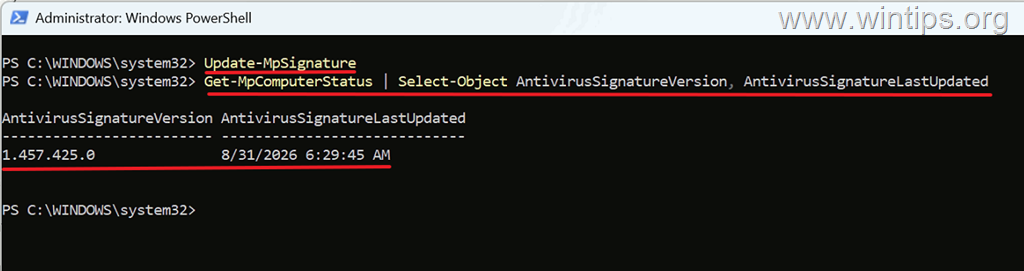
1. In the same PowerShell window, run the following command to force Microsoft Defender to download and install the latest antimalware definitions:
Update-MpSignature
2. Then, check the currently installed signature version and its last update time by running the following command:
Get-MpComputerStatus | Select-Object AntivirusSignatureVersion, AntivirusSignatureLastUpdated
3. If the Update-MpSignature command completes without an error, Microsoft Defender was able to check for and install any available security intelligence updates. The AntivirusSignatureLastUpdated value shows when the currently installed antivirus definitions were last updated. If the latest definitions were already installed, the displayed date and time may not change.
4. Now proceed and check the installed Microsoft Defender platform version. To do that, run:
Get-MpComputerStatus | Select-Object AMProductVersion, AMEngineVersion, AntivirusSignatureVersion
The AMProductVersion value shows the installed Microsoft Defender Antivirus platform version, while AMEngineVersion and AntivirusSignatureVersion show the antimalware engine and security intelligence versions.
Make sure that the latest Microsoft Defender platform and security intelligence updates available through your normal Windows or organizational update channel are installed before continuing.
Step 4. Run a Quick Scan.
As a final functional check, start a Microsoft Defender quick scan.
1. To run a Quick Scan, issue the following command in PowerShell as Admin:
Start-MpScan -ScanType QuickScan
Alternatively, open Windows Security > Virus & threat protection, and then click Quick scan.
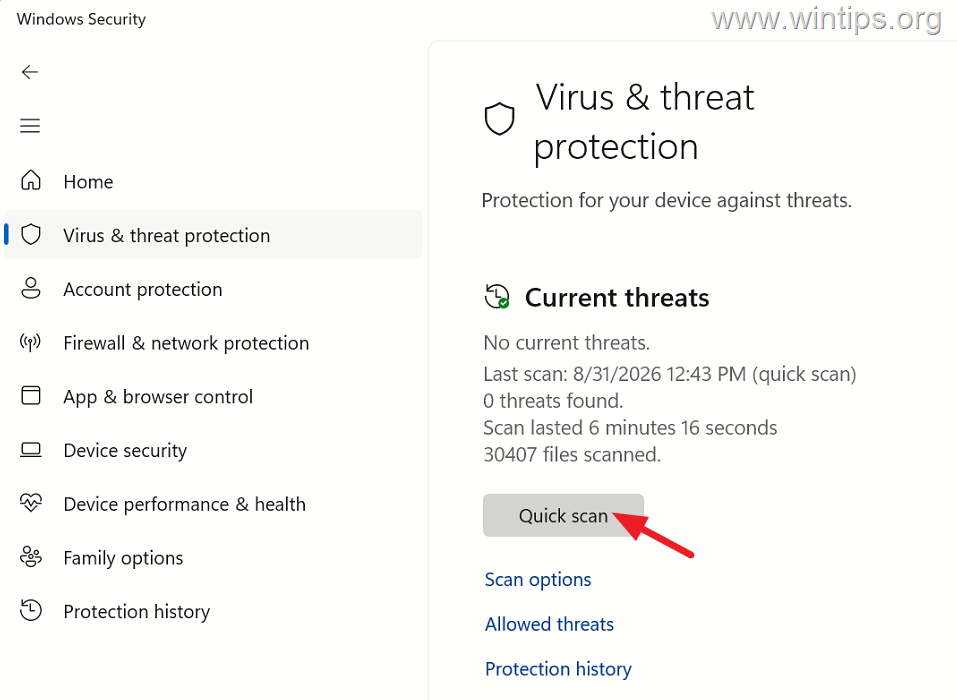
2. If the quick scan completes successfully and the previous checks show that Defender Antivirus and Real-Time Protection are enabled, Microsoft Defender itself is functioning. If Windows Security still reports that antivirus is turned off, the warning is likely caused by an incorrect antivirus status.
If the computer is managed by Microsoft Intune and Antivirus is reported as Noncompliant, continue with the steps below.
How to Fix Antivirus Showing Noncompliant in Microsoft Intune
If Microsoft Defender is running normally but Microsoft Intune reports the Antivirus compliance requirement as Noncompliant, the problem may be caused by an incorrect or stale antivirus status reported through Windows Security Center.
This behavior has been independently reproduced on affected Intune-managed devices, where Microsoft Defender was running correctly but Windows Security Center reported an incorrect antivirus state, causing the Antivirus compliance requirement to fail. Microsoft has documented the underlying Defender reporting issue, but has not separately documented the Intune compliance symptom as a known Intune issue.
Intune uses the antivirus status registered with Windows Security Center when evaluating the Antivirus compliance requirement. Therefore, before changing your Intune compliance policy, verify the antivirus registration and resync the device.
Step 1. Verify That Antivirus Is the Failed Compliance Setting.
First, verify that Antivirus is actually the setting causing the device to become noncompliant.
In the Microsoft Intune admin center, locate the affected device and review its compliance status and failed compliance settings.
Confirm that the failed requirement is: Antivirus — Noncompliant
If another requirement is failing, such as Real-Time Protection, Microsoft Defender Antimalware, security intelligence, or Microsoft Defender for Endpoint device risk, the device may be noncompliant for a different reason.
Step 2. Verify That Windows Defender Is The Primary Antivirus Registered in Windows Security Center.
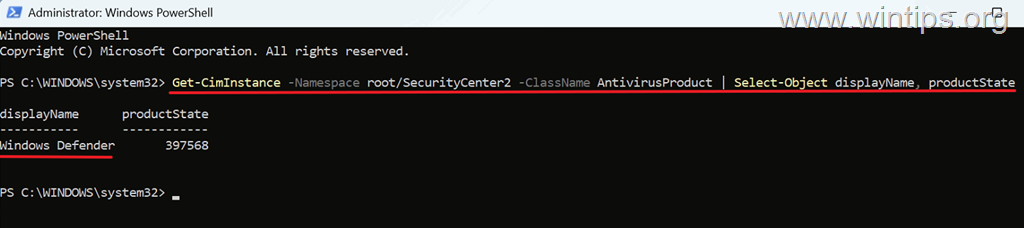
1. On the affected machine, open PowerShell as Administrator and run:
Get-CimInstance -Namespace root/SecurityCenter2 -ClassName AntivirusProduct | Select-Object displayName, productState
2. Check the displayName column to see which antivirus products are registered with Windows Security Center.
- If Windows Defender is the primary and only antivirus solution you use, proceed to the next step.
- If a third-party antivirus product is registered—or remains registered after being uninstalled—use the antivirus manufacturer's supported removal or cleanup tool and restart the computer.
Step 3. Update Microsoft Defender and Restart the Computer.
1. If Microsoft Defender is the primary registered antivirus, run the following command to verify its status:
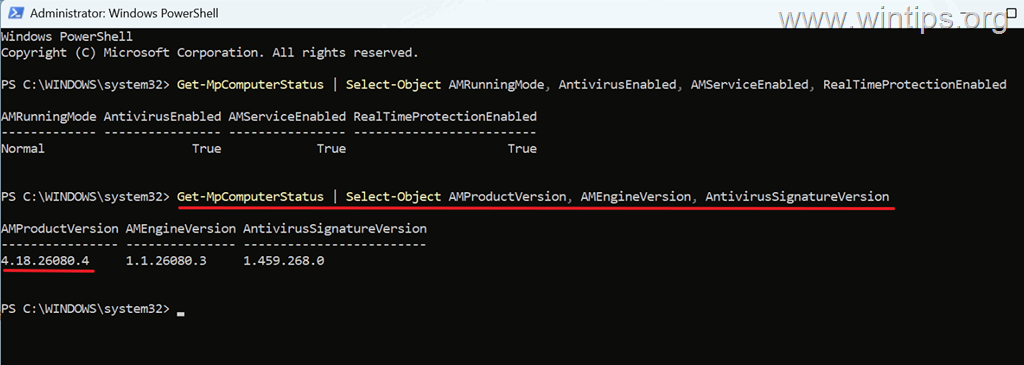
Get-MpComputerStatus | Select-Object AMRunningMode, AntivirusEnabled, AMServiceEnabled, RealTimeProtectionEnabled
If Microsoft Defender is active and working normally, AntivirusEnabled, AMServiceEnabled, and RealTimeProtectionEnabled should report True.

2. Next, check the installed Microsoft Defender platform version:
Get-MpComputerStatus | Select-Object AMProductVersion, AMEngineVersion, AntivirusSignatureVersion
Microsoft resolved the incorrect Defender status issue with Microsoft Defender Antivirus platform update 4.18.26080.4 (KB4052623), released to the Current Channel (Broad) on September 17, 2026.
If AMProductVersion reports an earlier version, install the latest Microsoft Defender platform update available through Windows Update or your organization's normal Defender update channel.
3. Finally, run the following command to update the Microsoft Defender security signatures:
Update-MpSignature
4. After installing any available Defender updates, restart the computer.
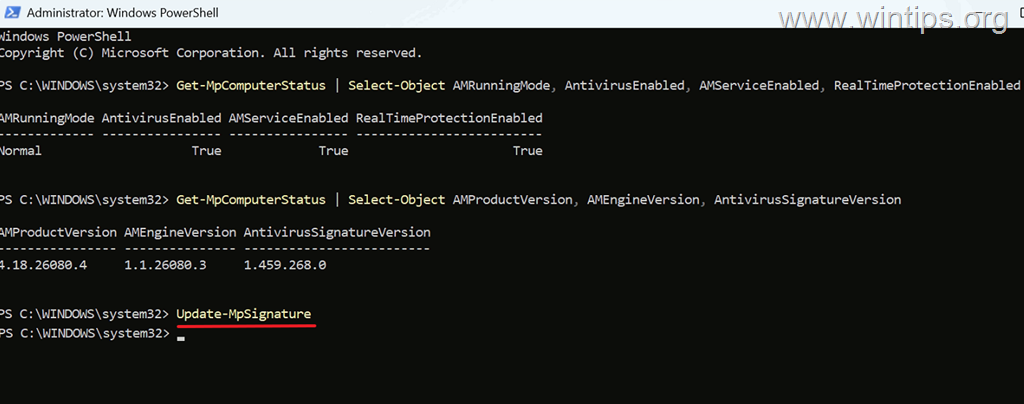
5. After restarting the computer, verify again that AntivirusEnabled, AMServiceEnabled, and RealTimeProtectionEnabled all report True, with this command:
Get-MpComputerStatus | Select-Object AMRunningMode, AntivirusEnabled, AMServiceEnabled, RealTimeProtectionEnabled
Step 4. Sync the Device with Microsoft Intune.
After verifying that Microsoft Defender is running normally, force the device to check in with Intune.
Note: An administrator can also initiate a device sync from the Microsoft Intune admin center.
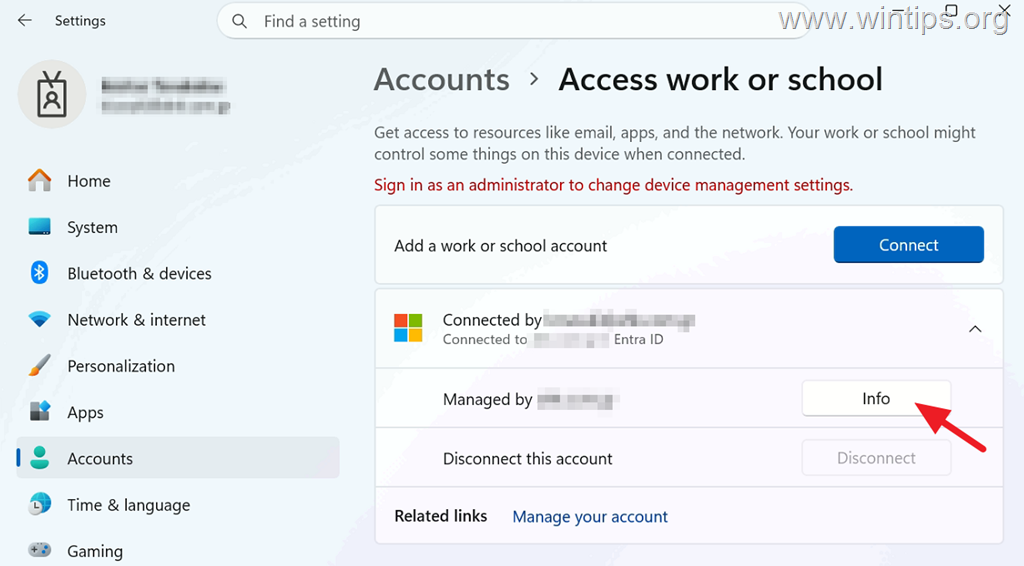
1. Open Settings > Accounts > Access work or school.
2. Select the connected work or school account and click Info.
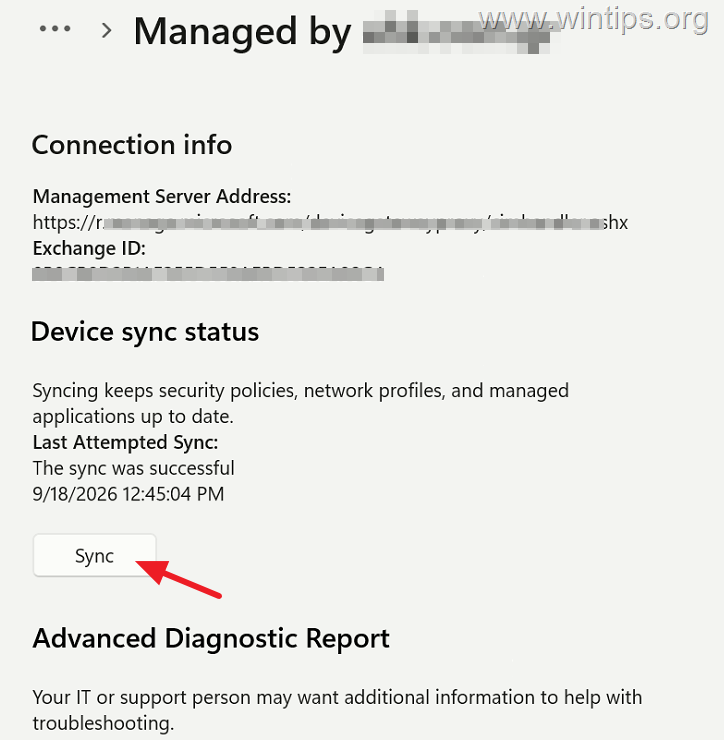
3. Scroll down to Device sync status and click Sync.
4. Allow some time for Intune to receive the updated device status and reevaluate its compliance state.
Step 5. Verify the Compliance Status.
Return to the affected device in the Microsoft Intune admin center and check its compliance status again.
Verify that:
- Antivirus now reports Compliant.
- The overall device status returns to Compliant.
If your organization uses Conditional Access to require compliant devices, verify that the user can also access the affected corporate resources again.
If Microsoft Defender is healthy but Antivirus continues to report Noncompliant, investigate other possible causes, such as a stale third-party antivirus registration, outdated Defender components, or a device check-in/compliance evaluation problem.
Important: Do not disable the Antivirus compliance requirement as a normal workaround. Doing so removes an important security compliance check and does not correct the underlying antivirus reporting problem.
Conclusion
If Microsoft Defender is the primary antivirus and the checks above confirm that it is running in active mode, Real-Time Protection is enabled, signatures can be updated, and a quick scan completes successfully, the incorrect "Microsoft Defender Antivirus is turned off" notification is likely related to the known issue confirmed by Microsoft.
Microsoft resolved this issue with Microsoft Defender Antivirus platform update 4.18.26080.4 (KB4052623), released on September 17, 2026. Therefore, make sure that this version or a later Microsoft Defender platform version is installed on the affected computer.
If the computer is managed by Microsoft Intune and Antivirus is reported as Noncompliant, verify that Defender is healthy and up to date, check the antivirus registration in Windows Security Center, sync the device with Intune, and confirm that Antivirus and the overall device status return to Compliant.
If any Defender status values are False, the WinDefend service isn't running, signature updates fail, or a quick scan cannot start or complete, do not assume that the warning is false. Troubleshoot Microsoft Defender or contact your system administrator.
Frequently Asked Questions
Why am I seeing the 'Microsoft Defender Antivirus is turned off' notification?
You might be experiencing a known issue with Microsoft Defender where Windows incorrectly reports that Defender is turned off, even though it remains active and functioning properly.
How can I verify if Microsoft Defender is actually active?
You can verify if Microsoft Defender is active by opening Windows PowerShell as Administrator and running specific commands to check its status, such as 'Get-MpComputerStatus' which shows details about Defender's running mode and status.
What should I do if PowerShell indicates Defender is active but the notification persists?
If PowerShell confirms that Defender is active while Windows continues to display the warning, your computer is likely affected by the false notification issue confirmed by Microsoft. You can further ensure the service is running and able to update by following additional verification steps outlined in the guide.
How can I ensure that Microsoft Defender is fully operational?
To ensure Microsoft Defender is operational, verify that its service is running, confirm it can update by using 'Update-MpSignature', and perform a quick scan to check functionality.
Still having trouble fixing this issue?
💬 Get WinTips Remote Support →

- FIX: Windows Hello for Business PIN error 'Your credentials could not be verified' with 'status: 0xc000005e substatus: 0x0' or 'status: 0xc0000bb, substatus: 0x0'. - October 20, 2026
- FIX: This Device Is Already Set Up in Another Organization in Company Portal or During Intune Enrollment - October 13, 2026
- Windows Update Uninstall Failed with Error 0x800F0825: How to Fix - October 7, 2026