Fix: Firefox Secure Connection Failed error in Hotmail and HTTPS sites.
The Secure Connection Failed error, may appeared when Firefox is trying to access 'www.hotmail.com', 'login.live.com', or any other secure website (the URL begins with "https://"), that attempting to secure your connection between your computer and the website.
Secure Connection failed – Firefox:
"An error occurred during a connection to mail.live.com. Invalid OCSP signing certificate in OCSP response. Error code: SEC_ERROR_OCSP_INVALID_SIGNING_CERT
The page you are trying to view cannot be shown because the authenticity of the received data could not be verified.
Please contact the website owners to inform them of this problem."

This tutorial contains several methods to troubleshoot the "Secure Connection Failed" error in Firefox web browser.
How to fix Secure Connection Failed in Firefox.
Before proceeding to the solutions mentioned below, try the following to resolve the "Secure Connection Failed" problem in Firefox:
1. Make sure that your date and time settings are correct. To do that:
1. Click on the Date and Time icon in the lower right corner.
2. In the window that opens, click on Change date and time settings.
3. Press the Change date and time link to ensure that you have setup the correct date/time/year in your computer.
4. When finished with date/time, press Change time zone to ensure that you have the proper time zone.
5. Restart your computer and then try to access the HTTPS website which cause Firefox to display the "Secure Connection Fail" error.
2. Make sure that you have installed Service Pack 3 if you are using Windows XP, or the Service Pack 2 (32bit, 64bit) if you are using Windows 2003. To ensure that:
1. Right click on the Computer icon and select Properties.
2. Under System text label, you should see what Service Pack edition (number) is installed on your computer.
3. Update Firefox to it's latest version.
Method 1: Scan your computer for viruses and malware.
Method 2. Disable Firefox extensions.
Method 3. Reset Firefox Settings.
Method 4: Disable your Antivirus/Firewall.
Method 5. Temporarily Set OCP Stapling to False.
Method 1: Scan your computer for viruses and malware.
First of all, make sure that your computer is 100% clean from harmful programs like rootkits, malware or viruses. To accomplish this task, follow the steps from this Quick Malware Scan and Removal Guide.
After checking/cleaning your computer from viruses, try to access HTTPS sites. If the "Secure Connection failed" problem persists, then continue to the next method.
Method 2. Disable Firefox extensions.
The second solution to fix Firefox's "Secure Connection failed" error, is to disable the installed Firefox extensions. To do that:
<1. From Firefox's menu  , click Add-ons
  .
.

2. Disable all Add-ons and then restart Firefox.

3. After Firefox restart, try to access the HTTPS site that cause the "Secure Connection failed" problem.
4. If the problem has resolved, then enable one-by-one the disabled add-ons (and restart Firefox), until you find out which extension causes the "Secure Connection failed" problem.
Method 3. Reset Firefox to Default Settings
The next solution to resolve the "Secure Connection failed" error in Firefox is to reset Firefox to its default settings. *
* Note: This procedure will remove all add-ons and customizations in Firefox. Firefox bookmarks, will be kept.
1. From Firefox's menu  , click the Help
  icon.
icon.

2. Choose Troubleshooting Information

3. Then press the Refresh Firefox button to reset Firefox to its default state.

4. Press Refresh Firefox again.

5. After Firefox restart, try to access the HTTPS site again.
Method 4: Disable your Antivirus/Firewall.
If you use an antivirus or a firewall program that protects you from the Internet traffic, try to disable the Internet (Web) protection or totally uninstall your security software.
For example:
– If you 're using AVAST antivirus, then go to Settings > Active Protection > Web Shield > Customize and Uncheck the the Enable HTTPS scanning box.
– If you 're using ESET, then got to Setup > Advanced setup > Extend Web and Email and choose SSL protocol > Do not scan SSL protocol.
Method 5. Temporarily Set OCP Stapling to False
The Online Certificate Status Protocol (OCSP) stapling, is a new mechanism by which a site can convey certificate revocation information to visitors in a privacy-preserving, scalable manner. Some websites, doesn't seem to be fully updated for this new feature yet, so you can try to temporarily set the "security.ssl.enable_ocsp_stapling" preference to "false". To do that:
1. Into the Firefox address bar, type: about:config & press Enter.

2. At the next screen choose I'll be careful, I promise!
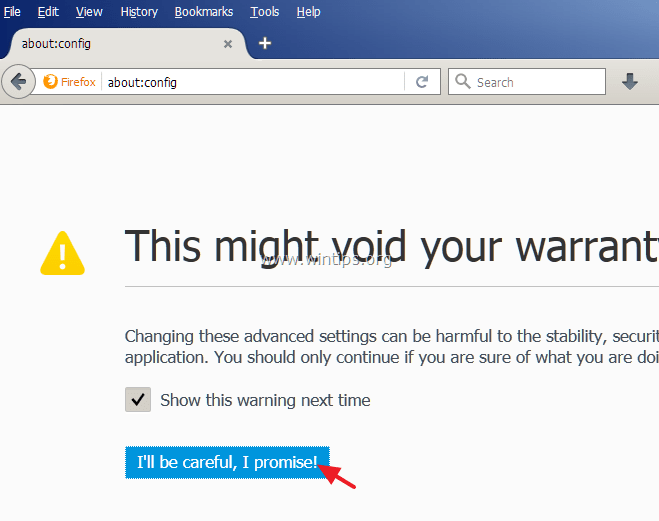
3. Double click on security.ssl.enable_ocsp_stapling preference to change its value from true to false.

4. Restart Firefox.
5. Try to access HTTPS sites again. *
* Note: After some days, set the "security.ssl.enable_ocsp_stapling" value to true again, and see if the HTTPS website has updated and fixed the problem.
That's it! Let me know if this guide has helped you by leaving your comment about your experience. Please like and share this guide to help others.