
How to Transfer SMS Messages from Android to Android.
One of my customers asked me a few days ago how to transfer his personal information (Contacts, Calendar and SMS messages) from his old Android phone to his new one. The first part of this request was easy to do by following a single procedure:
the user must sign-in to Google services by using the same Google Account in both devices and then to synchronize all the information stored in Google services (Contacts, Calendar, etc.) with his Android phones. The second part, to transfer SMS messages in another Android phone, was a little more complex because there is not yet a simple method to transfer, or to backup and restore the SMS messages in Android, without installing an external app.
In this tutorial, you 'll find two methods to transfer your SMS text messages from one Android phone to another, by using the following Android apps:
- SMS Backup & Restore app is a excellent Android app that helps you to transfer directly your SMS messages and the Call log from one Android phone to another, and additionally can perform scheduled backups to one of the following locations: Google Drive, OneDrive, Dropbox or to SD The only disadvantage of the app, is that saves the SMS messages in .XML format which is not easy to be viewed on a desktop computer.
- SMS Backup+ app (by Jan Berkel), gives you're the ability to backup all your SMS messages to your Gmail account, which you can either view (by using a web browser) or transfer to your new Android device. Furthermore, this app has some very useful features such as backing up call logs and MMS messages and backing up at scheduled times.
How to Backup and Restore SMS messages and Call Log on Android Phone.
Method 1. Transfer or Backup SMS messages with SMS Backup & Restore.
Method 2. Backup and Restore SMS with SMS Backup+.
Method 1. How to Transfer or Backup Android SMS messages with SMS Backup and Restore.
With the SMS Backup & Restore app, you can either transfer your SMS messages and the call log directly to your new Android device (Part-1), or to backup/restore SMS to/from Google Drive, OneDrive or Dropbox. (Part-2)
Part 1. How to Directly Transfer your SMS messages, from your Old Android device to the New one:
1. In both Android devices, install the SMS Backup & Restore App from the Google Play store.
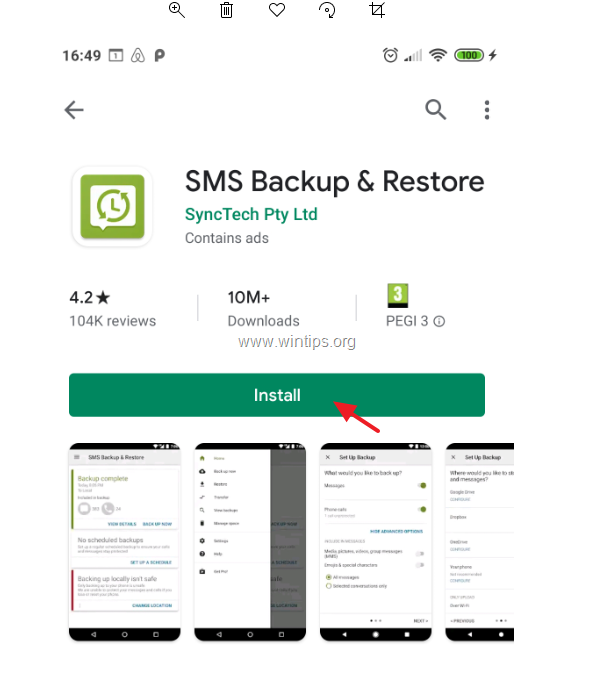
2. After installation, open the 'SMS Backup & Restore' app and on both Android devices.
3. Tap GET STARTED and then tap Allow at all the requested permissions.
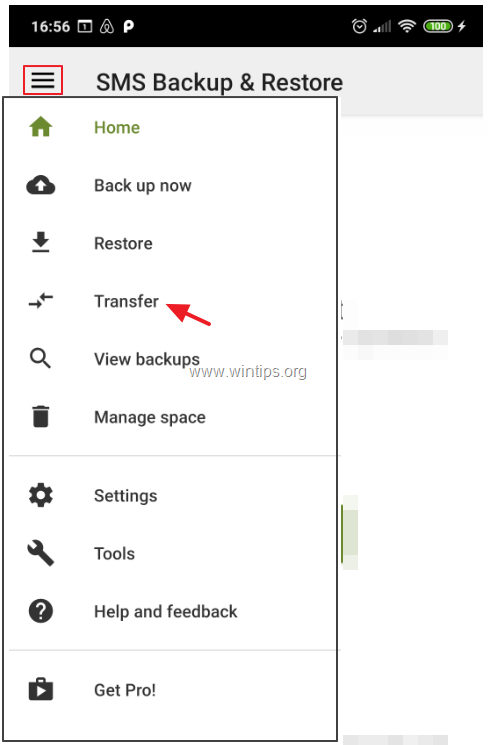
4. Then, from the Options menu  tap Transfer.
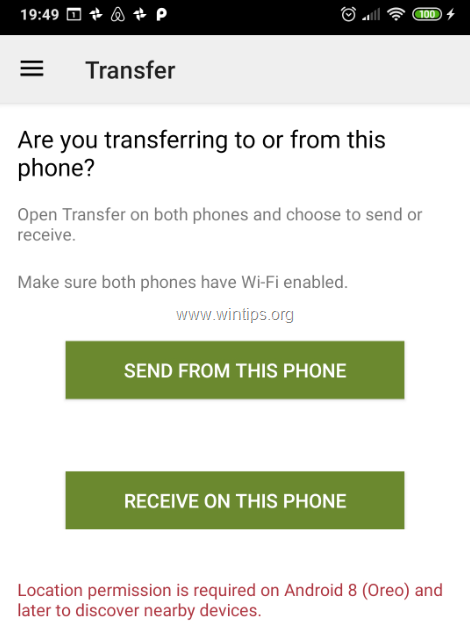
5. At the transfer screen:
-
On the OLD phone tap SEND FROM THIS PHONE
-
On the NEW phone tap RECEIVE ON THIS PHONE
6. On the OLD phone tap the phone that you want to transfer to. (look at the screen on the new phone to see its name and ensure its matches)

7. On the NEW phone tap Accept the invitation to connect.

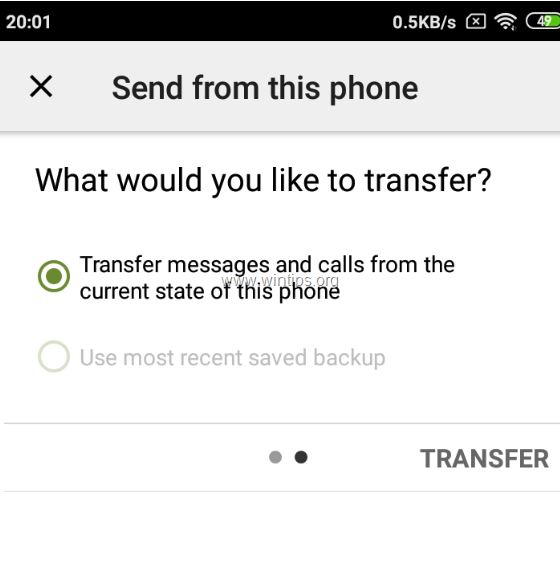
8. On the OLD phone, select Transfer messages and call from the current state of this phone and tap TRANSFER.
9. When the transfer completed tap OK. (on the OLD phone)

10. On the NEW phone:
a. Tap OK to temporarily switch the default SMS app.

b. Tap Yes to change the SMS app.

c. Wait until the restoration is completed.
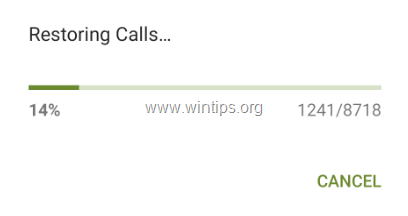
d. When the transfer is completed, click OK.

e. Finally, open the SMS app (messages) and tap YES to use the default Messaging SMS app instead of the SMS Backup & Restore.

f. You 're done!
Part-2. How to Backup your SMS messages from Android To Google Drive, Onedrive, or Dropbox.
1. install the SMS Backup & Restore App from the Google Play store.
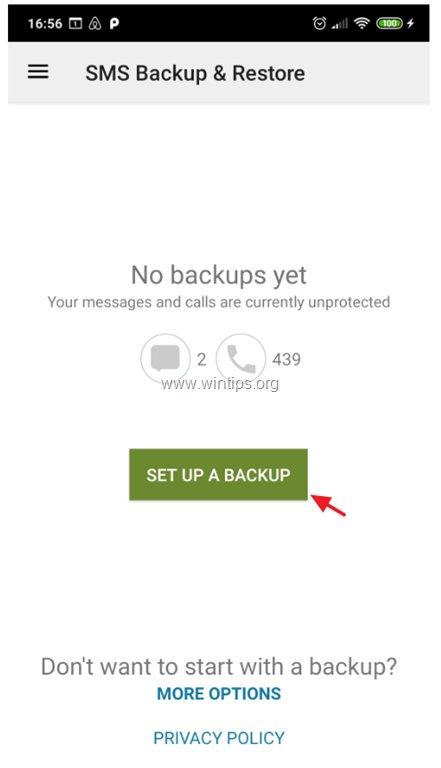
2. Then click SET UP A BACKUP. *
* Note: If you want at the feature, to restore the SMS messages from a previous backup at the same or at another Android phone, tap More Options  and then tap Restore. At the next screen select the backup location (e.g. Google Drive) and follow the on screen instructions to restore your SMS messages from the backup.
5. At next screen, choose what information you want to backup and tap Next.

6. Then select the backup destination (e.g. Google Drive) and click Configure.

7. Then click Login and select the Google Account to backup your SMS messages.

8. At 'Select the type of access to Google Drive' select Only access to files and folders opened or created with SMS Backup and Restore and tap OK.

9. Then select the account that you want to use to backup/restore your SMS messages and tap OK.

10. Then tap Allow, to allow the SMS Backup and Restore app to manage the files on the Google drive.

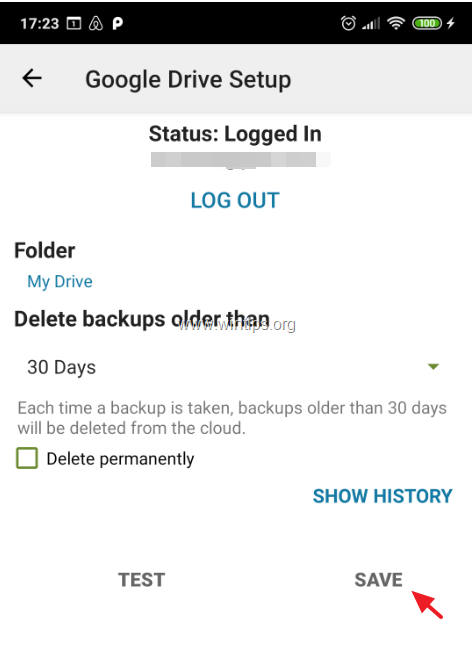
11. Now, tap Test to test the configuration and if it is successful, tap Save.
12. At the 'Setup UP backup' options screen, tap Next.
13. At the next screen, disable or enable the recurring backups and set the backup schedule (if you want).
14. Finally tap BACKUP NOW to backup your SMS messages to the Google Drive.

Method 2. How to Transfer Android SMS messages with SMS Backup+
To backup/restore your Android SMS text messages with SMS Backup+:
Step 1. Enable the IMAP Access on Google Mail Settings.
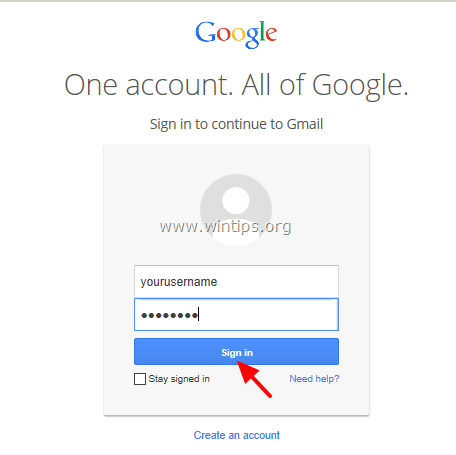
1. Sign-In to your Gmail account using a desktop computer.
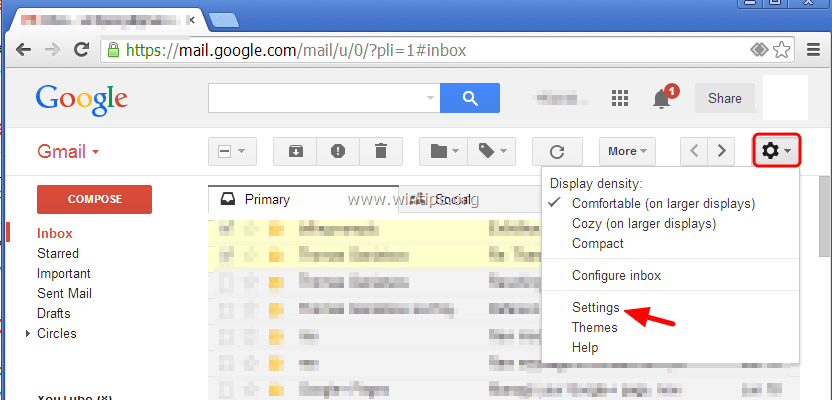
2. Click the Gear icon  on the right and choose “Settings”.
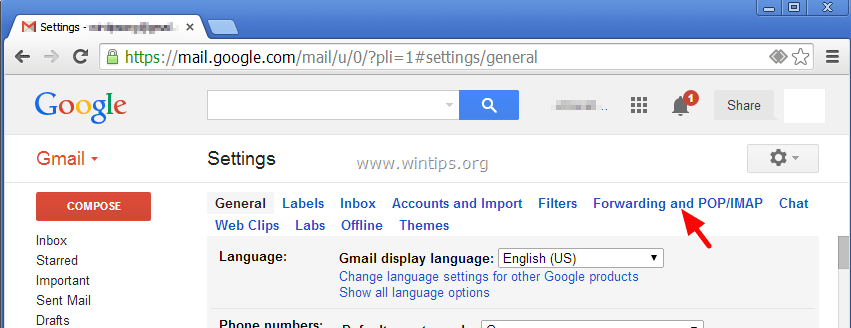
3. Click “Forwarding and POP/IMAP” on the top.
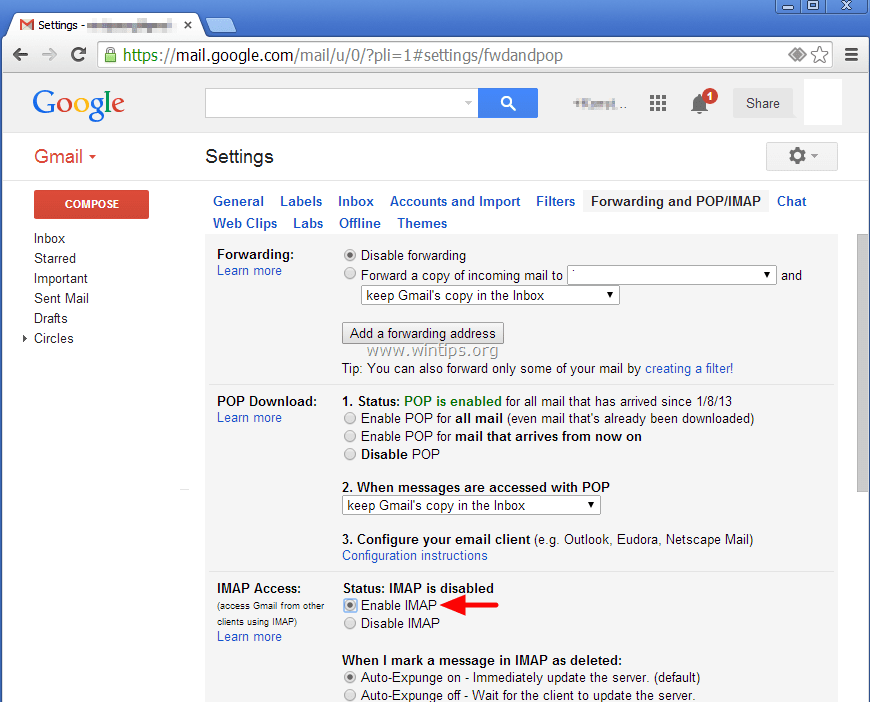
4. Check “Enable IMAP” .
Step 2. Create a Google App Password for the SMS Backup+ app.
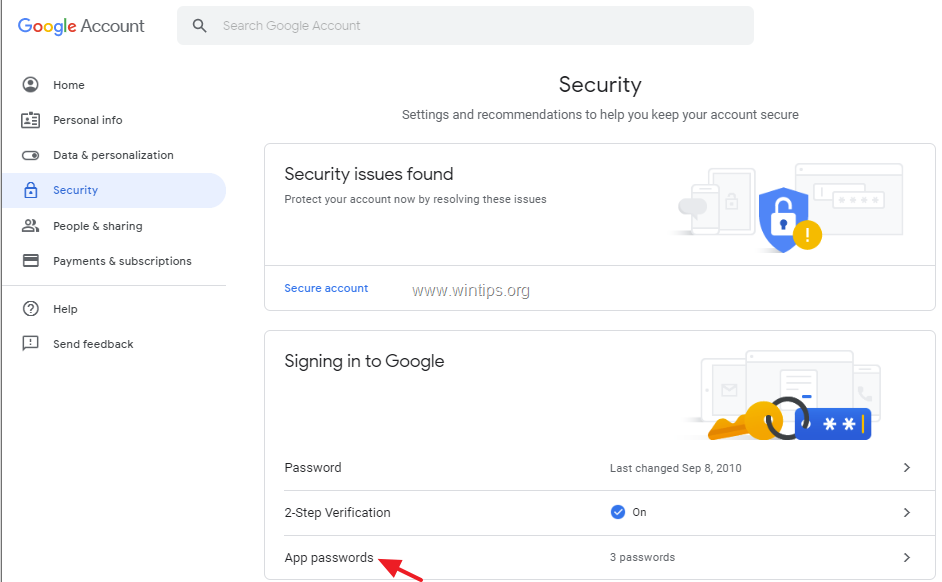
1. Navigate to you Google account Security settings and click App passwords.
2. Type you Google account password and click Next.
3. At 'App passwords' page, click Select app-> Other (Custom name)
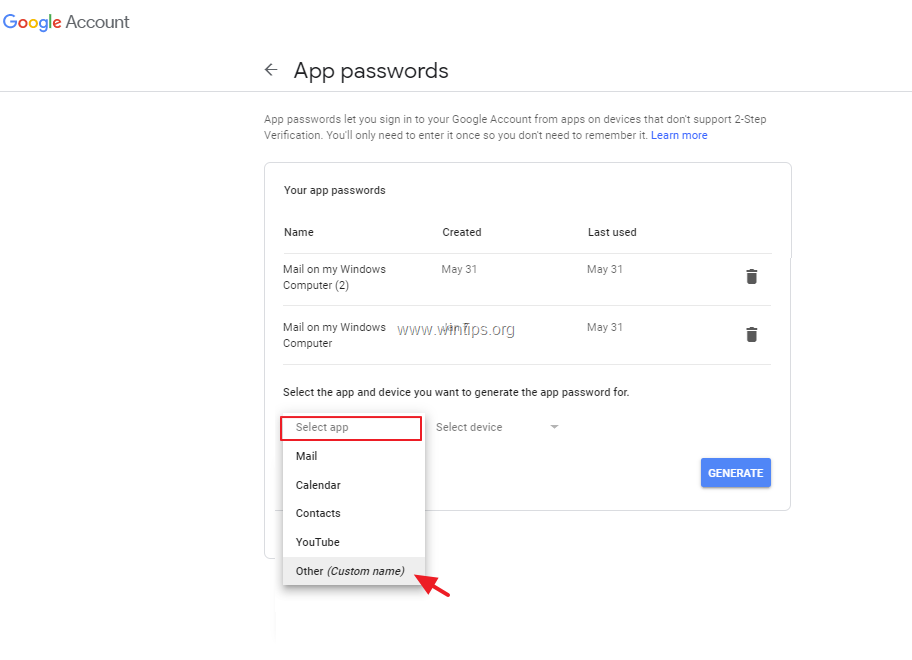
4. Type SMS Backup+ and click Generate.
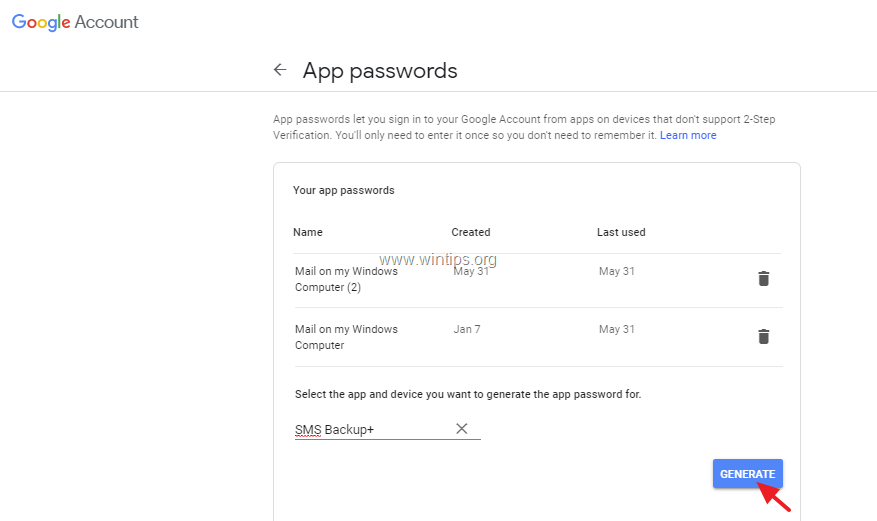
5. Write down the generated password or (better) copy it to Notepad application.

Step 3. Install SMS Backup+ on your Android phone.
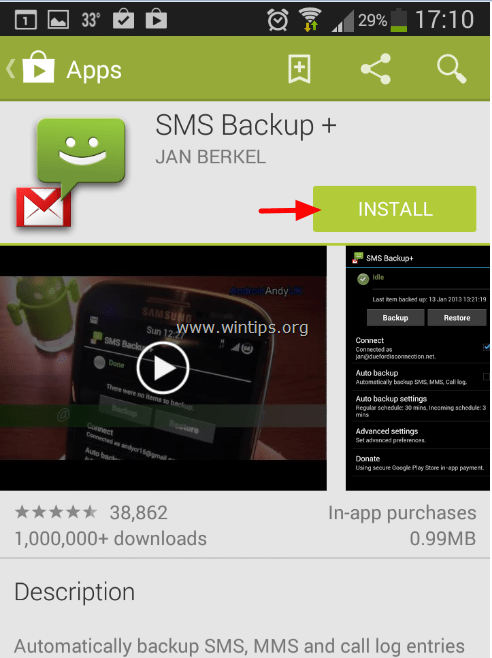
1. Open Google Play on your (old) Android Device and search for the “SMS Backup+” App.

.
2. Tap “Install” to install “SMS Backup+”.
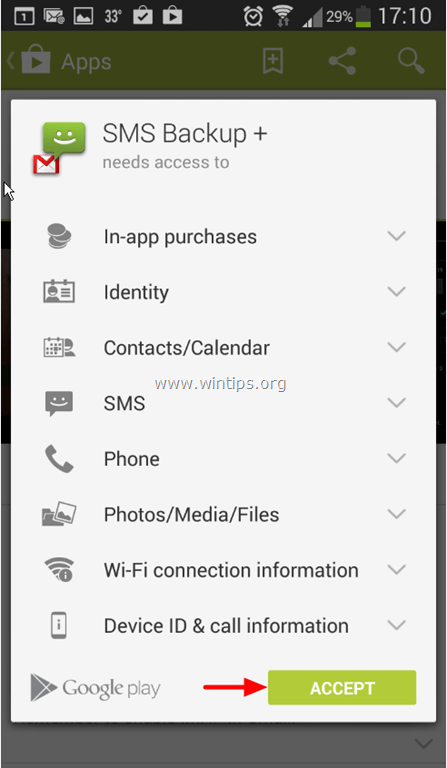
3. Read carefully the SMS Backup+ permission request and tap “Accept” (If you Agree).
4. After the installation, tap to open “SMS Backup+” app.

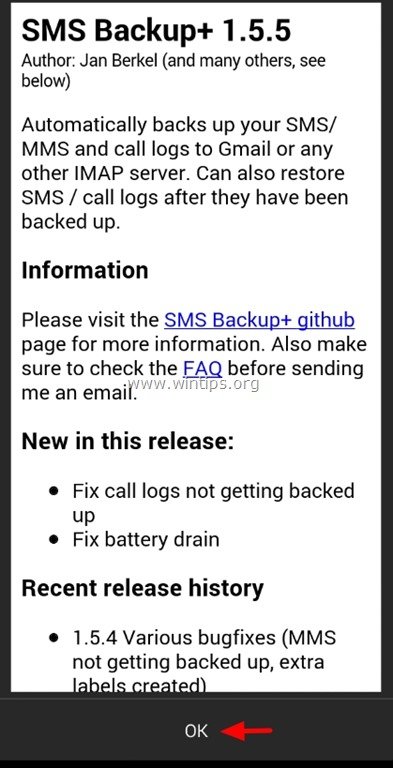
5. Press “OK” to the information message.
Step 4. Connect SMS Backup+ to your Google Account.
1. Open the SMS Backup+ app.
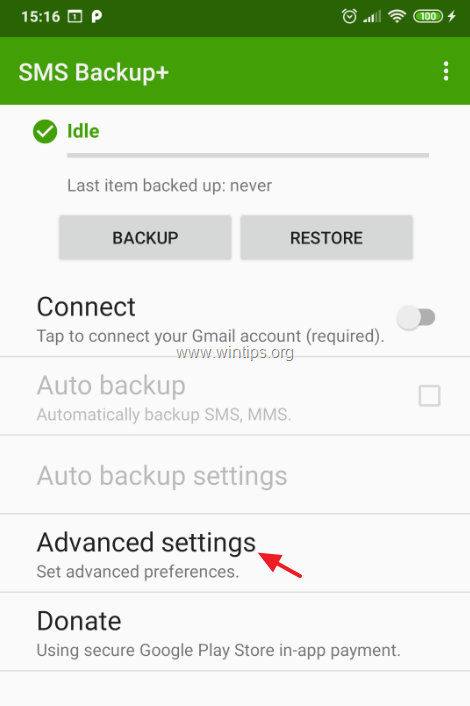
2. Tap Advanced settings.
3. Tap Custom IMAP Server.

4. At IMAP Settings:
a. At 'Server address' field, type: imap.gmail.com:993
b. At 'IMAP account name' field, type your Gmail address.
c. Finally tap Password, and type the generated password for the SMS Backup+ app, that you created in step-2. ** Note: The 16-character password must be typed without spaces.

5. After configuring the IMAP server settings, go to the first screen of the SMS Backup app and tap Connect *.
* Note: Some times the SMS Backup+ cannot connect to your Google Account at the first try. At this case, navigate to IMAP server settings and retype the generated password for the SMS Backup+ app.
6. After connecting to your Google account, give the permission to the SMS Backup+ app to access your contacts by taping Allow.

Step 5. Backup (Transfer) your Android SMS messages to your Google account.
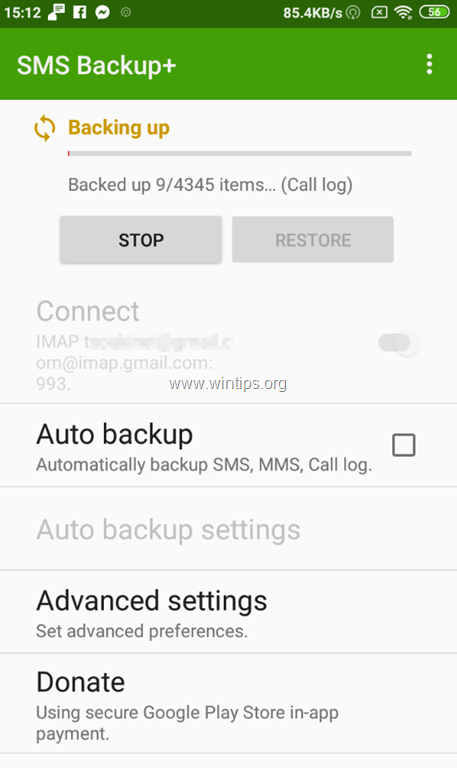
1. After connecting to your Google account, tap Backup, to copy (transfer) all your SMS messages to your Google account (Gmail).

2. Wait until all your SMS messages are backed up on your Google Account.
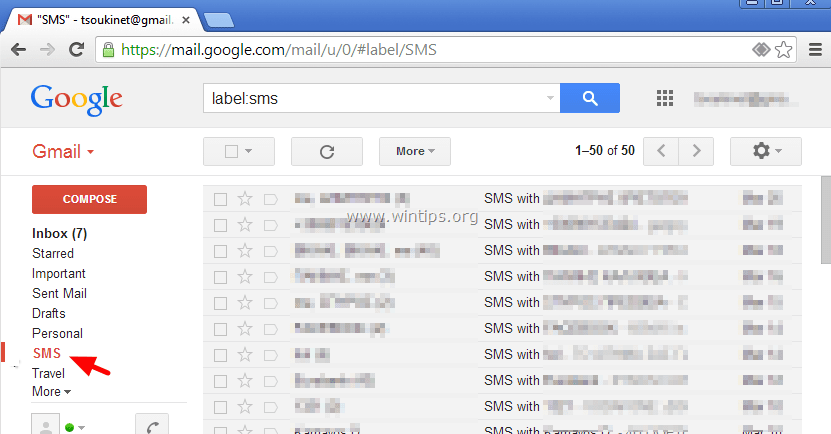
3. After the backup operation is complete, navigate to your GMAIL and you will see a new label in the sidebar named SMS. Click on it and you should see all your SMS messages from your Android device. *
* Note: To restore the SMS messages to another Android device, continue reading below.
Additional SMS Backup+ Options/Features:
1. Tap Backup at any time in order to perform a manual backup of your SMS messages.
2. Enable the Auto Backup option, if you want the SMS Backup+ app, to take automatically backups of your SMS messages at a scheduled time. ** Note: After you have enabled the 'Auto Backup' option, tap the “Auto backup settings” option to define the backup schedule (e.g. every 2 hours) and the connection method for the backup (e..g. Only backup when connected to Wifi).
3. In Advanced settings you will find some useful options for the Backup and Restore operations. For example, you can specify which type of information you want to backup/restore (e.g. SMS, MMS, Call Log, etc.).

Step 6. Restore SMS text messages to another Android phone.
After you have backed up all your SMS messages to your Google Account as described in the previous steps, then:
1. On the (new) Android phone, go to Settings > Accounts and Sync.
2. Under 'Manage Accounts', select (or “Add”) the Google account you used to backup your SMS messages.
3. Install the SMS Backup+ app on your device as described in Step-3 above.
4. Connect the SMS Backup+ app to your Google account as descripted in Step-4 above. *
* Warning: After connection, tap “SKIP” and DO NOT perform the “First Backup” (if asked).
5. Finally, at SMS Backup+’s main screen, tap Restore.
That's it! Which method worked for you?
Let me know if this guide has helped you by leaving your comment about your experience. Please like and share this guide to help others.



June 7, 2022 @ 12:05 pm
Thanks for sharing such kind of useful information daily
June 27, 2019 @ 1:38 am
Trying to restore all my SMS texts TO my phone app FROM gmail and did all the steps, but I hadn't read all the way through and instead of SKIP (that warning sign came a little too late for me), I clicked first backup. Now it just backed-up to gmail the few new texts I had in my new phone. Does anyone know what, if anything, can be done now? I appreciate any help in advance!
June 25, 2019 @ 5:04 pm
I recently had to change my password in gmail-then SMS back up failed-I went in to check that Emap is enabled-it wasn't (previously I assumed it was as it was working fine) after i enabled IMAP it is still gives "Login Error" XO Auth Authorization error-make sure you enabled IMAP in Gmail account settings" I did reboot phone. no change
August 28, 2019 @ 12:30 pm
@Sue: Follow the instructions on this article to enable IMAP in GMAIL settings and to allow the less secure Apps to access GMAIL.
April 26, 2019 @ 12:00 am
I have a lot of messages backed up.. and every time I restore it quits at a random time.. I can't ever get all the way through the restore. I get a pop up that cancels it each time saying "would you like to use messages instead of sms backup+ as your default messaging app." .. Please help I want to restore all my messages.
February 19, 2019 @ 2:50 am
My phone all of a sudden is missing my last year and a half of texts. I do have all my SMS backed up to Gmail using SMS backup +. When I go to restore, it fails at a different point every time and does not complete the restore. Any help is much appreciated. Thanks.
February 19, 2019 @ 9:51 am
@MATT: Maybe there is a problem with your sim card?
April 26, 2019 @ 12:02 am
I have the same problem.. Can't get through the restore.. All messages are backed up to my gmail… what could the sim card 🃏 problem possibly be?
February 19, 2019 @ 12:56 am
Can u please help me in getting Nov and Dec text messages, it's deleted, can it be restored again please help me…. please help me I need those sms back,😭😭😭😭😭😒😒
February 19, 2019 @ 9:50 am
@Tejaswini H: From where they deleted? Phone or Gmail?
January 6, 2019 @ 2:24 am
i have 30k in messages, it will only restore about half then i get a cancellation. Every time
October 22, 2018 @ 11:15 pm
I have a Galaxy S5 and recently changed my number. I have some text messages that did not transfer because of the number change. Is there a way to get those back or am I SOL?
February 28, 2018 @ 9:13 pm
I have successfully moved my messages from one phone to its replacement. All went well except a couple weeks are missing. The messages missing from my phone are in the SMS section in gmail. Is there something I can do to restore those messages? Maybe mark them (or all of the messages) as unread and do another restore?
March 1, 2018 @ 9:50 am
@Kevin: Try to perform the SMS Restore again.
January 5, 2018 @ 9:18 am
It did not work for me… I did exactly the same. I backed up texts and call history from my Micromax device Canvas Juice 4 (Android Lollipop) and tried to restore the same on Samsung Galaxy J7 (Android Marshmallow). But as soon as I clicked restore, it asked to make SMS Backup+ its default SMS app, which I did, and after that it backed up zero items. Please help me out.
Thanks.
January 5, 2018 @ 10:06 am
@Srobona Chakraborty: Reboot your Phone and try to restore the sms again.
December 28, 2017 @ 1:41 pm
thanx it's working.
November 9, 2017 @ 2:44 am
Very helpful and its definitely a life saver.
November 5, 2017 @ 9:42 am
Its not work on Notification massage whose come with the company number and bank msg so i thought u guys to work it on this … i have 30000+ msg but when i backup withi this app i dnt get my bank msg, company forward msg, etc.. which is important for me…. :(
November 1, 2017 @ 1:00 pm
Thanks a lot. This is excellent and you are awesome!!!!!. will donate soon.
October 23, 2017 @ 9:53 pm
Thanks for this. Is there a limit to the number of texts to display? I backed up more than what was transferred during the restore…
October 9, 2017 @ 2:42 pm
Thanks its working…..
September 15, 2017 @ 4:57 pm
The best help i've ever got on a website
Guys u did a great job and i'm thankful for what u gave me
i was looking a solution for this and i came across this article, in 10 minutes after reading it i was all set
can't describe how i'm feeling but i can tell you i appreciate this and respect you so much it's the least i can do
August 7, 2017 @ 2:38 am
Hi
I have used SMSBackup+ for about 2 years now, and it has worked flawlessley. However, recently it is only backing up the sender's side of the conversation–none of my side of the conversation are saved.
I recently bought a new phone, and my message came over, but minus my side of the conversation.
I have isolated this to the app. I deleted all the backup in gmail, then tried to backup again. It did the same thing.
I then went back and deleted all unnecessary text messages and tried again-again the result was just backing up one side of the conversation.
Please help!!!
August 7, 2017 @ 9:25 am
@Tamera: Look at the SMSBackup+ backup settings and make sure that you backup, both the received and the the send messagesm otherwise there is a bug in the App.
July 13, 2017 @ 2:00 am
hello sir i have a one problem actually by mistake i restore my phone and i loss my all sms and contacts and the problem is i can t create any backup to safe them what i do iam so worried i need my all previous contacts and sms plz give me perfect solution is that possible ????
July 13, 2017 @ 8:58 am
@zohaib: If you have enabled the synchronization of contacts with your Google Account then should find your contacts at your Google contacts. Unfortunately if you haven't backup the SMS prior the phone restore, there is no other way to find them.
May 18, 2017 @ 7:30 pm
When the phone is backed up will deleted messages also appear?
May 18, 2017 @ 7:44 pm
@Genevieve: Of course not, they have deleted!
April 23, 2017 @ 8:58 pm
Is there a web based version of this app? I broke the screen on my S4 phone, and the texts are the only thing I can't get to. It's been backing up my favorite people, but not the stuff from coworkers that I need. I can access the phone through a cable to laptop, but can't seem to back up the texts without some sort of input on the phone screen, which I can't get. Unresponsive to touch.
April 24, 2017 @ 8:42 am
@elle Paulson: No, there isn't. And as I know, you can't either use another app, because all applications require you to make changes to your phone settings.
April 2, 2017 @ 11:19 am
This is a wonderful article, Given so much info about it, These type of articles keeps the user's interest in the website, and keep on sharing more articles like this… good luck…
March 29, 2017 @ 7:47 pm
It saved all of my conversions but 1. I have 155 messages from this one person and it's only saving 25. Most of the ones that are not saving say delivered, I'm not sure if that has anything to do with it. I have a Samsung Galaxy 6. PLEASE HELP!!
March 30, 2017 @ 10:14 am
@KYM: Can you try to delete some messages that you don't want and retry?
March 23, 2017 @ 7:39 pm
@lakonst
It worked! Thank you!
March 23, 2017 @ 9:09 am
All.of my text messages disappearEd one day. Had been using sms backup+ to back up my messages. I tried the restore function for the first time. My phone died in the middle of my 46,000 text restoring. I have re ran it a couple times. Only the texts from the first time came back to my phone? Any suggestions? Also the app.asks at start if I want to use sms backup as my messaging preference. Which option should I choose?
Thanks
March 23, 2017 @ 9:46 am
@AmyJ: Try to delete some sms messages stored on the Google account before using SMS backup to restore them on your phone. Choose sms backup as your messaging preference, until the restore is completed and then revert back to default messaging app on your phone.
March 20, 2017 @ 3:22 pm
thanks a lot, after format my mobile always i will loss my sms, but after install this app i could recover all sms….
March 3, 2017 @ 3:27 pm
In the beginning of this article the version number was shown as 1.5.5 (step 2, number 5).
I went to the play store, found "SMS Backup +" developer Jan Berkel, but found the version to be 1.5.10 (last update Aug 20th,2015). The first comment here was nov.2014. I thought app version numbers increased with improvement?
Did 1.5.5 ever exist?
March 3, 2017 @ 5:48 pm
@Jerr: No, the oldest version(s) doesn't exist.
January 23, 2017 @ 9:08 am
This is really helpful. You can use your Google account to sync contacts and some data. But for other data, you cannot simply transfer between them.
And you can also use a phone to phone transfer tool, that is the easiest way to direcly transfer data between phones. You can use a MobiKin Phone Transfer tool.
December 30, 2016 @ 3:02 am
I have been using this app for awhile now. I recently went in to my gmail to review the backed up messages and realized since late July my backups were only incoming messages and anything before July was both. I have not changed any settings…. Could this be a AT&T update glitch? Anyone know a way around this to get the outgoing messages backed up where they go?
November 25, 2016 @ 4:28 am
can i get day to day sms automatically from the help of ths app? my mother using my old phone. i want to backup all messages daily automatically..i'm using same google account in both phones.. how can set that? plz rply
November 25, 2016 @ 6:12 pm
@Nawfas: I think that is not a very good practice to use the same google account to more than one device.
– If you want to automatically backup messages daily, set a schedule time in SMS Backup App settings.
November 13, 2016 @ 7:26 pm
Messages saved, but only messages from the sender, not my responses? How can I save both sides as needed for a dispute?
November 14, 2016 @ 10:19 am
@Linda: If you see more closely you will realize that all messages are shown at SMS folder.
September 15, 2016 @ 3:00 pm
Great post ! Its worked for me for first attempt. Relay very helpful.
Thank you very much to the author.
August 17, 2016 @ 1:17 pm
I installed as suggested and it was very easy as per instructions. I selected the backup for the first time back up and it worked very well for 759 texts but there were originally 1277 items so the majority dont seem to have been backed up. I needed to back up as my phone is on the way out and will be replacing it but I need the texts as evidence for something and the backup has stopped short of the ones i really need. I dont know how to start the backup again. Any ideas please/
August 17, 2016 @ 1:41 pm
@Jen: Open the SMS+ Backup app again and tap the Backup button.
Another option is to backup everything from your phone to your computer by using the free MyPhone Explorer program.
August 4, 2016 @ 2:24 pm
I tried it today and tested for both back Up & Restore. This is the APP i require and shall keep using.
July 23, 2016 @ 9:39 am
Very nice without issue after 4 attempts using alternate methods going from s4 to Nexus 6p Thanks very much
June 29, 2016 @ 5:15 pm
ITs awesome, it was an effective information.
Thank You to the author.
June 2, 2016 @ 3:47 pm
I cannot see the SMS label in my Google mail. I may have missed something when installing the app but cannot figure out how to go back and select ALLOW ACCESS from the Permission Request screen. I tried reinstalling the app, that did not work. I made the necessary changes to my Gmail account, still cannot see the SMS label in Gmail account. Any help would be appreciated.
June 2, 2016 @ 3:51 pm
Sorry, it's working now – no worries, it just took a day for it to come up, strange!
May 22, 2016 @ 8:17 pm
Great post. Clear and HUGE help. Thank you so much.
May 15, 2016 @ 7:50 pm
It is working but Backup Whatsapp sms is not showing on this app in my phone. Can you please help me ?
May 16, 2016 @ 9:40 am
@Wajahat: WhatsApp backup support is no longer supported or included in the latest version. If you really need it you can manually install an older version which still includes the feature, 1.5.9-BETA5. Also see issue 564.
May 8, 2016 @ 11:54 am
I have a question. If I have most of my SMS on my main phone and some of them on my second phone, because I had to give my first one to repair, what will happen if I try to backup new messages to my other phone? Will it delete old messages or just add new to the rest?
May 8, 2016 @ 2:24 pm
@Matthew: I don't know. I haven't tried this.
April 22, 2016 @ 3:26 pm
Thank you for the step by step instructions.
March 7, 2016 @ 12:04 am
I just downloaded the "SMS Backup+" onto my Samsung Galaxy Note 4. Everything worked according to plan. However, I noticed in my Gmail, under the categories "SMS" It only shows 290 threads. It appears that none of my SMS will no longer sync, as of 3/5/2016. I checked all the settings on my PC and my phone. I just wondering if I need to create a different folder, to specifically for my SMS. Is there a limit on how many text can be stored under the "SMS" label?
Thank you, Leif
March 7, 2016 @ 10:17 am
@Leif: I don;t know that information. You have to contact the program developer for that issue.
February 3, 2016 @ 4:18 pm
Thanks, it worked.
January 10, 2016 @ 6:27 am
I am almost done with it and it has worked like a charm so far, I want to say thank you for the step by step directions it made things easy. Would be awesome if there were more out there this easy. Worked perfect!!!
September 24, 2015 @ 10:18 pm
When I transfer to my gmail, it is taking my old and new messages. My phone is not set to delete old messages. All the messages are in my phone still, but when I transfer, it is only allowing 100 messages per day per contact. Is this normal? I have one contact that I often have more the 100 SMS per day. It just cuts it off at 100 and backs up the next date. Is there a setting I need to change for this?
September 25, 2015 @ 5:15 pm
@Kaylee: Unfortunately I don;t know if there is a such setting.
August 27, 2015 @ 6:09 pm
This app I great (HOWEVER) it does not restore MMS messages – only SMS. It does backup MMS messages to your Gmail account so at least you can look at them there but when it restores, it does not bring down the pictures attached to a MMS message – only text. If you look at the restore settings screen shot you have above you will see it clearly has MMS grayed out and the words "Feature Not Available Yet" by it.
Also me of you have commented that it only brings back a certain amount of text messages. This is a phone settings. What you want to do is set your new phone not to delete old messages BEFORE you start your restore. For example on my LG G4 the setting I am talking about is found by going into Messages, clicking the menu icon, then Settings, then General Settings, and finally unchecking the Deleted Old Messages check box.
August 13, 2015 @ 2:29 am
hello any 1 plese help me im not abel to download or got sms backup + apk playstore and google also
August 15, 2015 @ 11:18 am
@suraj: It seems that the app is not in development anymore.
August 10, 2015 @ 3:14 pm
Had to reset my phone, can no longer find this app in the app store…. please advise i need to restore my texts on my phone
August 15, 2015 @ 10:47 am
@Jennifer: I 'm sorry Jennifer. It seems that the app is not in development anymore.
August 5, 2015 @ 1:10 pm
Hi,
I could take Backup in my anroid phone using Sms Backup+ app. But unable to see the Sms folder and the backed up Sms in my gmail. Is there any specific permission or request to be made?
Thanks.
Ganesh
August 6, 2015 @ 5:21 pm
@Ganesh: You have enabled IMAP? (step 1)?
July 25, 2015 @ 3:29 am
Thanks it worked!
June 5, 2015 @ 8:23 am
Thanks for sharing, Coolmuster Android File Manager could also help, we can use it to backup almost everything from android phone to computer, and you can recover your lost sms from the backup file.
April 17, 2015 @ 6:03 pm
I've used this app successfully several times over the years/upgrades. However, I just recently got the S6 Edge and I'm trying to transfer my texts from S4 to no avail. When I go into the SMS folder in my Gmail account, I see all the texts so I know it's not a backup error. It's in the restore process. Granted, I have an obscene amount of texts but I don't see why this should be a problem, besides the time it takes to restore 76,488 texts (yikes, I know). It's only bringing in maybe ~10,000 out of the 76k and they all seem to be older (from around 2013). Any suggestions or different app recommendations? I'd be heartbroken to lose all my texts.
April 19, 2015 @ 11:11 am
@Erin: Try with MyPhoneExplorer.
July 9, 2015 @ 1:58 am
Erin, I was having the same problem. Finally I went into Messages / Settings and unchecked "Delete old messages", and tried the "Restore" in SMS Backup+ again. This time it gave me every text I had stored in my Gmail Account. I had 11,728 texts and all restored.
Good luck.
March 22, 2015 @ 7:29 pm
How far back will it go to back up deleted messages.
March 21, 2015 @ 12:06 am
Works great, thank you!
Just one small suggestion to the instructions above – you need to differentiate more clearly between "the old phone" and "the new phone".
Otherwise, great advice, great app!
December 28, 2014 @ 10:37 am
This is marvellous! Thank you for the step-by-step instructions with screen captures. I got a new phone for business and I often need to be able to refer to previous text messages with clients. I thought I was going to have to either lose them all or somehow go digging through old phone to look them up.
December 26, 2014 @ 1:55 pm
Is there a limit of SMS per contact at once when backing up ? Ex 100 SMS ?
December 21, 2014 @ 6:11 pm
I was able to take the backup in gmail however while trying to restore, I see just the message headers. The content of message is not getting restored. I am using Galaxy S4. Any idea why?
December 14, 2014 @ 5:50 pm
not working with my Grand 2 phone. I didnt see 4. At Permission request window, tap “Allow Access”.
December 4, 2014 @ 8:51 am
A little odd thou.. It only restores the header. Any idea why mate?
November 27, 2014 @ 12:15 pm
Tried this app out and I thought it worked.. Turns out all my texts are out of order. My outgoing texts are grouped together. And my received texts are grouped together per contact. But also, they are out of order.. I have read online from other users that it is not the app, but a phone problem instead. I have a Samsung Galaxy S5. I need my texts in order because this is critical to my civil harassment case against my stalker. Is there anyone out there who can help????
November 27, 2014 @ 5:15 pm
@Greg: I think that is a phone problem.
December 28, 2014 @ 10:34 am
I hope you resolved this. Are the messages in the correct order on your Gmail web page (under the header SMS on the lefthand sidebar?) If so, they ought to be still useful for law enforcement purposes. Good luck to you.
November 23, 2014 @ 3:33 am
Worked exactly as promised. Directions are very clear and accurate. Not only are all of my text messages transferred from my old phone, but they, and all new text messages, are visible in the SMS folder in Gmail.
November 15, 2014 @ 10:43 pm
Thanks so much for this! other apps would limit the amount of sms messages etc but this worked perfectly. Transferring to my new phone now :)