
How to Restore Windows 7 or Vista to a previous working state.
System Restore is a Windows feature that helps you restore your system files and settings to a previous working state. This feature is useful because it can help Windows users to resolve Windows problems after a corrupted program installation or after a malware program.
This tutorial contains step by step instructions on how to restore Windows 7 or Vista to a previous working state.
How to restore Windows 7 or Vista to a previous working state.
1. Shut down and then Power On you computer.
2. Press the "F8" key as your computer is booting up, before the appearance of the Windows logo.
3. When the "Windows Advanced Options Menu" appears on your screen, use your keyboard arrows keys to highlight the “Repair Your Computer” option and then press "ENTER".
![image_thumb3[1]](https://www.wintips.org/wp-content/uploads/2014/11/image_thumb311.png "image_thumb3[1]")
4. Choose the keyboard layout and press “Next”.

5. Type your account password (if prompted) and press “OK”.

6. At the system recovery options window, press “Next”.
![image_thumb[26]](https://www.wintips.org/wp-content/uploads/2013/02/image_thumb261.png "image_thumb[26]")
7. Click at “System Restore” option.
8. Press “Next”.

9. At the next screen choose a previous restore point date* and choose “Next”.
* If you don’t see all the restore points, check the “Show more restore points” option.
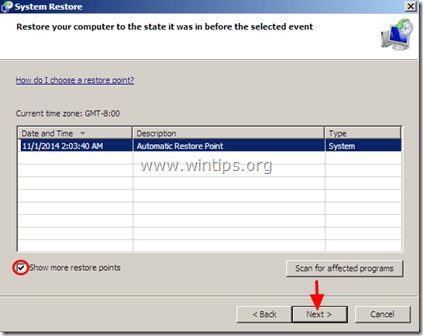
10. At the next screen, review your choices and press “Finish”.

11. Wait until “System Restore” process is completed and then restart your system normally.
That’s it!


- Remote Desktop (RDP/RDS) Stops Working After September 2026 Windows Update: How to Fix - September 15, 2026
- Windows 11 KB5124008 Causes No Sound or USB Audio Code 10: How to Fix - September 14, 2026
- Copilot Missing or Grayed Out in Outlook: How to Fix - September 10, 2026



