
How to Fix Sysprep Fatal Error [0x0f0085}, Could not load MSESysprep.dll (Solved)
On a Windows 7 Pro based machine the following error appears when running sysprep: "A fatal error occurred while trying to sysprep the machine".
The sysprep log file (setuperr.log) which is created under C:\Windows\System32\sysprep\Panther folder displays the following error(s):
" Error [0x0f0085] SYSPRP LaunchDll:Could not load DLL c:\Program Files\Microsoft Security Client\MSESysprep.dll[gle=0x0000007e]
Error [0x0f0070] SYSPRP RunExternalDlls:An error occurred while running registry sysprep DLLs, halting sysprep execution. dwRet = 126[gle=0x0000007e]
Error [0x0f00a8] SYSPRP WinMain:Hit failure while processing sysprep cleanup providers; hr = 0x8007007e[gle=0x0000007e] "
After receiving the above error I navigate to "c:\Program Files\Microsoft Security Client" folder but MSESysprep.dll file is missing from there. This could happen because Microsoft Security Essentials client was previously removed from the computer, but an invalid entry still exists in Windows Registry.
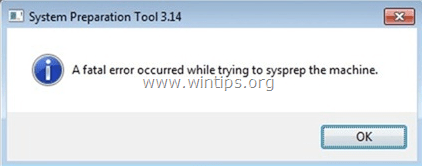
To fix the fatal error while trying to run sysprep in a Windows 7 machine follow the steps below:
How to resolve SYSPREP's "Could not load MSESysprep.dll" error on Windows 7.
Step 1: Remove the invalid entry from Windows Registry.
1. Open Windows Registry Editor. To do that:
- Press “Windows”
 + “R” keys to load the Run dialog box.
 - Type “regedit” and press Enter.


IMPORTANT: Before you continue to modify the registry, first take a registry backup. To do that:
a. From main menu go to File & select Export.
b. Specify a destination location (e.g. your Desktop), give a filename (e.g. “RegistryBackup”) and press Save.
2. Inside Windows Registry, navigate (from the left pane) to this key:
HKLM\software\Microsoft\Windows\CurrentVersion\Setup\Sysprep\Cleanup

3. Right-click at Cleanup key and select Permissions.

4. Select Administrators and then give Full Control permissions. Press OK when finish.

5. At the right pane, select and then delete the following value:
2D153B43-11B4-461F-AA43-832B2C8B8872 C:\Program Files\Microsoft Security Client\MSESysprep.dll,DllSysprep_Cleanup
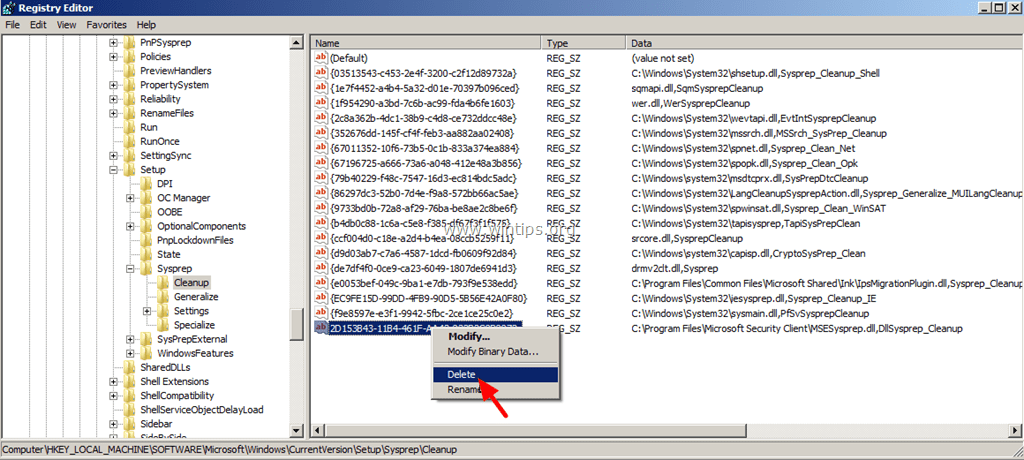
6. Close Registry Editor.
Step 2: Remove Sysprep's Panther folder.
1. Open Windows Explorer and navigate to C:\Windows\System32\sysprep\ folder.
2. Delete (or Rename) the Panther folder.

Now run sysprep again. Sysprep should run successfully and without problems.
That's it!


- Always On VPN Stuck on Connecting After KB5124008 Update: How to Fix - September 24, 2026
- How to Disable Passkey Prompts and Delay Enforcement in Microsoft 365 - September 24, 2026
- Remote Desktop (RDP/RDS) Stops Working After September 2026 Windows Update: How to Fix - September 15, 2026




January 8, 2019 @ 1:54 pm
Thank you!
September 6, 2017 @ 6:52 pm
Thanks! This helped!
May 9, 2017 @ 8:38 pm
Muito bom …. vlw pela ajuda
April 27, 2017 @ 1:50 am
DAMNN !!! thank you for all read truly
March 7, 2017 @ 3:25 pm
Worked like a charm. You saved my day, thanks a lot!
December 19, 2016 @ 11:23 pm
OMG. I have been fighting with this for three days. I was about to give up and use something like sidchnge on deployments. As soon as I read Microsoft Security Essentials I knew this was my fix because I had done exactly as you mentioned. Thankyou
June 30, 2016 @ 8:13 pm
Great tip! Spent too much of a day trying to find this. Thanks!!
May 31, 2016 @ 7:04 pm
Amazing….
May 17, 2016 @ 10:19 pm
Worked for me – Thanks a Bunch!!!
May 6, 2016 @ 10:37 pm
Thank you!! Thank you very match!
April 28, 2016 @ 4:02 pm
Thanks! Worked wonderfully
April 12, 2016 @ 4:14 pm
Woow this is amazing , saved my day thank u !
March 3, 2016 @ 9:13 pm
Worked perfectly. Great guide.
March 2, 2016 @ 11:44 am
Thanks. It worked….