
FIX: Settings icon missing from Windows 10 Start menu (Solved)
One of the most useful icons on Windows 10 Start  menu is the Settings
  icon. On some occasions (e.g. after a Windows Update or an invalid configuration) the Settings icon isn't displayed when you click at the Start button (Settings icon is missing).
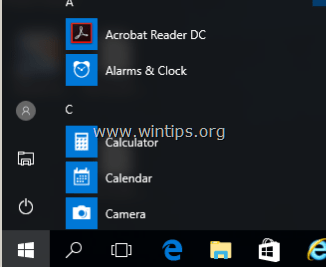
In this tutorial I 'll show to you on how to re-enable the Settings icon on the Start menu and resolve the missing Settings icon issue on Windows 10.
How to fix the Settings icon Missing issue on Windows 10.
Method 1. Enable Settings icon on Start Menu.
1. At Cortana's search box, type: settings
2. Click on Settings on the results

3. Select Personalization.
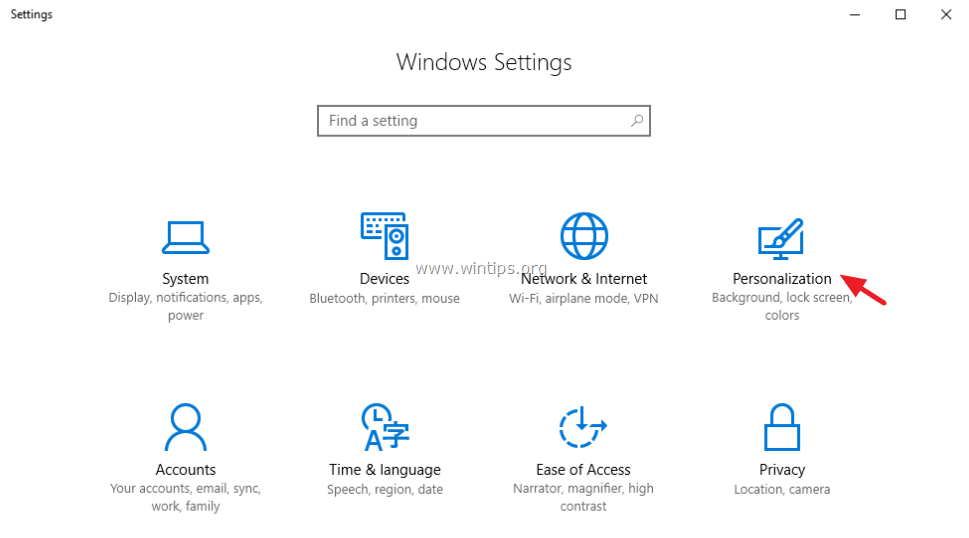
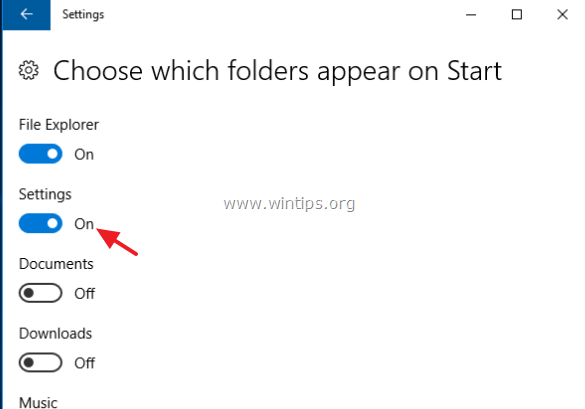
4. At Personalization settings, select Start at the left pane and then click on Choose which folders appear on Start at the right.

5. Drag the Settings switch to ON and you 're done! *
* Note: If the switch is grayed out (displayed) then continue to Method-2.
Method 2. Pin Settings to Taskbar or Start Menu.
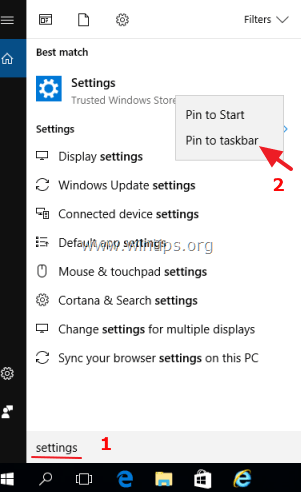
1. At Cortana's search box, type: settings
2. Then right click on Settings at the results and select Pin to taskbar or Pin to Start (menu).
That's it! Let me know if this guide has helped you by leaving your comment about your experience. Please like and share this guide to help others.



July 19, 2021 @ 6:18 pm
Thank you.
March 22, 2018 @ 11:04 pm
It didn't work. Toggling the setting to appear on the start menu had no effect. I had to toggle it off and on again because it was already set to show settings, but it still doesn't appear.
March 23, 2018 @ 6:27 pm
@Moo: Follow the instructions at Method-2 and pin the Setting to Taskbar or to Start menu.