
FIX: An integer between 96 and 8 is required in Photoshop CC 2018-2017 (Solved)
The Photoshop CC 2018/2017 error in Preferences "An integer between 96 and 8 is required. Closest value inserted" commonly appears on systems running Windows 10 with less that 2GB RAM. The "integer between 96 and 8 is required" error in Photoshop, appears when you try to access the Performance preferences (Edit > Preferences > Performance), after updating Windows 10.
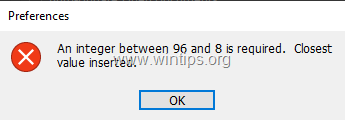
This tutorial contains instructions to resolve the following errors in Photoshop CC 2018 & 2017 in Windows 10:
- An integer between 96 and 8 is required. Closest value inserted
- Could not complete your request because of a problem parsing the JPEG data
- Could not complete your request because there is not enough memory (RAM)
- There was an error opening your printer. Printing functions will not be available until you have selected a printer & reopened any document
How to FIX: Photoshop CC 2018-2017 error "An integer between 96 and 8 is required" in Windows 10.
1. Close Photoshop.
2. Open the Registry Editor. To do that:
1. Simultaneously press the Win  + R keys to open the run command box.
2. Type regedit and press Enter to open Registry Editor.
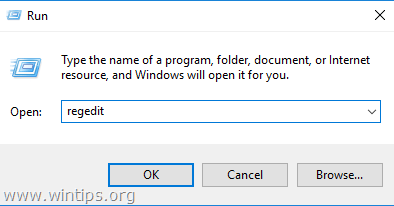
3. Navigate to the following registry key according to your Photoshop version: *
- Photoshop CC 2018: HKEY_CURRENT_USER\SOFTWARE\Adobe\Photoshop\120.0
- Photoshop CC 2017: HKEY_CURRENT_USER\SOFTWARE\Adobe\Photoshop\110.0
4. Select the "120.0" key if your have Photoshop 2018, or the "110.0" for Photoshop 2017).
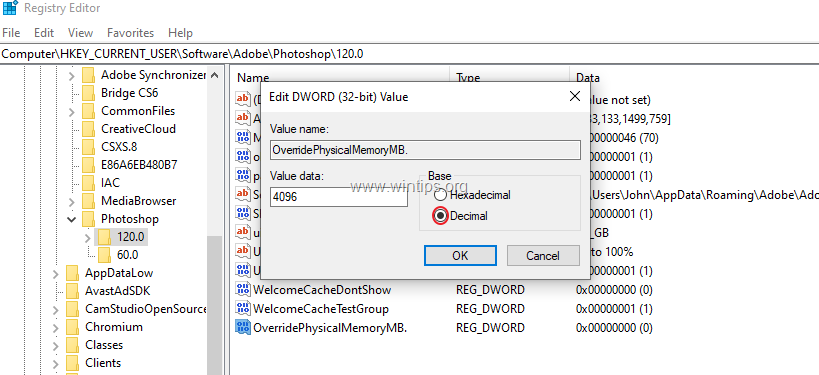
5. At the right pane create a new DWORD value with name "OverridePhysicalMemoryMB". To do that:
a. Right click at an empty space and choose New > DWORD (32-bit) Value
b. Give the name OverridePhysicalMemoryMB and press Enter.

6. Double click at the newly created value and modify the Value Data as follows:
a. Choose Decimal.
b. In the Value Data field, modify the value from 0 to a numeric value in Megabytes according the installed RAM on your system. (1GB = 1024MB). For example, if you have 4GB RAM type 4096, for 8 GB type 8192, for 16GB type 16384, etc..
c. When done, click OK.
7. Close the Registry Editor and open Photoshop.
That's it! Let me know if this guide has helped you by leaving your comment about your experience. Please like and share this guide to help others.


- Fix "The Trust Relationship Between This Workstation and the Primary Domain Failed" - September 8, 2026
- Fix New Outlook and Teams Not Opening After KB5121003 on ARM PCs - September 3, 2026
- Windows 11 KB5120998 Breaks Mouse Cursor and Wallpaper Personalization (FIX) - September 1, 2026

September 28, 2023 @ 1:41 pm
wow it was really helpful. thanks alot for your useful help. I very appreciate your help.
September 23, 2023 @ 10:09 pm
you rock man
July 12, 2023 @ 5:30 pm
Thanks. In addition to solving the problem, Photoshop's performance was faster
June 5, 2023 @ 3:29 am
Thank you so much!!!
May 17, 2023 @ 2:10 pm
This worked 100% correct for Photoshop_CC_2017_v18_64Bit.
Thanks You!
May 10, 2023 @ 8:57 am
very nice, thanks
September 7, 2022 @ 7:15 pm
It works. Thank you so much!!
July 30, 2022 @ 1:16 am
Worked like a charm, thank you so much!!
July 16, 2022 @ 10:31 am
that was great
thanks man!!!!!
June 10, 2022 @ 9:59 am
it was very helpful
May 19, 2022 @ 7:01 pm
Thank you. Worked well for Photoshop CC 2015 too.
March 21, 2022 @ 10:29 am
Nice Working !!!!!
January 20, 2022 @ 12:17 am
God bless you!!! This really helped me after much frustration….❤️❤️❤️❤️🥰🥰🥰🥰🎉🎉
January 19, 2022 @ 2:15 am
Thank you very much
December 16, 2021 @ 8:28 pm
This did help alot……thanks
December 4, 2021 @ 9:36 pm
thank you so much.
November 20, 2021 @ 1:09 pm
Thanks ❤️❤️❤️
September 30, 2021 @ 9:28 am
Very helpful thanks alot
September 4, 2021 @ 12:44 pm
It was very helpful, thank you
July 12, 2021 @ 12:07 pm
I faced this issue. I tried searching for solution from other sources but all failed because the steps given were not as detailed as presented here.
This solution has been very helpful and I recommend this space to all. Thank you very much.
July 7, 2021 @ 11:50 pm
I faced all these problems but I got rid of them with simple these steps:
1- Uninstall previous Photoshop
2- Open Run –> regedit, and find
HKEY_CURRENT_USER\SOFTWARE\Adobe\Photoshop
(Remove Photoshop Folder)
3- Reinstall Photoshop, choose Photoshop x86 (32-bit) If RAM 2GB for Slowly PC
May 31, 2021 @ 6:51 pm
Even photoshop cc 14 worked
May 14, 2021 @ 8:48 am
Wow amazing work and service.thank you very much.
May 13, 2021 @ 12:27 am
that was amazing it works , you saved my life. Thank you so much
April 16, 2021 @ 5:24 pm
Works!!!, thanks a lot.
April 13, 2021 @ 7:08 pm
it works. woww
thank you so much
March 9, 2021 @ 12:34 pm
wow its working
January 9, 2021 @ 3:56 pm
It works. Thank you so much :)
November 30, 2020 @ 4:53 pm
Wow!
Amazing service ,A lot of thanks for help me.