
FIX: Error 0x800700DF The file size exceeds the limit allowed and cannot be saved in SharePoint & WebDAV.
If you try to download or upload a file larger than 50MB in SharePoint Online (WebDAV) and you receive the "Error 0x800700DF: The file size exceeds the limit allowed and cannot be saved", then continue below to resolve the problem.
The error "The file size exceeds the limit allowed and cannot be saved", appears because the default download size limit in SharePoint (WebDAV) is 50MB (50000000 bytes). To solve the problem you need to increase the default limit size to a higher value.
This tutorial contains instructions to resolve the following error in Windows and WebDAV:
- An unexpected error is keeping you from copying the folder. If you continue to receive this error, you can use the error code to search for help with this problem.
Error 0x800700DF: The file size exceeds the limit allowed and cannot be saved.
How to Increase the Default Download Size Limit for SharePoint (WebDAV).
1. Open the Registry Editor and navigate to:
- HKEY_LOCAL_MACHINE\SYSTEM\CurrentControlSet\Services\WebClient\Parameters
2. At the right pane, double click at FileSizeLimitInBytes DWORD value.
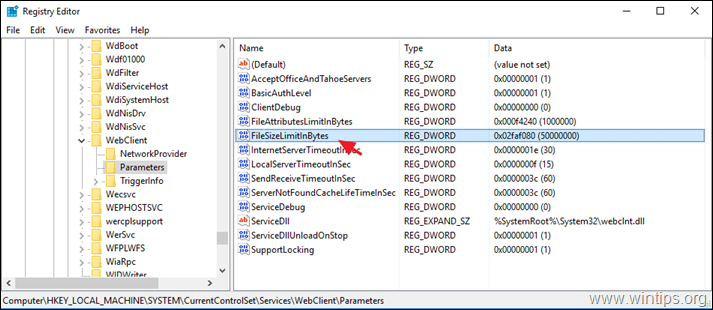
3. Modify the FileSizeLimitInBytes value from "50000000" to "4294967295" in decimal. *
* Info: This sets the maximum file size of a single file that you can download or upload from/to SharePoint (WebDAV) to 4 GB. which is the maximum value supported by Windows OS.
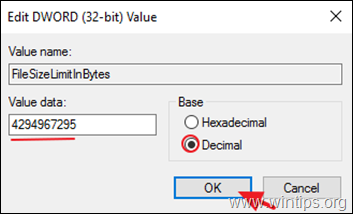
4. Close the Registry Editor and restart your computer, or restart the 'WebClient' service.
-
Related article: How to MAP SharePoint as a Network Drive in File Explorer.
That's it! Let me know if this guide has helped you by leaving your comment about your experience. Please like and share this guide to help others.


- How to Install Windows 11 26H2 on Unsupported Hardware - October 2, 2026
- How to Install Windows 11 version 26H2 - October 2, 2026
- How to Enroll an Entra Registered Device in Intune MDM - October 1, 2026

February 8, 2026 @ 3:12 pm
Thanks
October 6, 2024 @ 1:30 pm
Thanks a lot for this article!