
Change user account password in Windows 8
To add a new user account in Windows 8 OS, you must be a user with computer administrative rights. While adding a new user in Windows, the system requests a password for that user. But in most cases, users want to modify their password according to their needs.
If you are a standard user and you want to change your windows 8 password, you can follow the next easy steps to do that:
How to change User password in Windows 8:
Step 1: Open User Account options.
How to open “User Accounts” options in Windows 8.
There are two methods to open user accounts options in Windows 8.
Method 1: From Windows 8 “PC settings” option.
To open Windows 8 “PC Settings”:
1. Point your mouse at the bottom (or top) right corner OR press “Windows Key” + “C” to open Charms Bar.

2. Click on “Settings” (Gear) icon.

3. Click on “Change PC settings” option.

Method 2: From Windows 8 control panel.
To open Windows 8 control panel:
1. Right-click at the screen’s bottom-left corner and from the pop-up menu, choose “Control Panel“.

2. Select to “View by”: “Small icons”

3. Click to open “User accounts”
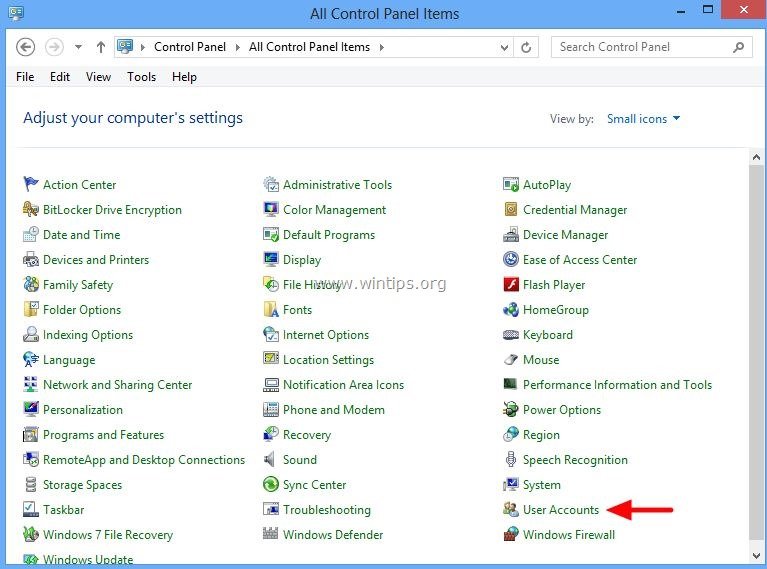
4. Now click on “Make changes to your user account”.

Step 2: Change your account password
1. In “Users” options, press “Change your password” option

2. Type your current password an press “Next” to proceed creating your new one.
That's it.


- Always On VPN Stuck on Connecting After KB5124008 Update: How to Fix - September 24, 2026
- How to Disable Passkey Prompts and Delay Enforcement in Microsoft 365 - September 24, 2026
- Remote Desktop (RDP/RDS) Stops Working After September 2026 Windows Update: How to Fix - September 15, 2026



