
How to Enable the Built-in Local Administrator account on Domain computers via Group Policy (GPO).
This tutorial contains step-by-step instructions on how to enable (or even disable) the local Administrator account on domain joined computers using a GPO.
As you know, the built-in Administrator account is disabled by default on any Windows computer. But if a computer is part of a domain, it's a good practice to have the Administrator account enabled so you can log into the client machine to manage it and to prevent unauthorized users from accessing the computer's data if they enable the administrator account.
In this article I will show you how to enable the built-in administrator account on Active Directory computers using Group Policy.*
* Note: After you enable the built-in Administrator on domain computers, you can use Microsoft's Local Administrator Password Solution (LAPS) to securely manage administrator passwords on each machine on the domain.
How to Enable/Disable the local Administrator account on Active Directory Domain computers via Group Policy.
To enable or disable the Local Administrator (built-in) account on domain PCs.
1. On your Domain Controller, open Server Manager and from the Tools menu open the Group Policy Management.
2. In Group Policy Management, either edit the default domain policy or -better- create a new group policy for the entire domain or just for the OU that contains the Computers on which you want to enable the local administrator account.*
* Note: In this example we proceed to enable the local administrator account in the "Workstations" OU that contains all the domain computers where we want this policy to apply.
3. Right-click and select Create a GPO in this domain, and Link it here…

4. Name the new GPO as "Enable Local Administrator" and click OK.

5. Now Edit the created GPO.

5. Go to Computer Configuration > Policies > Windows Settings > Security Settings > Local Policies > Security Options.
6a. Open the Accounts: Administrator account status policy.

6b. Here select Define this policy setting, check Enabled and click OK. *
* Note: To disable the built-in Admin account on domain pcs, set the policy to "Disabled"

7. Close all the Group Policy Management windows.
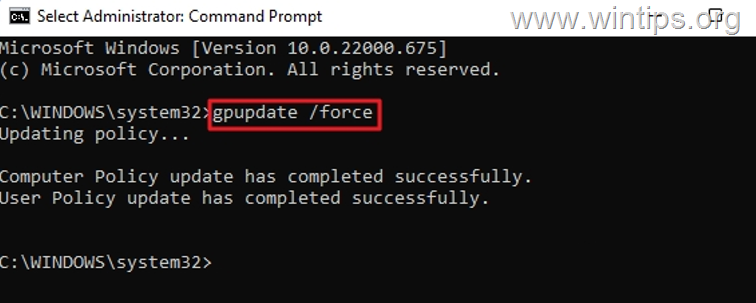
8. Finally, open Command Prompt as Administrator and give the following command to apply the changes (or restart the workstations):
- gpupdate /force
That's it! Let me know if this guide has helped you by leaving your comment about your experience. Please like and share this guide to help others.
Frequently Asked Questions
How do I enable the local Administrator account on domain computers using Group Policy?
To enable the local Administrator account via Group Policy, open Server Manager on your Domain Controller, access Group Policy Management, and either edit the default domain policy or create a new one for the relevant OU. Name the new GPO, edit it, and navigate to Security Options under Security Settings. Define the 'Administrator account status' policy, set it to 'Enabled', and apply changes using 'gpupdate /force' in Command Prompt.
Can I disable the built-in Administrator account on domain PCs using the same method?
Yes, to disable the Administrator account, follow the same steps in Group Policy Management. When configuring the 'Administrator account status' policy, set it to 'Disabled' instead of 'Enabled'.
What is the purpose of enabling the local Administrator account on domain computers?
Enabling the local Administrator account on domain computers allows for easier management of the client machine and helps prevent unauthorized users from accessing the computer's data by controlling the administrator account settings.
Can I manage administrator passwords on domain computers securely after enabling the account?
Yes, after enabling the built-in Administrator account, you can use Microsoft's Local Administrator Password Solution (LAPS) to securely manage administrator passwords on each machine within the domain.


- Always On VPN Stuck on Connecting After KB5124008 Update: How to Fix - September 24, 2026
- How to Disable Passkey Prompts and Delay Enforcement in Microsoft 365 - September 24, 2026
- Remote Desktop (RDP/RDS) Stops Working After September 2026 Windows Update: How to Fix - September 15, 2026



