How to Setup Windows 11 with a Local Account.
If you want to setup Windows 11 without a Microsoft account but with a local account, then read this guide to learn how to do it.
As you know, Windows 11 installation by default forces users to use a Microsoft account to use their computers and does not provide any option to use a local account.
More specifically, if you do not have an active Internet connection, do not have a Microsoft account, or do not want to set up Windows 11 with a Microsoft account and use a local account, you cannot proceed with the installation.
In this guide you'll find simple instructions on how to install Windows 11 with a Local Account on a desktop or laptop PC.
How to Set up Windows 11 without a Microsoft account.*
Update: The methods in this post no longer works. See the updated article here:
How to Install Windows 11 with Local Account (April 2025)
* Notes:
1. The methods below work either when you're doing a fresh clean install of Windows 11 or when you're first setting up a new PC/Laptop with Windows 11 pre-installed (aka Windows "Out of Box Experience" or "OOBE").
2. If you want to perform a clean installation of Windows 11, you can create a Windows 11 USB media that bypasses the Microsoft Account requirement, by reading the instructions on this article: How to Create a Windows 11 Install disk that bypasses Windows 11 Requirements (TPM, Secure Boot, MS Account)
Method 1. Setup Windows 11 with a Local Account by Disabling Network.**
* UPDATE: This method no longer works.
The first method to install Windows 11 without a Microsoft account is to not connect to the network or disable it.
1. When asked to add your Microsoft Account, press SHIFT + F10 keys to open a command prompt window.
* Note: In some laptops you may need to press the SHIFT + Fn + F10 keys.

2. Click inside the command prompt window, type the following command and press Enter:
-
ncpa.cpl

3. Right-click on each network connection (Wi-Fi and/or Ethernet) and click Disable, to disable all network connections.

4. After disabling all network connections, click again inside the command prompt window, type the following command and press Enter. (The computer will restart)
-
oobe\bypassnro

5. After restarting, specify the language options and when you reach again the Let's Connect you to a network screen, click I don't have Internet and then select the option Continue with Limited Setup.

6. Now type an account name (aka "Username") and click Next to finish the Windows 11 setup.

7. After finishing setup, follow the steps 7 & 8 in method-1 above to re-enable the network connections and you're done!
Method 2. Install Windows 11 with a Local account by closing the "Network Connection Flow" process.*
* UPDATE: This method no longer works.
Another method to install Windows 11 with a local account, is to stop the "Network Connection Flow" process using task manager.
1. At the "Let's connect you to a network" screen, press SHIFT + F10 on the keyboard simultaneously, to open a command prompt window.
* Note: On some laptops you may need to press SHIFT + Fn + F10.

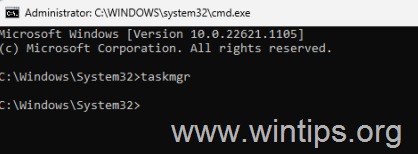
2. Click inside the command prompt window, then type "taskmgr" and press the Enter key to open Task Manager.
4. Select the Network Connection Flow process and then click the End Task button to close the "Let's connect you to a network" screen.

5. Proceed ahead to create a local user account and finish the Windows 11 setup.
That's all folks! Which method worked for you?
Please leave a comment in the comment section below or even better: like and share this blog post in the social networks to help spread the word about this solution.
Frequently Asked Questions
Can I install Windows 11 without a Microsoft account?
Yes, you can install Windows 11 without a Microsoft account by setting up a local account; however, the methods previously used for this might no longer work as updates are implemented.
What should I do if Windows 11 asks for a Microsoft account during installation?
If prompted to use a Microsoft account, try to disable your network to bypass the requirement. You can also attempt to close the "Network Connection Flow" process via Task Manager, though be aware these methods have been recently updated and might not work.
How can I disable network connections during Windows 11 setup?
Press SHIFT + F10 to open the command prompt, type 'ncpa.cpl' and disable each network connection. Afterward, restart your computer with the command 'oobe\bypassnro' to continue with limited setup without the need for Internet.
Why don't the previous methods to install Windows 11 without a Microsoft account work anymore?
The methods have been updated or deprecated by changes in the Windows 11 setup process. Please refer to the most recent guidelines or articles for the latest instructions.


- Apps and Games Crash After KB5124010 Due to AC-3 Audio: How to Fix - October 5, 2026
- How to Fix Windows 11 Update Error 0x80073712 - October 5, 2026
- How to Install Windows 11 26H2 on Unsupported Hardware - October 2, 2026