
FIX: Could not connect to AnyDesk network.
If you could not connect to the AnyDesk network despite the fact that your Internet connection is working, continue reading below to fix the problem.
As you know, AnyDesk is a reliable tool for remotely accessing a computer from anywhere. However, from time to time, users encounter the connection errors "Could not connect to AnyDesk network" & "Disconnected from the AnyDesk network" for no apparent reason.

What Causes the "Could Not Connect to AnyDesk Network" Error?
AnyDesk connection issue can be related to a number of reasons, including:
- Internet connection issues — unstable or no internet access
- Incorrect Date/Time.
- Firewall or antivirus blocking AnyDesk
- Router or network restrictions (e.g., corporate networks)
- AnyDesk server issues or maintenance
- Outdated AnyDesk version
- Incorrect DNS settings
How to FIX: Could not connect to AnyDesk network on Windows 11/10.
Method 1.Make Sure that Date/Time Settings are correct.
The main cause of AnyDesk connection problem is incorrect date/time settings. Specifically, if the computer's time settings are not accurate with your time zone or the time and date are incorrect,* then AnyDesk will not be able to connect to the network. To fix this:
* Note: This usually happens after a clean install of Windows.
1. Verify that your Internet connection is working by visiting several sites.
2. Close AnyDesk.
3. Go to Start > Settings > Time & Language > Date & Time and set the correct time zone for your region. Then turn the Set time automatically switch off and on again to update the time.

4. Now proceed and delete the "AnyDesk" folder from these locations:*
- C:\Program Files\
- C:\ProgramData\
- C:\Users\Admin\AppData\Roaming\
* Note: To easily navigate to the above locations, simply copy and paste the above paths into the File Explorer address bar and hit Enter.

5. Restart your PC.
6. Run AnyDesk and check if the connection problem is resolved.
Method 2. Allow AnyDesk in Firewall.
Another reason for AnyDesk connection problems is the Firewall. To allow AnyDesk in Windows Firewall.*
* Note: These instructions only apply if you have AnyDesk installed on your computer and not if are running the portable version of AnyDesk.
1. Type "firewall" in Search and then open Firewall & network protection from the results.

2. In 'Firewall & network protection' panel click Allow an app through firewall/

3. Here, make sure AnyDesk is allowed on both the Private and Public networks by selecting the relevant checkboxes and then press OK.

4. Finally, restart your PC and try to connect to AnyDesk network.
Method 3. Change DNS Settings.
Sometimes AnyDesk cannot connect to the network due to existing DNS settings. So, do the following:
1. Press the Windows + R keys to open the Run command box.
2. Type "ncpa.cpl" and hit OK.

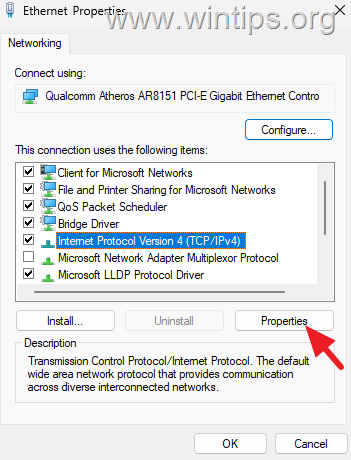
3. Right-click on the active network connection (e.g. "Ethernet", if you're connected to the network through an Ethernet cable, or "Wi-Fi" for Wireless) and choose Properties.

4. Now select the Internet Protocol Version 4 (TCP/IPv4) and click Properties.
5. At Internet Protocol Version 4 (TCP/IPv4) Properties window, do the following:
- Select Use the following DNS server addresses
- Type "8.8.8.8" below which is the address of Google's DNS server.
- Click OK twice to apply the change and then close all windows.

6. Finally, run AnyDesk and check if can connect to AnyDesk network.
Method 4. Update AnyDesk.
If any of the above methods do not resolve the AnyDesk connection problem, then uninstall AnyDesk and then download and install the latest version of AnyDesk.
Additional Help:
If the problem is not fixed after the above, try the following:
- Check if AnyDesk is working (connecting) after disabling Windows Firewall or any third-party firewall you may be using. To check this, close and uninstall AnyDesk, then disable the Firewall, then run AnyDesk. If it connects, then reinstall it, then re-enable the Firewall.
- Check if the problem still exists even if you connect your computer to another network, because some networks may have restrictions on the services they provide.
That's it! Which method worked for you?
Let me know if this guide has helped you by leaving your comment about your experience. Please like and share this guide to help others.
Frequently Asked Questions
What should I do if AnyDesk cannot connect despite a working internet connection?
Check for common issues such as incorrect date/time settings, firewall restrictions, or outdated AnyDesk versions. Follow specific troubleshooting steps like verifying your date/time settings, allowing AnyDesk through the firewall, and updating your DNS settings.
Why does AnyDesk sometimes fail to connect to the network?
Connection issues may stem from unstable internet connections, incorrect system date/time, firewall or antivirus restrictions, network restrictions, server issues, outdated AnyDesk versions, or incorrect DNS settings.
How can I fix the AnyDesk network connection error on Windows 11/10?
Start by verifying your internet is stable, correct the date/time settings, ensure AnyDesk is allowed in the firewall, update the DNS settings, or update to the latest AnyDesk version. Restart your PC after making changes to confirm they take effect.
What additional steps can be taken if AnyDesk still doesn't connect after following common fixes?
Try disabling the Windows Firewall or any third-party firewall temporarily to see if it helps. Ensure that no network restrictions are in place, and reconsider reinstalling AnyDesk to the latest version.


- Always On VPN Stuck on Connecting After KB5124008 Update: How to Fix - September 24, 2026
- How to Disable Passkey Prompts and Delay Enforcement in Microsoft 365 - September 24, 2026
- Remote Desktop (RDP/RDS) Stops Working After September 2026 Windows Update: How to Fix - September 15, 2026



