
FIX: Shared Calendar is Missing after Restarting Outlook.
If after adding a shared calendar to Microsoft Outlook, it disappears after restarting Outlook, see below how to fix the problem.
Symptom: Shared calendars disappear every time you restart Microsoft Outlook desktop app and you have to add them again.
How to fix: Office 365 Shared Calendar is Missing after Outlook Restart.
Method 1. Turn Off Shared Calendar Improvements.
1. From the File menu, click Account Settings and then click again Account Settings.

2. In Email tab, double-click on your Exchange Online/Microsoft365/Office365 account.

3. On 'Exchange Account Settings' window, click More Settings.

4a. In Advanced tab, uncheck the Turn on shared calendar improvements feature.
4n. Click Apply > OK and then click Next and then Done to close the Account Settings window.

5. Restart Outlook to apply the change.
6. Now proceed to add the shared calendar.
7. Finally, restart Outlook again to make sure that the shared calendar still exists. Normally the problem should be resolved! If not, continue to next method.
Method 2. Reset Outlook Navigation Pane.
The navigation pane is the left pane of Outlook where you can find all your Outlook email folders and calendar, contacts, tasks, etc. If the navigation pane settings are corrupted, then Outlook may not display all its folders correctly.
1. Close Outlook.
2. Simultaneously press the Windows  + R keys to open run command box.
3. Type the below command to reset the Outlook navigation pane and press Enter:
- outlook.exe /resetnavpane

4. Now re-add your calendar, restart Outlook and check if the problem persists.
Method 3. Update Microsoft Outlook app.
Since this problem may appear in outdated versions of Microsoft Outlook, do the following:
1. From the File menu select the Office Account tab on the left.
2. Click on Update Options and then click Update Now to find and install the latest updates for Microsoft Outlook.

3. Wait for the tool to check and download the available updates.
4. When prompted, save your work, click Continue to close all Microsoft Office applications and wait to install the update(s).
5. After updates installation, open Microsoft Outlook, re-add the shared calendar and then restart Outlook again to see if the shared calendar is still there!
Method 4. Repair Microsoft Office.
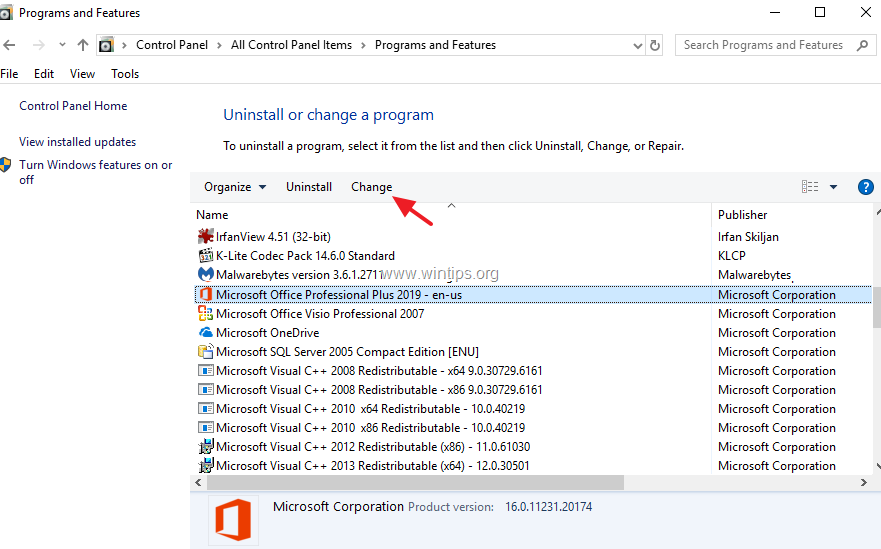
The next method to resolve the mentioned issue, is to repair the Office installation by following the steps below:
1. Simultaneously press the Windows + R keys to open run command box.
2. In run command box, type: appwiz.cpl and press Enter.

3. In Programs and features, select the Office version you have installed, and click Change.
4. Leave the Quick Repair option selected and click Repair.
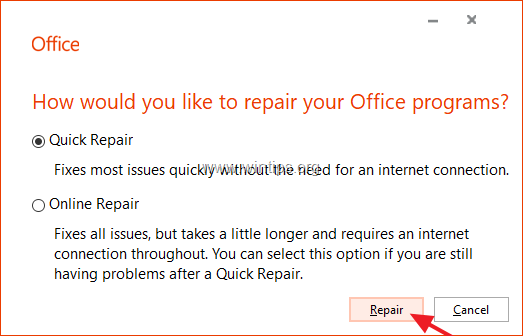
5. When the Office repair process is completed, launch any Office application and see if the problem persists. If so, then follow the same steps but this time select the Online Repair option. *
* Note: The "Online Repair" process, will remove and then will reinstall all the Office applications on your PC.

Method 5. Completely Uninstall & Re-Install Microsoft Office.
The final method to solve the mentioned problem is to uninstall and reinstall MS Office.
1. Close all Office programs.
2. Download Microsoft's Office Uninstall support tool utility (Source).
3. Double-click to run the downloaded SetupProd_OffScrub.exe file and then click Install.

4. Choose I Agree at License Agreement and then let the Troubleshooter to find the installed MS Office products.
5. At Uninstall Office Products, select to uninstall all Office products and click Next.

6. When the Office uninstallation is complete, restart your computer.
7. Finally, proceed to install Microsoft Office again. *
* Notes:
1. To install Office 2019, 2016 or Office 2013, follow these instructions: Download and install or reinstall Office 2019, Office 2016, or Office 2013
2. To install Office 365 or Office 2019, follow these instructions: Download and install or reinstall Microsoft 365 or Office 2021 on a PC or Mac.
That's it! Which method worked for you?
Let me know if this guide has helped you by leaving your comment about your experience. Please like and share this guide to help others.
Frequently Asked Questions
Why do shared calendars disappear every time I restart Microsoft Outlook?
Shared calendars may disappear due to issues with shared calendar improvements. This can be fixed by turning off the shared calendar improvements feature or by following other troubleshooting methods.
How can I turn off shared calendar improvements in Outlook?
Navigate to File > Account Settings > Account Settings. Under the Email tab, double-click your Exchange account, then go to More Settings > Advanced tab, and uncheck 'Turn on shared calendar improvements'. Apply the changes and restart Outlook.
What should I do if turning off shared calendar improvements does not work?
If the issue persists, try resetting the Outlook navigation pane, updating Microsoft Outlook, repairing Microsoft Office, or ultimately uninstalling and reinstalling Microsoft Office.
How can I reset the Outlook navigation pane?
First, close Outlook. Then, press Windows + R, type 'outlook.exe /resetnavpane' into the run command box, and press Enter. After this, re-add your calendar and restart Outlook to see if the issue is resolved.


- Always On VPN Stuck on Connecting After KB5124008 Update: How to Fix - September 24, 2026
- How to Disable Passkey Prompts and Delay Enforcement in Microsoft 365 - September 24, 2026
- Remote Desktop (RDP/RDS) Stops Working After September 2026 Windows Update: How to Fix - September 15, 2026



