How to Create a LAPS Policy for Microsoft Entra-Joined Devices (Microsoft 365).
In this guide, you'll learn how to create a LAPS Policy in Intune to automatically manage and back up the Windows local administrator password of any Microsoft Entra-joined device in Entra ID or/and Intune.
Securely managing local administrator account passwords is a critical part of security in Microsoft 365. Windows Local Administrator Password Solution (LAPS) eliminates security risks by generating random local administrator passwords and backing them up to your Microsoft Entra ID. This ensures that unauthorized users cannot easily gain access to administrative privileges, thereby enhancing the security posture of your organization.
If you own Microsoft Entra joined devices, implementing Windows LAPS (Local Administrator Password Solution) ensures that each device has a unique, automatically rotating local administrator password, stored securely in the cloud. This automated process reduces the administrative overhead of manually managing passwords and enhances security by ensuring password uniqueness and regular rotation.
How to Enable LAPS in Microsoft 365 & Deploy a LAPS Policy for the Microsoft Entra Joined Windows Devices (Azure AD joined)
Requirements:
- Devices are Microsoft Entra joined
- Devices are managed by Intune
- Microsoft 365 admin credentials
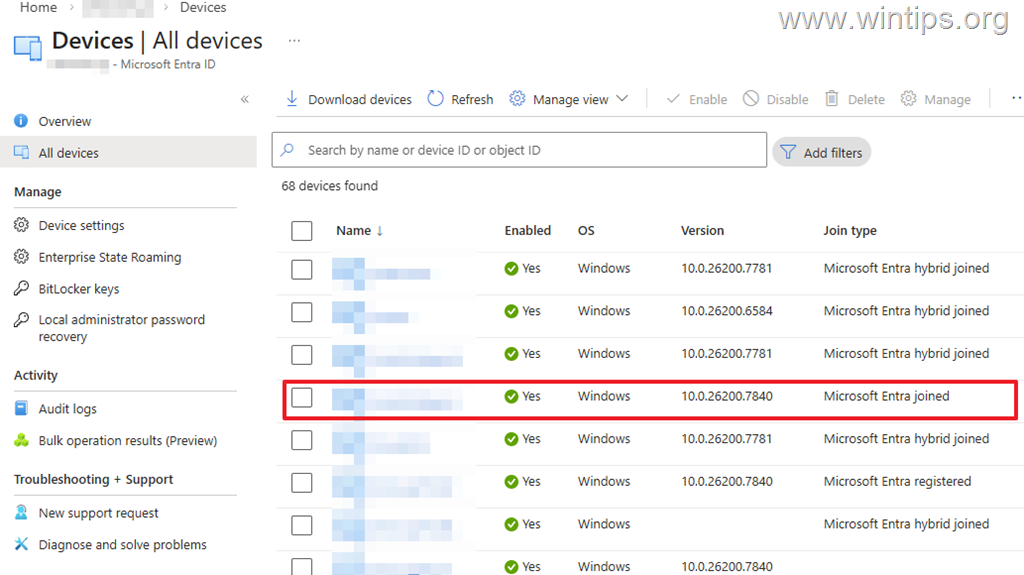
* Important Note: These instructions apply only to devices joined in Entra only. If your devices are hybrid-joined, then you need to enable LAPS via Group Policy on your on-premises Active Directory.
Step 1. Enable Local Administrator Password Solution (LAPS) in Microsoft Entra.
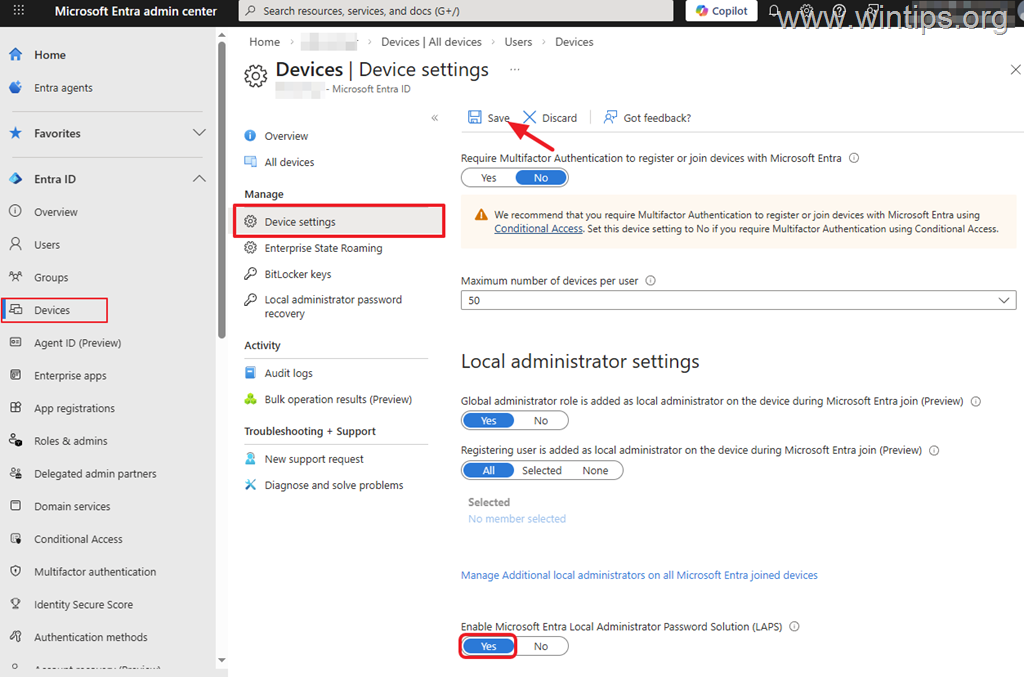
The first step, before creating a LAPS Policy, is to enable the Local Administrator Password Solution (LAPS) feature in the Entra admin center. This activation allows the system to begin managing and storing local administrator passwords securely.
1. Navigate to Entra admin center > Devices > Device settings.
2. Set Enable Microsoft Entra Local Administrator Password Solution (LAPS) to Yes and click Save.
Step 2. Create an Account Protection Policy for LAPS in Intune.
Proceed to the steps below to create and assign a LAPS Policy to Microsoft Entra Joined Devices (formerly Azure AD joined). This policy will define how passwords are managed, stored, and rotated, providing a structured approach to password security.
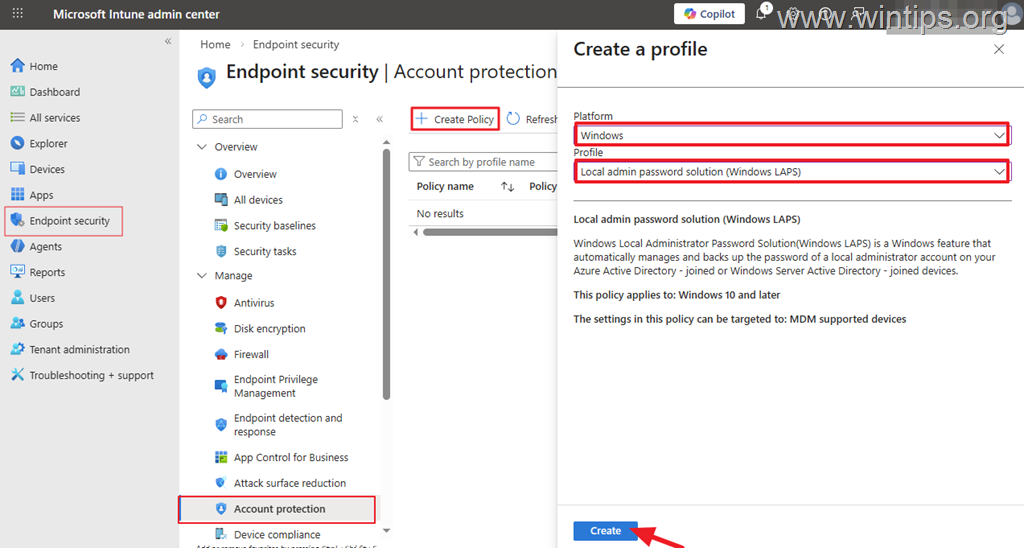
1. Navigate to Microsoft Intune admin center > Endpoint security > Account Protection and Create a new Policy.
2. Select Platform: Windows & Profile: Local admin password solution (Windows LAPS), and then click Create.
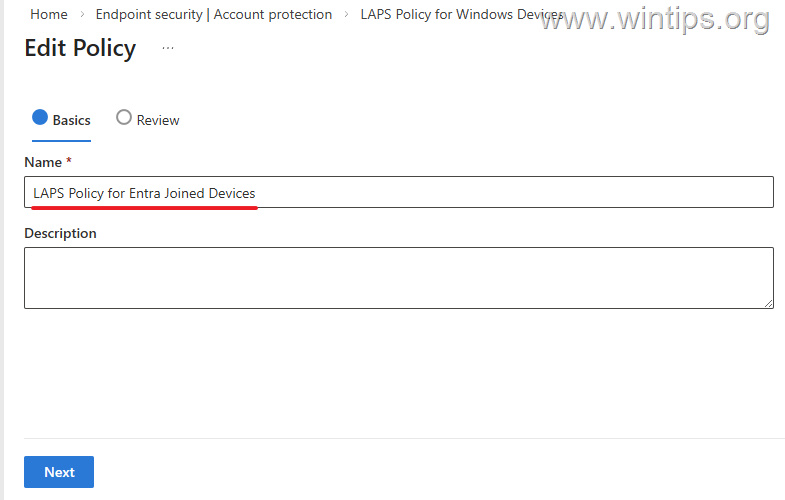
3. Type a name for the new policy (e.g., "LAPS Policy for Entra Joined Devices") and optionally add a description below, then click Next.
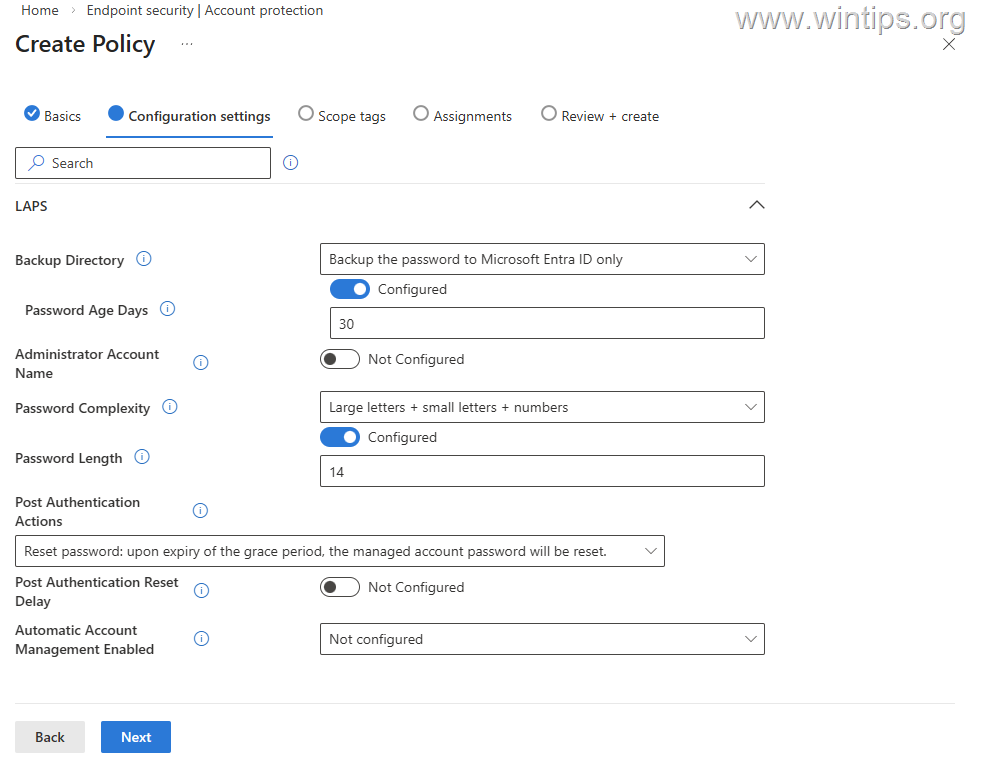
4. On the Configuration settings, select where to back up the local administrator password (e.g., to Azure AD or to Entra ID), the password age, length, and complexity, then click Next.
* For the purpose of this tutorial, I have selected the following settings:
-
Backup Directory: Backup the password to Microsoft Entra ID only
-
Password Age Days: 30
-
Password Complexity: Use letters + small letter + numbers
-
Password Length: 14
-
Post Authentication Actions: Reset password: upon expiry of the grace period, the managed account password will be reset.
5. Click Next on the Scope tags.
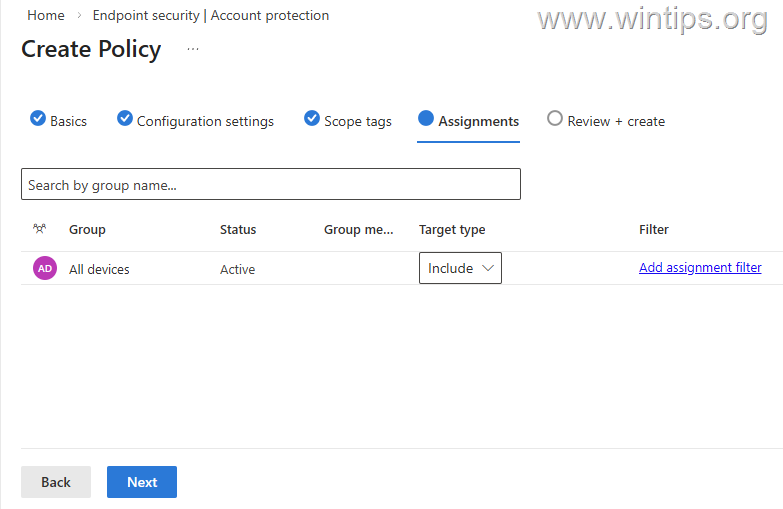
6. On the Assignments settings, add the "All devices" group or select the group of devices you want to assign the LAPS policy to. When done, click Next.
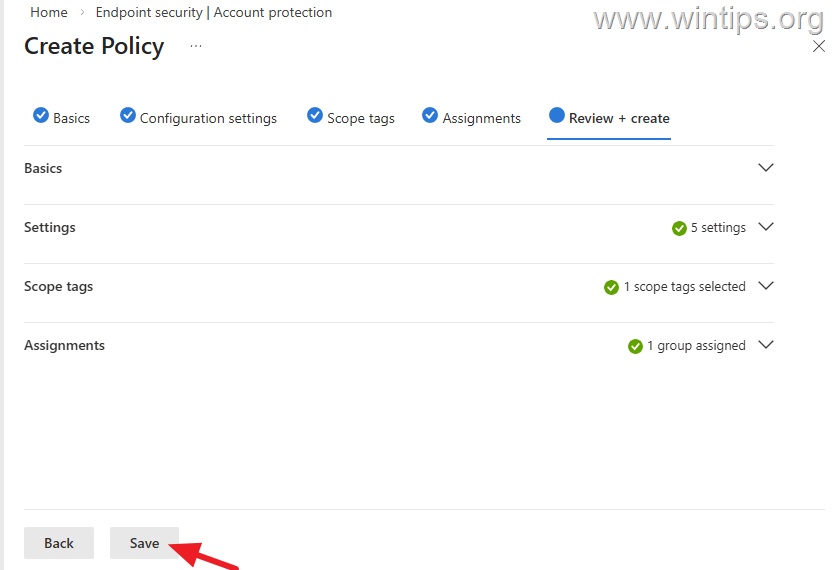
7. Finally, review and click Save to create and assign the new policy to the selected group of devices.
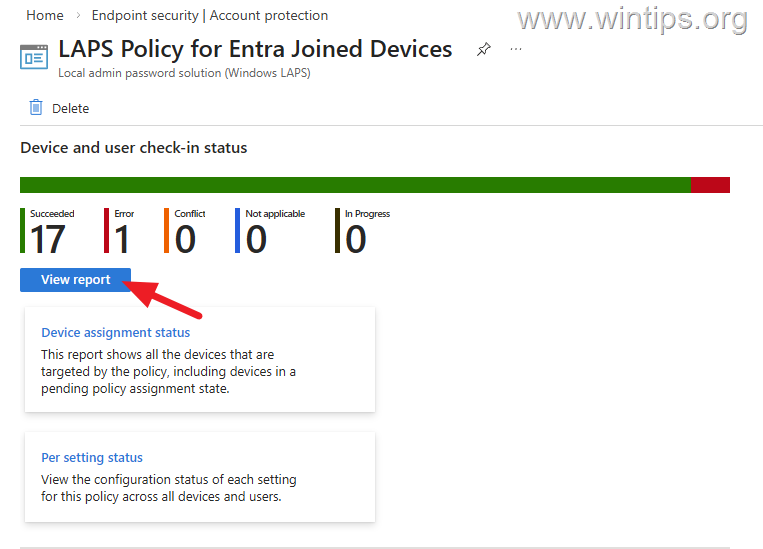
8. Now wait some time for the policy to be applied to the selected device group. Then, click on the policy you created and view the report to see on which devices the policy has been applied.
Step 3. View the Local Administrator Password for a Device.
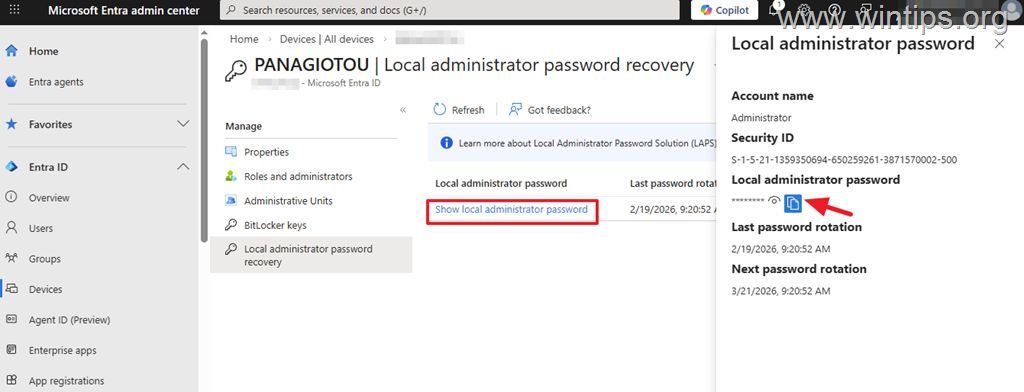
Once the LAPS policy is applied to a Windows Device, open the device's properties in Intune or in the Entra admin center to retrieve the local administrator password of the device. This allows administrators to access the password when necessary for troubleshooting or administrative tasks.
For example, to see the Local Administrator password in the Entra admin center:
1. Go to Devices > All devices
2. Select a device that has been assigned the LAPS policy.
3. Click Local administrator password recovery and then select Show local administrator password.
Summary:
Creating a LAPS policy for devices joined to Microsoft Entra is one of the most important security actions you can take in Intune, and it only takes a few steps to do so. Simply enable LAPS for your tenant, then define in a new policy where local administrator passwords will be stored and how often they will be renewed. This guide has provided you with a comprehensive approach to setting up LAPS, ensuring your organization's devices remain secure.
That's it! Let me know if this guide has helped you by leaving your comment about your experience. Please like and share this guide to help others.
Frequently Asked Questions
What is the purpose of Windows LAPS in Microsoft 365?
Windows Local Administrator Password Solution (LAPS) provides a secure way to manage local administrator account passwords by generating random, unique passwords for each device and backing them up securely in Microsoft Entra ID. This reduces security risks and administrative workload by automating password rotation and storage.
What are the requirements to enable LAPS on Microsoft Entra joined devices?
To enable LAPS on Microsoft Entra joined devices, you'll need devices that are Microsoft Entra joined and managed by Intune, along with Microsoft 365 admin credentials.
How do I enable the LAPS feature in Microsoft Entra?
To enable LAPS, navigate to the Entra admin center, go to Devices > Device settings, set Enable Microsoft Entra Local Administrator Password Solution (LAPS) to Yes, and then click Save.
What are the basic steps to create a LAPS policy in Intune?
First, go to the Microsoft Intune admin center, then Endpoint security > Account Protection, and create a new policy. Select Windows as the platform and the Local admin password solution (Windows LAPS) profile, then configure settings like backup directory, password complexity, and assignments. Finally, review and save the policy.


- Apps and Games Crash After KB5124010 Due to AC-3 Audio: How to Fix - October 5, 2026
- How to Fix Windows 11 Update Error 0x80073712 - October 5, 2026
- How to Install Windows 11 26H2 on Unsupported Hardware - October 2, 2026