
How to Resolve Hyper Backup Error "Failed to Export System Configuration" on Synology NAS.
If you are using Hyper Backup to back up your Synology NAS data to another source (e.g., a USB drive, Google Drive, etc.) and suddenly the backup job fails with the error "Failed to export system configuration", continue reading below to learn how to fix the problem.
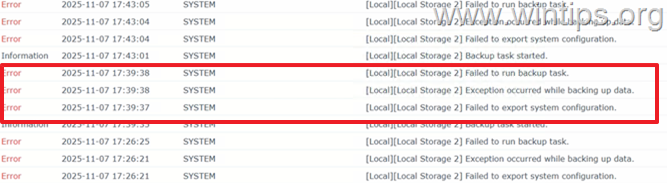
The issue in detail: Synology's Hyper Backup jobs were running without any problems, but suddenly they started failing immediately after starting and the following error messages appear in the Log:
- Failed to run backup task.
- Exception occurred while backing up data.
- Failed to export system configuration.
Why might a Hyper Backup Task fail?
Here are the common reasons why the Hyper Backup job might fail with error "Failed to export system config":
- The configuration settings of the Hyper Backup Task have become corrupted (especially after a DSM Update).
- "Admin" account username capitalization glitch.
- Insufficient permissions on one or more source folders, preventing Hyper Backup from accessing the data that needs to be backed up.
- Source folders that have been moved, renamed, or deleted, while still being referenced in the backup task configuration.
In this guide, you'll find step-by-step instructions to fix the Hyper Backup task error "Failed to export system configuration" on Synology NAS.
How to Fix Synology Hyper Backup Failed to Run Backup Task with error "Failed to export system configuration":
* Important: After implementing the instructions in each step, run the Hyper Backup task again to see if the problem is fixed before continuing with the next step.
Step 1. Restart the NAS.
Sometimes, a simple restart of the NAS resolves Hyper Task Backup errors. Restarting the NAS can help clear temporary system issues and refresh system processes that might be causing the backup task to fail.
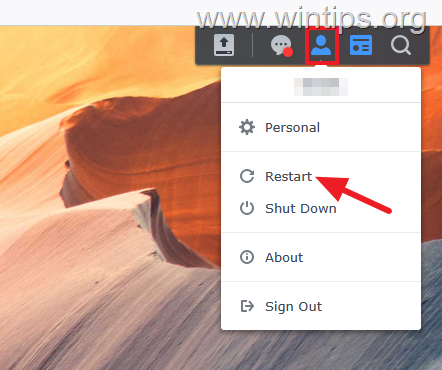
1. To restart your NAS, click on the Account icon on the top right corner and click Restart.
Step 2. Ensure "admin" account is named "admin" and NOT "Admin"
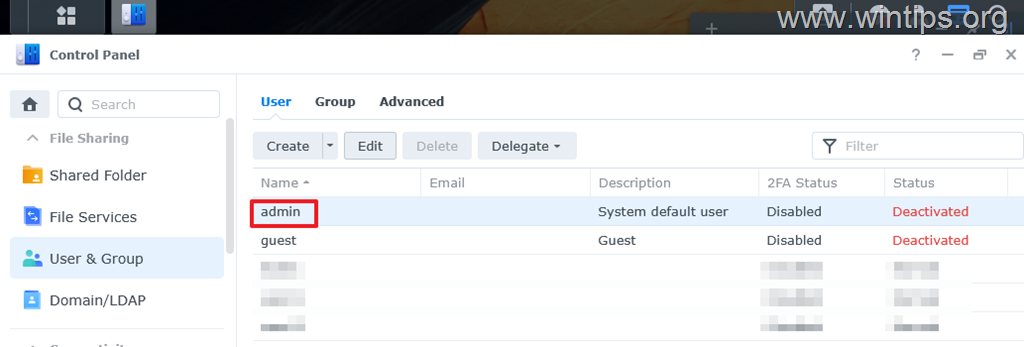
After updating DSM to version 7.1 or later, Hyper Backup sometimes fails if the first letter of the "admin" account is written in uppercase (e.g. "Admin"). This is because certain system processes may fail to recognize the capitalized username. To verify that is not the cause of the problem:
1. Go to Control Panel > User & Group.
2. On the right side, look at the built-in admin account. If it shows as Admin (with capital A), click the Edit button and change it to admin (with lowercase a).
* Info: You can keep the account deactivated (disabled).
Step 3. Mount Encrypted Shared Folders.
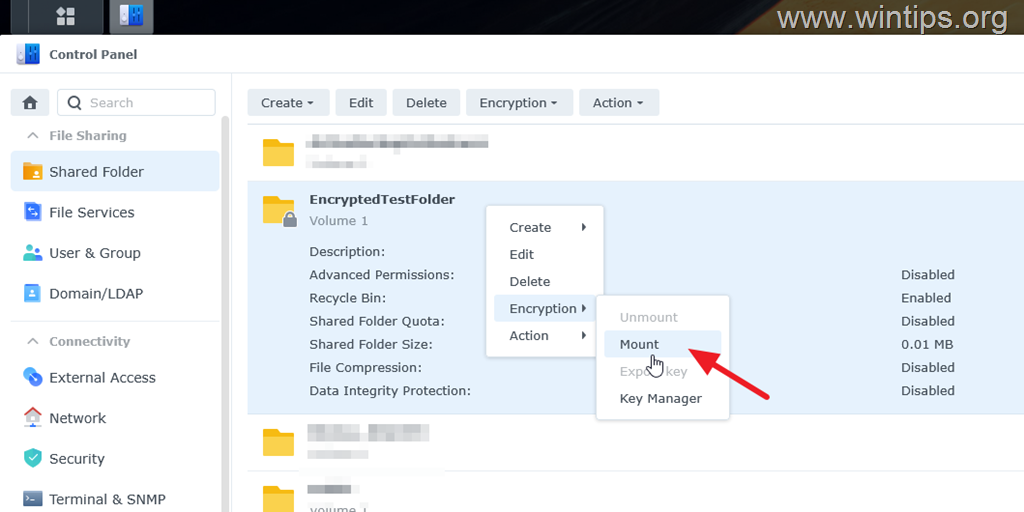
If you're working with Encrypted Shared Folders, you have to mount them for Hyper Backup to work. Mounting encrypted folders allows the system to access and decrypt the data, enabling successful backup operations.
* Info: To mount an encrypted folder: go to Control Panel > Shared folders then right-click on the encrypted shared folder and select Mount.
Step 4. Download and review Hyper Backup detailed logs.
Since the DSM Log Center logs do not show the exact cause of the error, download and view the detailed log file to find the real cause of the failed Hyper Backup job. Detailed logs provide in-depth insights into the system's operations and can help identify specific errors or issues.
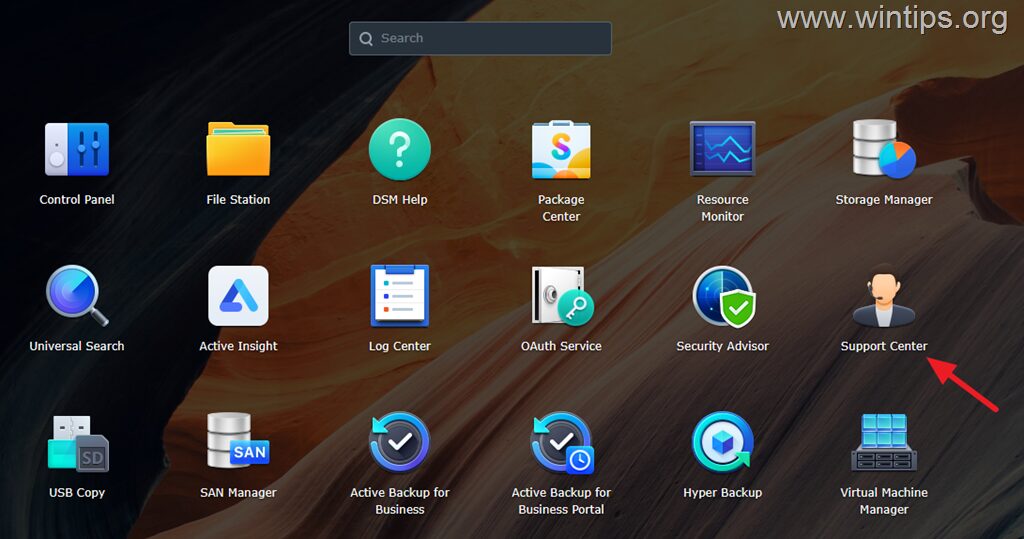
1. Open the Support Center.
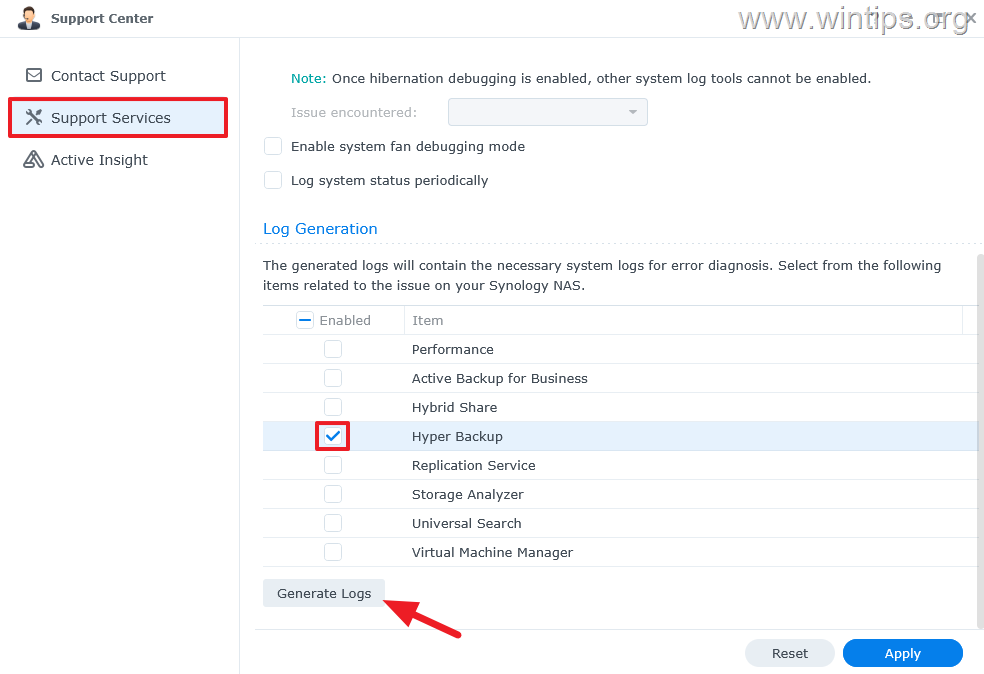
2. Click on Support Services. Under Log Generation select the Hyper Backup and click Generate Logs.
3. Wait until the "debug.dat" file containing the detailed logs is downloaded.
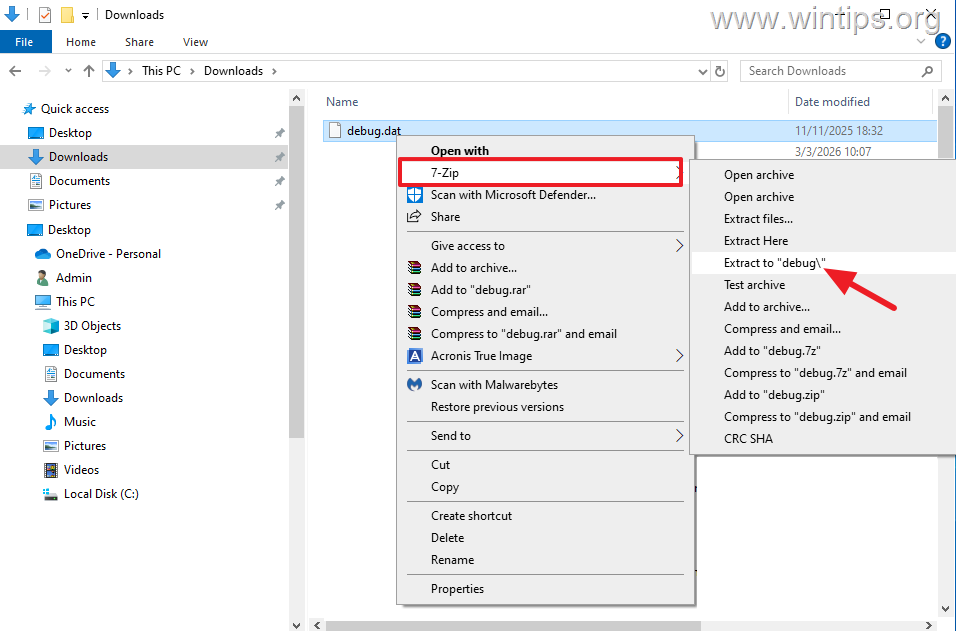
3. Download & install & 7-Zip file archiver program.
4. Right-click on the downloaded "debug.dat" file and select 7-Zip > Extract to "debug\" to decompress it to a folder named "debug" in the same location.
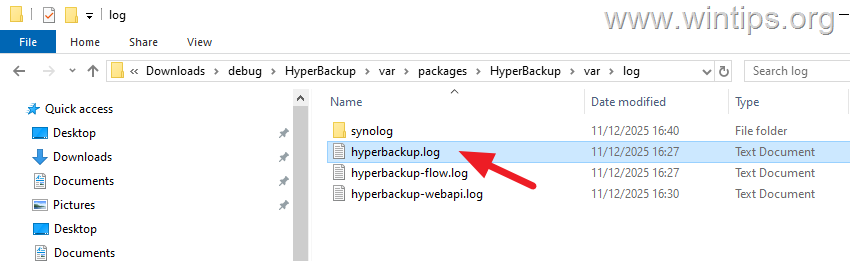
5. Open the "debug" folder and navigate to this location:
-
HyperBackup\var\packages\HyperBackup\var\log
6. Finally, open the "hyperbackup.log" file with Notepad to see a detailed log of Hyper Backup actions and errors.
Step 5. Check for Missing Source Folders or Permission Issues.
Two common reasons a Hyper Backup job may fail are:
1. One or more source folders included in the backup task configuration no longer exist, &
2. The backup task does not have sufficient permissions to access the source folders.
To check if one of the above is the cause of the problem, check the hyperbackup.log file for the following errors. If any of them appear, follow the suggested solution below to resolve the problem.
-
user has no permission to list target in /volume1/folder
-
Error: get target list failed /volume1/folder
Info/Suggestion: These errors mean one of the following:
a. The user who created the Hyper Backup task under, does not have permissions to the referenced folder. To fix this, give to the user -at least- read permissions on the referenced folder.
b. The referenced folder does not exist (e.g., after deletion). To fix this problem, edit the Hyper Backup job settings and exclude this folder from the backup, or try recreating the missing folder.

Step 6. Check for Unmounted Encrypted folders.
As mentioned in Step-3 above, encrypted shared folders must be mounted for Hyper Backup to access them and complete the backup process.
Follow the steps below to verify if this is the cause of the problem:
1. Search in the hyperbackup.log file for the following error:
-
Failed to create snapshot, err [55552]
2. If the error is found, check the line above the error for the log entry named "device path" that references a specific shared folder (similar to the example shown in the screenshot below).
3. If such a path exists, it indicates that the referenced shared folder (for example, “Sales123” in this case) is missing or encrypted but not currently mounted.
4. To resolve the issue, mount the encrypted shared folder and then run the Hyper Backup task again (see Step-3 above for instructions). If the folder does not exist, either remove it from the backup task or re-create the folder.

Step 7. Check hyperbackup.log for other errors.
Since it is not possible to cover all possible Hyper Backup errors in this guide, you should carefully review the hyperbackup.log file for any additional errors listed.
If you encounter an error that is not listed here, search online for the specific error message to find troubleshooting steps or solutions provided by the community or Synology documentation.
Step 8. Delete and Recreate the Failed Hyper Backup Job.
Sometimes the solution to fix the error "Failed to Run backup task" in Hyper Backup is to delete the failing task* and create a new backup task with the same settings from scratch. Recreating the task can resolve configuration issues that might not be apparent.
* Info: To delete a Hyper Backup job, select the task from the left and then click the three-dashes button  and select Delete.
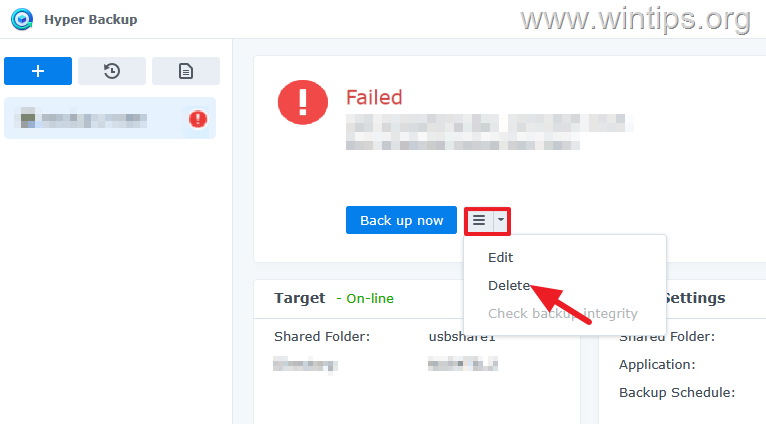
Step 9. Uninstall & Reinstall Hyper Backup package.
In some cases, Hyper Backup may fail to run after a DSM update. In these cases, the problem is fixed by uninstalling and reinstalling the Hyper Backup package. Reinstalling the package can resolve issues related to corrupted installations or updates.
To Uninstall Hyper Backup:
1. Open Package Center and select Installed on the left. Then click on Hyper Backup.
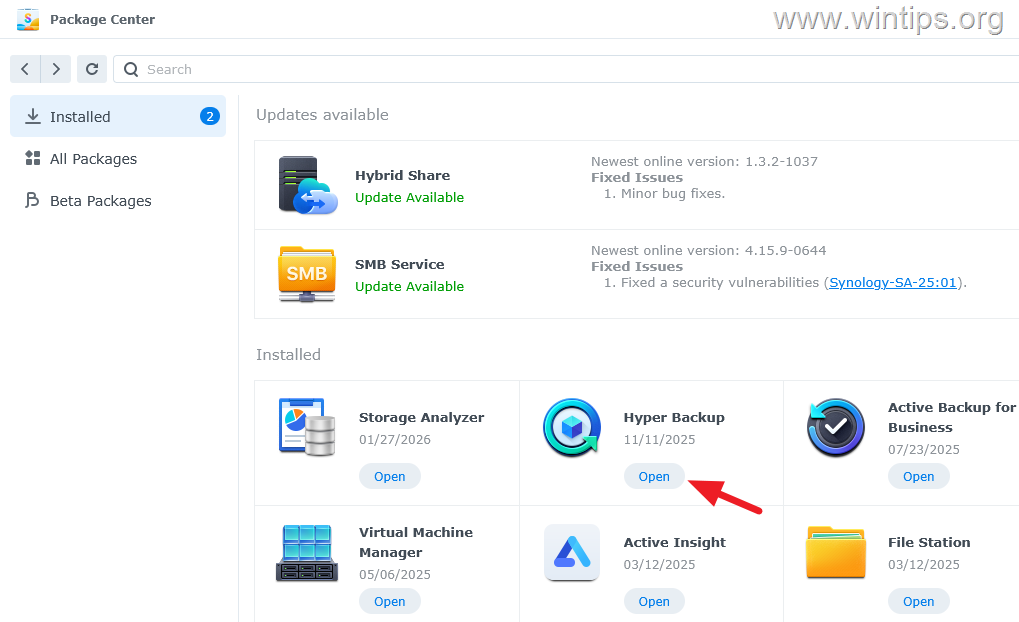
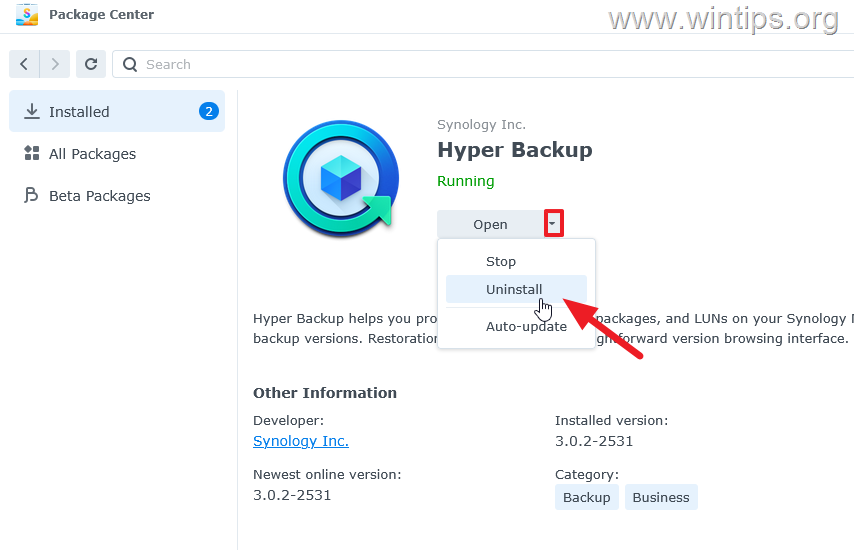
2. Now click on the drop-down arrow and select Uninstall.
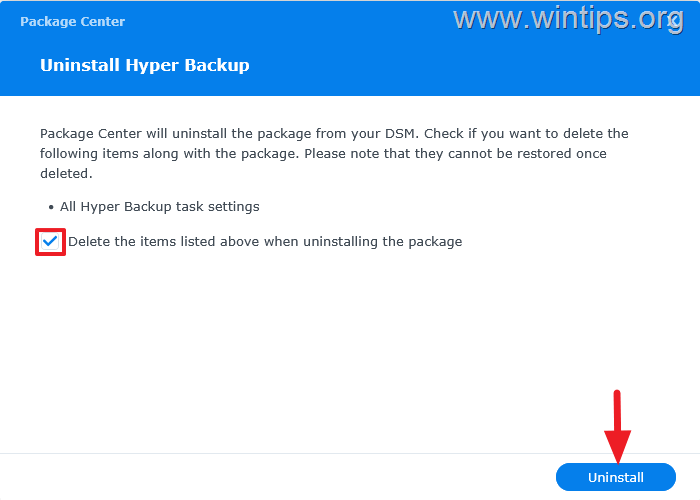
3. On the next screen, select to delete all Hyper Backup Task settings and then click Uninstall.
4. Wait for the uninstallation to complete, then reinstall Hyper Backup, and finally, create a backup job again to check if the problem is fixed.
Additional Methods
Here are a couple of additional methods to troubleshoot the error:
Method 1: Check System Resources
Ensure that your NAS has sufficient system resources available. Sometimes, running out of memory or CPU resources can cause backup tasks to fail. Monitor the system performance through the Resource Monitor in DSM to ensure there are no bottlenecks.
Method 2: Update DSM
Keeping your DSM updated can resolve many issues, including compatibility problems with applications like Hyper Backup. Check for updates in the Control Panel under Update & Restore and apply any available updates.
Summary
In summary, resolving the "Failed to export system configuration" error in Hyper Backup involves several steps. Start by restarting your NAS and ensuring the "admin" account is correctly named. Mount any encrypted shared folders and review detailed logs for specific errors. Check for missing source folders or permission issues, and ensure all encrypted folders are mounted. If problems persist, consider deleting and recreating the backup job or reinstalling the Hyper Backup package. Additionally, checking system resources and keeping DSM updated can help prevent such issues. By following these steps, you should be able to successfully troubleshoot and resolve the error.
That's it! Which method worked for you? Let me know if this guide has helped you by leaving your comment about your experience. Please like and share this guide to help others.
Frequently Asked Questions
Why might my Synology Hyper Backup task fail with the error 'Failed to export system configuration'?
Common reasons include corrupted configuration settings, issues with the 'admin' account name capitalization, insufficient permissions on source folders, or source folders being moved, renamed, or deleted.
What is the first step to take if my Hyper Backup task fails with the error 'Failed to export system configuration'?
The first step is to restart your NAS. This can help clear temporary system issues and refresh processes that might be causing the backup task to fail.
How can I resolve the 'admin' account capitalization issue in Hyper Backup on Synology NAS?
Verify that the 'admin' account is named with all lowercase letters. Go to Control Panel > User & Group, find the built-in admin account, and if it appears as 'Admin', change it to 'admin'. This adjustment can prevent system recognition errors.
What should I do if I am using encrypted shared folders with Hyper Backup and experiencing issues?
Ensure that the encrypted shared folders are mounted. Go to Control Panel > Shared Folders, right-click on the encrypted folder, and select 'Mount' to allow access and decryption needed for successful backups.


- Remote Desktop (RDP/RDS) Stops Working After September 2026 Windows Update: How to Fix - September 15, 2026
- Windows 11 KB5124008 Causes No Sound or USB Audio Code 10: How to Fix - September 14, 2026
- Copilot Missing or Grayed Out in Outlook: How to Fix - September 10, 2026



