Windows 11 KB5120998 Breaks Mouse Cursor and Wallpaper Personalization (FIX)
If your mouse pointer suddenly becomes larger or changes to a default pointer, or your desktop wallpaper turns black after installing Windows 11 update KB5120998, continue reading below to see how to fix this issue.
Microsoft has received reports that mouse cursor personalization settings are being changed or reverted to certain standard settings after installing KB5120998 on Windows 11 24H2 and 25H2. More specifically, some reports indicate that high-DPI mouse cursors are replaced with larger white cursors and that custom cursor animations revert to standard settings. Attempts to restore the previous cursor customization are also reported to be unsuccessful.
Additionally, many users on Reddit and other forums have reported that their desktop wallpaper changes to a solid black background after installing the same update. Microsoft has since confirmed the issue, stating that the KB5120998 update can cause desktop personalization settings to be lost or reset on affected Windows 11 24H2 and 25H2 devices.
In this guide, you will learn how to see if KB5120998 is installed and how you can restore your mouse cursor or desktop background to previous settings.
How to Fix KB5120998 Mouse Cursor and Black Wallpaper Problems in Windows 11
UPDATE (September 9, 2026): Microsoft has resolved the KB5120998 desktop background and personalization issue with Windows 11 update KB5124008, released September 8, 2026. If you're experiencing the problem, install the latest Windows updates before trying the workarounds below.
Step 1. Check if KB5120998 Is Installed
KB5120998 was released on August 27, 2026, as an optional non-security preview update for:
- Windows 11 24H2 — OS Build 26100.9278
- Windows 11 25H2 — OS Build 26200.9278
To check whether the update is installed:
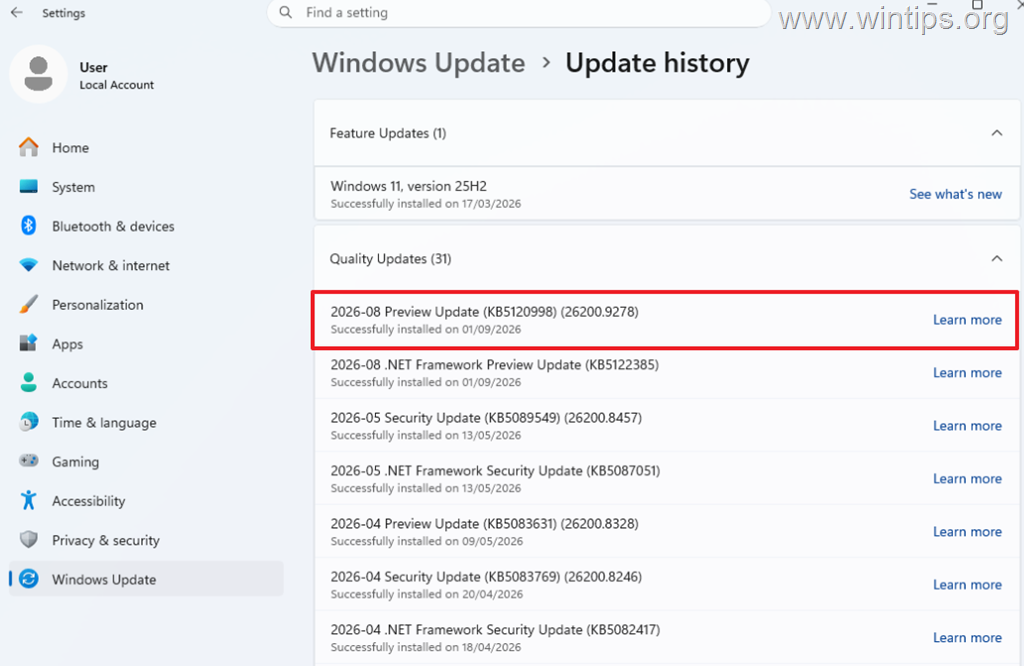
1. Navigate to Settings > Windows Update, and click Update history.
2. Look for KB5120998.
3. If the update is installed, check if you can fix the problem without uninstalling it, as described in the next step.
Step 2. Try to Restore Your Mouse Cursor and Wallpaper Settings
Before uninstalling the update, try restoring the mouse pointer and wallpaper settings.
To Restore the Wallpaper Background:
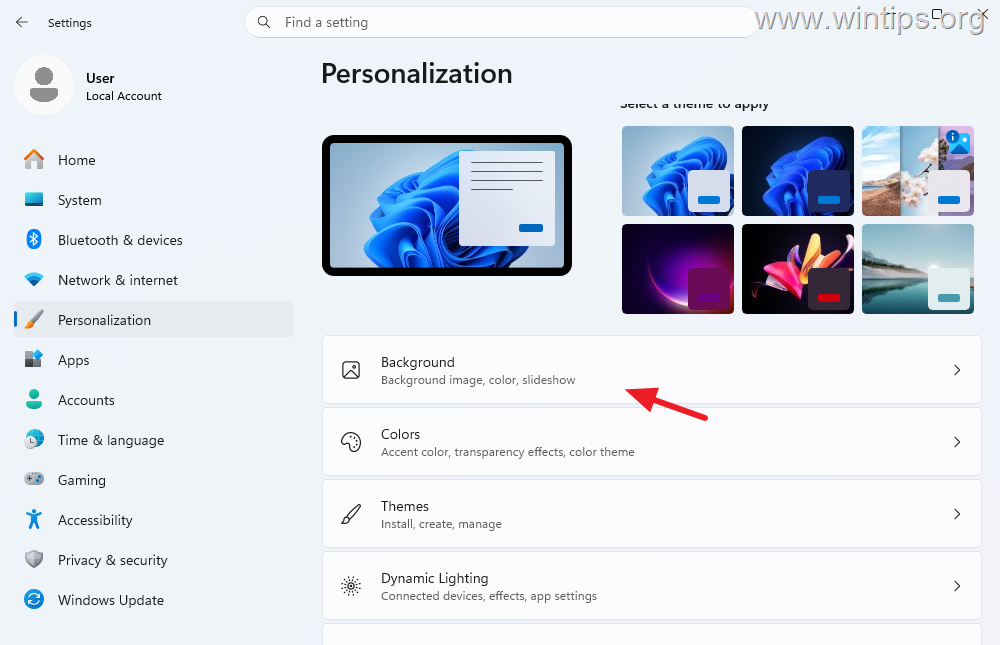
1. Open Settings, select Personalization and then click Background.
2. Next to Personalize background, click the drop-down menu and change it from Solid Color back to the picture, slideshow, or Windows Spotlight you used before.
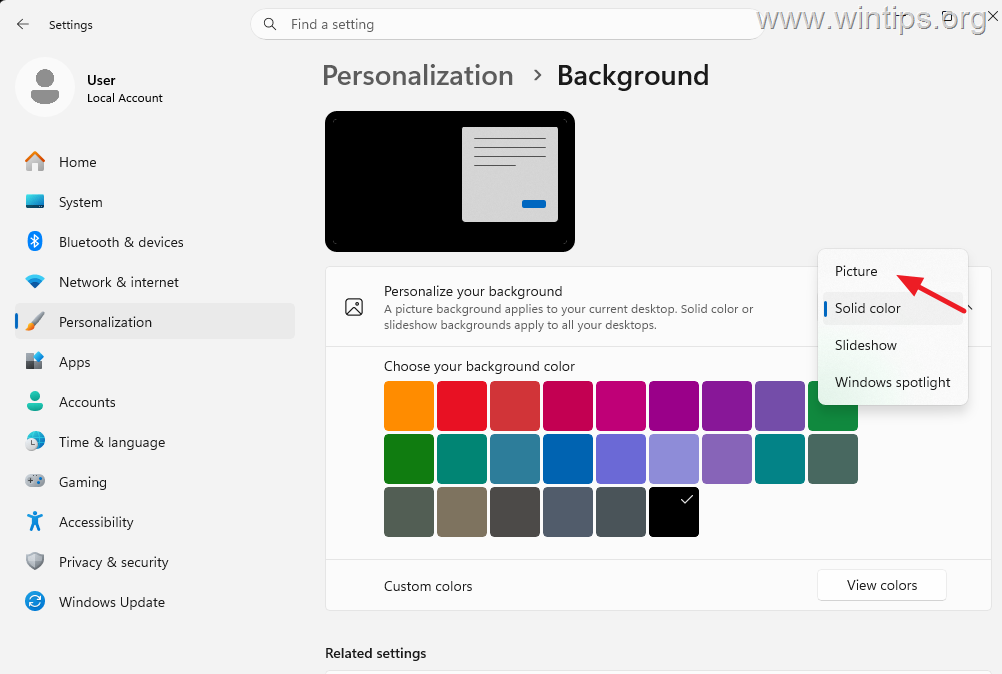
3. When you're done, restart your computer or sign out and sign back in to verify whether the changes persist. If the background changes back to black, proceed to Step 3 to uninstall KB5120998.
To Restore the Mouse Cursor Settings:
To restore the cursor settings, follow one of the methods below:
Method A. Change Pointer Size, Style, or Color from Accessibility Options.
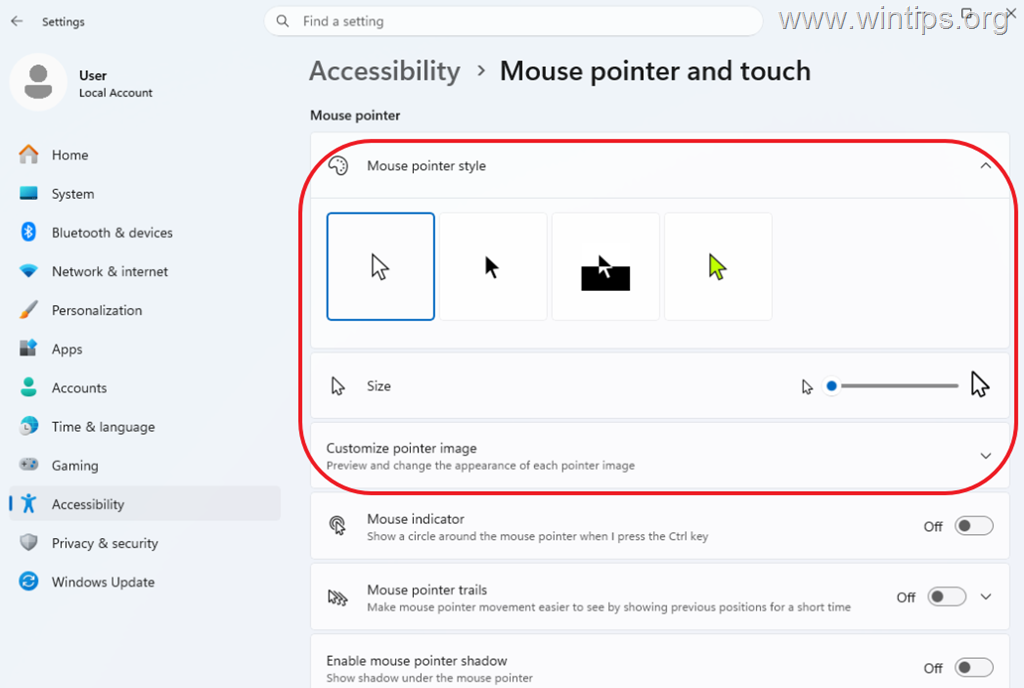
1. Open Settings, select Accessibility and then click Mouse pointer and touch.
2. Here, select your preferred pointer style, color and size.
3. When you're done, restart your computer or sign out and sign back in to verify whether the changes persist. If the mouse pointer changes back to the default appearance, try Method B below. If the problem persists after using both methods, proceed to Step 3.
Method B. Restore Mouse Settings from Mouse Properties.
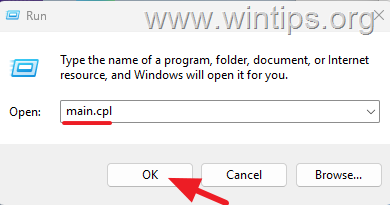
1. Press Windows + R to open the Run command box.
2. Type: main.cpl and click OK to open the mouse properties.
3. In Mouse Properties, select the Pointers tab.
4. Under Scheme, choose your preferred mouse pointer scheme, and then click Apply and OK.
* Note: To restore an individual custom pointer, select the pointer role under Customize, click Browse, choose the appropriate .cur or .ani file, click Open, and then click Apply and OK.
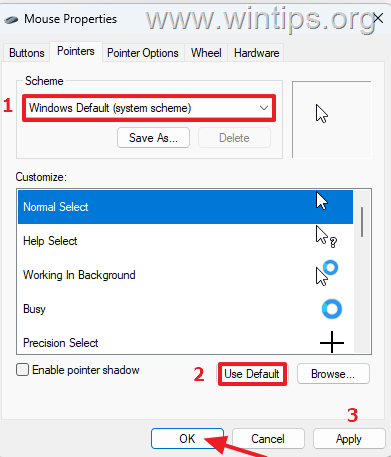
5. When you're done, restart your computer or sign out and sign back in to verify whether the changes persist. If the changes do not persist, proceed to Step 3 to uninstall KB5120998.
Step 3. Uninstall KB5120998 If the Settings Keep Resetting.
If, after trying to reset your cursor and wallpaper, the problem persists, proceed to remove the KB5120998 update, as many affected users reported that uninstalling the KB5120998 update restores mouse cursor personalization and, in some cases, desktop wallpaper as well.
Note: KB5120998 is an optional cumulative preview update. Uninstalling it also removes the improvements and new features included in the update. If the computer is managed by your organization, contact your IT administrator before removing it.
Tip: Before uninstalling the update, press Windows + F to open Feedback Hub and report the problem to Microsoft. Mention KB5120998 and include screenshots or a recording if possible.
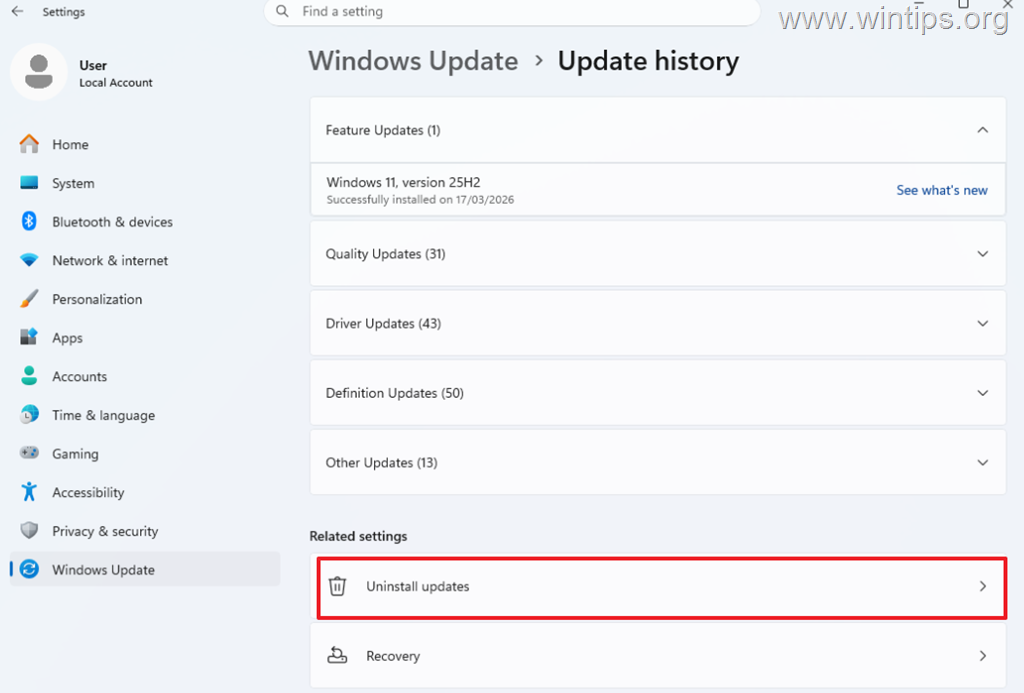
1. Navigate to Settings > Windows Update, and click Update history.
2. Scroll down and under the Related Settings, select Uninstall updates.
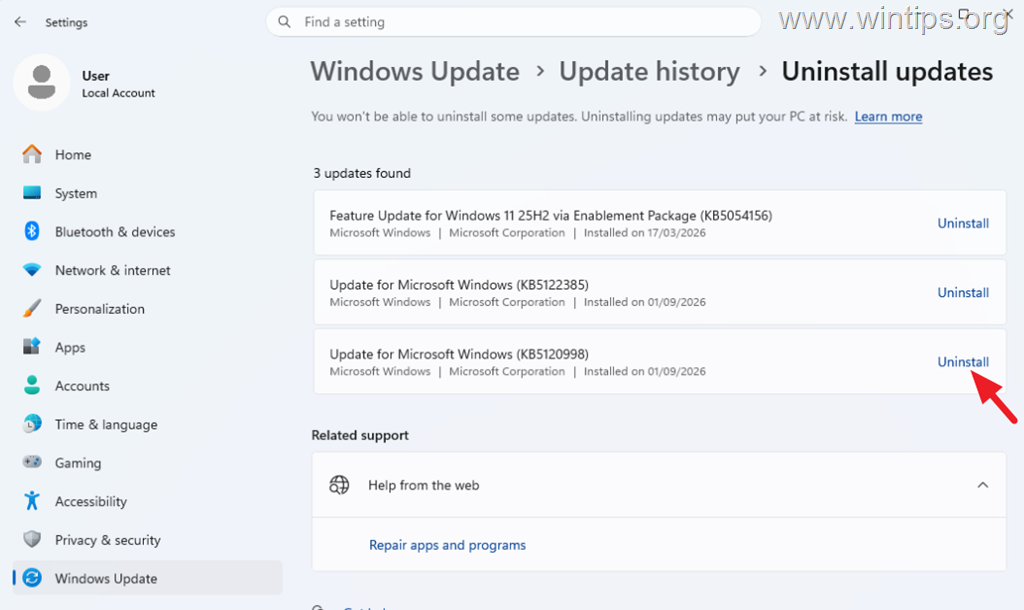
3. Locate KB5120998 and click Uninstall. Then click Uninstall again to confirm the removal.
4. Restart your computer when prompted.
5. After Windows starts again, check whether the problem persists. If necessary, restore your mouse pointer and wallpaper settings using the instructions in Step 2.
Step 4. Prevent KB5120998 from reinstalling.
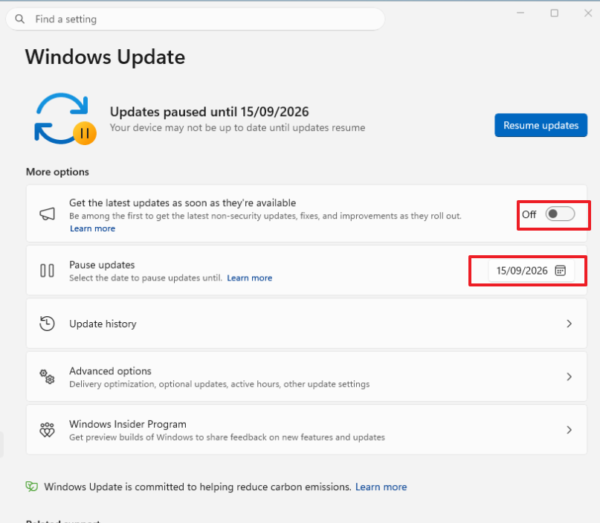
After you uninstall the update, open Settings > Windows Update and turn off Get the latest updates as soon as they're available. You can also choose to Pause updates (e.g. for a week or two) until Microsoft releases a fix.
Summary
If your mouse cursor or desktop wallpaper changed after KB5120998, first verify that the update is installed and try to manually restore the affected personalization settings before uninstalling the update.
If the cursor or wallpaper continues to reset, uninstalling the optional KB5120998 preview update is currently the most consistently reported temporary workaround. However, Microsoft had not published an official solution or workaround at the time of writing (September 1, 2026).
Microsoft is investigating the mouse cursor issue, but its current status remains Reported, with no official fix or root cause available yet. Wallpaper resets are also being reported alongside the cursor problem, and Microsoft has confirmed the issue on September 2, 2026.
That's it! Let me know if this guide has helped you by leaving your comment about your experience. Please like and share this guide to help others.
Frequently Asked Questions
What issues might occur after installing Windows 11 update KB5120998?
After installing Windows 11 update KB5120998, users might experience their mouse pointer becoming larger or reverting to a default style, and their desktop wallpaper turning into a solid black background.
What should I do first if I encounter cursor or wallpaper issues after the update?
First, check if the KB5120998 update is installed by navigating to Settings > Windows Update and then clicking on Update history. Look for KB5120998 in the list of installed updates.
How can I restore my mouse cursor to its previous settings after the update?
You can try restoring the mouse cursor via Accessibility Options in Settings by selecting your preferred pointer style, color, and size, or through Mouse Properties by choosing a pointer scheme in the Pointers tab.
What steps should I take to restore my desktop wallpaper to its previous settings?
To restore your wallpaper, go to Settings, select Personalization, click Background, and change the 'Personalize background' setting from Solid Color back to your preferred picture, slideshow, or Windows Spotlight.
Still having trouble fixing this issue?
💬 Get WinTips Remote Support →

- FIX: Windows Hello for Business PIN error 'Your credentials could not be verified' with 'status: 0xc000005e substatus: 0x0' or 'status: 0xc0000bb, substatus: 0x0'. - October 20, 2026
- FIX: This Device Is Already Set Up in Another Organization in Company Portal or During Intune Enrollment - October 13, 2026
- Windows Update Uninstall Failed with Error 0x800F0825: How to Fix - October 7, 2026