Windows Update Uninstall Failed with Error 0x800F0825: How to Fix
If you try to uninstall a Windows update but receive "Uninstall failed" with error 0x800F0825, continue reading below to fix the problem.
According to Microsoft, error 0x800F0825 (CBS_E_CANNOT_UNINSTALL) usually occurs because of component-store corruption or a component left in a partially installed state. However, the error can also occur when another Windows component depends on the update or the package cannot be removed.
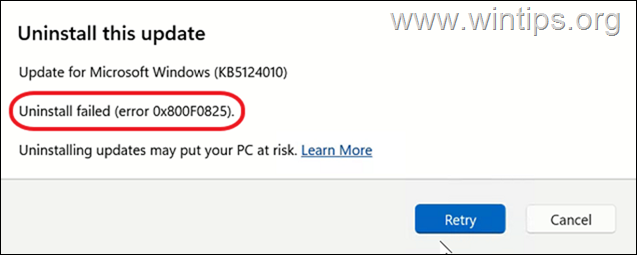
What Does Windows Update Error 0x800F0825 Mean?
Error 0x800F0825 means that Windows Component-Based Servicing (CBS) cannot uninstall the requested update package.
The most common conditions to investigate are:
- Corrupted Windows components: Windows servicing files are damaged or partially installed.
- Component dependencies: An optional Windows feature depends on the update.
- Incorrect uninstall method: Some cumulative updates require DISM instead of WUSA.
- Non-removable updates: Certain packages cannot be removed because of servicing restrictions or previous component cleanup.
In this guide, you'll learn how to identify what prevents Windows 11 from uninstalling an update and how to fix the problem using Microsoft's repair tools and other reported workarounds.
How to FIX Windows Update Uninstall Error 0x800F0825
Before trying the methods below:
1. Restart the computer once to complete any pending update operations and try to uninstall the update again.
2. Important: Back up important files before proceeding. Uninstalling a security update removes its security fixes. On a company-managed computer, contact your IT administrator before removing updates or changing Windows features.
3. If uninstallation fails again, note the KB number shown in the error message—for example, KB5124010.
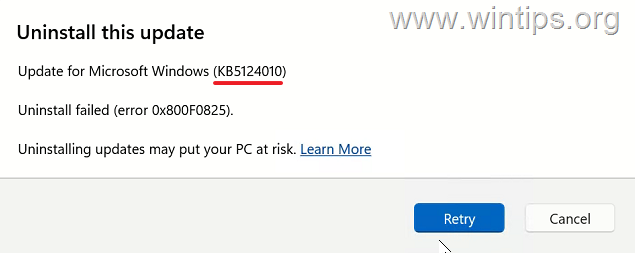
4. See if you can uninstall the update from Command Prompt, by doing the following:
1. In Search, type cmd and click Run as administrator to open Command Prompt as Administrator.
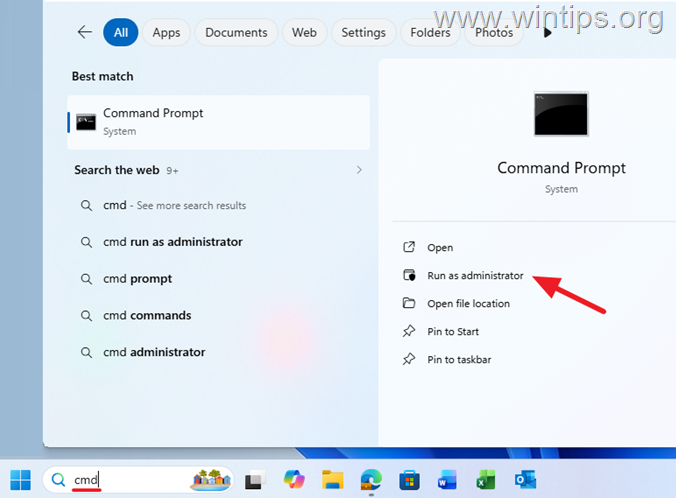
2. Type the following command, replacing kb-number with the number of the problematic update and press Enter:
wusa /uninstall /kb:kb-number
For example: If the problematic update is the KB5124010, type:
wusa /uninstall /kb:5124010
3. Click Yes when prompted to remove the update and then restart your computer.
Note: WUSA is an alternative uninstall method and does not repair the underlying cause of error 0x800F0825. Some combined SSU/LCU updates require removal through DISM, as specified on the Microsoft support page for the update.
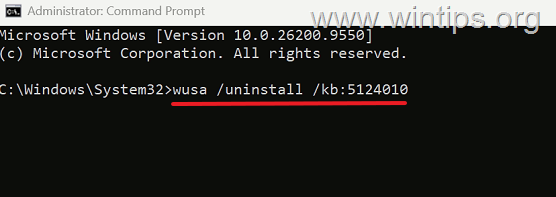
5. If the uninstall fails again, continue to the methods below.
Method 1. Repair Windows Components with DISM and SFC
First, repair the Windows component store using DISM and the system files using System File Checker (SFC).
Microsoft specifically recommends these tools for error 0x800F0825 because damaged or partially installed Windows components can prevent update removal.
1. Open Command Prompt as Administrator.
2. In the command prompt window, type the following command and press Enter:
DISM /Online /Cleanup-Image /RestoreHealth
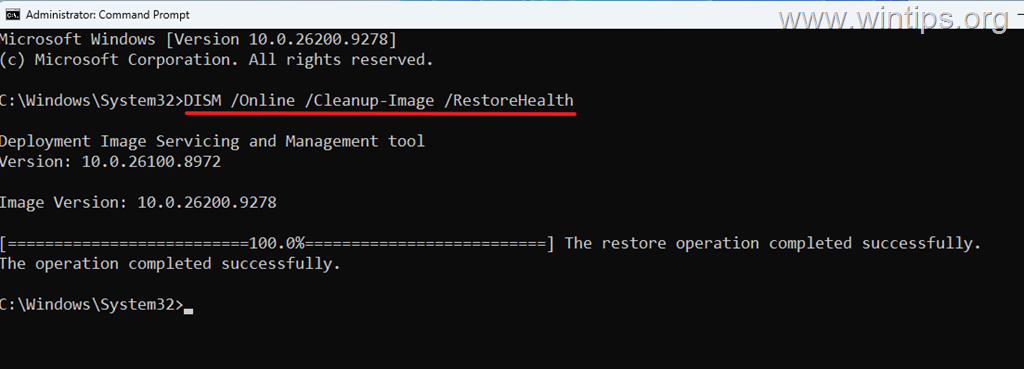
3. Wait while DISM scans and repairs the Windows component store.
4. Next, run the following command:
sfc /scannow
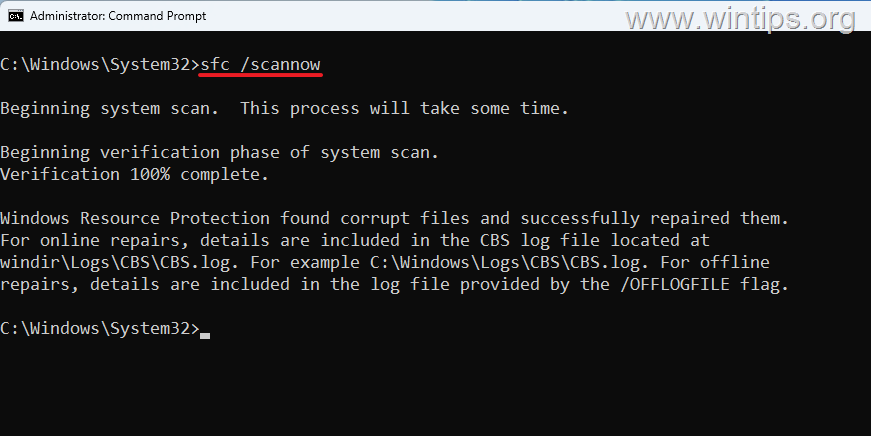
5. When the scan is complete, restart your computer.
6. Go to Settings > Windows Update > Update history > Uninstall updates and try removing the problematic update again. If the update still cannot be uninstalled, continue with the next method.
Method 2. Check CBS.log to Find What Prevents the Update from Uninstalling
If repairing Windows doesn't resolve error 0x800F0825, the next step is to examine the CBS.log file, in the following location:
C:\Windows\Logs\CBS\CBS.log
1. Open CBS.log in Notepad and review the entries recorded around the time the update failed.
2. Use the Find function and search for: 0x800F0825
3. Now, do the following:
A. Look for messages that can help identify which component is blocking the uninstall operation, such as:
Container base layer depends on LCU version greater than...
or:
The previous LCU version is not complete.
B. Check whether the log identifies a specific optional Windows feature, such as:
- A Windows language capability.
- Windows Sandbox.
- .NET Framework 3.5 (NetFx3).
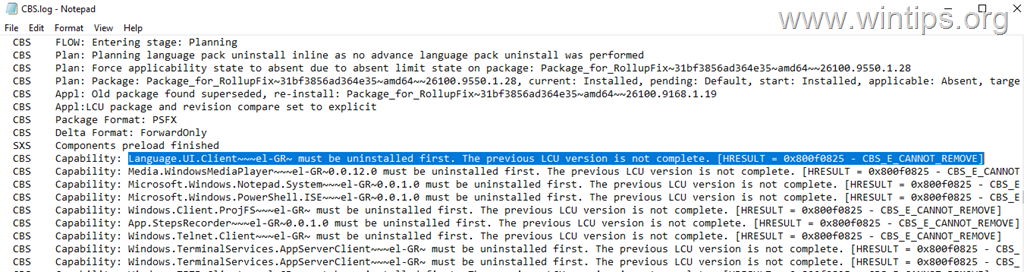
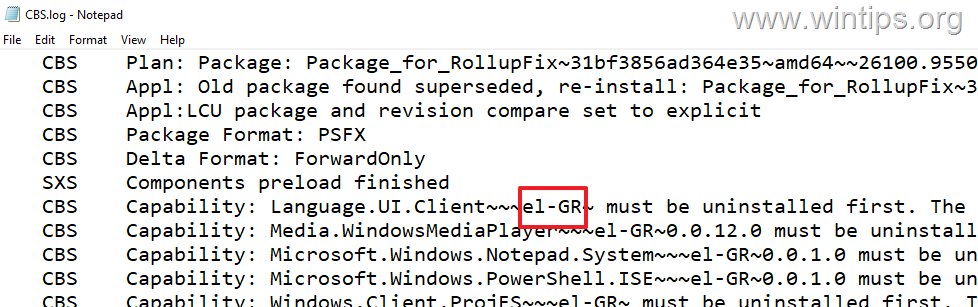
In the following example, CBS.log identifies the Greek language component (el-GR) as a dependency preventing the removal of the update.
Language.UI.Client~~~el-GR~ must be uninstalled first. The previous LCU version is not complete. [HRESULT = 0x800f0825 – CBS_E_CANNOT_REMOVE]
Important: The final
0x800F0825entry identifies the failure, but the lines preceding it may explain why it occurred. Make sure you're examining entries from your latest uninstall attempt rather than an older failure.
4. After examining CBS.log, do one of the following:
- If the log identifies a problem with an installed additional language, proceed to the next method.
- If the log identifies Windows Sandbox proceed to Method 4.
- If the log identifies NetFx3, proceed to Method 5.
- If the log identifies a security component, essential system component, or an unfamiliar dependency, don't remove it without further investigation.
Method 3. Temporarily Remove an Additional Installed Language.
Use this method only if the latest CBS.log identifies an additional installed language as the uninstall blocker and you do not need that language temporarily.
Note: These instructions are intended for Windows 11. If PowerShell does not recognize the language-management commands, do not continue with this procedure.
Important: Do not remove your current Windows display language, the system’s preferred UI language, or the only installed display language. If the log names an essential language or an unfamiliar component, do not remove it without further investigation.
1. From the CBS log find the BCP-47 language tag of the language (e.g. "el-GR")
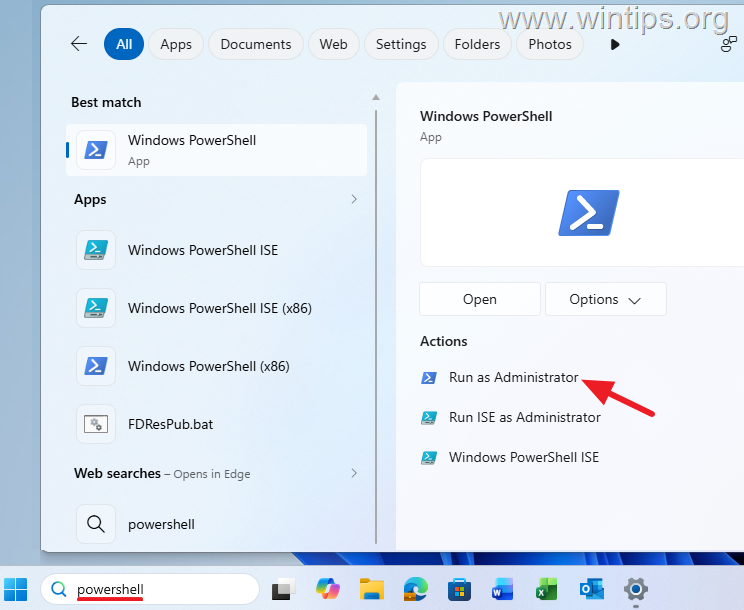
2. In Search, type PowerShell and click Run as administrator to open PowerShell as Administrator.
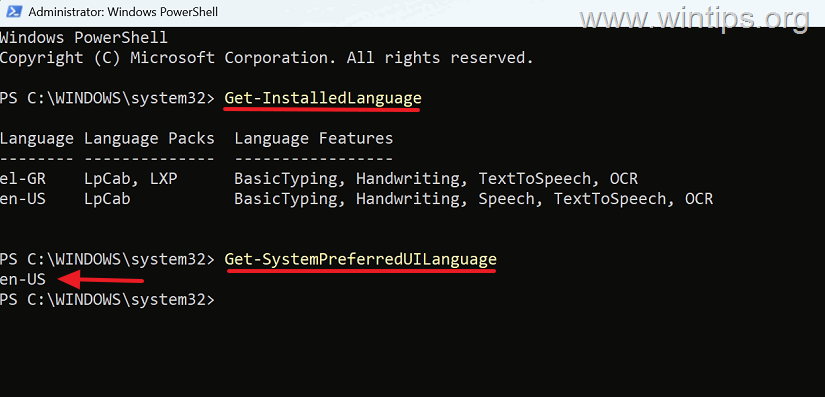
3. Run the following commands to list the installed languages and identify the system’s preferred UI language:
Get-InstalledLanguage
Get-SystemPreferredUILanguage
4. Now see the list of the installed languages and ensure that the language preventing the update (e.g. "el-GR" in this example), is not the primary Windows display language.
5. Also open Settings > Time & language > Language & region and check the selected Windows display language. Do not remove the language identified in CBS.log if it is your current display language, the system’s preferred UI language, or the only installed display language.
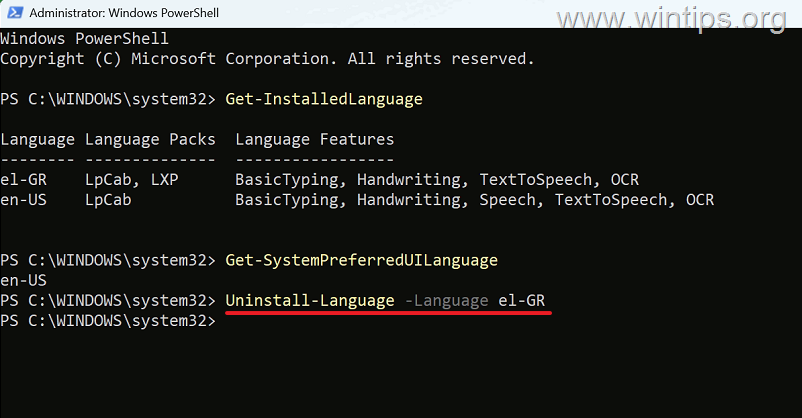
6. After ensuring that the problematic language is not the primary Windows display language, give the following command, replacing bcp47-tag with the BCP-47 language tag of the language you want to remove and then press Enter.
Uninstall-Language -Language bcp47-tag
For example:
Uninstall-Language -Language el-GR
7. After language removal, restart your computer and try to uninstall the update again.
8. After completing the uninstall attempt, reinstall the language if you still need it, even if the update could not be removed. Go to Settings > Time & language > Language & region > Add a language. Restart or sign out if prompted, and verify that the language is available again.
Note: Removing an additional language does not guarantee that every language-related dependency will be cleared. If CBS.log still identifies the same language after restarting, investigate the remaining components before attempting further removal.
Method 4. Temporarily Disable Windows Sandbox
Some Windows 11 users have reported that error 0x800F0825 was caused by a dependency involving Windows Sandbox. In these cases, temporarily disabling Windows Sandbox allowed the affected cumulative update to be uninstalled.
Note: Use this method only if Windows Sandbox is enabled and your CBS.log indicates a container or Sandbox-related dependency. Disabling Sandbox temporarily removes its functionality. Re-enabling it may require Windows to obtain additional component files and can occasionally fail.
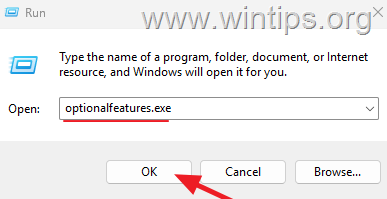
1. Press Windows + R, type: optionalfeatures.exe and press Enter.
2. In the Turn Windows Features on or off window, locate Windows Sandbox and uncheck it. Then, click OK.
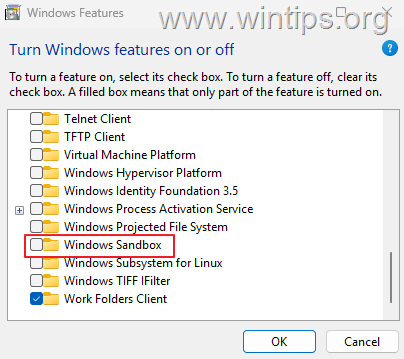
3. Wait for Windows to apply the changes and restart your computer.
4. Try uninstalling the problematic Windows update again. If the uninstall succeeds, restart Windows and verify that the update has been removed.
* Note: If Windows Sandbox was enabled before troubleshooting, follow the above steps and re-enable it by checking its relevant checkbox.
Method 5. Temporarily Disable .NET Framework 3.5 (NetFx3)
Another reported cause of error 0x800F0825 is a dependency involving the .NET Framework 3.5—identified in Windows servicing logs as NetFx3—and several users have reported successfully uninstalling the problematic Windows update after temporarily disabling this feature.
Note: Use this method only when CBS.log specifically identifies NetFx3 as part of the uninstall failure.
Important: Temporarily disabling .NET Framework 3.5 can prevent applications that require .NET Framework 2.0, 3.0, or 3.5 from running. Close these applications before proceeding and re-enable the feature after troubleshooting.
1. Press Windows + R, type: optionalfeatures.exe and press Enter.
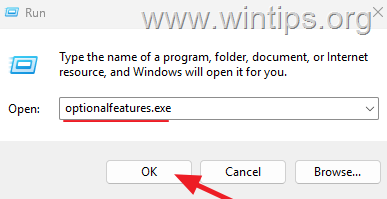
2. In the Windows Features window, locate .NET Framework 3.5 (includes .NET 2.0 and 3.0) and uncheck it. Then, click OK.
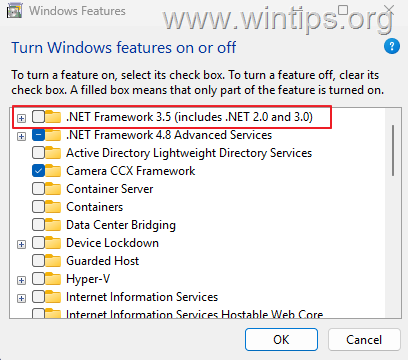
3. Restart the computer and try uninstalling the Windows update again.
4. After completing the uninstall attempt, follow the above steps and re-enable .NET Framework 3.5 by checking its relevant checkbox.
5. After re-enabling .NET Framework 3.5, restart if prompted and verify that the applications that depend on it work normally.
Method 6: Reinstall Windows Through Windows Update
If error 0x800F0825 persists because of Windows servicing problems, repairing the current Windows installation may be the safest remaining option.
This repair option reinstalls the current version of Windows to repair system files and components while preserving your apps, personal files, and settings.
To repair Windows through Windows Update:
1. Go to Start > Settings > System > Recovery.
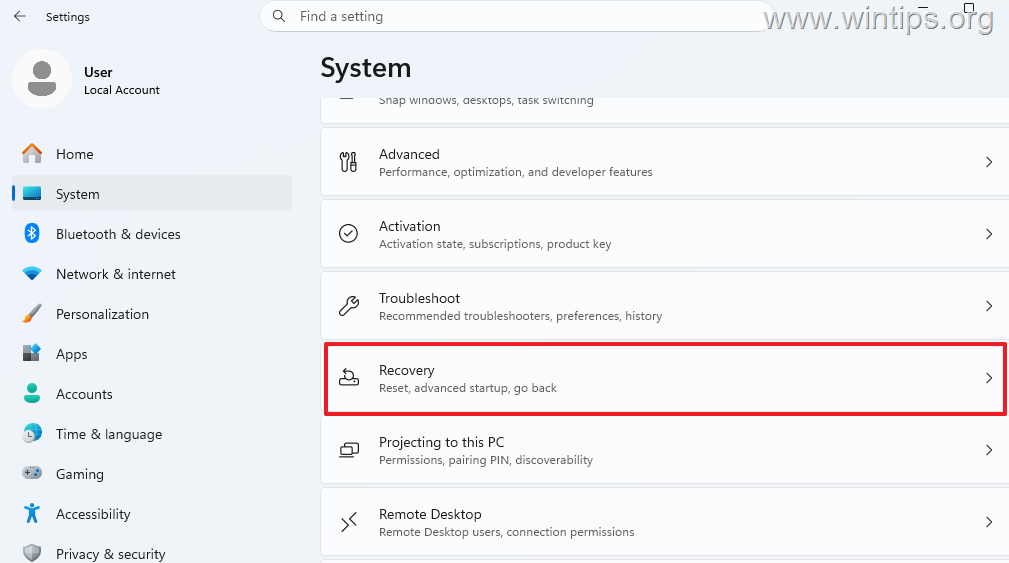
2. Find Fix problems using Windows Update and click Reinstall now.
Note: This repair option is available on supported Windows 11 installations and may be unavailable on devices whose Windows updates are managed by an organization.
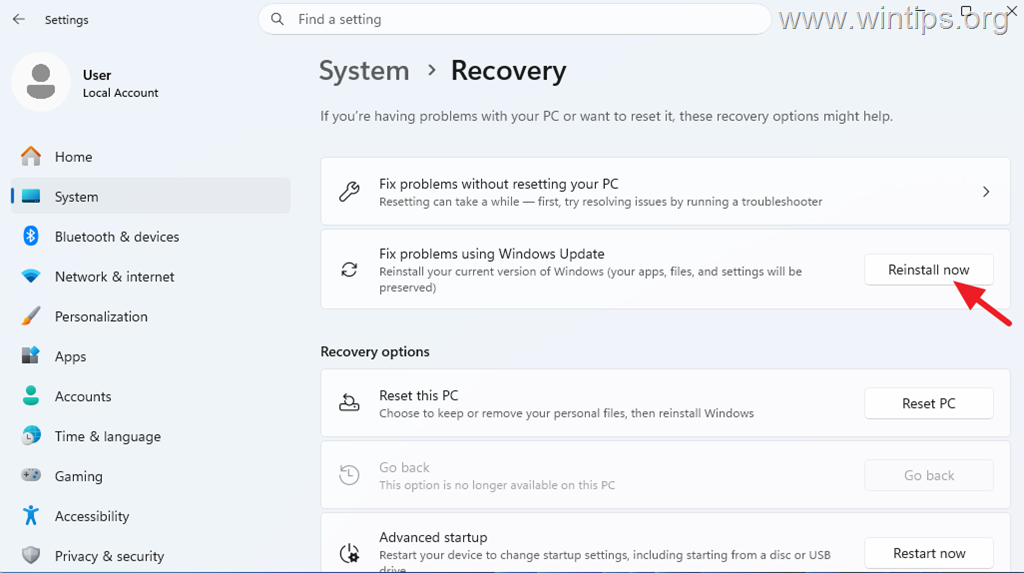
3. Follow the instructions to reinstall the current version of Windows. The process can take some time and the computer will need to restart.
4. After the repair and restart, check whether the original problem has been resolved. If you still need to remove the update, try uninstalling it again. A repair reinstall does not guarantee that a particular update will become removable.
Method 7: Perform an In-Place Repair
If Reinstall now isn't available or doesn't repair the problem, the next option is an in-place Windows 11 repair using Windows installation media.
For this task, read the instructions in this article: How to Repair Windows 11 with an In-Place Upgrade.
Info: An in-place repair reinstalls Windows system components while preserving your applications, files, and settings.
Summary
If a Windows update cannot be uninstalled because of error 0x800F0825, start by repairing the Windows component store with DISM and SFC.
If the error continues, inspect CBS.log to identify the actual reason the update cannot be removed.
Depending on the findings, temporarily removing a nonessential additional language or disabling Windows Sandbox or .NET Framework 3.5 may resolve a specific dependency blocking update removal.
If the update is genuinely non-removable, use supported Windows recovery or repair options instead of attempting to bypass Windows servicing protections.
That's it! Which method worked for you?
Let me know if this guide has helped you by leaving your comment about your experience. Please like and share this guide to help others.
Frequently Asked Questions
What causes the Windows Update error 0x800F0825?
Error 0x800F0825 typically occurs due to component-store corruption, a component left in a partially installed state, component dependencies, incorrect uninstall method, or non-removable updates.
How do I start troubleshooting Windows Update error 0x800F0825?
Begin by restarting your computer to complete any pending updates. If the issue persists, back up important files and attempt the uninstallation using Command Prompt with the WUSA method.
What is the role of DISM and SFC in resolving error 0x800F0825?
DISM and SFC are tools recommended by Microsoft to repair damaged or partially installed Windows components, which could be preventing the update from being uninstalled.
What should I do if repairing Windows components doesn’t fix error 0x800F0825?
If fixing Windows components doesn't resolve the error, check the CBS.log file to identify which component might be blocking the uninstallation process.


- Windows Update Uninstall Failed with Error 0x800F0825: How to Fix - October 7, 2026
- Apps and Games Crash After KB5124010 Due to AC-3 Audio: How to Fix - October 5, 2026
- How to Fix Windows 11 Update Error 0x80073712 - October 5, 2026