Always On VPN Stuck on Connecting After KB5124008 Update: How to Fix
If Always On VPN (AOVPN) remains stuck on Connecting after installing the September 2026 Windows security updates, you may be affected by a recently reported issue affecting Windows 11 systems with KB5124008 installed.
The issue affects the following Windows versions:
- Windows 11 24H2/25H2 after installing KB5124008.
- Windows 11 26H1 after installing KB5124012.
Affected VPN connections may remain stuck on Connecting, repeatedly attempt to connect, or display "The specified port is already in use" on subsequent connection attempts.
The problem doesn't affect every Always On VPN deployment. According to Microsoft's service alert, the issue can occur when VPN profiles are configured to automatically try another connection method if the initial method fails, such as automatic protocol selection between IKEv2 and SSTP.
Microsoft is working on a permanent fix. Until then, the recommended workaround is to configure the affected VPN profile to use a single supported protocol instead of Automatic protocol selection.
How to FIX: After installing KB5124008, Always On VPN Stops Working.
Step 1. Check If You're Affected
Before changing your VPN configuration, verify that the Windows version, installed update, symptoms, and VPN profile match the known issue.
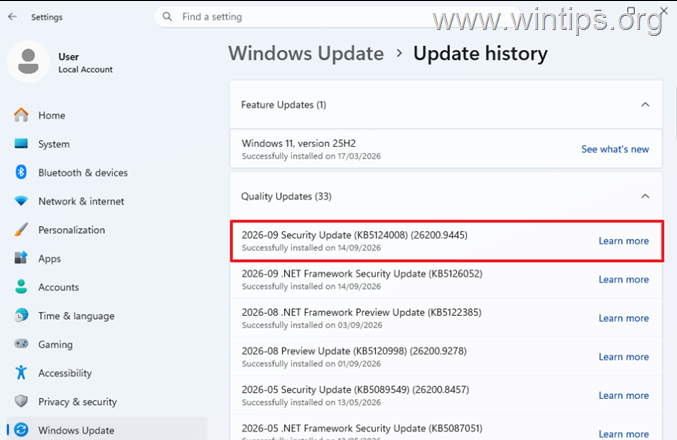
1. Navigate to Settings > Windows Update, and click Update history.
2. Look for KB5124008 if you're running Windows 11 24H2/25H2 or KB5124012 if you're running Windows 11 26H1.
3. If the update is installed, proceed to next step.
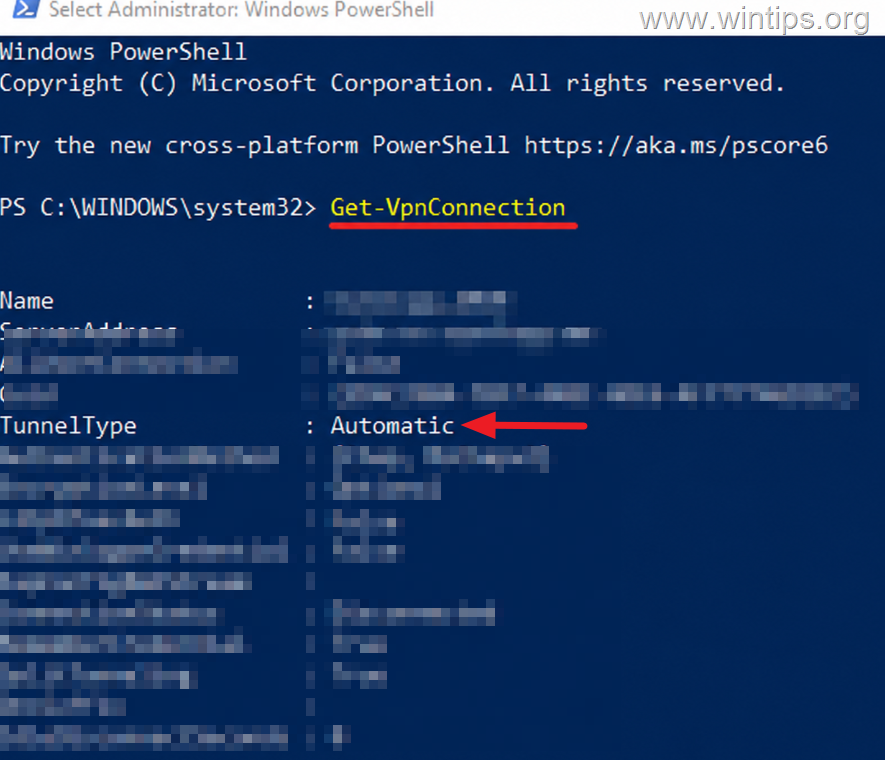
Step 2. Check the Tunnel Type of the VPN Connection
1. Open PowerShell as Administrator.
2. Run this command:
Get-VpnConnection
3. Locate the VPN connection that is stuck on Connecting and check its TunnelType property.
4. If it says Automatic, the applicable September update is installed, and the symptoms match those described above, the device closely matches the reported Always On VPN issue.
Note:
TunnelType : Automaticalone doesn't prove that the computer is affected. The known issue should be considered together with the applicable September update and matching VPN symptoms.
Method 1. Apply Microsoft's Workaround
Step 1. Change the VPN 'Tunnel Type' from Automatic to IKEv2 or SSTP
Microsoft's current workaround is to change the affected Always On VPN profile from Automatic protocol selection to a single protocol supported by your existing VPN infrastructure.
Depending on your configuration, use:
- IKEv2, or
- SSTP.
Don't arbitrarily choose between them. Use the protocol already supported and tested by your organization's VPN infrastructure.
For User Tunnel
A User Tunnel can use IKEv2 or SSTP, depending on how your VPN environment is configured. If the affected User Tunnel currently reports TunnelType : Automatic, change the profile to the appropriate single protocol supported by your environment.
For example:
- To change the User Tunnel to IKEv2, run the following command, replacing "VPN Profile Name" with the name of the affected VPN connection:
Set-VpnConnection -Name "VPN Profile Name" -TunnelType Ikev2
- To change the User Tunnel to SSTP, run this command:
Set-VpnConnection -Name "VPN Profile Name" -TunnelType Sstp
For Intune-Managed VPN Profiles
If the affected Always On VPN profile is managed through Microsoft Intune, open the VPN configuration profile and locate its Connection type setting.
For a profile currently configured as Automatic, change the connection type to the appropriate single protocol supported by your deployment.
For ProfileXML Deployments
If you deploy Always On VPN through ProfileXML, check the NativeProtocolType setting.
An affected profile may contain: <NativeProtocolType>Automatic</NativeProtocolType>
- For an environment using IKEv2, change it to:
<NativeProtocolType>IKEv2</NativeProtocolType>
- For an appropriate User Tunnel deployment using SSTP, use:
<NativeProtocolType>SSTP</NativeProtocolType>
Deploy the updated profile to a test device first and verify connectivity before applying the change throughout the organization.
Step 2. Verify the Workaround
After the updated VPN configuration has been deployed, verify that the client received the new protocol setting.
1. Open PowerShell and run:
Get-VpnConnection -Name "VPN Profile Name"
For example, if you selected IKEv2, verify that the output now reports: TunnelType : Ikev2 instead of: TunnelType : Automatic
2. Now, try to establish the Always On VPN connection and verify that:
- The VPN no longer remains stuck on Connecting.
- The connection completes successfully.
- Internal/corporate resources are reachable.
- Repeated connection attempts no longer produce "The specified port is already in use."
If the VPN profile now uses the intended protocol and connects normally, the Microsoft workaround has been successfully applied. If the Always On VPN connection fails again, proceed to the next method.
Method 2: Uninstall the September 2026 Update
If the single-protocol workaround can't be deployed and the Always On VPN outage is causing serious business disruption, uninstalling the affected September update has restored VPN connectivity in reported environments.
However, this should be considered a last resort, not the preferred solution.
Warning: KB5124008 and KB5124012 contain security fixes. Uninstalling the applicable update removes those protections. Use this option only when VPN connectivity is business-critical and Microsoft's single-protocol workaround can't be used.
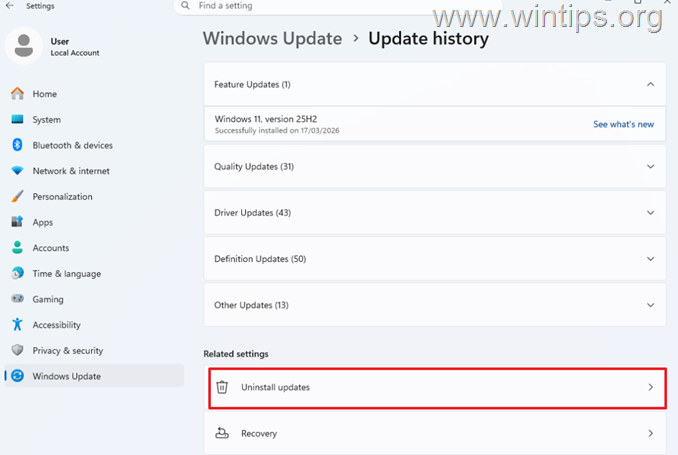
1. Navigate to Settings > Windows Update, and click Update history.
2. Scroll down to Related Settings, and select Uninstall updates.
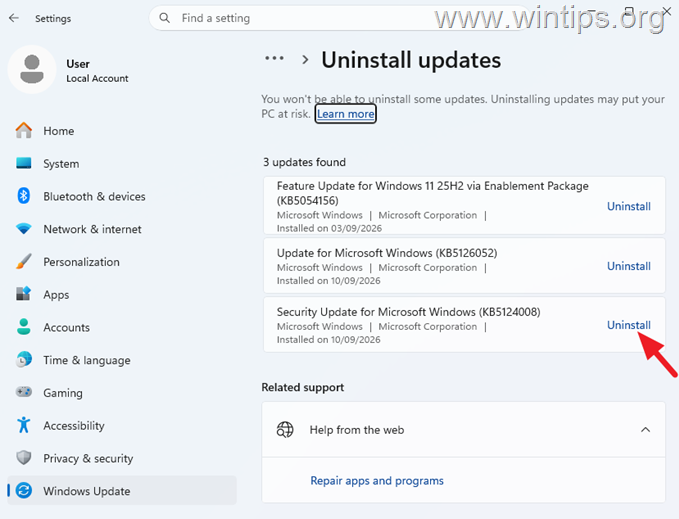
3. Locate KB5124008 (Windows 11 24H2/25H2) or KB5124012 (Windows 11 26H1), and click Uninstall. Then click Uninstall again to confirm.
4. Restart your computer when prompted.
5. After Windows starts again, test the Always On VPN connection again.
If uninstalling the update restores connectivity, keep in mind that this is only a temporary recovery method. Reinstall the appropriate security update or Microsoft's resolving update as soon as a supported permanent resolution becomes available.
Summary
If Always On VPN stops connecting after installing KB5124008 or KB5124012, first verify that the affected VPN profile uses Automatic protocol selection. If it does, change it to a single protocol—IKEv2 or SSTP—supported by your VPN environment and verify that the connection works normally again.
If the workaround can't be applied and VPN access is business-critical, uninstalling the affected September update can be considered as a temporary last resort, keeping in mind that doing so also removes important security fixes.
Microsoft is working on a permanent resolution. Install the resolving Windows update when it becomes available and is officially documented by Microsoft.
That's it! Which method worked for you?
Let me know if this guide has helped you by leaving your comment about your experience. Please like and share this guide to help others.
Frequently Asked Questions
What issue does the September 2026 Windows security update cause with Always On VPN?
The update may cause VPN connections to remain stuck on Connecting, repeatedly attempt to connect, or display "The specified port is already in use" error on Windows 11 systems with KB5124008 or KB5124012 installed.
How can I verify if my system is affected by this Always On VPN issue?
Ensure your Windows version is 11 24H2/25H2 with KB5124008 or 11 26H1 with KB5124012 installed. Check the symptoms and VPN profile configuration to ensure they match the known issue.
What is Microsoft's recommended workaround for the Always On VPN issue?
Microsoft recommends changing the affected VPN profile's Tunnel Type from Automatic to a single supported protocol like IKEv2 or SSTP, as per your VPN environment's existing configuration.
How do I change the Tunnel Type for a User Tunnel affected by the Always On VPN issue?
Use PowerShell as Administrator and run the command Set-VpnConnection with the -Name parameter for the VPN Profile and the -TunnelType parameter set to Ikev2 or Sstp, depending on your environment's supported protocol.


- Always On VPN Stuck on Connecting After KB5124008 Update: How to Fix - September 24, 2026
- How to Disable Passkey Prompts and Delay Enforcement in Microsoft 365 - September 24, 2026
- Remote Desktop (RDP/RDS) Stops Working After September 2026 Windows Update: How to Fix - September 15, 2026