Windows 11 KB5124008 Causes No Sound or USB Audio Code 10: How to Fix
If your USB headphones, speakers, digital-to-analog converter (DAC), or audio interface stopped working after installing Windows 11 update KB5124008, or the device is showing Code 10 – "This device cannot start" in Device Manager, you may be affected by a known issue confirmed by Microsoft.
The issue affects some USB Audio Class 1.0 devices after installing the September 8, 2026 security update KB5124008 on Windows 11 24H2 and 25H2.
Affected devices might experience one or more of the following symptoms:
- The device displays an error in Device Manager: "This device cannot start (Code 10).”
- No audio output.
- Volume controls are unresponsive or remain at zero.
- Sound settings are unresponsive or unavailable.
- Some devices might function in standard stereo configurations but fail when using multichannel audio features, including 8-channel or 3D audio modes.
This guide explains how to determine whether you are affected by the KB5124008 USB audio issue and provides available workarounds until Microsoft releases a permanent fix.
IMPORTANT: If your USB audio problem doesn't match the symptoms described in this article, then normal USB/audio-driver troubleshooting may be appropriate.
How to Fix USB Audio Problems after KB5124008 in Windows 11
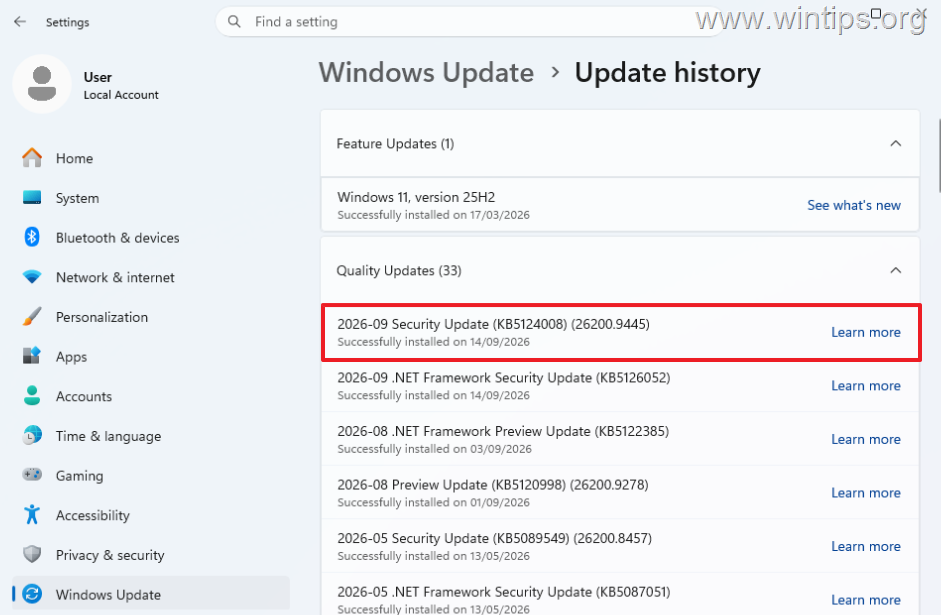
Step 1. Check if KB5124008 Is Installed
KB5124008 was released on September 8, 2026, as a security update for:
- Windows 11 24H2 — OS Build 26100.9445
- Windows 11 25H2 — OS Build 26200.9445
To check whether the update is installed:
1. Navigate to Settings > Windows Update, and click Update history.
2. Look for KB5124008.
3. If the update is installed, proceed to next step.
Step 2. Check the USB Audio Device
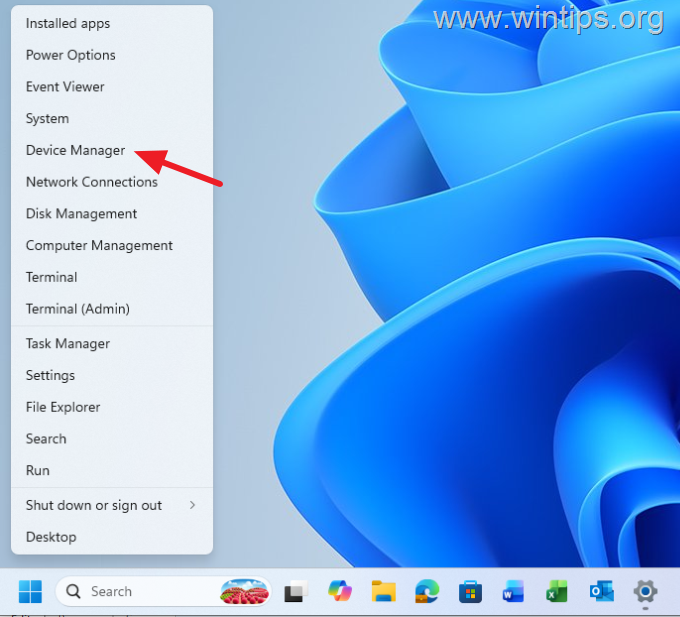
1. Right-click on Start and select Device Manager.
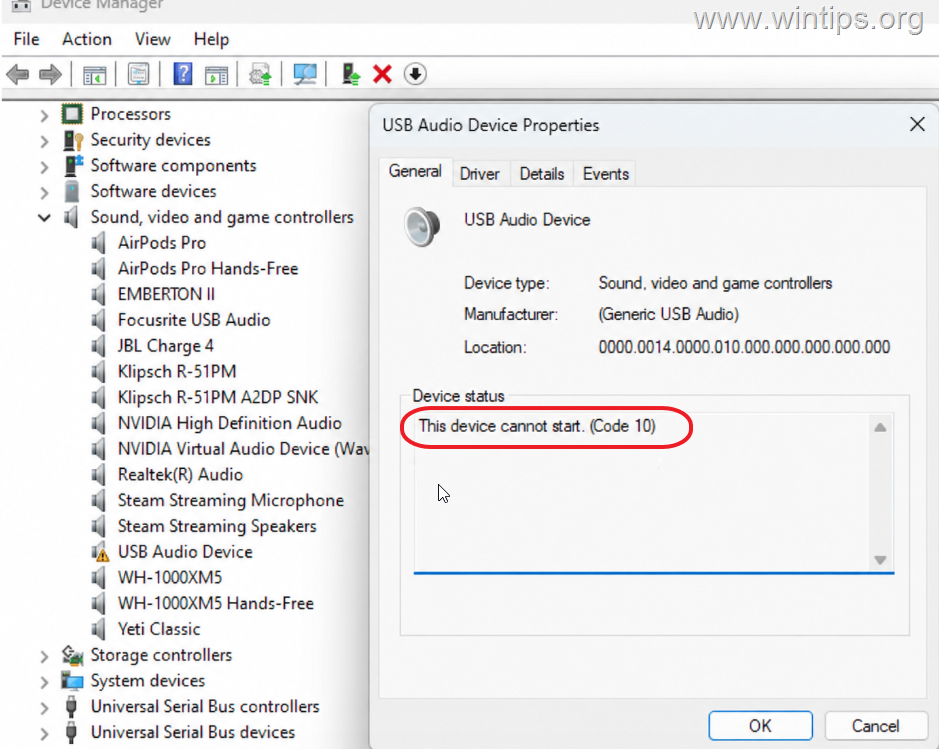
2. Locate your USB headset, speakers, DAC, or audio interface.
3. Double-click the device and check the Device status under the General tab.
4. If you see the message: This device cannot start. (Code 10) and your USB audio device was working normally before installing update KB5124008, your symptoms closely match Microsoft's confirmed issue.*
* Note: The problem can also occur without Code 10. For example, some devices may work in standard 2-channel stereo configurations, but experience errors when using multichannel audio modes, including 8-channel or 3D audio modes.
5. If your symptoms match, use the methods below to restore sound.
Method 1. Check for a Newer Windows Update
Because Microsoft is working on a permanent resolution, first check whether a newer Windows update that fixes the problem is available.
1. Go to Start > Settings > Windows Update.
2. Click Check for updates.
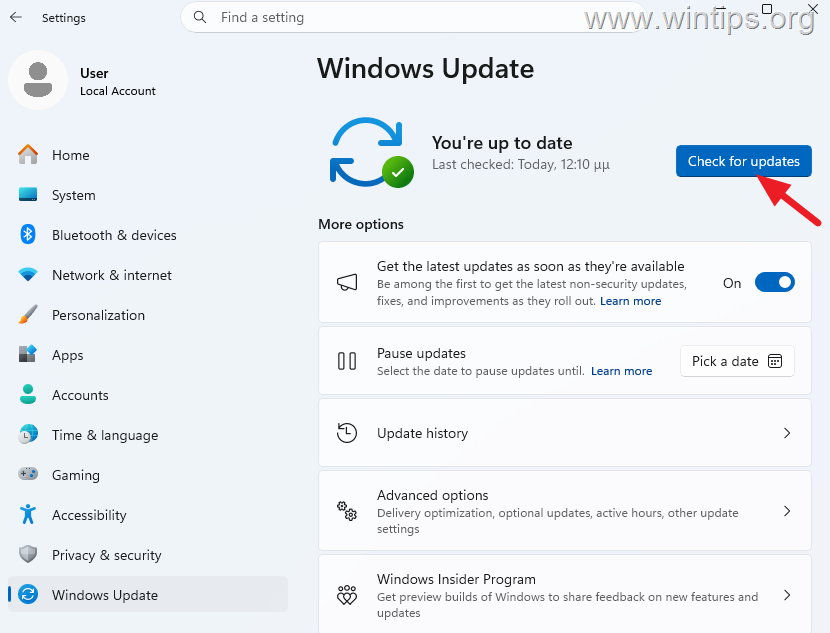
3. Install any available updates and restart the computer if prompted.
4. After restarting, check if your USB audio device works. If the problem remains, continue to Method 2.
Method 2. Switch the USB Audio Device to 2-Channel or Stereo Mode
Microsoft's current workaround is to configure the affected USB audio device to use 2-channel/stereo audio instead of multichannel or 3D audio.
Changing the audio from multichannel or 3D depends on the USB audio device. Depending on your hardware, the setting may be available through:
- Windows audio settings.
- The manufacturer's audio software.
- A hardware button or control on the device.
1. If your device provides a choice of audio channel or mode, change it from multichannel/3D audio to 2-channel or stereo.
Note: Not every USB audio device provides a user-selectable 2-channel mode. If you cannot find this option, check the manufacturer's software or documentation. Don't change unrelated audio settings simply to reproduce this workaround.
2. Play an audio or video file and check the following:
- You can hear sound from the USB Audio device.
- You can adjust the volume normally.
- The audio device no longer displays Code 10 in Device Manager, if it previously showed the error.
3. If the device works in 2-channel mode but fails again when you switch back to multichannel audio, the behavior strongly matches the confirmed KB5124008 issue. If your device doesn't support switching to stereo or the workaround doesn't help, continue below.
Method 3. Temporarily Use Another Audio Output
Alternatively, use another available audio output until Microsoft fixes the problem with a newer update. For example, you can use your computer's built-in audio device. To select another output device:
1. Go to Start > Settings > System > Sound.
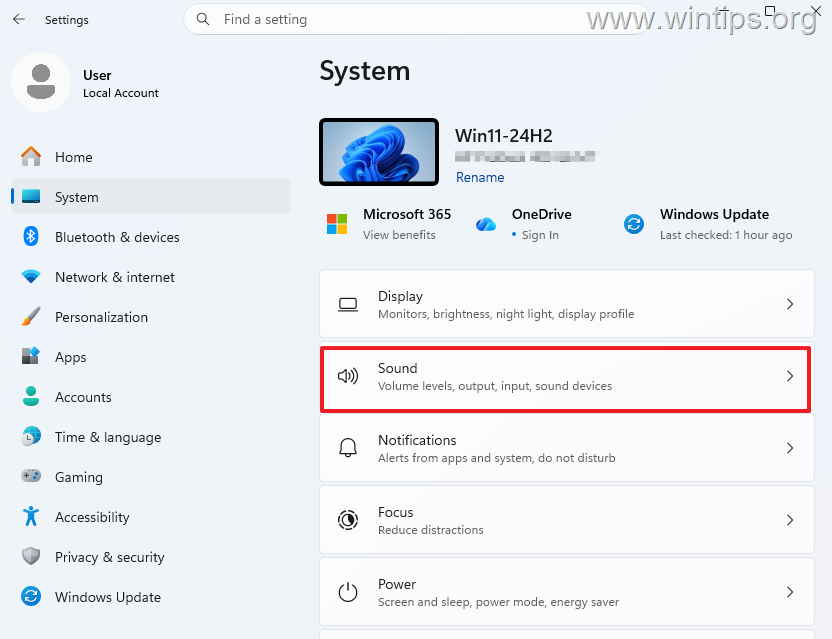
2. Under Output, select another available audio device.
3. Play sound to verify that the alternate output works.
Method 4. Temporarily Uninstall KB5124008
If the affected USB audio device is essential and none of the above workarounds help, you can temporarily uninstall KB5124008. Some affected users have reported that removing the update restores USB audio functionality. However, this should be used only as a temporary last-resort workaround.
Warning: KB5124008 is a security update. Uninstalling it removes the security fixes included with the update and reduces the computer's protection. Use this workaround only if the USB audio problem is severe and Microsoft's 2-channel workaround is unavailable or doesn't work. Reinstall the latest Windows update as soon as Microsoft releases a permanent fix.
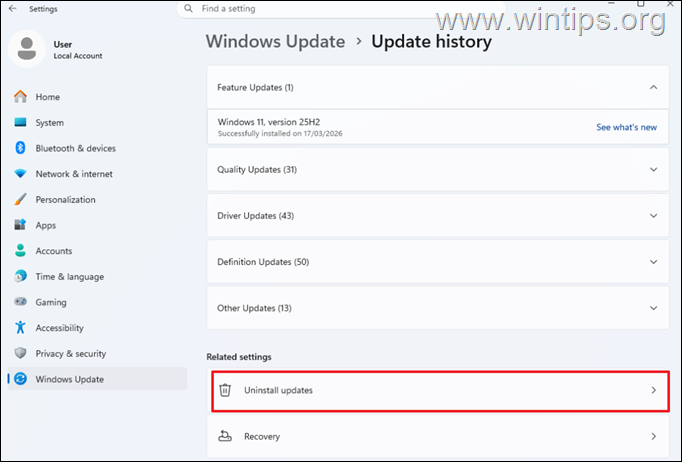
1. Navigate to Settings > Windows Update, and click Update history.
2. Scroll down to Related Settings, and select Uninstall updates.
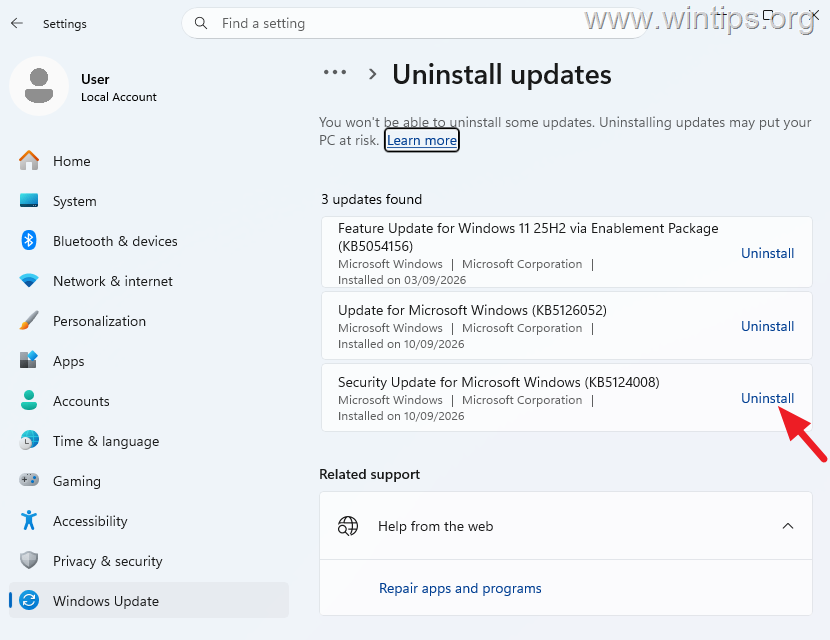
3. Locate KB5124008 and click Uninstall. Then click Uninstall again to confirm the removal.
4. Restart your computer when prompted.
5. After Windows starts again, check whether the audio problem persists.
Should You Reinstall or Roll Back the Audio Driver?
If the USB audio device worked normally before KB5124008 and stopped working immediately after installing the update, reinstalling or rolling back the audio driver is not currently a confirmed solution for this problem.
Summary
If a USB audio device stopped working or displays Code 10 after installing KB5124008, first verify that the update is installed and that your symptoms match Microsoft's confirmed USB Audio Class 1.0 issue.
Check for a newer Windows update first. If a permanent fix isn't yet available, switch the affected device to 2-channel/stereo mode, which is Microsoft's current workaround. You can also temporarily use another audio output.
If none of these options work and the affected USB audio device is essential, you can temporarily uninstall KB5124008 as a last resort, but remember that doing so removes security fixes included with the update.
That's it! Which method worked for you?
Let me know if this guide has helped you by leaving your comment about your experience. Please like and share this guide to help others.
Frequently Asked Questions
What should I do if my USB audio device stopped working after the Windows 11 update KB5124008?
First, verify if the update KB5124008 is installed by going to Settings > Windows Update, and checking the Update history. If installed, follow troubleshooting steps like checking Device Manager for a Code 10 error, updating Windows, or switching your audio device to 2-channel stereo mode.
How can I check if the KB5124008 update is affecting my USB audio device?
To determine if the KB5124008 update is causing issues, navigate to Device Manager and look for your USB audio device. Double-click it and check the Device status under the General tab for the error message: 'This device cannot start (Code 10).' If this matches and your device was functional before the update, your device is likely affected.
Is there a workaround if my USB audio device is not working due to update KB5124008?
Yes, you can try switching the USB audio device to 2-channel or stereo mode. This can be done through Windows audio settings, the manufacturer's software, or hardware controls if available. Check for sound output after making the change.
What if updating Windows doesn't fix the USB audio problem after KB5124008?
If a newer Windows update doesn't resolve the issue, try configuring the affected USB audio device to use 2-channel/stereo audio instead of multichannel or 3D audio. If your device allows this setting, it may temporarily restore functionality.
Still having trouble fixing this issue?
💬 Get WinTips Remote Support →

- How to Fix SecurityHealthSystray.exe – Bad Image Error (0xc000012f) on Windows 11. - October 26, 2026
- FIX: Windows Hello for Business PIN error 'Your credentials could not be verified' with 'status: 0xc000005e substatus: 0x0' or 'status: 0xc0000bb, substatus: 0x0'. - October 20, 2026
- FIX: This Device Is Already Set Up in Another Organization in Company Portal or During Intune Enrollment - October 13, 2026