
FIX: Outlook or Word closes or crashes when typing. (Solved)
Many users has experienced the following problem after updating Microsoft Office to Version 2407 Build 17830.20138 or higher: Outlook, Word, Excel or OneNote suddenly crashes, freezing and closes unexpectedly when typing. More specifically Outlook closes when trying to compose a new email, and Word, Excel or OneNote crashers while trying to edit a document, typing or spell-checking.
After addressing and resolving this issue on many customer computers, we found that the issue usually occurs on computers that have an older version of a language pack installed than the current version of Microsoft Office.

How to FIX: Word, Outlook and OneNote unexpectedly closes after opening or when typing/spell checking.
Method 1. Uninstall Old Language Pack(s) versions.
The first and most working method to fix the unexpected close in Outlook and Word programs is to uninstall all the Language Pack versions that are older than the installed version of Microsoft Office. So…
1. Go to Programs and features in Control Panel. To do that:
a. Simultaneously press the Windows  + R keys to open Run command box.
b. In run command box, type: appwiz.cpl and press Enter.

2. In Programs and features, uninstall all language packs versions that are older than the installed version of Office. For example if your own Microsoft Office 365 and there is also installed a Language Pack for Office 2016, then proceed and remove it.
3. After removing the language pack, navigate to Language Accessory Pack download page, select your Office version and then select which language pack you need to install (e.g. "German"). Then, according to the installed version of Office (32 or 64-bit) download the corresponding language package and then install it.

Method 2. Repair Microsoft Office.
The next method to resolve the mentioned issue, is to repair the Office installation by following the steps below:
1. Simultaneously press the Windows + R keys to open run command box.
2. In run command box, type: appwiz.cpl and press Enter.
3. In Programs and features, select the Office version you have installed, and click Change.
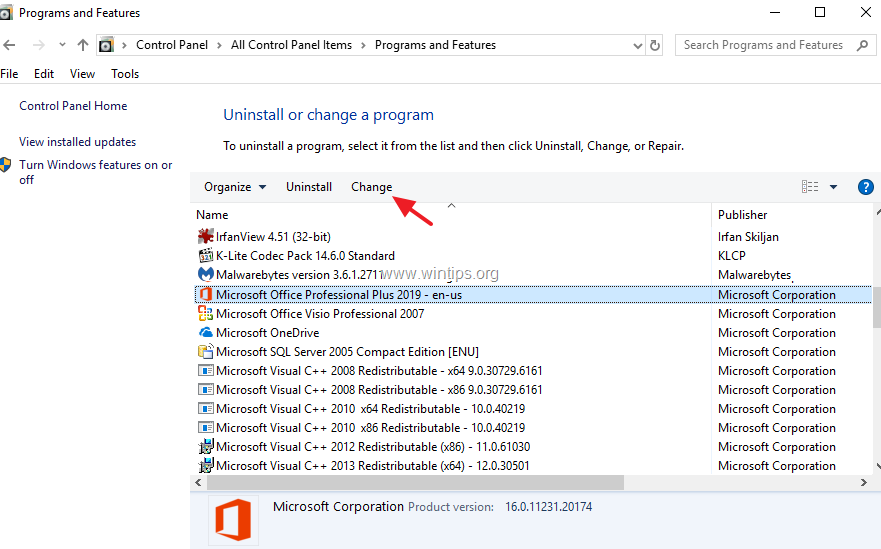
4. Leave the Quick Repair option selected and click Repair.
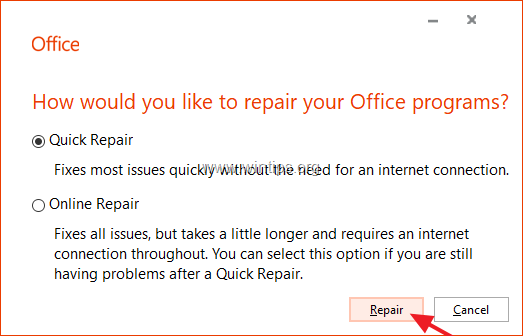
5. When the Office repair process is completed, launch any Office application and see if the problem persists. If so, then follow the same steps but this time select the Online Repair option. *
* Note: The "Online Repair" process, will remove and then will reinstall all the Office applications on your PC.

Method 3. Completely Uninstall & Re-Install Microsoft Office.
The final method to solve the mentioned problem is to uninstall and reinstall MS Office.
1. Close all Office programs.
2. Download Microsoft's Office Uninstall support tool utility (Source).
3. Double-click to run the downloaded SetupProd_OffScrub.exe file and then click Install.

4. Choose I Agree at License Agreement and then let the Troubleshooter to find the installed MS Office products.
5. At Uninstall Office Products, select to uninstall all Office products and click Next.

6. When the Office uninstallation is complete, restart your computer.
7. Finally, proceed to install Microsoft Office again. *
* Notes:
1. To install Office 2019, 2016 or Office 2013, follow these instructions: Download and install or reinstall Office 2019, Office 2016, or Office 2013
2. To install Office 365 or Office 2019, follow these instructions: Download and install or reinstall Microsoft 365 or Office 2021 on a PC or Mac.
That's it! Which method worked for you?
Let me know if this guide has helped you by leaving your comment about your experience. Please like and share this guide to help others.
Frequently Asked Questions
Why does my Microsoft Office application crash unexpectedly after a recent update?
Crashes in Outlook, Word, Excel, or OneNote after updating to Version 2407 Build 17830.20138 or higher often occur due to having an older version of a language pack installed compared to the current version of Microsoft Office.
How can I fix the issue of Office applications crashing unexpectedly when typing or spell-checking?
One effective fix is to uninstall any language packs that are older than your current Microsoft Office version. You can do this through the Control Panel by going to 'Programs and Features' and removing the outdated language packs. Then, download and install the correct language pack for your Office version from the Language Accessory Pack page.
What should I do if uninstalling old language packs doesn't resolve the issue?
If the issue persists, try repairing the Microsoft Office installation. Go to 'Programs and Features' in the Control Panel, select your Office version, click 'Change,' and opt for 'Quick Repair.' If needed, perform an 'Online Repair,' which reinstalls Office applications.
What is the last resort if other methods fail to fix the crashing issue?
If previous methods don't work, completely uninstall Microsoft Office using the Office Uninstall support tool, restart your computer, and reinstall Office. This ensures a clean installation without remnants of previous issues.


- Always On VPN Stuck on Connecting After KB5124008 Update: How to Fix - September 24, 2026
- How to Disable Passkey Prompts and Delay Enforcement in Microsoft 365 - September 24, 2026
- Remote Desktop (RDP/RDS) Stops Working After September 2026 Windows Update: How to Fix - September 15, 2026



