How to Enroll an Entra Registered Device in Intune MDM
If you have a Microsoft Entra registered Windows device that isn't enrolled in Microsoft Intune, and you want to convert it to Microsoft Entra joined and Intune managed, continue reading below.
A device can become Microsoft Entra registered when a user adds a work or school account to Windows or signs in to Microsoft services using their organizational account. If automatic MDM enrollment wasn't enabled for the user at the time the device was registered, the device may remain registered in Microsoft Entra ID without being enrolled in Microsoft Intune.
This configuration is commonly used with BYOD (Bring Your Own Device) devices. However, for a corporate-owned Windows device that you want to manage through Intune, you may want to change its state from Microsoft Entra registered to Microsoft Entra joined and enroll it in Intune MDM.
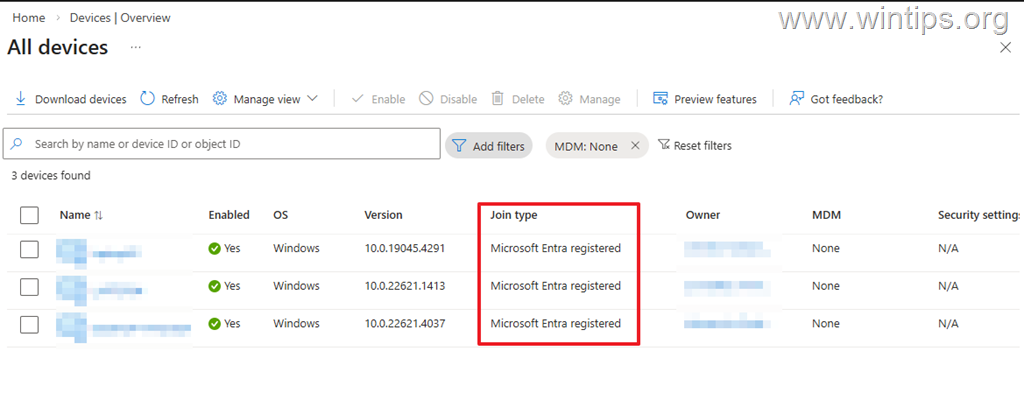
This guide explains how to enable automatic MDM enrollment, remove the device's existing Microsoft Entra registration, join the device to Microsoft Entra ID, and verify that it is successfully managed by Microsoft Intune.
How to Convert a Microsoft Entra Registered Device to Entra Joined and Intune Managed
Requirements:
- A Microsoft Intune license and Microsoft Entra ID P1 or P2, or a Microsoft 365 subscription that includes these services, such as Microsoft 365 Business Premium.
- Appropriate Microsoft Entra and Intune administrator permissions.
Step 1. Enable Windows Automatic Enrollment in Microsoft Intune.
To be able to enroll devices in Intune, you must enable Automatic Enrollment in Intune for all or for selected users.
1. Navigate to Intune Admin Center > Devices > Enrollment > Windows and open Automatic Enrollment.
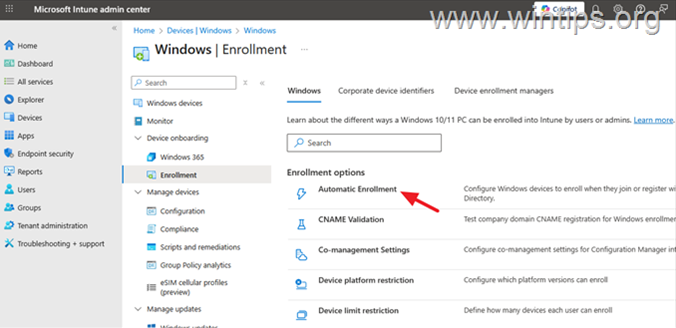
2. Here make the following changes to enable the Automatic MDM enrollment and click Save:
- Set the MDM user scope to All to allow all users to enroll a device in Intune or to Some and select the group of users that are allowed to enroll a device.
- Set the Windows Information Protection (WIP) user scope to None.
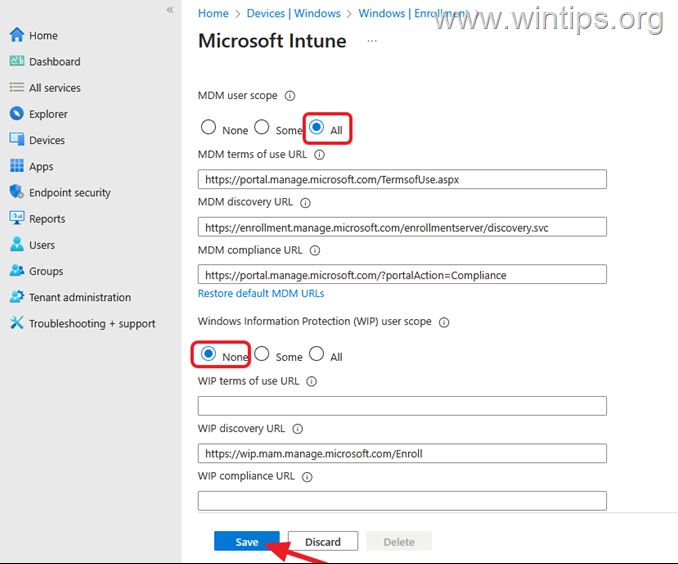
3. After making the above changes proceed to delete the current registration of the device in Entra ID, using one of the methods in step-2 below.
Step 2. Unregister the device from Microsoft Entra ID.
To change an existing Microsoft Entra registered device to Microsoft Entra joined and Intune managed, first remove its current Microsoft Entra registration. To do this, use one of the methods below.
- Method 1: Unregister Device from Entra by removing MS Account in Settings.
- Method 2: Reset the Entra Device Registration with DSREGCMD /FORCERECOVERY
- Method 3: Unregister Device from Entra with "DSREGCMD /LEAVE"
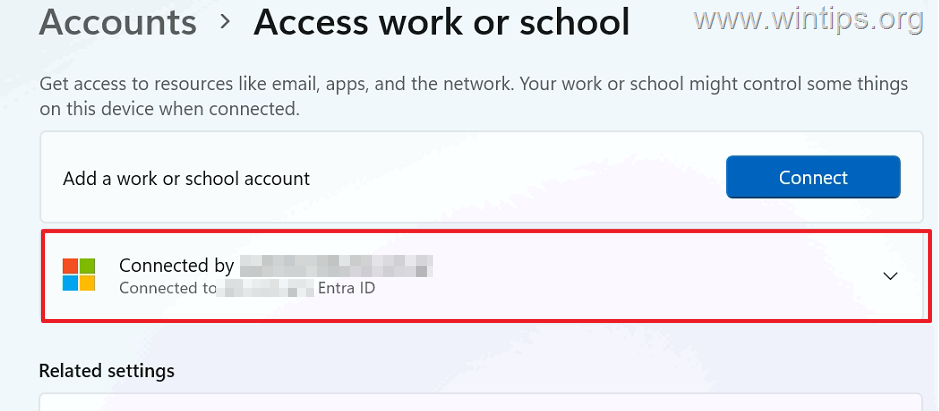
Method 1. Unregister Device from Microsoft Entra ID by Disconnecting Account from Windows.
The recommended way to remove the existing Microsoft Entra registration is to disconnect the work or school account from Windows Settings.
1. Go to Start > Settings > Accounts > Access work or school.
2. Next to the connected work or school account, select Disconnect.
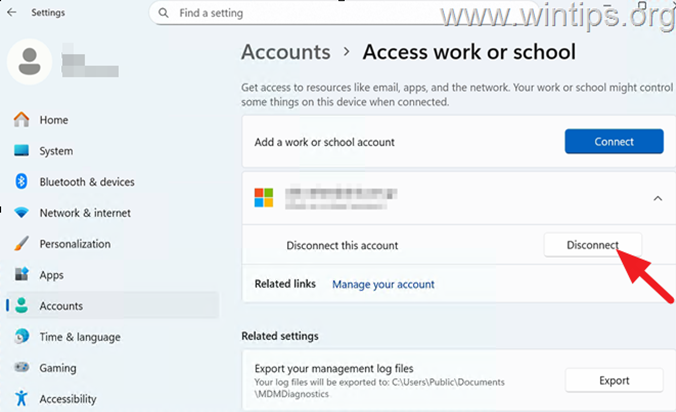
3. Select Yes when prompted to remove the account.
4. Ensure that the account is disconnected/removed* and then restart the computer.
* Note: Sometimes, the first time you disconnect an account, the account isn't disconnected or removed and still shows as "Connected". If this happens, tap the Disconnect button again (and select Yes). Then, when the connected account disappears, restart your computer.
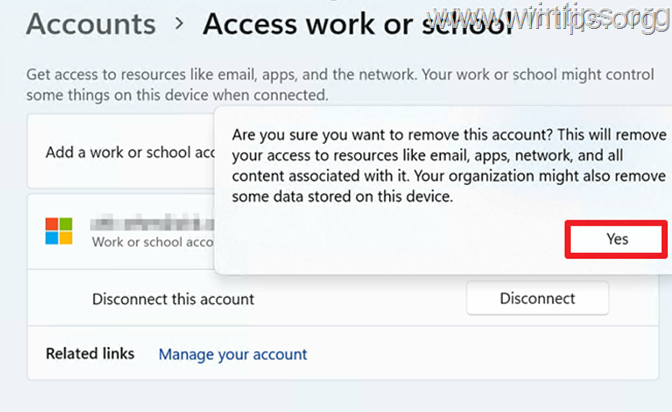
5. Continue to step-3.
Method 2. Reset the Entra Device Registration using DSREGCMD /FORCERECOVERY. *
* Note: In several cases, I was able to easily unregister and re-register a device in Entra using the "dsregcmd /forcerecovery" command as instructed below and I found this method easier because it didn't even require rebooting the device. If trying this method doesn't work for you, move on to the next methods.
1. Open Command Prompt as Administrator & run the following command to reset the device’s Entra ID (Azure AD) registration:
dsregcmd /forcerecovery
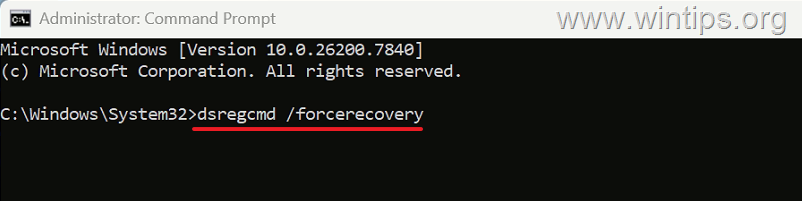
2. Now, if a window opens requiring you to sign in to your Microsoft account, select "Not now".
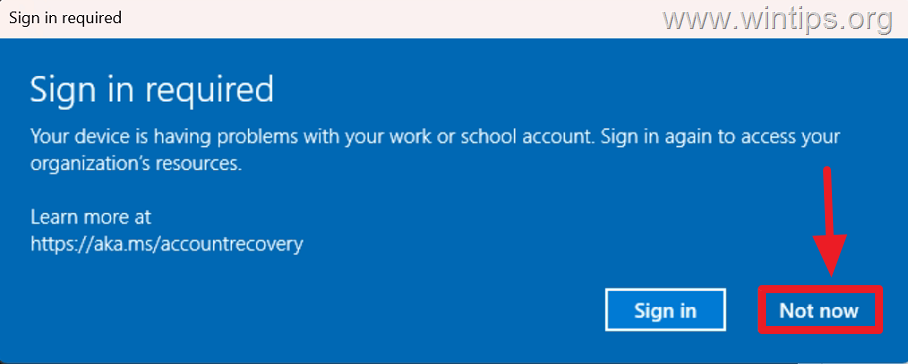
3. Continue to step-3 below.
Method 3. Unregister Device from Microsoft Entra ID using the "DSREGCMD /LEAVE" command.
If the previous methods don't remove the existing Entra registration correctly, you can also try the dsregcmd /leave command.
1. Open Command Prompt as Administrator & run the following command to unregister the device from Entra ID (Azure AD):
dsregcmd /leave
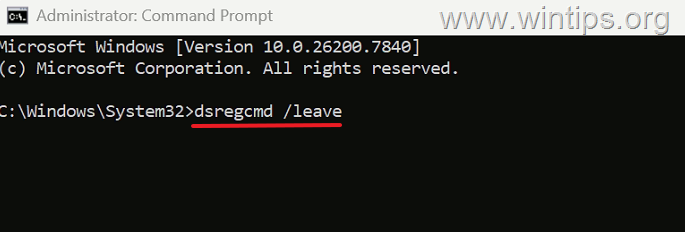
2. Restart the computer and continue to the next step.
Step 3. Enroll the Device in Entra ID & Intune MDM.
After removing or resetting the device's existing Entra registration using one of the methods above, proceed to add the work or school account again and join the device to Microsoft Entra ID.
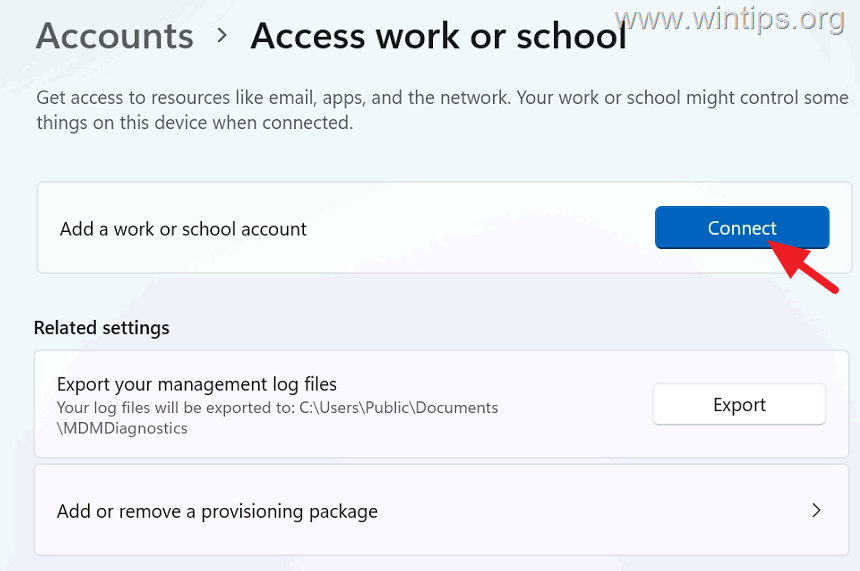
1. Go to Start > Settings > Accounts > Access work or school
2. Click Connect to add your work or school account. *
* Note: Normally, the previously connected account will no longer appear here. If it is still there, click the Disconnect button again, and once the connected account disappears, restart your computer.
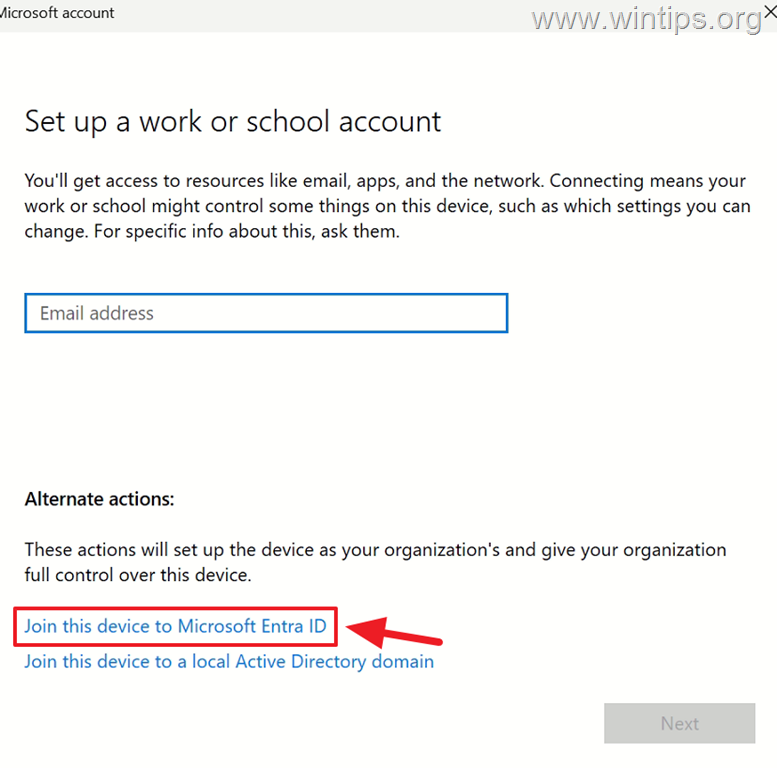
3. On the Set up a work or school account window, click Join this device to Microsoft Entra ID.
4. Enter your work or school account credentials and click Next.
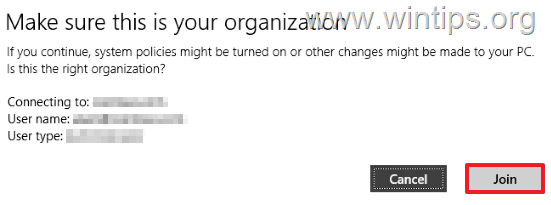
5. Next, you'll be asked to Make sure this is your organization. Click Join to continue.
6. Finally, On the You're all set screen, click Done.
Step 4. Check Device Join Status in Microsoft Entra ID.
To verify that the device is successfully Microsoft Entra joined:
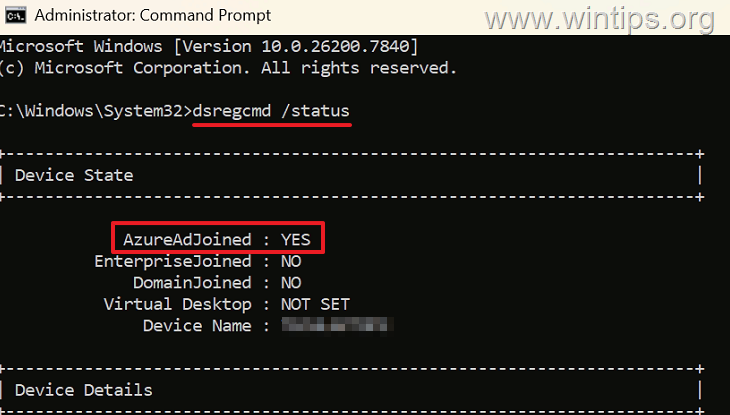
1. Open Command Prompt as Administrator and run the following command:
dsregcmd /status
2. Verify that AzureAdJoined is YES. If so, the device is successfully Microsoft Entra joined.
Step 5. Verify the Device is Enrolled in Microsoft Intune
Finally, verify that the device has been successfully enrolled in Microsoft Intune.
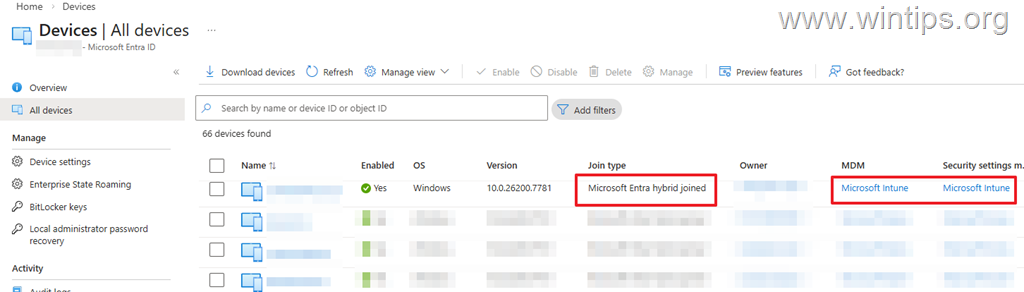
1. Sign in to the Microsoft Intune admin center and navigate to: Devices > All devices
2. Locate the device and verify that it appears as managed by Microsoft Intune.
Note: The device should now appear in Microsoft Entra ID as Microsoft Entra joined instead of Microsoft Entra registered, and it should be managed through Microsoft Intune.
Summary:
To convert an existing Microsoft Entra registered Windows device to Microsoft Entra joined and Intune managed, first make sure that automatic MDM enrollment is enabled for the user. Then remove the device's existing Entra registration and join the device to Microsoft Entra ID again.
After the device is joined, verify that AzureAdJoined is set to YES and confirm that the device appears in the Microsoft Intune admin center as a managed device.
That's it! Which method worked for you to un-register the device from Entra?
Let me know if this guide has helped you by leaving your comment about your experience. Please like and share this guide to help others.
Frequently Asked Questions
What is a Microsoft Entra registered device?
A Microsoft Entra registered device is a device where a user has added a work or school account to Windows or signed in to Microsoft services using their organizational account. It enables access to work resources but may not be managed under Intune unless further action is taken.
How can I convert a Microsoft Entra registered device to Microsoft Entra joined and Intune managed?
To convert the device, you must enable automatic MDM enrollment in Microsoft Intune, unregister the device from its current Microsoft Entra ID registration, join it anew to Microsoft Entra ID, and verify its management under Intune.
What are the prerequisites for managing a device through Microsoft Intune?
You must have a Microsoft Intune license with Microsoft Entra ID P1 or P2, or a Microsoft 365 subscription that includes these services, such as Microsoft 365 Business Premium. Additionally, appropriate admin permissions in Microsoft Entra and Intune are required.
How do I enable Windows automatic enrollment in Microsoft Intune?
To enable automatic enrollment, go to Intune Admin Center > Devices > Enrollment > Windows. Open Automatic Enrollment settings, set the MDM user scope to 'All' or 'Some' as needed, set WIP user scope to 'None', and save the changes.


- How to Enroll an Entra Registered Device in Intune MDM - October 1, 2026
- File History Not Working in Windows 11: How to Fix - September 29, 2026
- Always On VPN Stuck on Connecting After KB5124008 Update: How to Fix - September 24, 2026