
How to Upgrade to Windows 10 LTSC without losing data.
As support for standard editions of Windows 10 approaches its end on October 14, 2025, many users are wondering if there's an easy way to stay on Windows 10 without compromising the security of their device. The short answer is: Yes, there is, and it simply involves a registry edit and an in-place upgrade to Windows 10 LTSC 2021 which is supported until 2027 or to Windows 10 IoT LTSC 2021 which is supported until 2032.
What is Windows 10 LTSC?
Windows 10 LTSC (aka "Windows 10 Enterprise LTSC" is a specialized version of Windows 10 used primarily in corporate devices, medical systems, kiosks, ATMs, and industrial computers, which prioritizes stability over frequent updates.
Unlike regular Windows 10 which receives security and feature updates, Windows 10 LTSC only receives security updates (and not new features) and also lacks the bloatware that regular Windows 10 has, such as the Microsoft Store, Edge, and the rest of the modern apps that are updated through the Microsoft Store (Xbox, OneDrive, Camera, Music, Photos etc.). Additionally, the Windows 10 LTSC version does not support the Microsoft 365 Apps (Office).
Windows 10 LTSC comes in two versions:
- Windows 10 Enterprise LTSC, which is designed primarily for corporate desktops and laptops and its latest build (21H2) is supported until Jan 12, 2027
- Windows 10 IoT Enterprise LTSC, which is designed primarily for embedded/dedicated devices (ATMs, kiosks, medical, industrial computers) and its latest version (21H2) is supported until Jan 13, 2032.
How to obtain and install Windows 10 LTSC?
As mentioned above, Windows 10 LTSC is primarily used on enterprise devices, and the official way to install it is by visiting Microsoft's Windows 10 Enterprise evaluation page, * then signing up to download a free trial version of the Windows 10 LTSC Enterprise 2021 in a ISO file to perform a clean installation.
* Note: If you want to download the Windows 10 LTSC 2021 ISO file without registering, click on the below link:
After the 90-day evaluation period, you need to purchase a key to activate Windows 10 LTSC, through Microsoft's Volume Licensing Center, which is only available to corporate users.
However, if you are an individual user, you can upgrade to Windows 10 LTSC without losing your files, apps, and settings using the unofficial method described below, and then to purchase a product key to activate Windows 10 LTSC.
How to convert Windows 10 to Windows 10 LTSC without losing apps and data and stay up to date after Windows 10 support ends on October 14, 2025.*
* Important notes: Before you upgrade your computer to Windows 10 LTSC, consider the following:
- Follow this guide at your own risk, as Microsoft officially does not allow upgrading to Windows 10 LTSC, only a fresh install. So, its recommended to create a full backup of your files before the upgrade.
- You need to purchase a valid LTSC product key to activate Windows 10 LTSC after the upgrade.
Requirements:
- Windows 10 LTSC 2021 in ISO file.
- 20GB or more of free disk space.
- A Windows 10 LTSC product key to activate Windows after the upgrade.
Step 1. Download Windows 10 LTSC 2021 or Windows 10 IoT LTSC 2021 in ISO file.
As Microsoft has removed the direct links to download an LTSC Edition of Windows 10, navigate to archive.org Windows 10 Enterprise LTSC 2021 download page* and click ISO IMAGE to download the Windows 10 Enterprise LTSC 2021 in ISO file.
* Note: If you wan to upgrade to Windows 10 IoT Enterprise LTSC 2021 edition, then navigate to archive.org Windows 10 IoT Enterprise LTSC 2021 download page.

Step 2. Modify Registry to allow the Upgrade of Windows 10 to Windows 10 LTSC 2021 (21H2).
The important step in this process is to modify the registry according to the instructions below in order to upgrade to Windows 10 LTSC while keeping your files and applications, because by default Microsoft does not allow upgrading to an LTSC edition but only a fresh installation.
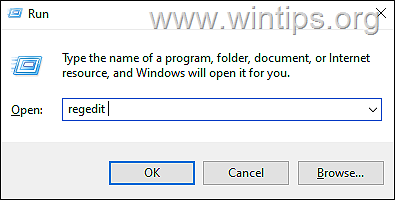
1a. Press Windows  + R keys to load the Run dialog box.
1b.Type regedit and hit Enter to open the Registry Editor. (Click Yes in the Confirmation Prompt that appears).
2. In registry navigate to this location:
- HKEY_LOCAL_MACHINE\SOFTWARE\Microsoft\Windows NT\CurrentVersion
3. Now open the following registry values one by one, modify the value data to the value listed next to each of them, and click OK (see the notice below if you're installing the Windows 10 IoT Enterprise LTSC 2021 Edition.)
-
- CompositionEditionID EnterpriseS
- CurrentBuild 19044
- CurrentBuildNumber 19044
- DisplayVersion 21H2
- EditionID EnterpriseS
- ProductName Windows 10 Enterprise LTSC
- ReleaseId 21H2
* Notice: If you're installing the IoT LTSC edition of Windows 10, change the EditionID to "IoTEnterpriseS" and the ProductName to "Windows 10 IoT Enterprise LTSC".

4. When done, close the Registry Editor and proceed to next step.
Step 3. Upgrade Windows 10 to Windows 10 LTSC using the ISO file.
1. Double-click on Windows 10 LTSC ISO file you downloaded and then double-click at setup.exe.

2. On the 'Install Windows 10' screen click Next.

3. Accept the License Terms.

4. Finally on the next screen make sure that the option "Keep personal files and apps"* is checked and click Continue, to install Windows 10 Enterprise LTSC while keeping files and apps.
* Important: If the "Keep personal files and apps" option is not selected, close this window to cancel the upgrade, otherwise you will lose your personal data and apps!

5. Now wait until Windows 10 LTSC is installed (your computer will restart several times during the process).
6. When the installation is complete, your device will now be running Windows 10 LTSC Enterprise, with all your apps, settings, and data intact!

That's it! Let me know if this guide has helped you by leaving your comment about your experience. Please like and share this guide to help others.
Frequently Asked Questions
Is there a way to continue using Windows 10 securely after support ends in 2025?
Yes, you can transition to Windows 10 LTSC 2021, which is supported until 2027, or to Windows 10 IoT LTSC 2021, which is supported until 2032. This involves a registry edit and an in-place upgrade.
What is Windows 10 LTSC and how does it differ from regular Windows 10?
Windows 10 LTSC is a specialized version prioritizing stability and long-term support over frequent updates. It receives only security updates and lacks the bloatware and modern apps included in regular Windows 10. It is primarily for corporate and industrial use.
How can I obtain and install Windows 10 LTSC 2021?
Windows 10 LTSC is typically for enterprise use, available through Microsoft's Volume Licensing Center. Individuals can download a free trial from Microsoft's Windows 10 Enterprise evaluation page and need to purchase a key for activation after installation.
Is it possible to upgrade to Windows 10 LTSC without losing data?
Yes, you can upgrade to Windows 10 LTSC without losing files, apps, and settings via an unofficial method. However, it's recommended to back up files prior, as Microsoft only supports fresh installations officially.


- Always On VPN Stuck on Connecting After KB5124008 Update: How to Fix - September 24, 2026
- How to Disable Passkey Prompts and Delay Enforcement in Microsoft 365 - September 24, 2026
- Remote Desktop (RDP/RDS) Stops Working After September 2026 Windows Update: How to Fix - September 15, 2026




October 20, 2025 @ 4:19 pm
I bought the iso and product key, yet when I start the installation, the option to "keep apps and settings" is not available. Is there a go-around for this?
October 22, 2025 @ 9:04 am
Yes, download the ISO from the given link and try again.
October 19, 2025 @ 5:23 pm
pour installer la version iot je ne pense pas que les changements de registres soient exactement les mêmes. Pourriez vous nous indiquer quelles sont les changements à faire pour la version windows 10 iot ltsc 2021? d'avance merci.jm gault
October 20, 2025 @ 9:10 am
In this case, change the EditionID to "IoTEnterpriseS" and the ProductName to "Windows 10 IoT Enterprise LTSC"
(The article has also been updated, thanks)