
How to restore the classic “Start Menu” in Windows 8, using "Classic Shell"
Windows 8 by default, comes with new Modern UI (Metro) environment. The new interface doesn't include the traditional “Start menu” anymore. This is because Microsoft focuses more on the content of applications and less on graphics with Windows 8. The new design improves the user experience in a touch-friendly screen interface, like on mobile devices, tablets and smartphones.
For veteran Windows users, the new interface is a big change in our lives, because once more, we have to learn how the new interface works. Thankfully, it is not difficult to bring back the old interface with the classic Start Menu, by using an open source program called "Classic Shell".
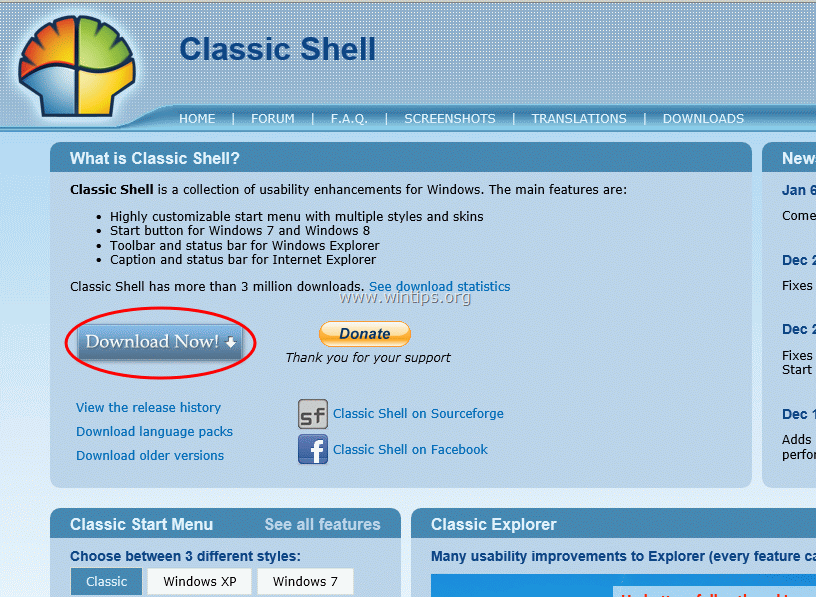
Step 1. Download "Classic Shell"
Download open source "Classic Shell" application from here.
Step 2. Installation
How to install "Classic shell".
1. Choose “Run” at next screen:

2. Press “Next” at welcome screen.
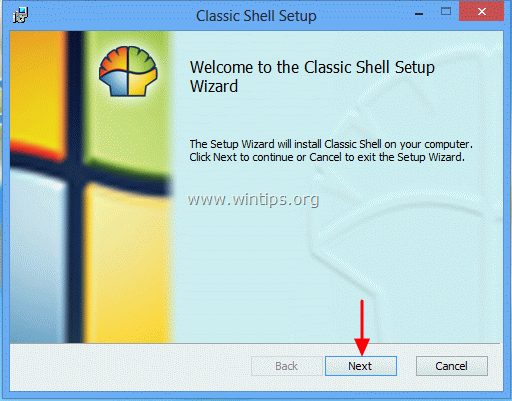
3.Accept the License Agreement and press “Next”.

4. Leave the default setup features to be installed and press “Next”.

5. Click “Install” to start the installation.

6. At User Account Control security warning, choose “Yes”.

7. When the installation ends, click “Finish”.

After installation, a new Start button will appear on your screen’s left down corner.

Press the “Start menu” button to view your familiar menu interface.

Step 3. Customize "Classic Shell".
How to customize Windows 8 using Classic Shell.
1. To start customizing your Start menu, go to “Start > Settings > Classic Start Menu”.
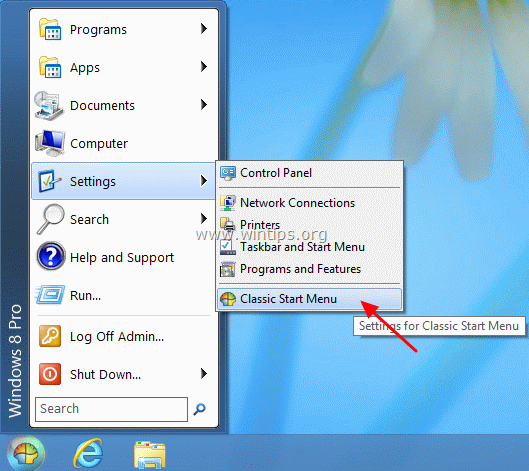
2. At the first screen of Classic Start Menu settings, choose the “Start menu” style you want and then choose “All Settings”.

3. To prevent Modern UI (Metro) environment to appear on Windows Startup, press the “Windows 8 Settings” tab and check if “Skip Metro screen” option is enabled.
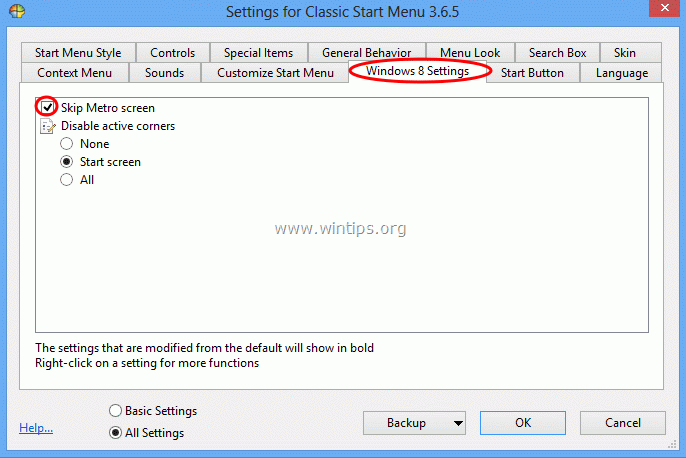
4. If you want full Windows 7 functionality, you must disable all active corners.
Check the “All” option under “Disable active corners” settings and press “OK” *
Notice*: If you would like, you can experience all other settings of "Classic Shell" application.
 .
.
From now on, you can work and customize your computer as in Windows 7.


- Always On VPN Stuck on Connecting After KB5124008 Update: How to Fix - September 24, 2026
- How to Disable Passkey Prompts and Delay Enforcement in Microsoft 365 - September 24, 2026
- Remote Desktop (RDP/RDS) Stops Working After September 2026 Windows Update: How to Fix - September 15, 2026



