How to boot (sign-in) Windows 8.1 directly to desktop
In Windows 8 OS, there isn’t option to boot to Desktop mode without using a third party software like Classic Shell or Start8. But in Windows 8.1, Microsoft gives the option to boot in Desktop mode without using any other software. So if you are a Windows 8.1 owner (Windows 8 users can update to Windows 8.1 for free) then you can read this tutorial on how to boot directly to desktop using the steps bellow.
How to boot directly in Windows 8.1 Desktop Mode
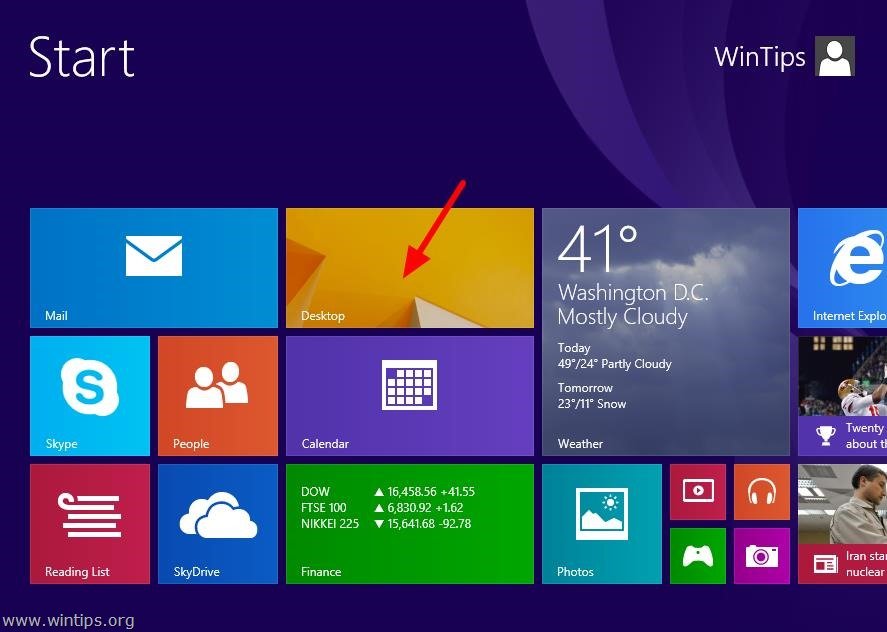
Step 1: Go to Windows 8.1 Desktop.
1. After booting Windows 8.1, press the “Desktop” icon to go in Desktop Mode.
Step 2: Modify Boot Settings.
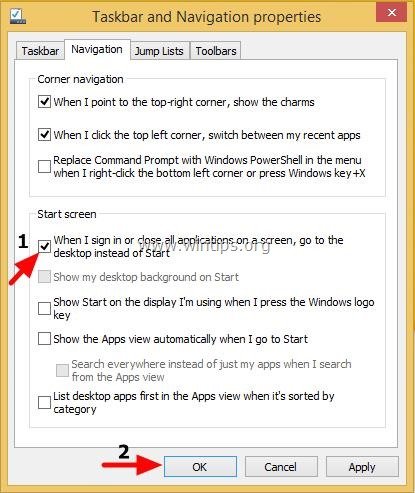
1. Right-click in Windows 8.1 taskbar and choose “Properties”.

2. Press the “Navigation” tab.

3. In “Start screen” section:
- Check the checkbox at the next of the “When I sign in or close all apps on a screen, go to the desktop instead of Start”.
- Press “OK” when finish.
You ‘re done! From now on, when your computer starts you will be able to go directly to your desktop.
Still having trouble fixing this issue?
💬 Get WinTips Remote Support →

- How to Fix SecurityHealthSystray.exe – Bad Image Error (0xc000012f) on Windows 11. - October 26, 2026
- FIX: Windows Hello for Business PIN error 'Your credentials could not be verified' with 'status: 0xc000005e substatus: 0x0' or 'status: 0xc0000bb, substatus: 0x0'. - October 20, 2026
- FIX: This Device Is Already Set Up in Another Organization in Company Portal or During Intune Enrollment - October 13, 2026