
(Solved) – Cannot create or save music playlist in Windows 8 (8.1) Media Player.
In Windows 8 based computers, the following error may appear when the user tries to create a playlist "Windows Media Player encountered a problem while creating or saving the playlist. Error: 0xc00d11cd (0x80004005)". The above error occurs in Windows Media Player application and even in Music / Xbox Music app (Start Screen). I have also noticed that Windows Libraries subfolders (Documents, Music, Photos & Videos) cannot be opened (accessed) in Windows Explorer (“My Computer” > “Libraries” > (e.g.) “Music”.).
After doing some research, I found that this error happens because Windows Libraries settings are corrupted. If you face a similar error, then follow the procedure below to resolve it.
This tutorial fixes the following issues:
- Cannot create (save) playlists in Windows 8 (8.1) Media Player.
- Cannot create (save) playlists in Windows 8 (8.1) “Music / Xbox Music” app.
- Cannot play play songs from playlists in Windows 8 “Music” app.

How to fix 0xc00d11cd (0x80004005) error when creating or saving music playlists in Windows 8 Media or Xbox Music player.
Step 1. Fix corrupted Windows Libraries.
1. Open Windows Explorer.
2. Expand “Libraries” * on the left (click the arrow icon).
* Note: If you cannot view “Libraries” on the sidebar, then:
- Click the “View” menu tab on the top.
- Click "Options" to open "Folder Options" .
- At the "General" tab, check the "Show Libraries" checkbox (at the bottom) and then click OK.

3. Right-click on the problematic (corrupted) “Libraries” sub-folder* (e.g. “ Music”) and select “Delete”.
*Note: Perform the same operation for every corrupted “Library” folder in the list.
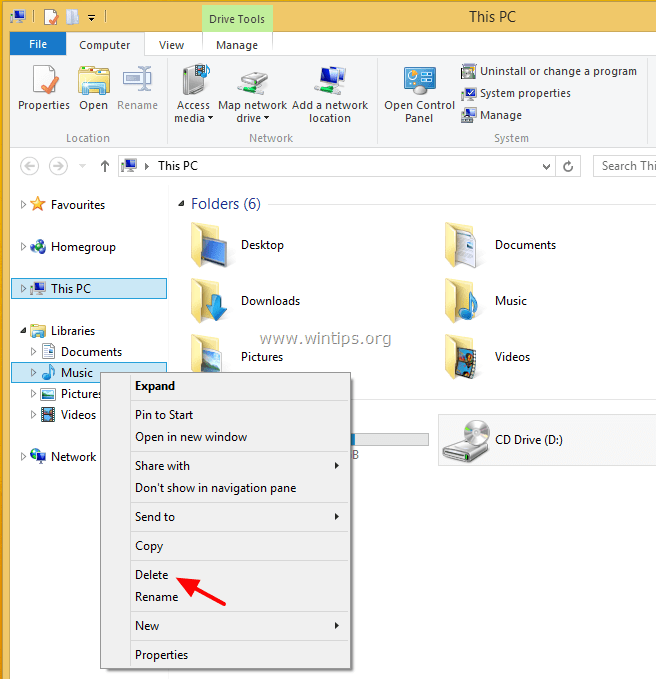
4. Finally right-click on “Libraries” and choose “Restore default libraries”. *
* Windows should re-create the “Library” folder that you deleted before (e.g. “Music” in this example) with the default settings.

You ‘re done! From now on you will be able to create playlist in Windows Media player and to expand all libraries folders without problems.



September 4, 2018 @ 5:31 am
WORK LIKE CHARM, thanks dude
June 10, 2017 @ 4:55 pm
..THANKS…been scrolling through Microsoft gibberish "helpful" messages to no avail, glad I came across your site, MICROSOFT you listening I SOLVED my long suffering issue in ONE MINUTE…Thanks again
May 27, 2016 @ 11:44 pm
Perfect fix. THX
April 22, 2016 @ 6:26 pm
thank you very much
February 25, 2016 @ 4:11 pm
Is there also a fix for Windows 7 for this issue?
I have the exact same problem (and error message) on two Windows 7 Ultimate pcs.
Unfortunately this fix did not solve the problem here.
Any help would be greatly appreciated.
February 25, 2016 @ 5:56 pm
@Melanie: This solution is working on Windows 7 too. (as mentioned on the comments)
February 29, 2016 @ 8:54 pm
@lakonst: No it doesn't (as mentioned in my comment).
Tried to 'uninstall' end reinstall wmp but that is not possible, you can only 'disable' and 'enable' it.
Which I think does nothing more than hide and unhide the shortcut.
Was kind of hoping I found the solution at last, so far no luck.
March 1, 2016 @ 12:52 pm
@Melanie: I 'm sorry for that. Try to check the Windows file system for problems:
1. Right-click at Command prompt shortcut (Start > All Programs > Accessories > Command prompt) and select “Run as administrator”.
2. In the command window, type SFC /SCANNOW and hit Enter.
3. Wait and do not use your computer until SFC tool checks and fixes the corrupted system files or services.
February 24, 2016 @ 10:58 pm
Thank you, thank you, thank you! This worked for me with Windows 7 Media Player 12 after spending several hours trying other "solutions" that didn't work. God bless you.
May 28, 2015 @ 7:54 pm
Thanks, dude. I had problem with WMP for a long time and none of solutions worked, since I red this.
April 19, 2015 @ 4:45 am
Thank you so much! Easier than those of microsoft "engineers". Grrr. Thank you a million times! ^_^ I'm so happy!
March 8, 2015 @ 6:00 am
Thanks. Banging my head with Microsoft forum "engineers" for days with no success. I'll be naming my first-born after you.
March 8, 2015 @ 3:09 pm
@neil: Glad to hear that! :)
December 24, 2014 @ 2:06 pm
Done (Y) thanks a lot .